
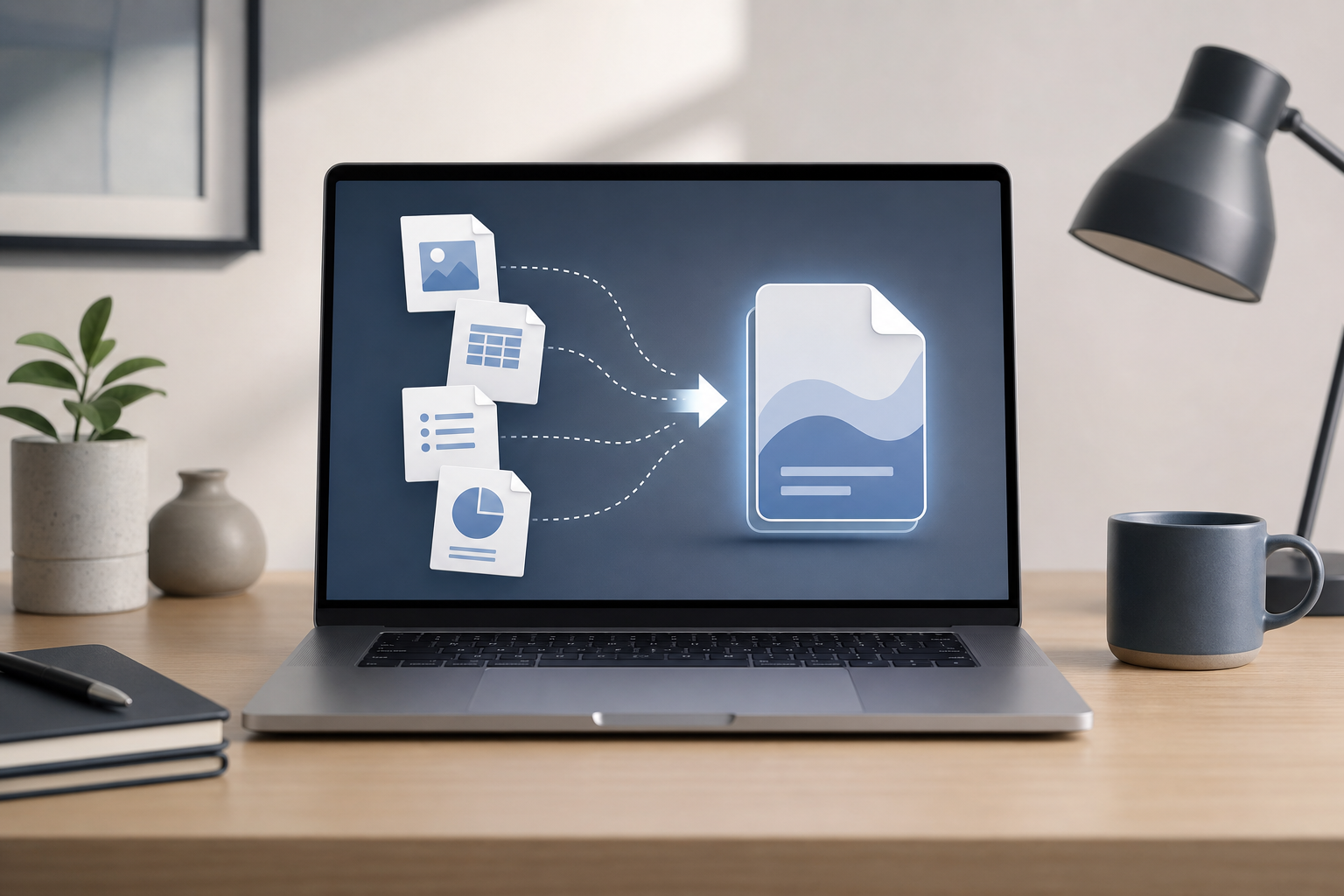
You can combine multiple files into one PDF on a Mac using Preview, Apple’s built-in PDF and image viewer. Preview can merge existing PDF files, combine images into a PDF, add pages from other documents, rearrange pages, and remove pages you do not need.
For files that Preview cannot open directly—such as some word-processing documents, spreadsheets, or web pages—first export or print each file as a PDF. Then combine the PDFs in Preview.
Quick Answer
To combine PDF files on a Mac:
- Open one PDF in Preview.
- Choose View > Thumbnails to show the page sidebar.
- Drag the other PDF files into the sidebar, placing them where you want their pages to appear.
- Rearrange or delete pages as needed.
- Choose File > Export as PDF to save a new combined file.
Use Export as PDF rather than simply choosing Save when you want to preserve the original PDF files and avoid accidentally overwriting one of them.
Before You Combine the Files
Gather the files you want to merge and decide the order in which they should appear. Preview can work with PDFs and many common image formats, including JPEG, PNG, and TIFF files.
If a file is not a PDF or image that Preview can open, convert it first:
- Open the document in its original app.
- Choose File > Print.
- Click the PDF button in the print dialog.
- Choose Save as PDF.
- Give the PDF a clear name and save it in an easy-to-find location.
You can also use an app’s Export command if it offers PDF as an output format.
Important: Before changing a document, confirm that you have saved any edits in its original app. Converting or closing a document with unsaved changes may cause those changes to be lost.
Method 1: Merge PDF Files in Preview
Preview is the simplest way to combine several existing PDF files into one.
Open the first PDF
- In Finder, locate the PDF you want to use as the first file.
- Double-click it to open it in Preview.
- If another app opens the file instead, Control-click the file, choose Open With, and select Preview.
The first PDF you open becomes the starting document. You can add the pages from other PDFs to it.
Show the page thumbnails
- In Preview, choose View > Thumbnails.
- A sidebar containing small page previews appears on the left.
- Click a page in the sidebar to select it.
The thumbnail sidebar is important because it lets you see the document’s page order and provides a target for adding, moving, and deleting pages.
Add another PDF
- Open a second Finder window, or use the existing Finder window to locate another PDF.
- Drag the second PDF into Preview’s thumbnail sidebar.
- Drop it:
– Between two page thumbnails to insert it at that position.
– After the last page to add it to the end.
– On top of a page thumbnail if you want to insert the added file near that page.
When you add a multi-page PDF, Preview inserts all of its pages.
Repeat these steps for every PDF you want to combine.
Tip: If you cannot tell where the file will be inserted, pause while dragging until a line appears between thumbnails. That line indicates the insertion point.
Arrange the Pages
After adding the files, check the page order carefully.
Move individual pages
- In the thumbnail sidebar, click the page you want to move.
- Drag it up or down.
- Release it when the insertion line appears in the desired position.
To select multiple pages, hold the Command key while clicking individual thumbnails. You can then drag the selected pages together.
To select a continuous range, click the first page, hold Shift, and click the last page in the range.
Change the page orientation
If a page is sideways or upside down:
- Select the page thumbnail.
- Choose Tools > Rotate Left or Tools > Rotate Right.
If you select multiple thumbnails first, the rotation command applies to all selected pages.
Rotation changes the page orientation in the combined PDF. It does not edit the original source file that you dragged into the document.
Remove Pages You Do Not Need
You can remove unwanted pages before saving the combined PDF.
- Click the page thumbnail you want to remove.
- Press the Delete key.
To remove several pages at once:
- Hold Command while clicking the pages you want to select.
- Press Delete.
Warning: Deleting a page from the open Preview document removes it from the document you are currently editing. If you have opened the original PDF and then save it, you could overwrite that original. Use File > Export as PDF to create a separate combined file instead.
If you remove a page by mistake, choose Edit > Undo Delete or press Command-Z, provided you have not closed the document or exceeded Preview’s undo history.
Combine Images into One PDF
Preview can turn several image files into a single PDF. This is useful for scanned pages, photographs, receipts, and screenshots.
Convert images into a PDF
- In Finder, select the image files you want to combine.
- Control-click the selection.
- Choose Open With > Preview.
- In Preview, choose View > Thumbnails.
Depending on how the files were opened, Preview may display the images in one window or in separate windows. If they appear separately, use the thumbnail sidebar to add them to one document:
- Choose one image to serve as the starting document.
- Drag the other image files from Finder into its thumbnail sidebar.
- Place them in the desired order.
- Rearrange or delete pages as needed.
When you are finished, choose File > Export as PDF, select a destination, enter a filename, and click Save.
Check image order and orientation
Image filenames do not always appear in the order you expect. Before saving:
- Review every thumbnail.
- Drag pages into the correct sequence.
- Rotate sideways images with Tools > Rotate Left or Tools > Rotate Right.
- Remove duplicate or accidental pages.
If the images have very different dimensions, the resulting PDF may contain pages with different sizes. Preview does not automatically make every image the same size.
Add Pages from Another PDF to an Existing Document
You do not have to combine entire files. Preview also lets you insert selected pages from one PDF into another.
- Open the destination PDF in Preview.
- Choose View > Thumbnails.
- Open the source PDF in a second Preview window.
- Select the page or pages you want in the source document’s thumbnail sidebar.
- Drag the selected thumbnails into the destination document’s sidebar.
- Drop them at the desired location.
This is useful when you need to add only a signature page, a few receipts, or selected sections from a larger document.
To open another copy of Preview’s document window, open the second PDF from Finder. You can switch between windows using Window in the menu bar or the standard macOS window controls.
Save a Copy Without Overwriting the Originals
Saving safely is one of the most important parts of merging PDFs.
Recommended: Export a new PDF
After combining and arranging the pages:
- Choose File > Export as PDF.
- Enter a new filename, such as
Combined-Documents.pdf. - Select a destination folder.
- Click Save.
Use a new filename and, when practical, a different destination folder. This keeps the original files available if you need to start over.
Warning: If you choose File > Save while editing an existing PDF, Preview may save changes to that file. This can change the original document and may make it difficult to recover the previous page order or contents.
If the filename already exists
If macOS asks whether you want to replace an existing file, click Cancel unless you intentionally want to replace it. Choose a different filename instead.
For additional protection, duplicate the original PDFs in Finder before editing:
- Select the original file.
- Choose File > Duplicate.
- Work with the duplicate rather than the original.
Duplicating the source files is optional, but it provides a backup if you accidentally delete pages or save changes to the wrong document.
Combine Files That Are Not PDFs
Preview cannot merge every document format directly. For example, a word-processing document or spreadsheet usually needs to be converted first.
Convert a document with Print
- Open the document in the app that created it.
- Choose File > Print.
- In the print dialog, click PDF.
- Choose Save as PDF.
- Name the file and click Save.
Repeat this for each document. Then use the Preview instructions above to combine the resulting PDFs.
Convert a web page
To include a web page:
- Open the page in your web browser.
- Choose File > Print.
- Click PDF.
- Choose Save as PDF.
- Open the saved PDF in Preview and add it to the combined document.
The printed PDF may not look exactly like the live web page. Navigation elements, interactive controls, videos, and some fonts may not be included.
Troubleshooting
The PDF opens in the wrong app
Control-click the file in Finder, choose Open With, and select Preview. You can also open Preview first and choose File > Open.
The thumbnail sidebar is missing
Choose View > Thumbnails. If you see a different sidebar mode, select Thumbnails from the View menu.
Dragging a PDF does not add its pages
Make sure you are dragging the file into the thumbnail sidebar, not onto the large page-viewing area. Wait until the insertion line appears before releasing the mouse or trackpad.
If the PDF is open in another app or cannot be read, close it and reopen it in Preview. You can also try adding it through Edit > Insert > Page from File, if that command is available in your version of Preview.
Pages appear in the wrong order
Click and drag the thumbnails into the correct sequence. If you selected multiple pages accidentally, click an empty area or select only the page you intend to move.
Some pages are sideways
Select the affected thumbnails and choose Tools > Rotate Left or Tools > Rotate Right. Check the entire document before exporting.
The combined PDF is too large
Large scanned images and high-resolution photographs can create a large PDF. If the file is too large to email or upload, you can try exporting it with a smaller image size through Preview’s export options, if available.
Reducing image quality can make text or photographs less clear. Keep an original high-quality copy before reducing the file size.
Text in the PDF cannot be selected
Some PDFs contain scanned pages saved as images rather than actual text. Combining the pages does not automatically make them searchable or selectable. You would need optical character recognition (OCR), which recognizes text in an image, using an app or service that supports it.
The final PDF looks different from the source files
PDF pages can have different dimensions, margins, fonts, or orientations. Preview combines the pages but does not redesign them into a uniform layout. Review the thumbnails and several pages at full size before sharing the final file.
Frequently Asked Questions
Can I combine PDFs without installing another app?
Yes. Preview can merge PDF files and images without additional software.
Can I combine a PDF and a Word document directly in Preview?
Usually, you should first save or print the Word document as a PDF. Then add that PDF to the other file in Preview.
Can I combine JPG and PNG files into one PDF?
Yes. Open the images in Preview, arrange them in the thumbnail sidebar, and choose File > Export as PDF.
Does combining PDFs change the original files?
Dragging pages into a Preview document does not normally change the source files. However, saving the edited document with File > Save can change the PDF you opened. Export a new PDF to avoid accidental overwrites.
Can I remove pages after combining files?
Yes. Select the unwanted page thumbnails and press Delete. Save the result as a new PDF so the source documents remain unchanged.
Can I rearrange pages from different PDFs?
Yes. Add the PDFs to one Preview document, then drag individual pages—or groups of selected pages—into the desired order.
Will bookmarks and links remain in the combined PDF?
Basic PDF content generally transfers with the pages, but certain document features may not behave exactly as they did in the original file. Always open the exported PDF and test important links, forms, bookmarks, or annotations.
Can I combine password-protected PDFs?
A protected PDF may require its password before Preview can display, copy, or rearrange its pages. If you have permission and the password, unlock or open the file as requested, then add its pages to the combined document.
Final Thoughts
Preview provides a straightforward way to combine PDF files, images, and converted documents on a Mac. Open a starting file, show View > Thumbnails, drag in the other pages, arrange or delete anything unnecessary, and use File > Export as PDF to save a separate final copy. Reviewing the page order and choosing a new filename helps prevent accidental overwrites and makes the finished PDF ready to share.