
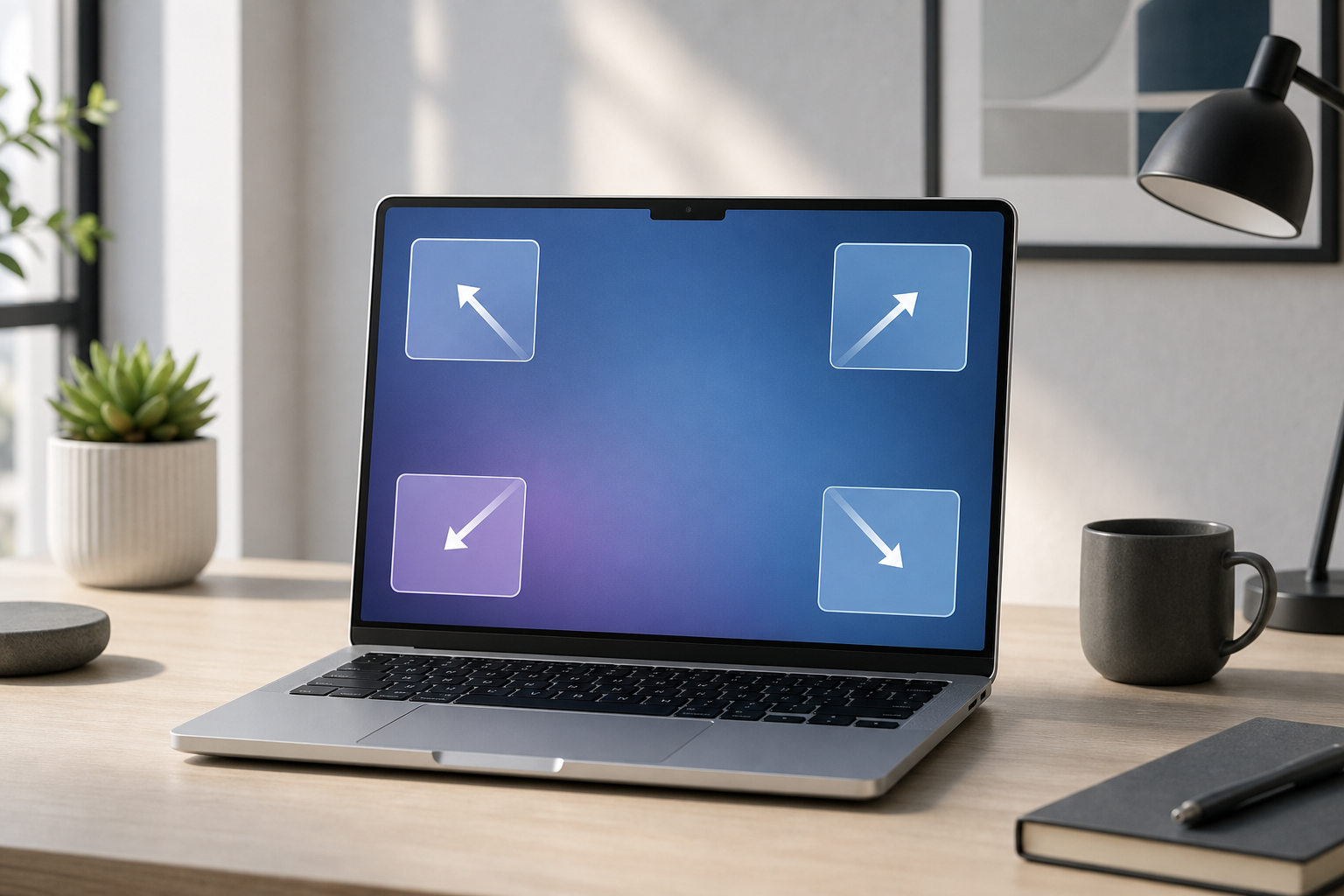
Hot Corners let you trigger shortcuts by moving your pointer to one of the four corners of your Mac’s screen. You can configure each corner to show the desktop, open Notification Center, start the screen saver, lock the screen, and perform other actions.
To set up Hot Corners, open System Settings, select Desktop & Dock, scroll to Hot Corners, choose an action for each corner, and click Done. You can also hold a modifier key—such as Command or Option—while selecting an action to prevent accidental activation.
Quick Answer: Set Up Hot Corners in macOS
- Click the Apple menu in the top-left corner and choose System Settings.
- Select Desktop & Dock in the sidebar.
- Scroll down and click Hot Corners.
- Use the four pop-up menus to assign actions to the top-left, top-right, bottom-left, and bottom-right corners.
- Optional: Hold Command, Option, Control, or Shift while choosing an action to require that key before the corner works.
- Click Done.
Move your pointer into a configured corner to test it. If a corner is set to – or No Action, it is disabled.
What Are Hot Corners on a Mac?
Hot Corners are screen-corner shortcuts. When you move your pointer into a selected corner, macOS immediately performs the action assigned to that corner.
Depending on your Mac and installed system features, available actions may include:
- Mission Control: Shows all open windows and spaces.
- Application Windows: Shows windows belonging to the active app.
- Desktop: Reveals the desktop by moving windows aside.
- Notification Center: Opens your notifications and widgets.
- Launchpad: Opens the app launcher, where available.
- Quick Note: Opens a new note or the Quick Note interface, where available.
- Start Screen Saver: Starts the screen saver.
- Disable Screen Saver: Prevents the screen saver from starting when the pointer enters that corner.
- Put Display to Sleep: Turns off the display.
- Lock Screen: Locks your Mac.
- – or No Action: Leaves the corner inactive.
Hot Corners work across the desktop and many full-screen apps. However, they can be easy to trigger accidentally if you frequently move the pointer along a screen edge.
How to Open Hot Corners Settings
The Hot Corners controls are located in Desktop & Dock.
- Click the Apple menu.
- Select System Settings.
- In the sidebar, click Desktop & Dock.
- Scroll to the bottom of the page.
- Find the Hot Corners setting and click the Hot Corners button.
A window appears with four menus arranged to represent the four corners of your display.
The corner positions are:
- Top left
- Top right
- Bottom left
- Bottom right
The layout corresponds to the physical corners of your screen. For example, the menu in the upper-left position controls the top-left corner.
How to Assign an Action to Each Corner
You can assign a different action to every corner or configure only the corners you find useful.
- Open the Hot Corners settings window.
- Click the pop-up menu for the corner you want to configure.
- Select an action.
- Repeat the process for any other corners.
- Click Done.
- Move your pointer to each configured corner to test the actions.
You do not need to configure all four corners. For many people, one or two carefully chosen shortcuts are easier to remember and less likely to activate by accident.
Example: Assign Mission Control
To use a corner for window management:
- Open Hot Corners.
- Select a corner.
- Choose Mission Control.
- Click Done.
- Move the pointer into that corner.
Mission Control displays open windows and desktop spaces, making it easier to switch between apps.
Example: Show the Desktop
To reveal the desktop:
- Select a corner’s menu.
- Choose Desktop.
- Click Done.
- Move the pointer into that corner.
This action temporarily moves open windows aside. Move the pointer away or activate the desktop again to return to your windows, depending on your macOS settings.
Example: Lock the Screen
To use a corner as a quick screen-lock shortcut:
- Select a corner.
- Choose Lock Screen.
- Click Done.
- Move the pointer into that corner when you want to lock your Mac.
Locking your screen does not shut down apps, but it may interrupt what you are doing until you authenticate again. Save important work normally before locking your Mac.
Example: Start the Screen Saver
To start the screen saver manually:
- Select a corner.
- Choose Start Screen Saver.
- Click Done.
- Move the pointer into that corner.
Depending on your security settings, the screen saver may or may not require a password immediately. To control when your password is required, review the settings in Lock Screen.
How to Use Modifier Keys with Hot Corners
A modifier key adds an extra requirement to a Hot Corner. Instead of activating an action whenever the pointer touches the corner, you must hold a key while moving the pointer there.
This is useful if a corner is easy to trigger accidentally.
Supported modifier keys may include:
- Command
- Option
- Control
- Shift
You can also combine modifier keys, such as Command-Option, if the Hot Corners window accepts the combination.
Add a Modifier Key
- Open System Settings.
- Select Desktop & Dock.
- Scroll down and click Hot Corners.
- Press and hold a modifier key, such as Option.
- While continuing to hold the key, click the menu for a corner.
- Select the desired action.
- Release the modifier key.
- Click Done.
To trigger the action, hold the same modifier key and move the pointer into the configured corner.
For example, you could configure the bottom-right corner as Lock Screen with the Option key. The screen would lock only when you hold Option and move the pointer into the bottom-right corner.
Why Modifier Keys Are Recommended
Modifier keys are especially helpful for actions that change your screen state or interrupt your work, including:
- Lock Screen
- Put Display to Sleep
- Start Screen Saver
- Mission Control
- Desktop
They are also useful when you often move the pointer to a particular corner to access a button, resize a window, or scroll through content.
Recommended Hot Corner Setups
The best setup depends on your work habits, but these arrangements are practical starting points.
Simple Beginner Setup
- Top-left: Mission Control
- Top-right: Notification Center
- Bottom-left: Desktop
- Bottom-right: – or No Action
This setup provides convenient access to window management, notifications, and the desktop without assigning an action to every corner.
Productivity Setup
- Top-left: Mission Control
- Top-right: Application Windows
- Bottom-left: Desktop
- Bottom-right: Quick Note
This arrangement focuses on switching between windows and quickly accessing notes. Add a modifier key to any corner you trigger unintentionally.
Security-Focused Setup
- Top-left: Lock Screen with Option
- Top-right: Notification Center
- Bottom-left: Desktop
- Bottom-right: – or No Action
Using a modifier key for Lock Screen helps prevent your Mac from locking when you do not intend to do so.
Minimal Setup
- One corner: Mission Control
- All other corners: – or No Action
A minimal setup is often the easiest to remember. It also reduces accidental activations and keeps the screen corners available for normal pointer movement.
How to Disable an Unwanted Hot Corner
You can disable one corner without changing the others.
- Open System Settings.
- Select Desktop & Dock.
- Scroll down and click Hot Corners.
- Open the menu for the unwanted corner.
- Select – or No Action.
- Click Done.
The exact label can vary by macOS interface wording. Choose the option that indicates no action is assigned.
If a corner still seems to perform an action, check all four menus. You may be testing a nearby corner or using a display arrangement where the pointer reaches a different screen edge than expected.
How to Change a Hot Corner’s Action
Changing an action replaces the previous assignment for that corner.
- Open the Hot Corners window.
- Select the corner you want to change.
- Choose a different action.
- If desired, hold a modifier key while selecting the action.
- Click Done.
You do not need to remove the old action first. Selecting a new action overwrites it.
Important Limitations and Accidental Activation
Hot Corners respond to pointer movement, so they may activate while you:
- Move a window to the edge of the screen.
- Reach for controls near a corner.
- Use multiple displays.
- Work in a full-screen app.
- Move the pointer quickly across the screen.
- Use a trackpad or mouse with imprecise pointer movement.
Some actions can interrupt your current view. Mission Control, Desktop, and Notification Center change what appears on screen, while Put Display to Sleep turns off the display. If an action could interfere with your work, assign a modifier key or choose a different corner.
Hot Corners do not replace regular security settings. A Lock Screen Hot Corner locks the Mac when activated, but it does not configure password requirements, automatic locking, or screen-saver timing.
Troubleshooting Hot Corners on a Mac
A Hot Corner Does Nothing
Check the following:
- Open System Settings.
- Go to Desktop & Dock.
- Open Hot Corners.
- Confirm that the corner has an action assigned rather than – or No Action.
- If you used a modifier key, hold the correct key while moving the pointer into the corner.
- Move the pointer slowly and deliberately into the exact corner.
If you use multiple displays, test the corner on the display where you configured or expect the action to work.
A Hot Corner Activates Accidentally
Add a modifier key:
- Open Hot Corners.
- Hold Command, Option, Control, or Shift.
- Select the action for the problem corner.
- Click Done.
- Test the corner while holding the selected key.
You can also move the action to a corner you rarely use or change it to – or No Action.
The Wrong Corner Activates
The four menus in the Hot Corners window match the screen layout. Confirm that you selected the intended position. If you use more than one monitor, pointer movement at the edge of one display can feel different from movement on another.
Check System Settings > Displays to review how your displays are arranged. A display positioned above, below, or beside your main display changes where the pointer can travel.
The Screen Changes When You Move the Pointer Near a Corner
This usually means a Hot Corner is already configured. Open Hot Corners and check each menu. Disable unwanted actions by selecting – or No Action.
Also check whether the action is being triggered by a modifier key you are holding unintentionally. A keyboard key that is stuck or pressed during pointer movement can change how the corner behaves.
Lock Screen or Put Display to Sleep Happens Too Easily
These actions can interrupt your work immediately. Add a modifier key or disable the action:
- Open Hot Corners.
- Select the corner containing Lock Screen or Put Display to Sleep.
- Hold a modifier key and choose the same action, or choose – or No Action.
- Click Done.
Frequently Asked Questions
Can I set a different action for every corner?
Yes. Each corner has its own menu, so you can assign four different actions. You can also leave any corner disabled.
Can I use Hot Corners without a modifier key?
Yes. Select an action normally and it activates when the pointer enters the corner. Modifier keys are optional but useful for preventing accidental activation.
Which Hot Corner is best for beginners?
Start with one corner assigned to Mission Control or Desktop. These actions are useful and generally easy to understand. Leave the other corners set to – or No Action until you know which shortcuts you want.
Can Hot Corners lock my Mac?
Yes. Assign Lock Screen to a corner. For additional protection against accidental activation, configure the corner with a modifier key.
Can I use Hot Corners on more than one display?
Hot Corner behavior can vary with multiple displays and their arrangement. Test each display after configuring your shortcuts. If a corner behaves unexpectedly, review the layout in System Settings > Displays and check all four Hot Corner assignments.
Do Hot Corners close apps?
No. Hot Corners do not normally close applications. Actions such as Mission Control or Desktop change your view, while Lock Screen locks access to the Mac. Still, save your work before using actions that interrupt your workflow.
Can I assign a keyboard shortcut to a Hot Corner?
The Hot Corners settings window assigns built-in actions rather than arbitrary keyboard shortcuts. You can use modifier keys with Hot Corners, but assigning custom shortcuts to unrelated apps or commands requires a separate automation or shortcut tool.
How do I remove every Hot Corner action?
Open System Settings > Desktop & Dock > Hot Corners. Set each of the four menus to – or No Action, then click Done.
Final Thoughts
Hot Corners provide quick access to useful Mac features without memorizing keyboard shortcuts. For the best balance of convenience and control, start with one or two actions, disable corners you do not need, and use modifier keys for actions that could interrupt your work or lock your screen.