
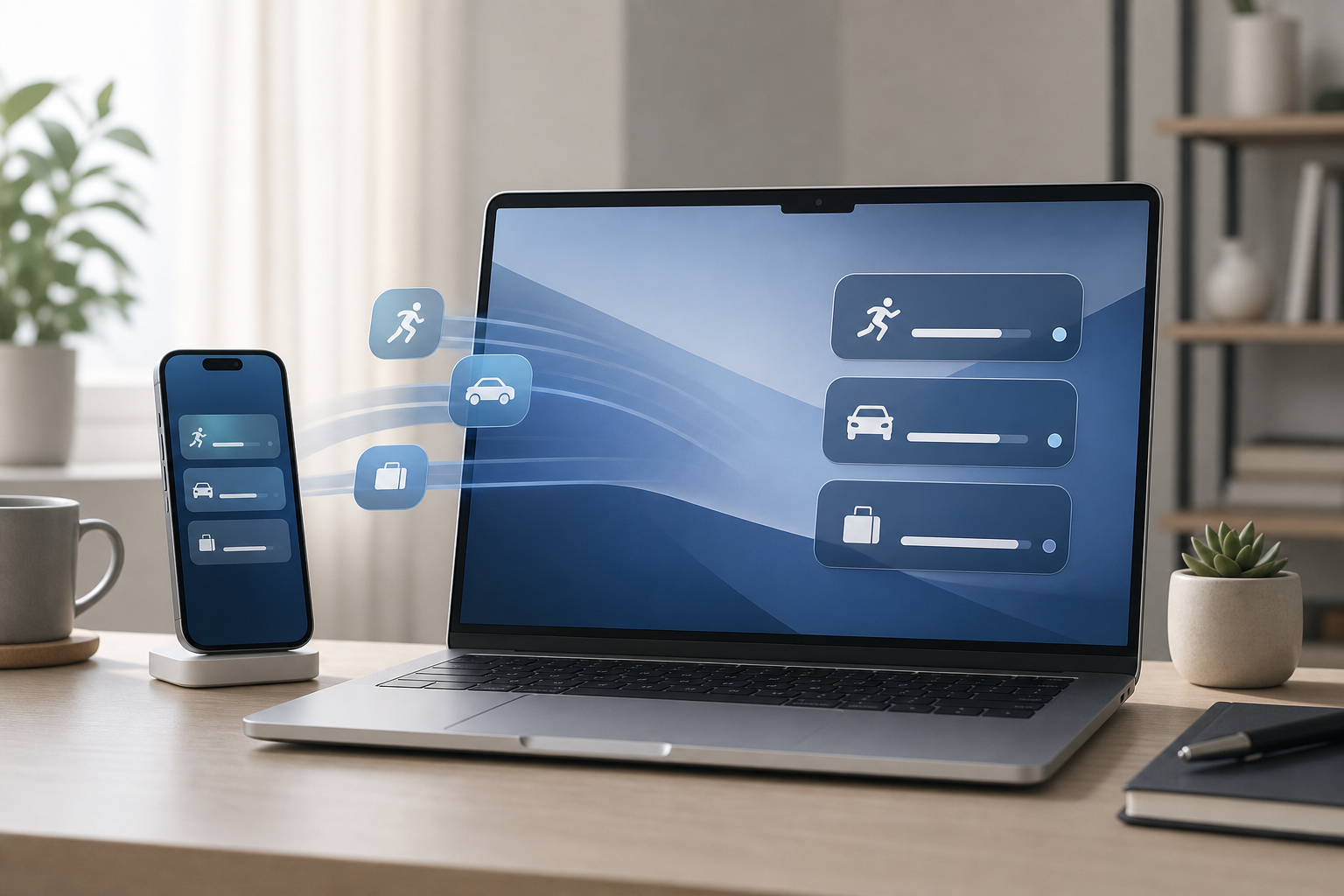
Live Activities from your iPhone can appear in the menu bar on your Mac, allowing you to check ongoing updates without picking up your phone. These updates may include information such as a delivery, a sports score, a ride, or another time-sensitive event supported by an iPhone app.
To use Live Activities on your Mac, your iPhone and Mac must meet Apple’s Continuity requirements, use the same Apple Account, have nearby wireless connections enabled, and allow iPhone notifications. You view an activity from the Mac’s menu bar, and selecting it opens the related experience through iPhone Mirroring when supported.
Quick Answer
To use iPhone Live Activities on your Mac:
- Update and sign in to both devices with the same Apple Account.
- Keep your iPhone near your Mac, with Bluetooth and Wi-Fi turned on.
- Enable notifications for the app that provides the Live Activity on your iPhone.
- Allow iPhone notifications on your Mac if the relevant setting is available.
- Look for the Live Activity indicator in the Mac menu bar.
- Select the activity to view more information or open it through iPhone Mirroring.
Live Activities do not appear for every app or every event. The iPhone app must support Live Activities, and the activity must currently be active.
What Are Live Activities on Mac?
Live Activities are changing notifications that show ongoing information on the Lock Screen and in supported areas of the system. For example, an app may use one to display an estimated delivery time, a ride’s status, or the current score of a game.
When Continuity features are available, an iPhone’s Live Activity may also be represented in the Mac menu bar. This lets you check the status of an event while working on your Mac.
The Mac does not create a separate Live Activity. Instead, it displays information associated with your iPhone and the app running the activity. Selecting the activity may open the related app or experience on the iPhone through iPhone Mirroring rather than launching a full Mac version of the app.
Requirements for iPhone Live Activities on Mac
Before troubleshooting, check the following requirements:
- Your iPhone and Mac should be signed in to the same Apple Account.
- Your iPhone should be nearby and available for Continuity features.
- Wi-Fi and Bluetooth should be turned on for both devices.
- Your iPhone should be unlocked when setting up related permissions or using iPhone Mirroring.
- iPhone Mirroring must be set up if you want to open the activity on your Mac.
- The app must support Live Activities.
- The app must currently have an active event to display.
- Your iPhone must allow notifications from the app.
Apple may change the exact system requirements and available features as macOS and iOS are updated. If a setting described below is missing, install the latest available software updates for both devices and check Apple’s current Continuity documentation.
Enable Notifications for Live Activities on Your iPhone
An app cannot provide a Live Activity if its notifications are disabled or if the app does not support the feature.
Turn on notifications for the app
- Open Settings on your iPhone.
- Tap Apps.
- Tap the app that should provide the Live Activity.
- Tap Notifications.
- Turn on Allow Notifications.
- If the app offers a Live Activities setting, turn it on.
- Review the alert locations and sounds according to your preference.
On some iPhone versions, app notification settings may be organized differently. You can also open Settings > Notifications, select the app, and review its available options.
Check the app itself
Some apps require you to start an activity manually. For example, you may need to confirm a delivery, start a timer, follow a game, or request a ride before the activity becomes active.
Open the app on your iPhone and look for an option related to live updates, tracking, or an ongoing activity. Not every app exposes a separate setting, and not every notification is a Live Activity.
Check Focus settings
A Focus may delay or silence notifications. To review this:
- Open Settings on your iPhone.
- Tap Focus.
- Select the active Focus.
- Review the allowed apps and notification settings.
You do not necessarily need to disable Focus. Instead, allow the app’s notifications if you want its activities to remain visible while that Focus is active.
Set Up iPhone Mirroring
iPhone Mirroring lets you interact with your iPhone from your Mac. It is useful when selecting a menu bar activity should take you to the related iPhone app or screen.
To set it up:
- Open iPhone Mirroring on your Mac. You can find it in the Applications folder or search for it with Spotlight.
- Follow the onscreen instructions.
- Unlock your iPhone when prompted.
- Enter your iPhone passcode if requested.
- Complete the pairing and authentication steps.
Keep your iPhone nearby during setup. iPhone Mirroring may require the same Apple Account and compatible security settings on both devices.
Important limitation
iPhone Mirroring does not turn an iPhone-only app into a native Mac app. The Mac displays and controls the iPhone through the mirroring feature. Some activities may show information in the menu bar but offer limited interaction, depending on the app and the current connection.
Find Live Activities in the Mac Menu Bar
Once an eligible activity is running, check the right side of the Mac menu bar. Depending on the activity and your system configuration, it may appear as an icon, short status indicator, or other compact control.
To use it:
- Look at the menu bar while the iPhone activity is active.
- Select the activity indicator.
- Review the information shown.
- If an option opens the related activity, select it.
- Complete any interaction through iPhone Mirroring when prompted.
If you use a full-screen app, move the pointer to the top of the screen to reveal the menu bar. On a Mac with a notch or limited menu bar space, some icons may be placed in an overflow area.
If you cannot find the activity
Check the following locations and settings:
- The main menu bar near the right side.
- The menu bar’s overflow area, if available.
- Control Center, if the activity or notification is represented there.
- System Settings > Notifications, where notification behavior can be reviewed.
- The iPhone’s Lock Screen or Dynamic Island, if your iPhone model has one.
A Live Activity may disappear automatically when the event ends. An app may also stop updating it after a timeout or when you cancel the underlying event.
Use the Activity Without Opening the iPhone
The menu bar display is most useful for quick checks. You may be able to see the current status without opening iPhone Mirroring, depending on the app and the type of activity.
For example, you might see a short status such as an estimated time or score. Select the indicator only when you need more detail or want to interact with the related app.
This reduces interruptions while you work, but it does not guarantee that every detail available on the iPhone will appear on the Mac.
Privacy Controls for iPhone Activities on Mac
Live Activities can display personal information, including locations, order details, travel information, or account-related updates. Consider who can see your Mac’s screen before enabling or using them.
Control iPhone notification previews
To limit information shown in notifications:
- Open Settings on your iPhone.
- Tap Notifications.
- Tap Show Previews.
- Choose When Unlocked or Never.
The available presentation may vary by iOS version and app. This setting affects notification previews on the iPhone and may not control every detail shown by an app’s Live Activity.
Review Mac notification settings
- Open System Settings on your Mac.
- Select Notifications.
- Select the relevant app or notification category.
- Review whether notifications are allowed and how previews are displayed.
If you do not want activity-related information appearing while the Mac is locked, review the notification options for the Lock Screen and notification previews.
Stop an app from sending notifications
If you no longer want an app’s activity or notifications on your Mac:
- Open System Settings.
- Select Notifications.
- Select the app.
- Turn off Allow notifications or adjust the available notification options.
This changes the Mac’s notification behavior. It does not necessarily stop the activity on your iPhone. To stop the activity itself, use the app on your iPhone or cancel the event that created it.
Disable iPhone Mirroring access
If you do not want to control your iPhone from the Mac, stop using or remove the iPhone Mirroring setup through its settings. The exact controls may differ by software version. Review System Settings and search for iPhone Mirroring if you need to manage the paired iPhone.
Before removing access, be aware that doing so can prevent menu bar activity links from opening the related iPhone experience on your Mac. It does not delete apps or personal data from the iPhone.
Troubleshooting Live Activities on Mac
The Live Activity does not appear
Confirm that:
- The activity is still active on the iPhone.
- The app supports Live Activities.
- Notifications are allowed for the app.
- The iPhone and Mac use the same Apple Account.
- Wi-Fi and Bluetooth are enabled on both devices.
- The devices are close enough for Continuity features.
- The Mac’s notification settings do not block the app.
- The activity is not hidden in a menu bar overflow area.
Open the app on your iPhone to confirm that the event is still being tracked.
The activity appears on the iPhone but not the Mac
An activity can work on the iPhone without being available on the Mac. The app may not support displaying that activity through Continuity, or the Mac may not meet the required software or hardware conditions.
Update both devices, restart them, and try starting a new activity. Existing activities may not always reappear after settings change.
Selecting the activity does nothing
Make sure iPhone Mirroring is set up and that the iPhone is unlocked or available when requested. If iPhone Mirroring is already open, close it and start it again.
Also check whether the activity is still valid. Some activities remain visible briefly after an event ends but no longer open the related app.
The activity is delayed or shows old information
Live updates depend on the iPhone app, network access, and the app’s own update schedule. Check the iPhone’s internet connection and open the app directly to see whether its information is current.
Avoid force-quitting the app unless necessary. Force-quitting can prevent an app from updating normally in the background until you open it again.
Notifications are not appearing
On the iPhone, review:
- Settings > Notifications > [app]
- Settings > Focus
- Any notification controls inside the app
On the Mac, review:
- System Settings > Notifications
- Whether notifications are being delivered to the Mac
- Whether a Focus or other mode is silencing alerts
iPhone Mirroring cannot connect
Try these steps:
- Move the iPhone closer to the Mac.
- Turn Wi-Fi and Bluetooth off and on again on both devices.
- Unlock the iPhone.
- Quit and reopen iPhone Mirroring.
- Restart both devices.
- Install available software updates.
- Set up iPhone Mirroring again if the pairing appears damaged.
If you remove and recreate a pairing, you may need to authenticate again. This does not normally erase iPhone content, but it can remove the Mac’s ability to mirror the iPhone until setup is completed again.
The menu bar is too crowded
A Live Activity may be difficult to see when many menu bar items are present. Close unnecessary menu bar utilities or use their settings to hide icons. If you use a menu bar management utility, check whether it has moved the activity into a hidden section.
Do not remove system files or third-party menu bar apps randomly. Change only the relevant menu bar setting, and save any work before quitting an app that may contain unsaved changes.
Frequently Asked Questions
Can every iPhone Live Activity appear on a Mac?
No. The app must support Live Activities, and the activity must be eligible to appear through Apple’s Continuity features. Some activities are available only on the iPhone.
Do I need iPhone Mirroring to see Live Activities?
Not necessarily. You may be able to see an activity indicator or brief status in the menu bar without opening iPhone Mirroring. You need iPhone Mirroring when the activity requires interaction with the iPhone or when selecting it opens the related iPhone experience.
Can I use Live Activities if my iPhone is not nearby?
Usually, Continuity features work best when the devices are nearby and connected through their required wireless services. A distant or disconnected iPhone may prevent activities from appearing or updating on the Mac.
Why did a Live Activity disappear?
The event may have ended, been canceled, or timed out. The app may also have stopped supporting the activity after a status change. Check the app on your iPhone for the current state.
Will Live Activities use data?
The activity itself depends on the app and its network connection. Your iPhone may use cellular data or Wi-Fi to receive updates. The Mac’s display of the activity may also require a connection between the devices.
Can other people see my iPhone’s Live Activities on my Mac?
Anyone who can see your Mac’s screen may be able to see information shown in the menu bar or through iPhone Mirroring. Use notification preview controls, avoid mirroring on shared screens, and lock your Mac when you leave it unattended.
How do I stop Live Activities from appearing on my Mac?
Open System Settings > Notifications, select the relevant app, and adjust or disable its Mac notifications when those controls are available. To stop the underlying activity, cancel it in the iPhone app. Disabling Mac notifications may not end the activity on the iPhone.
Final Thoughts
Live Activities from your iPhone can provide quick updates in the Mac menu bar without requiring you to switch devices. Enable notifications for supported apps, keep both devices connected and signed in to the same Apple Account, and set up iPhone Mirroring when you need to open or interact with an activity.
If an activity does not appear, confirm that the event is active, the app supports Live Activities, and notification and Continuity settings are enabled. For private information, review notification previews and avoid using iPhone Mirroring where other people can see your screen.