
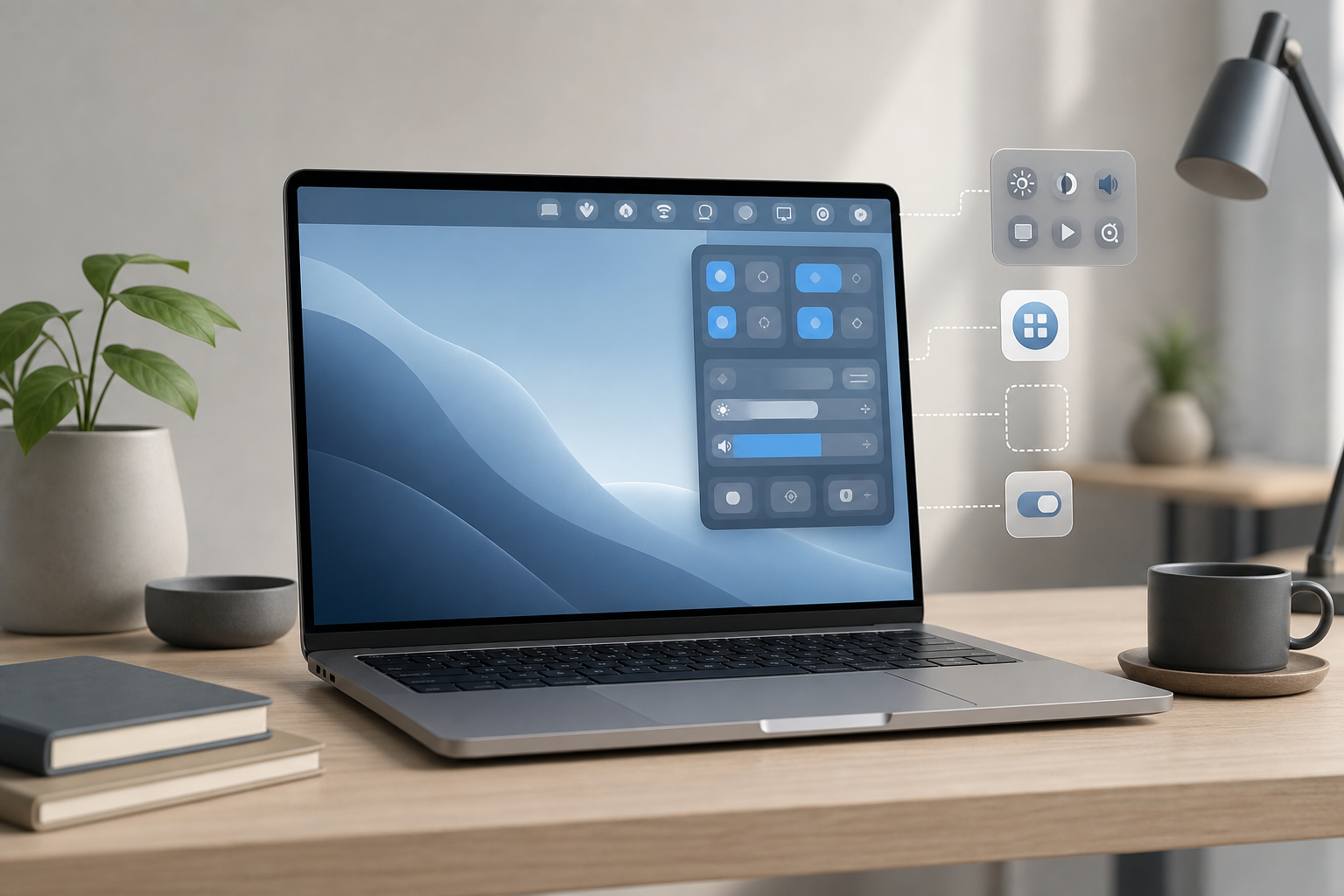
You can customize the menu bar and Control Center on your Mac from System Settings > Menu Bar. From there, you can add or remove menu bar icons, choose which controls appear in Control Center, rearrange some items, show battery percentage, and add accessibility shortcuts for quicker access.
The exact options can vary depending on your Mac and the features you use, but the basic process is the same.
Quick Answer
To customize the menu bar and Control Center:
- Open the Apple menu in the upper-left corner and choose System Settings.
- Select Menu Bar in the sidebar.
- Choose whether individual controls appear:
– In the Menu Bar
– In Control Center
– In neither location - Use the available options to show or hide items such as Wi-Fi, Bluetooth, Focus, Sound, Now Playing, Battery, and Fast User Switching.
- Turn on Show in Menu Bar for Accessibility Shortcuts if you want quick access to accessibility features.
- Enable Show Percentage under Battery to display the battery charge as a number.
Open the Menu Bar Settings
The menu bar is the strip across the top of your screen. It contains the Apple menu, menus for the active app, and status icons such as Wi-Fi, battery, sound, and the current time. Control Center is the panel that opens when you select the Control Center icon in the menu bar.
To open the settings that control both areas:
- Select the Apple menu.
- Choose System Settings.
- Select Menu Bar in the sidebar.
If you do not see Menu Bar, scroll down the sidebar. You can also use the search field in System Settings and search for “Menu Bar.”
The Menu Bar settings page includes separate sections for controls, menu bar appearance, and other menu bar options.
Add or Remove Icons From the Menu Bar
You can decide whether many built-in controls appear directly in the menu bar. Removing an icon does not turn off the related feature. It only removes the shortcut from the top of the screen. You can usually continue to access the feature through Control Center or System Settings.
Add a control to the menu bar
- Open System Settings.
- Select Menu Bar.
- Find the control you want to add, such as Wi-Fi, Bluetooth, Focus, or Sound.
- Open the menu next to the control.
- Select Show in Menu Bar.
The icon should appear in the menu bar immediately.
Depending on the control, you may see options such as:
- Show in Menu Bar
- Show in Control Center
- Show in Menu Bar and Control Center
- Don’t Show
Choose Show in Menu Bar and Control Center if you want the item available in both places.
Remove a control from the menu bar
- Open System Settings > Menu Bar.
- Locate the control.
- Open its display menu.
- Select Don’t Show or turn off Show in Menu Bar, depending on the control.
The item will disappear from the menu bar but may remain available in Control Center.
Use the menu bar itself to remove some icons
Some third-party apps add their own icons to the menu bar. These icons may not appear in System Settings > Menu Bar.
To remove one, select the icon and look for an option such as:
- Settings
- Preferences
- Quit
- Hide
- Open at Login
- Show in Menu Bar
Some apps let you disable their menu bar icon in their own settings. Others may require you to quit the app or disable its launch-at-login setting.
Warning: Do not quit an app or disable a background utility unless you know what it does. It may provide syncing, backups, security monitoring, cloud storage, or another service you rely on. Save your work before quitting an app.
Customize Control Center
Control Center groups common settings in one panel, reducing the number of icons that need to stay visible in the menu bar.
To open it, select the Control Center icon in the menu bar. You can use controls such as Wi-Fi, Bluetooth, AirDrop, Focus, Stage Manager, Screen Mirroring, Display, Sound, and Now Playing, depending on your Mac.
To decide which controls appear in Control Center:
- Open System Settings.
- Select Menu Bar.
- Find the control you want to change.
- Select its display menu.
- Choose Show in Control Center, Show in Menu Bar and Control Center, or Don’t Show, if available.
Removing an item from Control Center does not necessarily disable the feature. It only changes where the shortcut appears.
Keep the menu bar uncluttered
A practical setup is to keep frequently used controls in the menu bar and move less frequently used controls to Control Center. For example, you might keep:
- Wi-Fi
- Battery
- Sound
- Control Center
- Clock
You could leave these in Control Center instead:
- Focus
- Screen Mirroring
- Stage Manager
- Fast User Switching
- Now Playing
Your ideal arrangement depends on how often you use each feature and how much space is available in the menu bar.
Rearrange Controls and Menu Bar Items
The menu bar has two main areas:
- The left side contains the Apple menu and the active app’s menus.
- The right side contains status icons and controls.
Rearrange built-in menu bar controls
Some built-in menu bar icons can be rearranged directly:
- Hold the Command key.
- Drag an eligible menu bar icon left or right.
- Release the icon in its new position.
This works for some system controls, but not every menu bar item can be moved. The Apple menu, app menus, and certain system items have fixed positions.
If dragging does not work, the item may not support manual rearrangement. Use System Settings > Menu Bar to change its visibility instead.
Rearrange third-party icons
Some third-party icons can also be moved while holding Command, but behavior varies by app. If an icon does not move, check the app’s settings or documentation.
Be careful not to drag an icon onto the desktop while attempting to move it. On some Macs or with some utilities, this can remove the item or trigger another action. If you accidentally change an app’s settings, reopen that app’s preferences and restore its menu bar option.
Show Battery Percentage
The battery percentage tells you the approximate remaining charge as a number instead of relying only on the battery symbol.
To show it:
- Open System Settings.
- Select Menu Bar.
- Scroll to the Battery section.
- Turn on Show Percentage.
You can also decide whether the battery status appears in the menu bar, Control Center, or both.
The percentage indicates the remaining battery charge. It does not guarantee a specific amount of remaining use because battery life depends on brightness, active apps, wireless connections, power settings, and other factors.
Check battery details
Select the battery icon in the menu bar or open Control Center and select Battery. Depending on your Mac, you may see additional information such as whether the Mac is charging or which apps are using significant energy.
Add Accessibility Shortcuts
Accessibility Shortcuts provide quick access to features designed to make the Mac easier to see, hear, control, or use. Examples include Zoom, VoiceOver, Invert Colors, and other accessibility options.
To add Accessibility Shortcuts to the menu bar or Control Center:
- Open System Settings.
- Select Menu Bar.
- Find Accessibility Shortcuts.
- Choose Show in Menu Bar, Show in Control Center, or both.
You can then select the accessibility icon in the menu bar or Control Center and turn features on or off.
Configure the available accessibility features
To choose which features are available:
- Open the Apple menu.
- Select System Settings.
- Select Accessibility.
- Choose the relevant category, such as Zoom, Display, VoiceOver, Hearing, or Motor.
- Configure the feature you want to use.
After you enable a feature, it may become available through Accessibility Shortcuts.
Important: Features such as VoiceOver or Zoom can significantly change how your Mac behaves. If you enable one by accident, return to System Settings > Accessibility and turn it off. Some features also have keyboard shortcuts, so avoid pressing unfamiliar shortcut combinations while troubleshooting.
Customize the Clock and Date
The clock is another menu bar item you can adjust from System Settings > Menu Bar.
To change its appearance:
- Open System Settings.
- Select Menu Bar.
- Scroll to the Clock section.
- Adjust the available options for displaying the time, date, seconds, day of the week, or the current date.
You may also be able to choose whether the clock uses a digital or analog appearance and whether it announces the time. Available options depend on your Mac and current settings.
If the menu bar is crowded, displaying a shorter time or removing extra date information can create more space.
Change Menu Bar Behavior
The menu bar can remain visible all the time or hide automatically.
To change this behavior:
- Open System Settings.
- Select Menu Bar.
- Find the setting for automatically hiding and showing the menu bar.
- Choose the preferred option, such as showing it Always, In Full Screen Only, or automatically hiding it.
When the menu bar is hidden, move the pointer to the top edge of the screen to reveal it.
Automatic hiding can provide more screen space, especially on a smaller display. However, it may be less convenient if you frequently use menu commands or status icons.
Warning: Full-screen apps may already hide the menu bar. This is normal behavior and does not mean your menu bar settings were lost.
Adjust Menu Bar Appearance
Depending on the available settings, you may be able to change the menu bar’s appearance, including transparency and how it behaves in full-screen windows.
To review these options:
- Open System Settings.
- Select Menu Bar.
- Review the available appearance settings.
- Adjust them to your preference.
If you have trouble reading menu bar text or icons, open System Settings > Accessibility > Display and review display-related options such as contrast and transparency. These settings can affect the overall appearance of macOS, not just the menu bar.
Remove Unwanted Menu Bar Apps
If an unwanted icon belongs to a third-party app, use the app’s own settings first.
- Select the third-party icon in the menu bar.
- Open the app’s Settings or Preferences.
- Look for a menu bar, status icon, or launch setting.
- Turn off the option that displays the icon.
- If necessary, quit and reopen the app.
Some apps are configured to open automatically when you sign in. To review those apps:
- Open System Settings.
- Select General.
- Select Login Items.
- Review the apps and background items listed there.
- Turn off or remove only items you recognize and no longer need.
Warning: Removing a login item can stop an app or service from starting automatically. This may affect syncing, backups, security tools, password managers, or other background functions. Do not remove an item unless you understand its purpose.
Troubleshooting
An icon does not appear after I enabled it
Check that you selected the correct location:
- Open System Settings > Menu Bar.
- Confirm the item is set to Show in Menu Bar or Show in Menu Bar and Control Center.
- Look at the right side of the menu bar.
- Select Control Center to check whether the item appears there instead.
Some apps do not display an icon until you open or sign in to the app.
I cannot move a menu bar icon
Not all icons can be rearranged. Hold Command while dragging the item. If it still does not move, the icon may have a fixed position or may be controlled by a third-party app.
Open the app’s settings to look for a custom arrangement option.
The menu bar is too crowded
Try these steps:
- Remove rarely used controls from the menu bar.
- Keep them in Control Center instead.
- Turn off unnecessary third-party menu bar icons in their app settings.
- Shorten the clock display.
- Use automatic menu bar hiding if you want more screen space.
Control Center is missing
Open System Settings > Menu Bar and check whether Control Center is enabled in the menu bar. If the icon is not visible, use the System Settings search field to find “Control Center” or “Menu Bar.”
If the problem continues, save your work and restart your Mac. A restart can correct a temporary system or menu bar process problem.
Battery percentage is not available
Make sure you are using a Mac with a built-in battery. Desktop Macs generally do not have a battery percentage option because they do not run on an internal battery.
If you are using a Mac notebook, open System Settings > Menu Bar > Battery and turn on Show Percentage.
Accessibility Shortcuts are not listed
Open System Settings > Accessibility and configure at least one accessibility feature. Then return to System Settings > Menu Bar and look for Accessibility Shortcuts.
The exact list of available shortcuts can depend on which accessibility features are enabled.
Frequently Asked Questions
Can I remove every icon from the menu bar?
No. Some items, including the Apple menu and app menus, are part of the macOS interface and cannot be removed. Many status icons can be hidden, but certain system and third-party items may have fixed behavior.
Does removing an icon disable the feature?
No. Hiding an icon usually removes only the shortcut. The related feature, such as Wi-Fi, Bluetooth, or Focus, remains available through Control Center or System Settings.
Can I put every Control Center item in the menu bar?
Not necessarily. macOS determines which controls support menu bar placement. If a control does not offer Show in Menu Bar, it may be available only in Control Center or another part of System Settings.
Why does the menu bar look different in a full-screen app?
Full-screen apps commonly hide the menu bar until you move the pointer to the top edge of the screen. This behavior is separate from the menu bar icon settings.
Can I rearrange the Apple menu or app menus?
No. The Apple menu remains on the far left, followed by the menus for the active app. You can rearrange some status icons on the right by holding Command and dragging them.
How do I quickly access accessibility features?
Add Accessibility Shortcuts to the menu bar or Control Center through System Settings > Menu Bar. Then select the accessibility icon and choose the feature you want to use.
What is the best way to organize the menu bar?
Keep controls you use frequently, such as Wi-Fi, battery, and sound, in the menu bar. Move occasional controls to Control Center and remove third-party icons you do not need. This keeps the menu bar useful without making it difficult to scan.
Final Thoughts
The most effective way to customize the menu bar and Control Center on Mac is to keep frequent controls visible and move occasional ones to Control Center. Use System Settings > Menu Bar to manage visibility, enable battery percentage, adjust the clock, and add Accessibility Shortcuts. For eligible icons, hold Command while dragging to rearrange them.