How to Fix a Mac Keyboard That Is Not Working

Illustration for How to Fix a Mac Keyboard That Is Not Working
A Mac keyboard that is not working is usually caused by a connection problem, low battery, incorrect settings, temporary macOS software trouble, or physical damage. Start by checking the keyboard’s power and connection, then restart your Mac and review keyboard settings. If only certain keys fail, clean around them carefully and look for signs of … Read more
How to Show and Change File Extensions on a Mac

Illustration for How to Show and Change File Extensions on a Mac

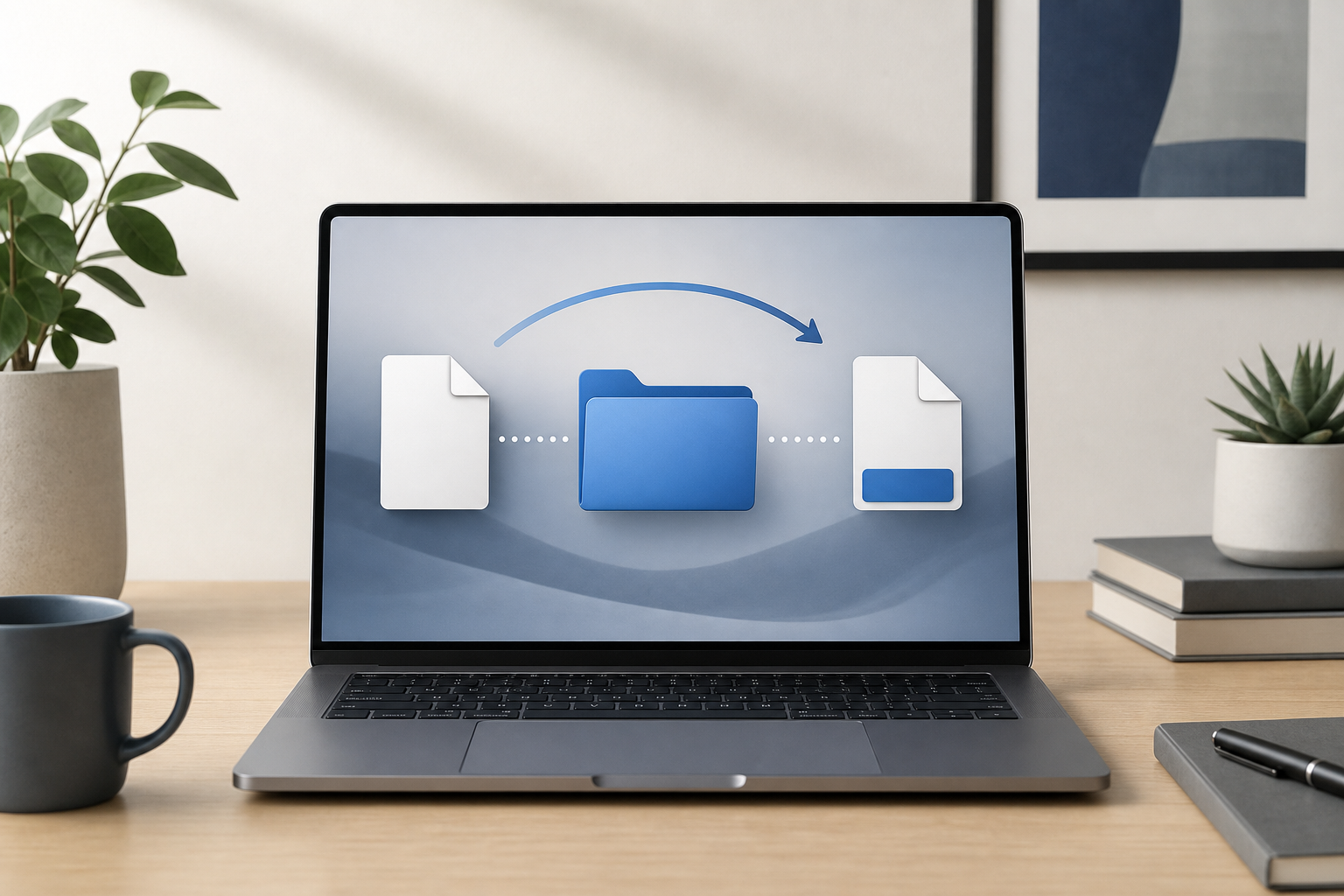
Quick Answer To show file extensions for all files on your Mac, open Finder, choose Finder > Settings, select Advanced, and turn on Show all filename extensions. To show or hide the extension for one file: Select the file in Finder. Choose File > Get Info. Expand Name & Extension. Select or clear Hide extension. … Read more

How to Fix the Camera Not Working on a Mac

Illustration for How to Fix the Camera Not Working on a Mac

If your Mac camera is not working, first make sure the correct camera is selected, close other apps that may be using it, and check camera permissions in System Settings. If that does not help, restart the app and your Mac, install available macOS updates, and test the camera in another app. Persistent problems may … Read more

How to Fix the Microphone Not Working on a Mac

Illustration for How to Fix the Microphone Not Working on a Mac

If your Mac microphone is not working, first check the selected input device and input level in System Settings, then confirm that the app has permission to use the microphone. If you use a Bluetooth headset, disconnect and reconnect it, and make sure the headset—not the Mac’s built-in microphone—is selected. Restarting the affected app often … Read more

How to Change the Refresh Rate on a Mac Display

Illustration for How to Change the Refresh Rate on a Mac Display

Quick Answer To change your Mac’s refresh rate, open the Apple menu, choose System Settings, and select Displays. Click the display you want to adjust, open the Refresh Rate menu, and choose an available setting such as 60 Hertz, 120 Hertz, or Variable. On older versions of macOS, open System Preferences, click Displays, and use … Read more

How to Fix a Mac That Is Overheating

Illustration for How to Fix a Mac That Is Overheating

Quick Answer To fix a Mac that is overheating, save your work, close apps that are using excessive CPU, improve ventilation, stop demanding browser tasks, and install available macOS and app updates. If the Mac becomes unusually hot while idle, shuts down unexpectedly, shows battery swelling, produces unusual fan or hardware noises, or remains hot … Read more

How to Use a MacBook with the Lid Closed

Illustration for How to Use a MacBook with the Lid Closed

You can use a MacBook with the lid closed by connecting it to an external display, connecting the MacBook to power, and using an external keyboard and mouse or trackpad. This setup is commonly called closed-display mode or clamshell mode. It lets you use your MacBook like a desktop Mac while keeping the built-in screen … Read more

How to Change Display Resolution and Scaling on a Mac

Illustration for How to Change Display Resolution and Scaling on a Mac

Changing the display resolution on a Mac can make text and interface elements larger, fit more content on the screen, or improve the way an external monitor looks. On most Macs, you change this from System Settings > Displays by choosing Larger Text, More Space, or another resolution. Quick Answer Open the Apple menu in … Read more

How to Connect AirPods to a Mac

Illustration for How to Connect AirPods to a Mac

You can connect AirPods to a Mac in two main ways: select them from the Mac’s Bluetooth settings, or choose them from the sound output menu if they are already associated with your Apple Account. For a first-time connection, place the AirPods in their charging case, open the lid, press and hold the setup button … Read more

How to Fix a USB Device Not Recognized on Mac

Illustration for How to Fix a USB Device Not Recognized on Mac

If your Mac does not recognize a USB device, disconnect it, reconnect it directly to the Mac, and try a different USB port or cable. If that does not help, check whether the device appears in System Information or Disk Utility, confirm that it has enough power, and review accessory permissions. These steps can identify … Read more