
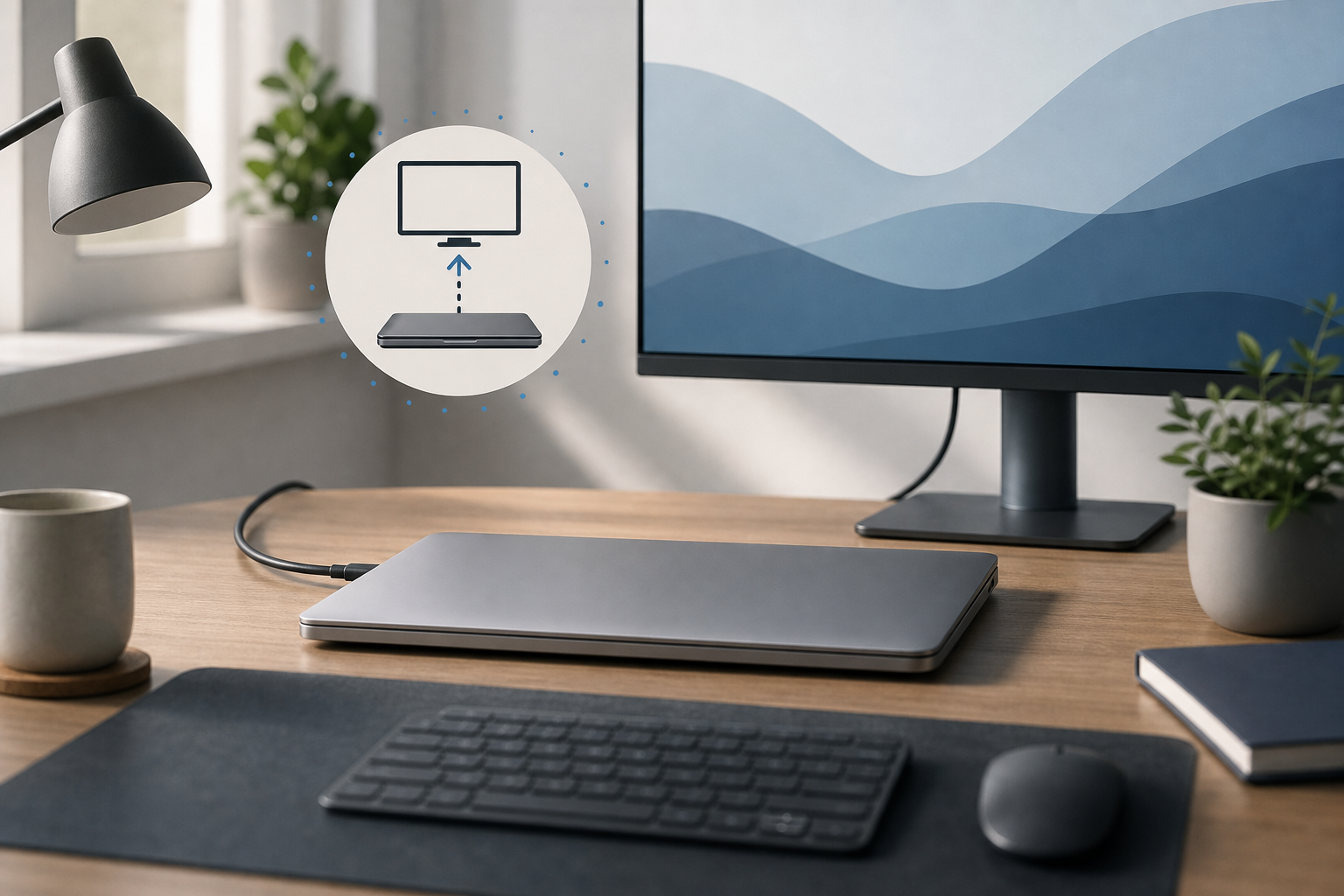
You can use a MacBook with the lid closed by connecting it to an external display, connecting the MacBook to power, and using an external keyboard and mouse or trackpad. This setup is commonly called closed-display mode or clamshell mode. It lets you use your MacBook like a desktop Mac while keeping the built-in screen closed.
Quick Answer
To use a MacBook with the lid closed:
- Connect the MacBook to a power adapter or a compatible display that supplies power.
- Connect the external monitor using the appropriate cable, dock, or adapter.
- Connect an external keyboard and mouse or trackpad.
- Wake the MacBook with the external keyboard or mouse.
- Close the MacBook’s lid after the external display shows your desktop.
Keep the MacBook on a hard, stable surface with its ventilation openings unobstructed. A closed lid can make heat management more important, especially during demanding tasks.
What You Need for MacBook Closed-Lid Use
Closed-lid use requires more than simply plugging in a monitor. Prepare the following equipment before closing the MacBook.
An external display
You need a monitor, television, or other compatible external display. Depending on your MacBook and display, you may connect using:
- USB-C
- Thunderbolt
- HDMI
- DisplayPort
- A USB-C dock or hub
- A USB-C or Thunderbolt display
The correct connection depends on the ports on your MacBook and the inputs on your display. If the MacBook does not have the same connector as the monitor, use a compatible adapter or dock.
Power
The MacBook normally needs to be connected to power for closed-display mode. Connect the MacBook’s power adapter before closing the lid.
Some USB-C and Thunderbolt displays can charge a MacBook through the same cable that carries the video signal. A compatible dock may also provide power. If the display or dock does not supply enough power, connect the MacBook’s own power adapter as well.
Using a MacBook on battery with the lid closed may cause it to sleep or stop working as expected.
An external keyboard and pointing device
You need an external keyboard and mouse or trackpad because the built-in keyboard and trackpad are inaccessible when the lid is closed.
You can use:
- A wired USB keyboard and mouse
- A Bluetooth keyboard and mouse
- A Bluetooth trackpad
- A keyboard and mouse connected through a USB-C dock
If you plan to use Bluetooth accessories, pair them with the MacBook before closing the lid. Wired accessories are often easier to use during initial setup and troubleshooting.
How to Set Up a MacBook with the Lid Closed
Follow these steps in order. Keep the MacBook open until the external display is working.
- Place the MacBook on a hard, stable surface near the monitor.
- Connect the external display to the MacBook, dock, or adapter.
- Connect the MacBook to power.
- Turn on the external display and select the correct input, if necessary.
- Connect the external keyboard and mouse or trackpad.
- Open the MacBook’s lid and press a key or click the trackpad if the MacBook is asleep.
- Sign in to macOS if prompted.
- Confirm that the external display shows the desktop.
- Close the MacBook’s lid.
- Wake the MacBook using the external keyboard, mouse, or trackpad.
The external display should remain active while the MacBook operates with its lid closed.
Important warning about unsaved work
Closing the lid normally puts the MacBook to sleep briefly. Save your work before closing it, especially if an app is performing an important operation or displaying a warning. Most modern apps restore their windows after sleep, but unsaved changes can still be lost if an app stops responding or the Mac shuts down unexpectedly.
How to Configure the External Display
You can adjust the external monitor while the MacBook is open or after waking it with the lid closed.
Open the Apple menu, choose System Settings, and select Displays. From there, you can change options such as:
- Resolution
- Display arrangement
- Refresh rate, when supported
- Rotation, for compatible monitors
- Which display is the main display
- Whether displays mirror or extend the desktop
Mirroring and extending the desktop
When displays are mirrored, both screens show the same content. When the desktop is extended, each display provides additional workspace.
For closed-lid use, the external monitor becomes the only active display. If you open the MacBook later, macOS may detect both screens and adjust the arrangement automatically.
To change which display acts as the main display, open System Settings, choose Displays, and select the display you want to use. The available controls can vary depending on the MacBook, monitor, adapter, and macOS version.
If the monitor does not show an image
Check the following:
- Confirm that the monitor is powered on.
- Select the correct input on the monitor.
- Disconnect and reconnect the video cable.
- Check that the dock or adapter is fully inserted.
- Open the MacBook’s lid and check System Settings > Displays.
- Restart the MacBook while the monitor is connected.
- Test a different cable, adapter, or display if one is available.
A cable may physically fit a port without supporting the required video signal. If a connection works for charging but not for video, the cable, adapter, dock, or port may be the limiting factor.
How to Wake a MacBook with the Lid Closed
After you close the lid, the MacBook may go to sleep. To wake it:
- Press a key on the external keyboard.
- Click the external mouse.
- Move or click the external trackpad.
If the MacBook does not wake, confirm that:
- The MacBook is connected to power.
- The external display is turned on.
- The keyboard and mouse are connected.
- Bluetooth accessories were paired before the lid was closed.
- The display is set to the correct input.
- The cable or dock is firmly connected.
A wired keyboard and mouse can help determine whether the problem is caused by Bluetooth rather than the display connection.
Waking with Bluetooth accessories
Bluetooth devices may not always wake a sleeping MacBook if they are disconnected, out of battery, or not configured correctly. Pair the devices while the lid is open:
- Open the Apple menu and choose System Settings.
- Select Bluetooth.
- Turn on Bluetooth if necessary.
- Select the keyboard, mouse, or trackpad and complete pairing.
- Test the accessory while the lid is open.
- Close the lid and try waking the MacBook again.
If Bluetooth waking remains unreliable, use a wired keyboard or mouse, or connect the accessories through a dock.
Apple Silicon MacBook Considerations
MacBook models with Apple silicon can use closed-display mode, but the exact behavior depends on the MacBook model, the display, the dock, and the connected accessories.
Keep these points in mind:
- Use a compatible power adapter or a display that supplies power.
- Use cables and docks that support the resolution and refresh rate you need.
- Do not assume that every USB-C port supports the same display features.
- A dock may require its own power connection.
- If the external display is not detected, test the display directly from the MacBook rather than through the dock.
- Keep macOS, the display firmware, and dock software or firmware up to date when updates are available.
Some MacBook models have limits on the number of external displays they can use at the same time. Those limits vary by model. If you need multiple monitors, check the technical specifications for your exact MacBook rather than relying only on the connector type.
Heat and Ventilation When the Lid Is Closed
A closed MacBook can generate substantial heat during tasks such as video editing, gaming, compiling software, running virtual machines, or processing large files. Closing the lid removes the built-in display from use, but it does not remove the need for ventilation.
Follow these precautions:
- Place the MacBook on a hard, flat surface.
- Keep air openings clear.
- Do not place it on a bed, couch, blanket, or other soft surface.
- Do not stack papers, clothing, or other objects on top of it.
- Avoid placing it in a tightly enclosed drawer or cabinet.
- Keep the power adapter and dock from being covered.
- Leave room around the MacBook for air circulation.
The MacBook may become warm during normal operation. If it becomes unusually hot, slows down, shuts down, or shows other signs of thermal stress, disconnect unnecessary accessories and move it to a cooler, better-ventilated location.
A vertical stand can save desk space, but use one that supports the MacBook securely and does not press on the display or block ventilation. Do not force the lid closed against cables or accessories.
Preventing Sleep Problems
Normally, closing the lid puts the MacBook to sleep unless it is correctly connected for closed-display use. If it repeatedly sleeps or refuses to stay awake, work through these checks.
Confirm the power connection
Make sure the power cable is connected directly and securely. If power passes through a dock or display, verify that the dock or display is connected to its own power source.
A low-power charger may charge slowly or fail to provide enough power during demanding work. When troubleshooting, connect the MacBook’s original or appropriately rated power adapter directly to the MacBook.
Check the display connection
Disconnect the display cable and reconnect it. If you use a dock, connect the monitor directly to the MacBook temporarily. This helps identify whether the dock is causing the problem.
Also check the monitor’s input selection. A monitor can remain powered on while displaying the wrong input.
Test with wired accessories
Bluetooth accessories can enter a low-power state or lose their connection while the MacBook sleeps. Test the setup with a wired keyboard and mouse. If the wired devices wake the MacBook reliably, troubleshoot Bluetooth pairing, batteries, and distance.
Restart the MacBook
Save your work, open the lid, and restart the MacBook from the Apple menu. A restart can clear temporary display, Bluetooth, or power-management problems.
Do not restart if an app is currently installing an update, writing important data, or warning that interruption could cause problems. Wait for the operation to finish when possible.
Check display and dock updates
If a dock or display manufacturer provides firmware updates or support software, follow the manufacturer’s instructions. Use only software intended for your specific device.
Reset the setup
If the problem continues:
- Save your work.
- Open the MacBook’s lid.
- Disconnect the external display and dock.
- Shut down the MacBook from the Apple menu.
- Connect power directly to the MacBook.
- Start the MacBook.
- Connect the external display directly.
- Test closed-lid mode.
- Reconnect the dock and other accessories one at a time.
Adding devices individually can reveal which cable, adapter, dock, or accessory is causing the sleep problem.
Can You Use a MacBook with the Lid Closed Without a Monitor?
Closed-lid mode is designed for use with an external display. Without a monitor, the MacBook’s built-in screen is unavailable when the lid is closed, so there is no practical way to interact with the desktop.
You may be able to keep the MacBook running for background tasks with the lid closed in some situations, but that is different from using it as a desktop computer. For normal use, connect an external display.
Can You Use the MacBook’s Built-In Keyboard with the Lid Closed?
No. The built-in keyboard and trackpad are inside the closed MacBook. Use an external keyboard and mouse or trackpad instead.
A USB-C dock can provide ports for wired input devices. Bluetooth accessories are also suitable when they are paired and charged.
Frequently Asked Questions
Does a MacBook need power in clamshell mode?
Yes, connect the MacBook to power for reliable closed-lid operation. A compatible display or dock may provide power through USB-C or Thunderbolt, but you can connect the MacBook’s power adapter directly when in doubt.
Can I close the lid while the MacBook is connected to an external monitor?
Yes. Connect power, the external monitor, and an external keyboard and pointing device first. Confirm that the monitor works, save your work, and then close the lid.
Why does my MacBook sleep when I close the lid?
Common causes include insufficient or disconnected power, an unsupported display connection, a dock problem, or input devices that are not connected. Test the MacBook with direct power, a direct display connection, and a wired keyboard and mouse.
Can I use a MacBook with two monitors and the lid closed?
This depends on the exact MacBook model, display connections, dock, and macOS support. Some models support multiple external displays, while others have limits. Check the specifications for your MacBook and test the displays with the dock or adapters you plan to use.
Is it safe to keep a MacBook closed all day?
It can be safe when the MacBook is on a hard surface with adequate ventilation and compatible power and display connections. Avoid covering it or placing it on soft surfaces. Monitor heat during demanding workloads.
Should I shut down the MacBook before disconnecting the monitor?
You do not usually need to shut it down. Save your work and disconnect the display carefully. The MacBook may switch to its built-in screen, sleep, or rearrange windows depending on the connection and settings.
Can I open the lid while using an external monitor?
Yes. Opening the lid may activate the built-in display and change the arrangement of your windows. You can adjust the layout in System Settings > Displays.
Final Thoughts
Using a MacBook with the lid closed is straightforward: connect an external display, provide power, pair or connect an external keyboard and mouse, and wake the MacBook after closing the lid. For the most reliable setup, use a hard, ventilated surface, compatible cables and docks, and direct connections when troubleshooting.