
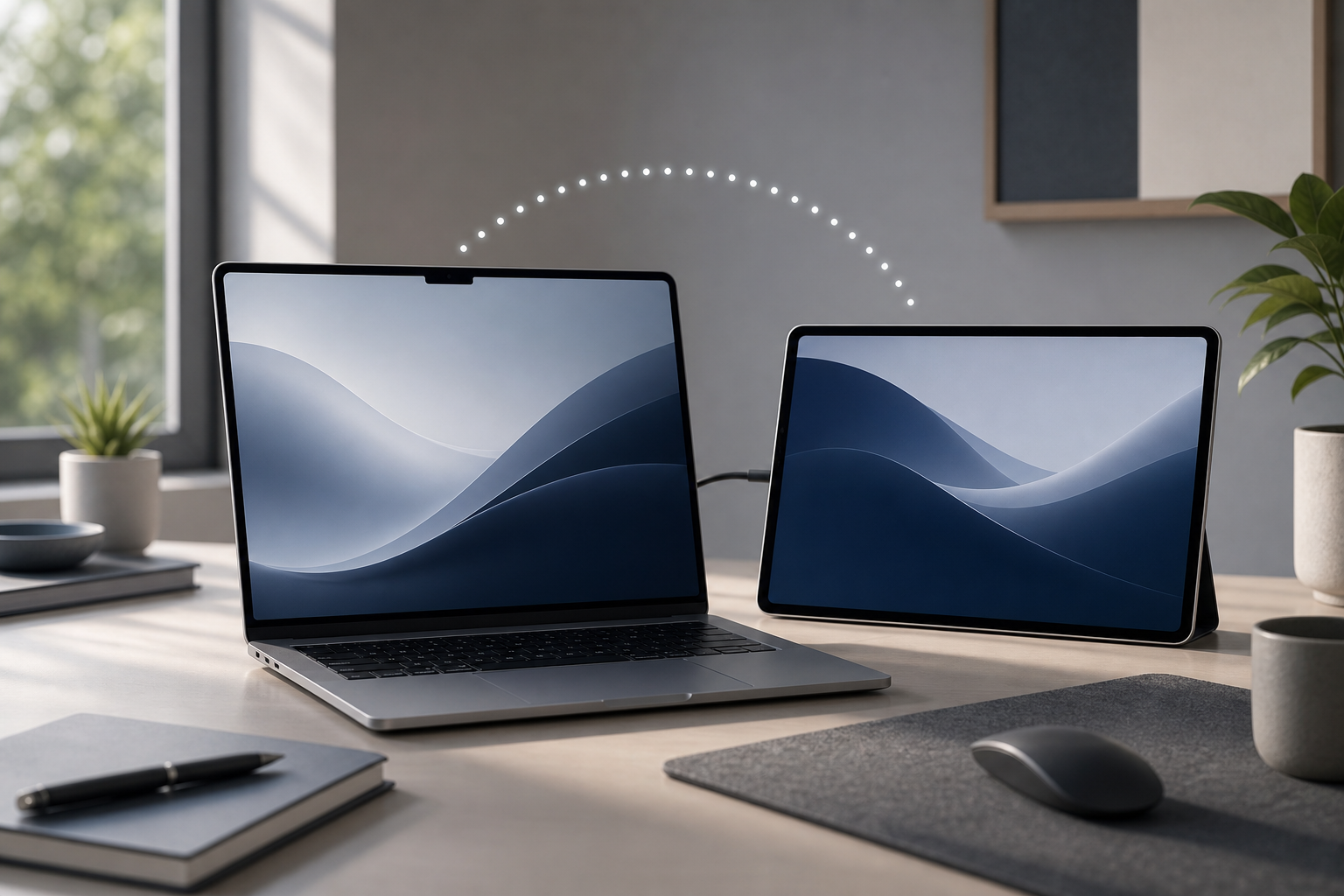
You can use an iPad as a second display for your Mac with Apple’s built-in Sidecar feature. Sidecar lets you extend your Mac desktop to the iPad wirelessly or with a USB cable, move windows between screens, and use Apple Pencil with compatible apps.
Before you begin, make sure your Mac and iPad are signed in to the same Apple Account with two-factor authentication enabled. Keep both devices nearby, and turn on Wi-Fi and Bluetooth. A wired connection can be more reliable for long work sessions.
Quick Answer
To use an iPad as a second monitor:
- Open Control Center in the Mac menu bar.
- Click Screen Mirroring.
- Select your iPad.
- Choose whether to mirror the Mac display or use the iPad as an extended desktop.
- Arrange the displays in System Settings > Displays.
For a wired setup, connect the iPad to the Mac with a compatible USB cable before selecting it in Control Center > Screen Mirroring.
What Sidecar Does
Sidecar is a macOS feature that turns an iPad into an additional display for your Mac. In extended-display mode, the iPad provides extra desktop space rather than showing the same content as your Mac.
For example, you can:
- Keep email, messages, or a reference document on the iPad.
- Move a browser window away from your main Mac display.
- Use Apple Pencil to draw or edit in supported Mac apps.
- Use the iPad’s on-screen controls while working with compatible apps.
- Mirror the Mac display when you want the same image on both screens.
Sidecar is different from using an iPad as a completely independent computer. Mac apps still run on the Mac, and the iPad acts as a display and input device.
Check the Requirements Before Setting Up Sidecar
Sidecar depends on hardware, software, account, and network features. Apple’s compatibility requirements can change, so if the feature is missing, check Apple’s current Sidecar requirements for your Mac and iPad.
In general, check the following:
- Both devices support Sidecar.
- Your Mac and iPad are signed in to the same Apple Account.
- Two-factor authentication is enabled for that account.
- Wi-Fi and Bluetooth are turned on.
- The devices are near each other for a wireless connection.
- Handoff is enabled when required by your setup.
- The iPad is unlocked when you start the connection.
For the most dependable connection, connect the iPad directly to the Mac with a USB cable. If macOS asks whether to trust the connected iPad, follow the on-screen instructions.
Connect the iPad Wirelessly
Wireless Sidecar is convenient because it does not require a cable. It is useful when the iPad is positioned beside the Mac or when you need to move the iPad occasionally.
Start the wireless connection
- Place the iPad near the Mac and unlock it.
- On the Mac, click Control Center in the menu bar.
- Click Screen Mirroring.
- Select the iPad from the list.
- Wait for the iPad to connect.
By default, macOS may use the iPad as an extended display. If it mirrors the Mac screen instead, change the display mode using the controls described below.
Use the iPad as an extended display
- Click Control Center in the menu bar.
- Click Screen Mirroring.
- Select the connected iPad.
- Choose the option that extends or uses the iPad as a separate display rather than mirroring the Mac screen.
The exact wording can vary depending on your macOS version and display configuration. Look for a setting that distinguishes between mirroring the built-in display and using the iPad separately.
Stop the wireless connection
When you finish:
- Open Control Center.
- Click Screen Mirroring.
- Click the connected iPad to disconnect it.
Disconnecting Sidecar does not delete files or close apps, but windows that were on the iPad may move back to the Mac display. Save your work before disconnecting if you are using an app that may not preserve its current state.
Connect the iPad With a USB Cable
A USB connection can reduce wireless interruptions and may help when your Wi-Fi environment is crowded. It can also keep the iPad charging, depending on the Mac, cable, and power available.
Set up a wired Sidecar connection
- Connect the iPad to the Mac with a compatible USB cable.
- Unlock the iPad.
- If prompted, tap Trust on the iPad and enter its passcode.
- On the Mac, open Control Center.
- Click Screen Mirroring.
- Select the iPad.
If the iPad does not appear, disconnect and reconnect the cable, unlock the iPad, and check whether the cable supports data rather than charging only.
Disconnect a wired iPad
Before unplugging the cable, disconnect Sidecar from macOS:
- Open Control Center.
- Click Screen Mirroring.
- Select the iPad to end the Sidecar session.
- Unplug the USB cable.
Disconnecting first helps avoid an abrupt change while a window or full-screen app is using the iPad. It does not normally close your apps, but save unsaved work before making major display changes.
Arrange the Mac and iPad Displays
After connecting the iPad, arrange it so the pointer moves naturally between screens.
- Open the Apple menu and choose System Settings.
- Click Displays.
- Select the iPad display if it is not already selected.
- Click Arrange or use the display arrangement controls.
- Drag the display representations so their positions match the physical locations of your Mac and iPad.
For example, if the iPad is to the left of your Mac, position its display representation on the left. If it is above the Mac, place it above the Mac display.
The display arrangement controls may also let you choose which screen is the main display. The main display contains the menu bar and is usually where new app windows open. Move the menu bar or select the appropriate primary-display option if you want the iPad or another monitor to serve as the main screen.
Move a window to the iPad
To move an app window:
- Click and hold the window’s title bar.
- Drag it toward the edge of the Mac display that borders the iPad.
- Continue moving the pointer onto the iPad display.
- Release the window when it is in position.
You can also use the green button in the upper-left corner of a window to move or arrange it when macOS provides those options.
If the pointer seems to stop at the edge of the screen, return to System Settings > Displays and verify that the displays touch at the correct edge in the arrangement view.
Use Apple Pencil With Sidecar
Apple Pencil can provide a natural way to draw, mark up, or select items on the iPad while using compatible Mac applications. Its usefulness depends on the app and the tools that app supports.
To use Apple Pencil:
- Connect the iPad with Sidecar.
- Open a compatible Mac app, such as a drawing, design, or annotation app.
- Move the app window to the iPad.
- Use Apple Pencil on the iPad surface.
Apple Pencil input is not the same as running an iPad version of the app. The Mac application remains open on the Mac, while the iPad sends touch or Pencil input to that Mac app.
Some apps may respond to Apple Pencil only in specific tools or document modes. If Pencil input is not working, test it in another supported app and confirm that the iPad is still connected through Sidecar.
Customize Sidecar Settings
Sidecar can display a sidebar and Touch Bar controls on the iPad. These controls provide shortcuts for common Mac actions and can save space on the Mac screen.
Show or hide the sidebar
- Open the Apple menu.
- Choose System Settings.
- Click Displays.
- Select the iPad display.
- Use the available Sidecar options to show or hide the sidebar.
The sidebar may include keys and controls such as:
- Command
- Option
- Control
- Shift
- Undo
- Show or hide the menu bar
- Disconnect
The exact controls depend on your macOS version and settings.
Show or hide the Touch Bar
Some Mac apps display Touch Bar controls in a strip at the bottom of the iPad screen. To adjust this:
- Open System Settings.
- Click Displays.
- Select the iPad display.
- Turn the Touch Bar display option on or off, if available.
If you prefer a larger workspace, hiding the sidebar or Touch Bar can give the iPad more usable screen area.
Change the iPad’s resolution
In System Settings > Displays, select the iPad and choose a different resolution or scaling option if available. A larger scaled workspace can fit more content, while a lower scaling level may make text and controls easier to read.
Changing resolution does not delete files or change the contents of your apps. However, windows may resize or move when the display scale changes, so save work before making significant layout changes.
Choose Mirroring or Extended Desktop Mode
Sidecar has two main uses:
- Extend the display: The iPad becomes additional desktop space. This is usually the best choice for multitasking.
- Mirror the display: The iPad shows the same content as the Mac. This is useful when demonstrating something to another person or viewing the Mac screen from another position.
To change the mode:
- Open Control Center.
- Click Screen Mirroring.
- Select the iPad.
- Choose the mirroring or extended-display option shown for your setup.
If you cannot find the mode controls there, open System Settings > Displays, select the iPad, and review the available display-use options.
Fix Common Sidecar Connection Problems
The iPad does not appear in Screen Mirroring
Try these steps:
- Unlock the iPad.
- Confirm that both devices use the same Apple Account.
- Turn on Wi-Fi and Bluetooth on both devices.
- Move the devices closer together.
- Make sure the iPad is not connected to another Sidecar session.
- Restart both devices.
- Connect the iPad with a USB cable and try again.
If you use a USB connection, confirm that the cable supports data and that the iPad trusts the Mac.
Sidecar disconnects repeatedly
Wireless interference, distance, low battery, or a busy network can interrupt Sidecar. Try the following:
- Move the iPad closer to the Mac.
- Connect the iPad by USB.
- Plug the Mac into power if its battery is low.
- Keep the iPad awake while testing the connection.
- Close unnecessary network-intensive apps.
- Restart Wi-Fi and Bluetooth by turning them off and on again.
If the connection fails only in one location, the local wireless environment may be contributing to the problem.
The pointer will not move to the iPad
Open System Settings > Displays and check the arrangement. The iPad must be positioned against the correct edge of the Mac display. If the displays are separated in the arrangement view, the pointer may not cross between them as expected.
A window is stuck on the iPad
Open System Settings > Displays and confirm that the iPad is connected. You can also disconnect Sidecar from Control Center > Screen Mirroring. The window should return to an available Mac display, although its size or position may change.
If you need to disconnect immediately because the iPad has stopped responding, disconnecting the session is generally safe, but save your work first whenever possible.
Apple Pencil does not work
Check that:
- The iPad is connected through Sidecar, not merely paired over Bluetooth.
- Apple Pencil is compatible with the iPad.
- The Mac app supports the type of Pencil input you want to use.
- The correct drawing, annotation, or selection tool is active.
- The iPad and Mac have been updated and restarted if necessary.
Test with another compatible app to determine whether the problem is limited to one application.
The image looks blurry or too small
Open System Settings > Displays, select the iPad, and try another resolution or scaling option. You can also resize the app window or use the app’s own zoom controls.
Some Mac apps do not scale perfectly when moved between displays with different screen sizes or pixel densities. Adjusting the display scale and the app’s zoom level can improve readability.
Sidecar Limitations to Keep in Mind
Sidecar is convenient, but it is not a replacement for every type of external monitor.
- It depends on compatible Mac and iPad hardware.
- Wireless performance can vary with distance and interference.
- Touch input is not available in every Mac app.
- Apple Pencil support depends on the application.
- The iPad may use additional battery power during a wireless session.
- Display resolution and scaling may differ from a dedicated monitor.
- The iPad cannot independently run the Mac app while acting as a Sidecar display.
For long sessions, a USB connection is often the better choice. For occasional extra workspace, wireless Sidecar is usually simpler.
Frequently Asked Questions
Can I use an iPad as a second monitor without an app?
Yes. If your Mac and iPad support Sidecar, macOS provides the connection without requiring a third-party display app.
Can I use Sidecar with a USB cable?
Yes. Connect the iPad to the Mac with a compatible USB data cable, unlock it, trust the Mac if prompted, and select the iPad from Control Center > Screen Mirroring.
Does Sidecar extend or mirror the Mac display?
It can do either. Use the display controls to choose an extended desktop or mirrored display.
Can I use Apple Pencil on the iPad while it is connected to the Mac?
Yes, with compatible Mac apps. Apple Pencil input is most useful in drawing, design, annotation, and other apps that support it.
Can the iPad be the main display?
You can arrange displays in System Settings > Displays and choose which display acts as the primary display when the relevant controls are available. The Mac itself still runs the applications and manages the Sidecar session.
Why does the iPad disconnect when it locks?
A locked or sleeping iPad may interrupt the Sidecar session. Unlock it and reconnect through Control Center > Screen Mirroring. Review the iPad’s Auto-Lock settings if the interruption happens frequently.
Will disconnecting Sidecar close my Mac apps?
Normally, disconnecting Sidecar does not close your Mac apps. Windows that were on the iPad may move back to the Mac. Save unsaved work before disconnecting because display changes can alter window positions or interrupt an app’s current view.
Final Thoughts
Sidecar is the simplest way to use an iPad as a second display for a compatible Mac. Start with Control Center > Screen Mirroring, choose the iPad, and arrange the displays in System Settings > Displays. Use wireless mode for convenience, or connect a USB cable for a steadier session. Apple Pencil and the optional sidebar make the iPad especially useful for drawing, annotation, and hands-on Mac workflows.