
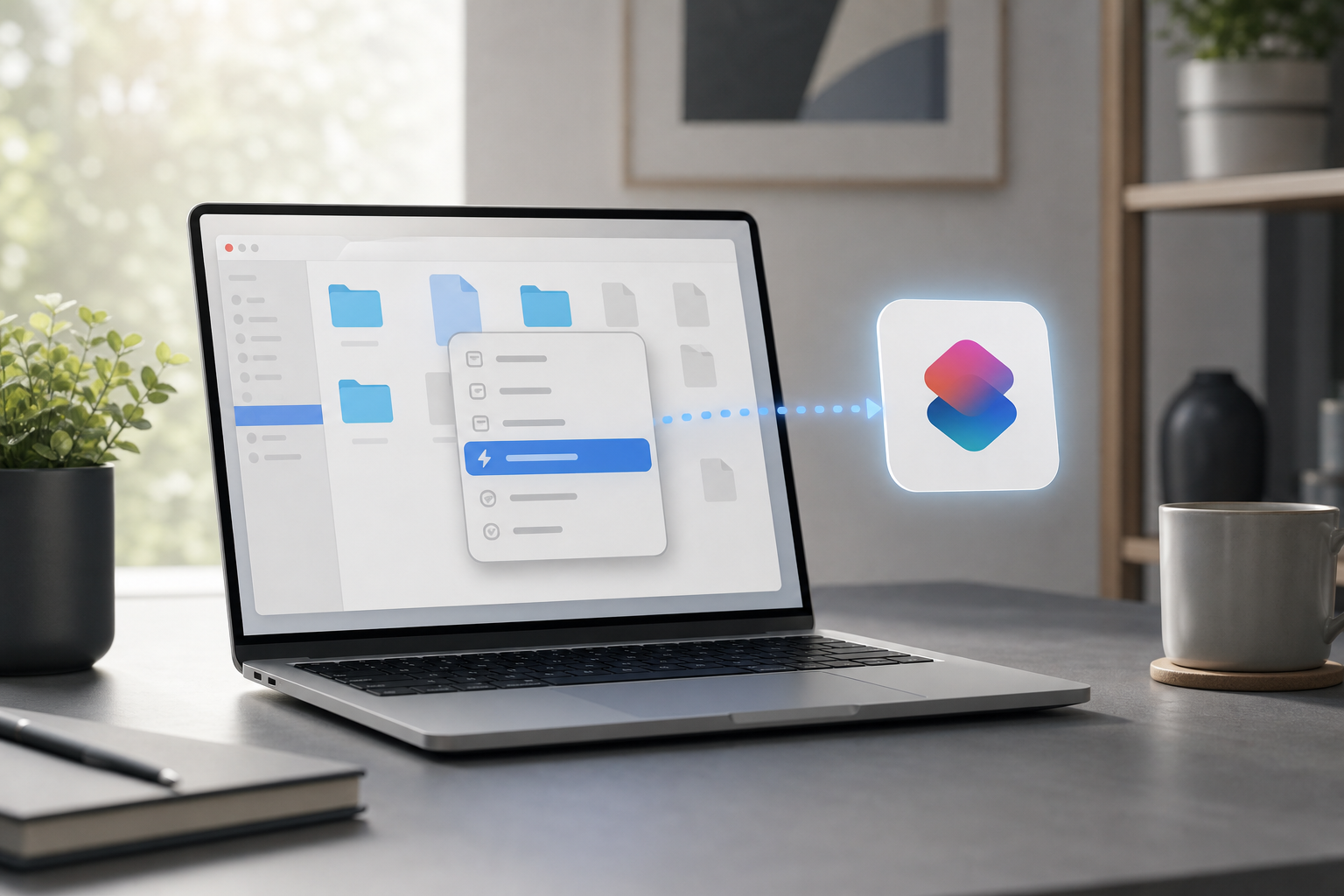
You can run a shortcut directly from Finder by adding it to the Quick Actions menu. This lets you select a file or folder, Control-click it, and launch the shortcut without opening the Shortcuts app.
Quick Answer
- Open the Shortcuts app and create or open the shortcut you want to use.
- Click the Details button in the shortcut editor.
- Turn on Use as Quick Action.
- Choose whether the shortcut should appear for files, folders, or both.
- Open Finder, select an item, and Control-click it.
- Choose Quick Actions, then select your shortcut.
If the shortcut does not appear, check its Quick Action settings and confirm that its input type matches the item you selected.
What Finder Quick Actions Do
Finder Quick Actions are commands that appear when you Control-click a file or folder. They can perform tasks such as converting an image, renaming files, compressing items, or sending selected content to another app.
A shortcut becomes a Finder Quick Action when you enable the option in its details. The selected Finder item is then passed to the shortcut as input. For example, a shortcut can receive an image, a group of files, or a folder and perform an action on that content.
The shortcut must be designed to accept the type of input you plan to select. A shortcut configured to receive images may not appear when you select a text document, for example.
Add a Shortcut to Finder Quick Actions
1. Open or create the shortcut
Open the Shortcuts app. You can find it in the Applications folder or open it with Spotlight.
To create a new shortcut, click the + button in the upper-right corner. To use an existing shortcut, find it in the sidebar and double-click it to open the editor.
Before adding the shortcut to Finder, make sure it performs the task you want. If it changes, moves, renames, or deletes files, test it carefully with copies of your data first.
2. Open the shortcut details
With the shortcut open, click the Details button in the toolbar. Depending on the Shortcuts window layout, this may appear as an information button or a settings control.
Look for the option labeled Use as Quick Action.
3. Enable Quick Action access
Select Use as Quick Action. Shortcuts should display additional options that control where the shortcut can be used.
If available, enable Finder so the shortcut can be launched from Finder. You may also see options for other locations, such as the Services Menu or the Share Sheet. These locations are separate from Finder’s Quick Actions menu.
4. Set the accepted input
Choose the types of items the shortcut should receive. Common choices include:
- Images
- Files
- Folders
- Media
- PDFs
- Text
Select the broadest input type that makes sense for the shortcut. If a shortcut works with any file, choose Files. If it is specifically an image-processing shortcut, choose Images.
Avoid accepting every input type unless the shortcut can handle all of them. A shortcut may appear in places where it cannot operate correctly if its input settings are too broad.
For more control over file and folder input, see How to Pass Files and Folders as Input to a Mac Shortcut.
5. Close the shortcut editor
Your changes normally save automatically. Close the shortcut editor or return to the main Shortcuts window when you are finished.
Run the Shortcut from Finder
After enabling Quick Action access, you can run the shortcut on a file or folder.
- Open Finder.
- Browse to the file or folder you want to process.
- Select the item.
- Control-click the item. You can also right-click it if your mouse or trackpad supports a secondary click.
- Move the pointer over Quick Actions.
- Select the name of your shortcut.
The shortcut runs with the selected item as its input. Depending on the actions it contains, it may open another app, create a new file, display a notification, or modify the selected item.
You can select multiple compatible files before opening the Quick Actions menu. The shortcut receives the selected items together when its input settings allow multiple items.
Run a Quick Action from the Finder preview area
Finder may also show Quick Actions in the preview area for a selected file. If the preview area is visible, select an item and look for the available action buttons beneath its preview. If your shortcut appears there, click it to run the shortcut.
If you do not see the preview area, choose View > Show Preview in Finder. The available controls depend on the selected item and the shortcut’s input settings.
Make Sure the Shortcut Handles Finder Input
Enabling Use as Quick Action only makes a shortcut available to Finder. The shortcut must also contain actions that use the incoming file or folder.
For example, a shortcut that receives a file might use actions such as:
- Get Details of Files
- Rename File
- Move Finder Items
- Quick Look
- Open File
- Make Archive
- Convert Image
- Get Text from Input
The exact action names and available options can vary depending on the shortcut and the selected input.
When building the shortcut, the first action should generally use Shortcut Input, which represents the file, folder, or other item passed from Finder. Some actions automatically receive this input, while others require you to select the input variable manually.
To inspect the input, add an action such as Quick Look temporarily. Run the shortcut from Finder and confirm that it receives the expected item. Remove the test action afterward if you do not need it.
Add a Shortcut to the Finder Toolbar
A Finder shortcut can also be placed in the toolbar for quicker access, although the setup is different from the Quick Actions menu.
Open the shortcut’s details in the Shortcuts app and enable the option that makes it available in Finder, if shown. Then open Finder and choose View > Customize Toolbar. If the shortcut is available as a toolbar item, drag it to the toolbar and click Done.
Toolbar availability can vary according to the shortcut’s input configuration. The Control-click menu is usually the more reliable method for running a shortcut on a selected file or folder.
Use a Keyboard Shortcut Instead
If you run the same Finder shortcut frequently, you can assign it a keyboard shortcut.
- Open the Shortcuts app.
- Locate the shortcut.
- Open its details.
- Find the keyboard shortcut field or option.
- Press the key combination you want to use.
- Select a compatible file or folder in Finder.
- Press the assigned key combination.
Choose a combination that does not conflict with a common macOS command. If the shortcut does not run, click the Finder window first to make sure Finder is the active app.
A keyboard shortcut can be useful when you already have the correct file selected. However, it may be less discoverable than the Quick Actions menu, especially on a shared Mac.
Troubleshooting Finder Shortcuts
The shortcut does not appear in Quick Actions
Open the shortcut in the Shortcuts app and check that Use as Quick Action is enabled. If Finder is listed as a destination, make sure it is selected.
Next, check the accepted input types. Select a file or folder that matches one of those types. A shortcut configured for images may not appear when you select a folder or a PDF.
If you recently changed the shortcut settings, quit and reopen Finder:
- Hold the Option key and Control-click the Finder icon in the Dock.
- Choose Relaunch.
Relaunching Finder closes and reopens its windows. Save any work in other apps before using this step; Finder itself does not normally contain unsaved document changes, but open file operations may be interrupted.
The shortcut appears but is unavailable
An unavailable command usually means the selected item is not a supported input. Try selecting a different file type or a single item instead of several items.
Also check whether the shortcut expects a file while you selected a folder, or expects a folder while you selected a file. Return to the shortcut details and adjust the accepted input only if the shortcut’s actions can handle it.
The shortcut runs but does not process the file
The shortcut may not be using the Finder input. Open it in the Shortcuts app and inspect its first few actions. Look for a file-processing action that receives Shortcut Input.
Some actions require you to choose an input variable from the action. If the action is configured to use a fixed file, folder, or text value instead, it will not process the item selected in Finder.
Test the shortcut by adding Quick Look or another temporary output action. This can show whether Finder is passing the expected item.
The shortcut asks for permission
A shortcut may request access to files, folders, or another app the first time it runs. Read the prompt and allow access only when you understand what the shortcut will do.
If the shortcut needs to access a protected location, macOS may require additional permission. You may need to move the working files to a permitted location or approve access through System Settings. Do not grant broad access unless it is necessary for the shortcut.
If macOS identifies the shortcut as untrusted, review its actions before running it. For additional guidance, see How to Allow an Untrusted Shortcut to Run on a Mac.
The shortcut changes or deletes files unexpectedly
Stop running it until you understand every file-related action. Actions such as Move Finder Items, Rename File, Delete Files, and Replace Text can change your data.
Make a test folder with duplicate files and run the shortcut there. If the shortcut deletes files, disable or remove that action while testing. Also look for confirmation options in the action settings.
Some operations cannot be easily undone. Back up important files before using a shortcut that moves, replaces, overwrites, or deletes content.
The Quick Actions menu is missing
Control-click a file itself rather than an empty area of a Finder window. The Quick Actions menu is contextual and may not appear when nothing is selected.
You can also select a file, open the Finder menu bar, and check whether actions are available under the relevant contextual controls. If Finder still does not show the shortcut, relaunch Finder and recheck the shortcut’s details.
The shortcut takes a long time to finish
A shortcut may be waiting for an app, network connection, file conversion, or user input. Check the actions in the Shortcuts app and remove unnecessary steps.
If the shortcut runs shell commands, verify that the command finishes and does not wait indefinitely for input. You can also review How to Run a Shell Script from a Shortcut on a Mac for considerations when a shortcut launches a script.
Do not force-quit an app while the shortcut is writing or moving files unless necessary. Interrupting an operation can leave incomplete or partially moved files.
Frequently Asked Questions
Can I run a shortcut on more than one file?
Yes. Select multiple compatible files in Finder, then open Quick Actions and choose the shortcut. The shortcut must be configured to accept the selected input and its actions must support multiple items.
Can I use a Finder shortcut on a folder?
Yes, if the shortcut accepts folders and its actions can process folder input. A shortcut may work on the folder itself or use an action that retrieves the folder’s contents.
Why does my shortcut appear for one file type but not another?
Finder filters Quick Actions according to the input types selected in the shortcut details. Edit the shortcut and choose an input type that matches the items you want to process.
Can a Finder shortcut create a new file?
Yes. A shortcut can create a document, export converted content, or save output to a chosen location. Confirm the destination and filename actions before using it on important files.
Can I schedule the same shortcut instead of running it manually?
Yes. Scheduling is separate from Finder Quick Actions and is useful when a shortcut should run automatically at a specific time or in response to an event. See How to Schedule a Shortcut to Run Automatically on a Mac.
Can I remove a shortcut from Quick Actions?
Yes. Open the shortcut in the Shortcuts app, open its details, and turn off Use as Quick Action or disable its Finder availability. The shortcut remains in the Shortcuts app unless you delete it separately.
Final Thoughts
Adding a shortcut to Finder Quick Actions is a convenient way to process files without opening the Shortcuts app. Enable Use as Quick Action, choose the correct input types, and launch the shortcut by Control-clicking a compatible file or folder. Test file-changing shortcuts on copies first, then adjust the shortcut’s input and permissions if it does not appear or behave as expected.