How to Connect Two External Monitors to a MacBook and Check Compatibility

Illustration for How to Connect Two External Monitors to a MacBook and Check Compatibility

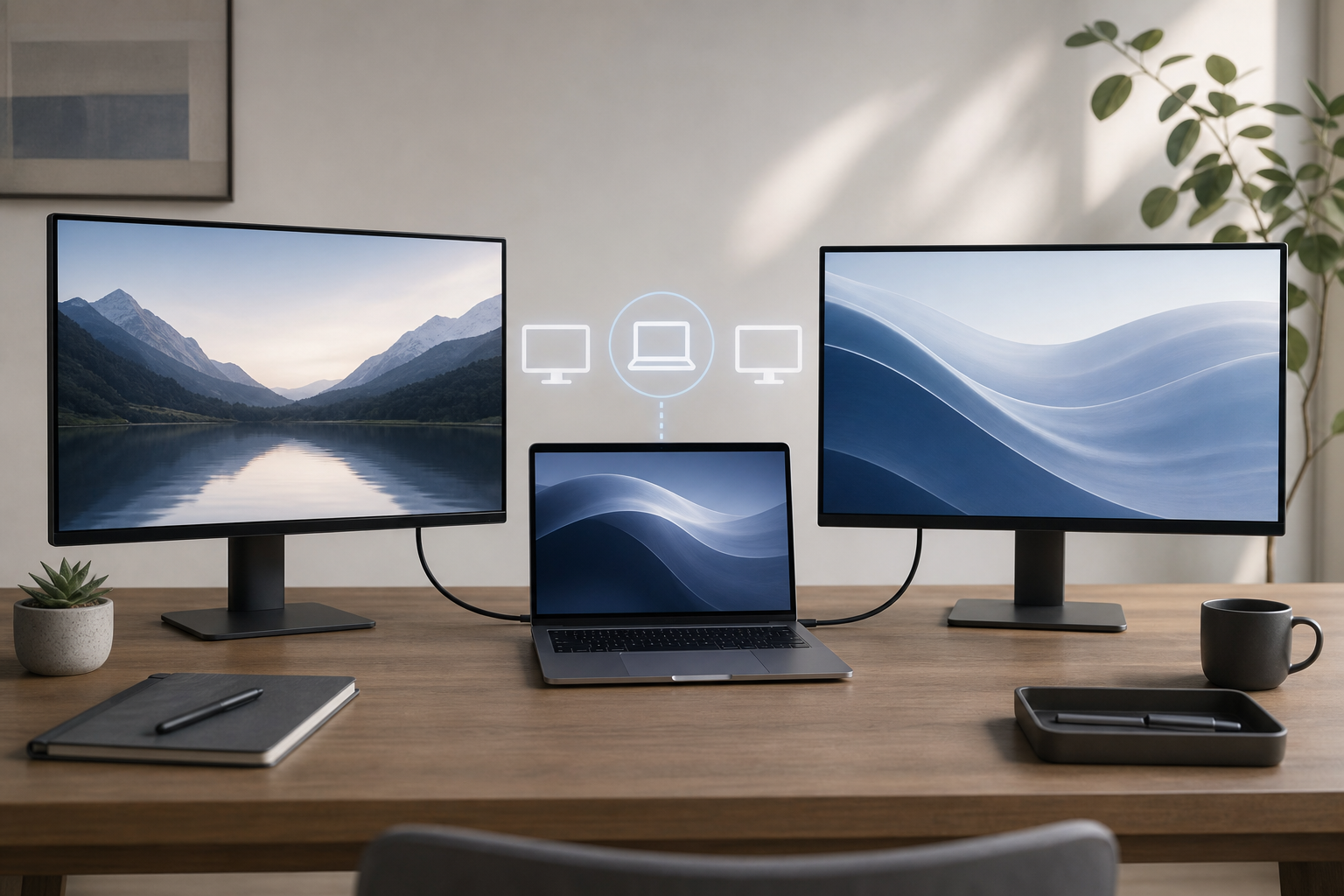
Quick Answer To connect two external monitors to a MacBook, first confirm that your MacBook model supports two external displays at the resolutions and refresh rates you want. Check Apple menu > About This Mac to identify the model, then compare its display limit with Apple’s technical specifications. Connect the monitors directly to compatible Thunderbolt … Read more

How to Use AirPlay to Mirror or Extend a MacBook to a TV

Illustration for How to Use AirPlay to Mirror or Extend a MacBook to a TV

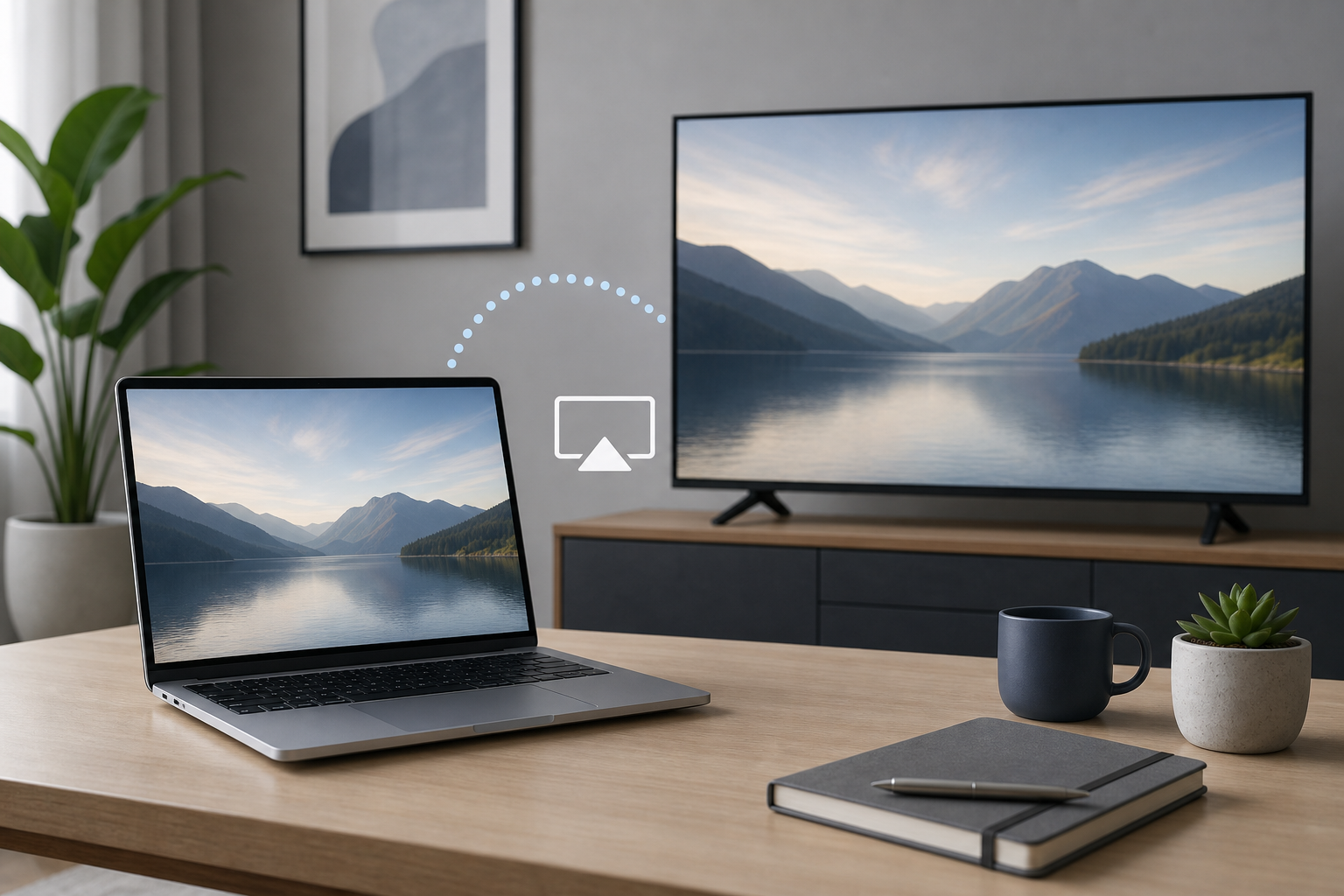
AirPlay lets you wirelessly send your MacBook’s screen, video, photos, presentations, and audio to a compatible TV. You can mirror the MacBook display so the TV shows the same content, or use the TV as a separate display to extend your desktop. To connect, make sure your MacBook and compatible TV or Apple TV are … Read more

How to Lock Notes on a Mac

Illustration for How to Lock Notes on a Mac

The Notes app can lock individual notes or an entire folder of locked notes. To lock a note on a Mac, open it in Notes, click the Lock button in the toolbar, choose Lock Note, and create or enter a Notes password. Depending on your settings and Mac, you may also be able to unlock … Read more

How to Use Optimize Storage on a Mac

Illustration for How to Use Optimize Storage on a Mac

macOS includes built-in storage recommendations that can help you reclaim space without manually searching through every folder. The most useful option is Optimize Storage, which removes watched movies and TV shows after you finish them and keeps only recent email attachments on your Mac when space is needed. Your original content remains available through the … Read more

How to Show and Change File Extensions on a Mac

Illustration for How to Show and Change File Extensions on a Mac

Quick Answer To show file extensions for all files on your Mac, open Finder, choose Finder > Settings, select Advanced, and turn on Show all filename extensions. To show or hide the extension for one file: Select the file in Finder. Choose File > Get Info. Expand Name & Extension. Select or clear Hide extension. … Read more

APFS vs exFAT: Which Format Should You Use on a Mac?

Illustration for APFS vs exFAT: Which Format Should You Use on a Mac?

Quick Answer Choose APFS if the drive will be used only with Macs, especially if it is an SSD or will store a Time Machine backup. APFS is Apple’s modern file system and supports features such as encryption, snapshots, and space sharing. Choose exFAT if you need to move files between a Mac and a … Read more

How to Use Screen Time on a Mac

Illustration for How to Use Screen Time on a Mac

Screen Time on a Mac shows how you spend time in apps and websites, helps you set app-use limits, schedules periods of reduced access, and applies content restrictions. To open it, choose Apple menu  > System Settings > Screen Time. Older versions of macOS may use System Preferences instead of System Settings. Quick Answer … Read more