

Quick Answer
The find command searches folders recursively, meaning it checks a folder and the folders inside it. Open Terminal, then use a command such as:
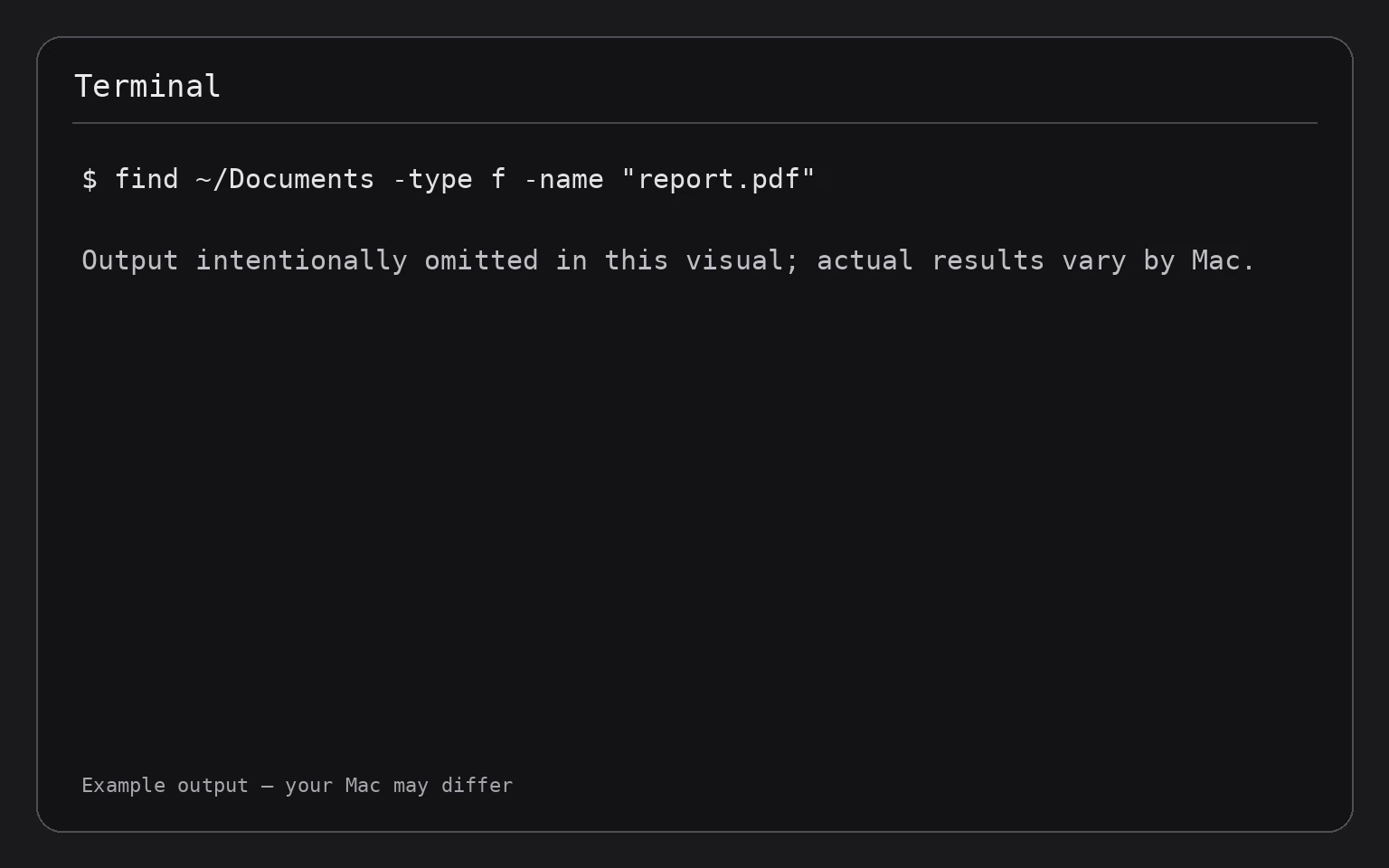
find ~/Documents -type f -name "report.pdf"
This searches your Documents folder for a file named report.pdf.
You can also search by file type or size:
find ~/Downloads -type f -name "*.pdf"
find ~/Documents -type f -size +100M
The first finds PDF files in Downloads. The second finds regular files larger than 100 megabytes in Documents. These commands only search and display results; they do not modify or delete files.
What find Does on a Mac
find is a Terminal utility that searches through a directory, which is another name for a folder. Unlike a basic filename search, it can combine several conditions, including:
- File or folder name
- File type
- File size
- Location
- Modification time
- Whether an item is a regular file, folder, or symbolic link
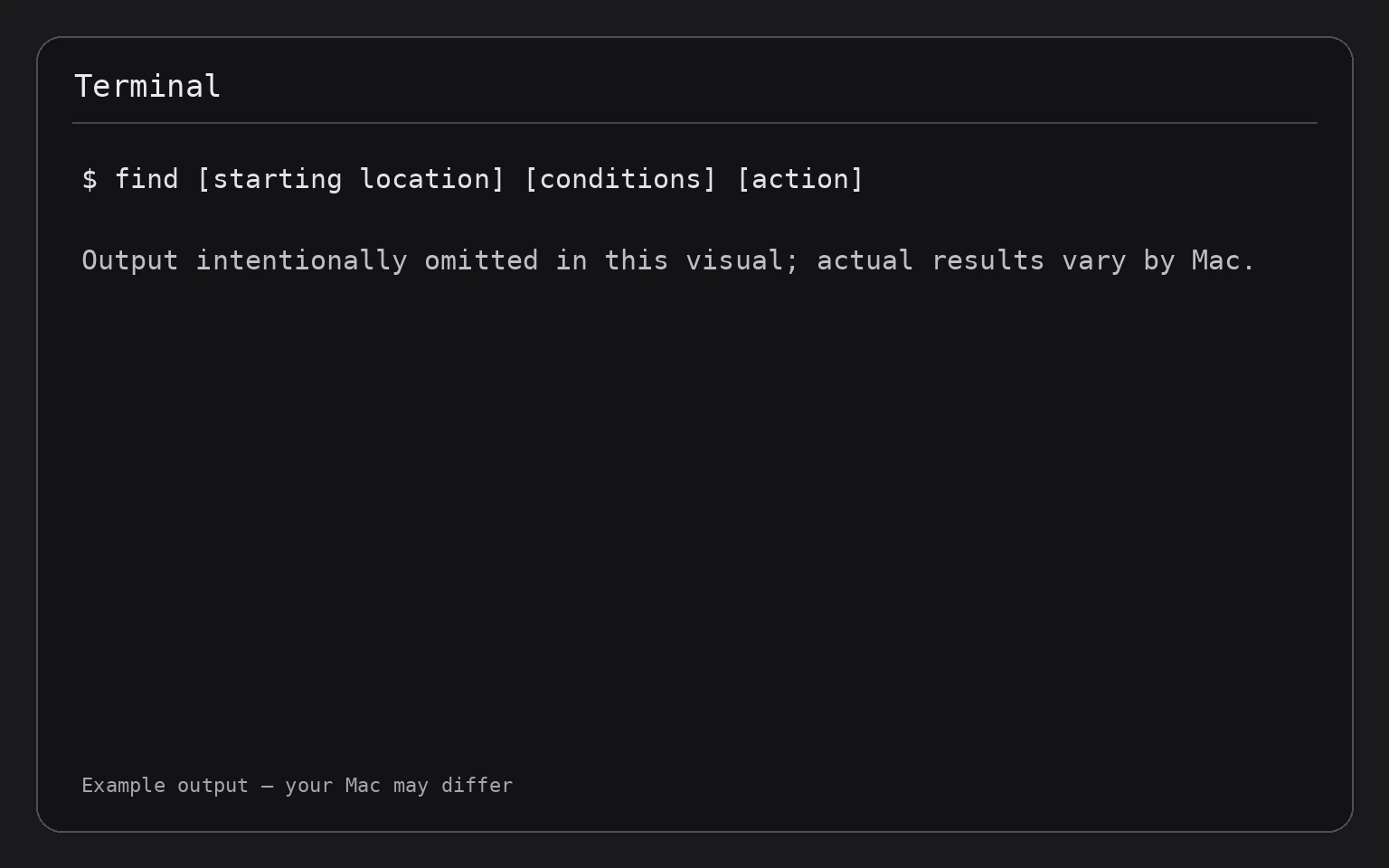
A typical find command has this structure:
find [starting location] [conditions] [action]
For example:
find ~/Documents -type f -name "budget.xlsx"
Here is what each part means:
findstarts the search.~/Documentsis the folder where the search begins.-type flimits results to regular files.-name "budget.xlsx"searches for that exact filename.
The command prints matching paths in Terminal. It does not open, move, rename, or delete anything unless you explicitly add an action that changes files.
Open Terminal and Choose a Search Location
Open Terminal from Applications > Utilities, or search for it with Spotlight.
Choosing a specific starting folder makes results easier to read and reduces the time required for a search. Common locations include:
find ~/Documents
find ~/Downloads
find ~/Desktop
Each command lists the contents of that location and its subfolders. Because these commands do not include search conditions, they may produce many results.
To search your entire home folder, use:
find ~
The tilde (~) represents your home folder. Searching the entire Mac is possible, but it often produces permission messages and unnecessary results. Start with a specific folder whenever possible.
Find a File by Its Exact Name
To search for one exact filename, use -name:
find ~/Documents -type f -name "tax-return.pdf"
This searches Documents and all of its subfolders for a regular file named tax-return.pdf.
The search is case-sensitive. For example, Tax-Return.pdf and tax-return.pdf are different names to find. To search without considering uppercase and lowercase letters, use -iname:
find ~/Documents -type f -iname "tax-return.pdf"
Use quotation marks around filenames that contain spaces or special characters:
find ~/Documents -type f -name "Annual Report.docx"
Without quotation marks, the shell can interpret the space as separating two different arguments.
Search for Part of a Filename
Use an asterisk (*) as a wildcard for any sequence of characters:
find ~/Documents -type f -name "*invoice*"
This finds filenames containing invoice, such as invoice-march.pdf or old-invoice.docx.
To find files with a particular extension, place the wildcard before the extension:
find ~/Downloads -type f -name "*.zip"
This finds ZIP files in Downloads and its subfolders.
For a case-insensitive extension search, use -iname:
find ~/Downloads -type f -iname "*.jpg"
This can match .jpg, .JPG, and other capitalization variations.
Find Files by Type
The -type condition limits results according to the kind of filesystem item:
f— Regular filed— Directory, or folderl— Symbolic link
To find all folders inside Documents:
find ~/Documents -type d
To find folders whose names contain backup:
find ~/Documents -type d -iname "*backup*"
To find regular files with a specific extension:
find ~/Pictures -type f -iname "*.png"
The -type f condition is useful because a folder can have the same name as a file. Adding it prevents folders from appearing in results when you are looking for files.
You can combine filename and type conditions. For example:
find ~/Downloads -type f ( -iname "*.jpg" -o -iname "*.png" )
This searches for regular JPG or PNG files. The parentheses group the two filename tests, while -o means “or.” The backslashes prevent the shell from interpreting the parentheses before find receives them.
Find Files by Size
Use -size to search by file size. The basic pattern is:
find ~/Documents -type f -size +100M
This finds regular files larger than 100 megabytes.
Common size suffixes include:
c— Bytesk— KilobytesM— MegabytesG— Gigabytes
Examples:
find ~/Downloads -type f -size +1G
find ~/Pictures -type f -size +500M
find ~/Documents -type f -size -10M
The plus sign means larger than the specified size. The minus sign means smaller than the specified size. Without a sign, find checks a size range based on the unit’s filesystem block calculation, so use + or - when you want a clear threshold.
To find files between two sizes, combine conditions:
find ~/Downloads -type f -size +100M -size -1G
This searches for regular files larger than 100 MB but smaller than 1 GB.
For a more focused storage search, see How to Find Large Files on a Mac.
Combine Name, Type, and Size Conditions
Conditions placed together are normally treated as “and” conditions. For example:
find ~/Downloads -type f -iname "*.mp4" -size +500M
This finds MP4 files larger than 500 MB in Downloads.
You can also search for a particular name pattern and size:
find ~/Documents -type f -iname "*project*" -size +10M
This finds regular files containing project in the name and larger than 10 MB.
To search multiple starting folders, provide both paths:
find ~/Documents ~/Downloads -type f -iname "*.pdf"
This searches both locations for PDF files.
Display More Useful Results
By default, find prints the path of every match. You can pass each result to ls to display details such as file size and modification time:
find ~/Downloads -type f -size +100M -exec ls -lh {} ;
The -exec portion runs ls -lh for each match:
{}stands for the current result.ls -lhdisplays a readable size.;marks the end of the command.
This command only displays information; it does not change the files.
If filenames contain spaces, the output remains a valid path because find passes each result as a separate argument to ls. For large result sets, the command may take longer because it runs ls separately for every match.
You can save search results to a text file in your home folder:
find ~/Downloads -type f -iname "*.pdf" > ~/Desktop/downloaded-pdfs.txt
This creates or replaces downloaded-pdfs.txt on the Desktop. It changes the contents of that output file, not the files being searched. If an existing file has that name, its contents are replaced. Use a different filename if you need to preserve the existing one.
Search Protected Locations Carefully
When searching locations such as system folders or another user’s files, macOS may display messages such as “Permission denied.” These messages mean Terminal cannot read certain directories.
Avoid using sudo find / ... unless you understand exactly why elevated access is necessary. sudo runs a command with administrator privileges and can expose more files than you intended. It also makes destructive follow-up commands much more dangerous.
If Terminal needs access to a personal folder, review System Settings > Privacy & Security and the relevant privacy controls. The exact access required depends on the location you are searching. You can usually avoid permission issues by searching your own folders, such as Documents, Downloads, Desktop, and Pictures.
Avoid Deleting Files During a Search
A search command is generally safe when it only prints results. Do not add -delete unless you have carefully reviewed the search conditions and are certain every match should be removed.
For example, this command deletes matching files:
find ~/Downloads -type f -name "*.tmp" -delete
Warning: This permanently removes matching files from Downloads and can delete more items than intended. Do not run it as a first step.
A safer workflow is to run the search without -delete:
find ~/Downloads -type f -name "*.tmp"
Review the results, then delete selected items manually in Finder. If you accidentally delete files, check the Trash immediately and use Put Back when available. Files removed with a command may not be recoverable through the Trash, so maintain a current backup before deleting files.
Practical Search Examples
Find Documents by Extension
find ~/Documents -type f ( -iname "*.doc" -o -iname "*.docx" -o -iname "*.rtf" )
This lists common document files in Documents and its subfolders.
Find Empty Files
find ~/Documents -type f -empty
This finds regular files with no contents. An empty file is not necessarily safe to delete; it may be a placeholder or part of an application’s workflow.
Find Empty Folders
find ~/Downloads -type d -empty
This lists empty folders in Downloads. Review them before removing anything.
Search a Folder Whose Name Contains Spaces
Use quotation marks around the path:
find "$HOME/Work Files" -type f -iname "*.csv"
$HOME represents your home folder. The quotation marks keep Work Files together as one path.
Limit the Search Depth
To search only the starting folder and its immediate contents, use -maxdepth:
find ~/Downloads -maxdepth 2 -type f -iname "*.pdf"
This limits the search to two directory levels from Downloads. A smaller depth can make a search faster and prevent results from deeply nested folders.
Troubleshooting find Commands
“No such file or directory”
The starting path may be misspelled or may not exist. Check common folders with:
ls ~
Then copy the correct folder name into your find command. For paths containing spaces, use quotation marks.
The search returns no results
Check the following:
- Confirm that you started in the correct folder.
- Check the spelling and capitalization of the name.
- Replace
-namewith-inamefor a case-insensitive search. - Remove the size condition temporarily.
- Confirm that the item is a file rather than a folder.
For example, begin with a broad extension search:
find ~/Downloads -type f -iname "*.pdf"
Then add more conditions after confirming that the location and extension are correct.
Permission messages appear
The search reached a location Terminal cannot read. Start with a folder in your home directory or adjust the relevant privacy permission in System Settings > Privacy & Security. Permission messages do not necessarily mean the command failed; they mean some locations were skipped.
The output is difficult to read
Use -exec ls -lh to show readable sizes:
find ~/Documents -type f -size +50M -exec ls -lh {} ;
For filenames containing unusual characters, avoid copying paths manually when possible. Use Finder to inspect the matching item after identifying its location.
The command seems to be running indefinitely
Searching a large folder or the entire disk can take time. Press Control-C to stop the current command. Stopping a read-only search does not undo anything because it has not changed the files.
Frequently Asked Questions
Does find search inside file contents?
No. find searches filesystem properties such as names, types, locations, and sizes. It does not search words inside documents. Content searches require a different tool, such as Spotlight or grep, depending on the file type.
Is find case-sensitive?
-name is case-sensitive. Use -iname when uppercase and lowercase differences should not matter.
Can find locate folders as well as files?
Yes. Use -type d for folders and -type f for regular files.
Why do some paths begin with ./?
A path beginning with ./ means “from the current folder.” It is a relative path. A path beginning with / is an absolute path, while ~ represents your home folder.
Does a find search change my files?
A command that only searches and prints results does not change the files. Actions such as -delete, -exec mv, or -exec rm can change or remove files, so review those commands carefully before running them.
Final Thoughts
The safest way to use find on a Mac is to begin with a specific folder, add -type f when you want regular files, and use -name or -iname for filename patterns. Add -size to narrow results by storage use, then review the output before taking any action. For additional Terminal-based storage work, you can also learn how to find the largest files and folders in Terminal on a Mac.