
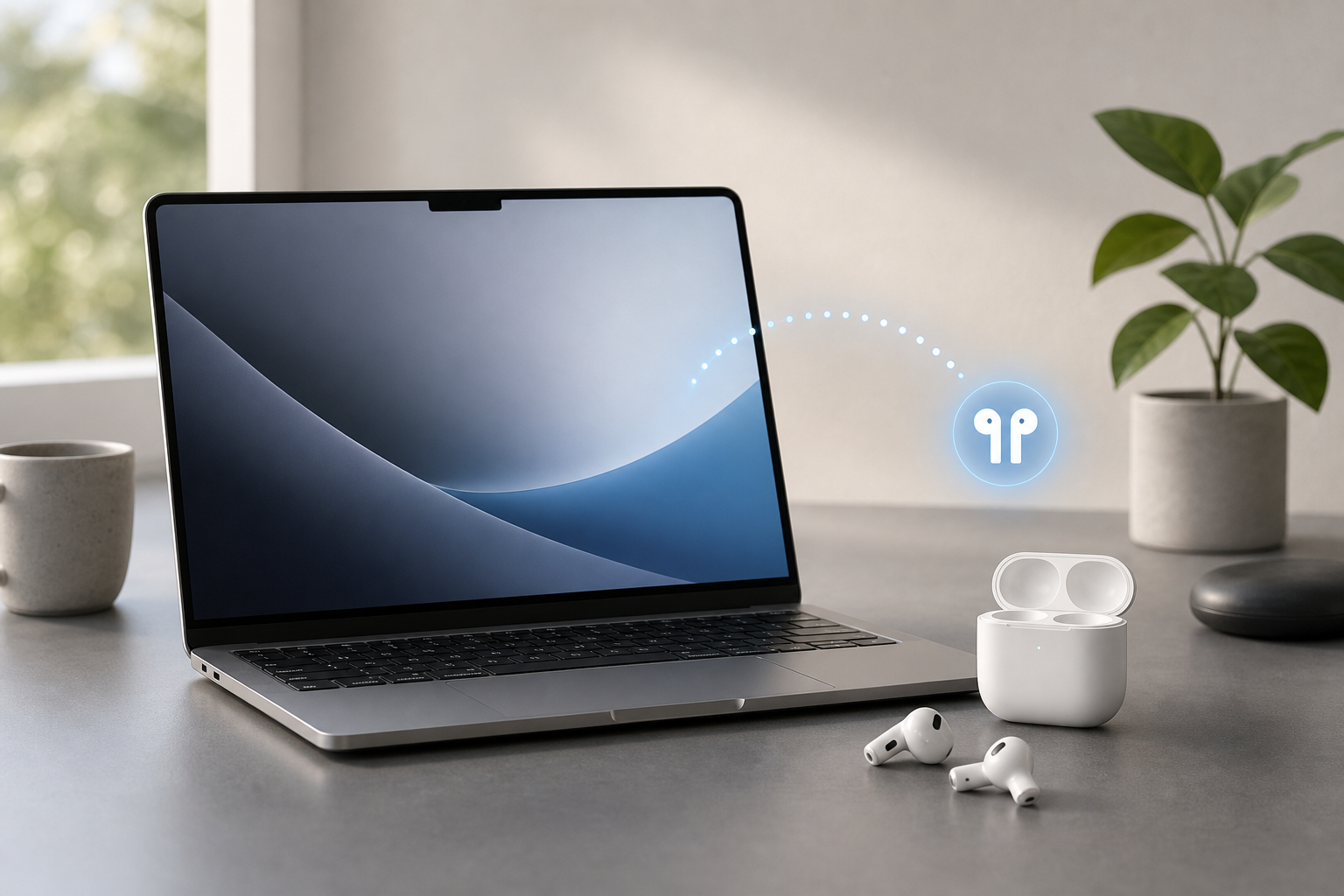
You can connect AirPods to a Mac in two main ways: select them from the Mac’s Bluetooth settings, or choose them from the sound output menu if they are already associated with your Apple Account. For a first-time connection, place the AirPods in their charging case, open the lid, press and hold the setup button until the status light flashes white, and select the AirPods in System Settings > Bluetooth.
Quick Answer
To connect AirPods to a Mac:
- Open the AirPods case with both earbuds inside.
- Press and hold the setup button on the back of the case until the status light flashes white. On some newer cases, double-tap the front of the case when prompted to enter pairing mode.
- On your Mac, choose Apple menu > System Settings > Bluetooth.
- Turn on Bluetooth if necessary.
- Find your AirPods in the device list and click Connect.
- To make them the audio output, click Control Center in the menu bar, select Sound, and choose your AirPods.
If your AirPods are already connected to another Apple device using the same Apple Account, they may appear automatically in the Mac’s sound menu without a new pairing process.
Before You Begin
Check these details before connecting:
- Charge the AirPods and their charging case.
- Keep the AirPods close to the Mac.
- Make sure Bluetooth is turned on.
- If you want automatic switching between Apple devices, sign in to the same Apple Account on each device.
- Install available software updates if the AirPods do not appear or connect reliably.
The names of some buttons and settings can vary slightly depending on the AirPods model and the software version installed on your Mac.
Method 1: Connect AirPods Automatically Through Your Apple Account
AirPods can be available across Apple devices when you use the same Apple Account and have supported Apple features enabled. This is often the fastest way to connect AirPods that you have already paired with an iPhone or iPad.
Check whether your AirPods are already available
- Put the AirPods in your ears or open their charging case near the Mac.
- Click Control Center in the menu bar.
- Click Sound.
- Look for your AirPods in the list of available output devices.
- Select the AirPods.
You can also choose Apple menu > System Settings > Sound, then select the AirPods under the output device options.
If the AirPods appear in the sound list but do not connect, open the charging case or place the AirPods in your ears, then try selecting them again.
Use the same Apple Account on your devices
For automatic availability, sign in to the same Apple Account on the Mac and the iPhone or iPad that was used to set up the AirPods. The AirPods must also be associated with that account through supported Apple services.
To check the account on your Mac:
- Choose Apple menu > System Settings.
- Click your name near the top of the sidebar.
- Confirm that the displayed Apple Account is the one you use on your other Apple devices.
Automatic availability is convenient, but it is not guaranteed in every situation. A device may still need to be connected manually, especially after a reset, account change, software update, or Bluetooth problem.
Method 2: Pair AirPods Manually with Bluetooth
Manual Bluetooth pairing is the most dependable method when the AirPods do not appear automatically.
Put AirPods into pairing mode
- Place both AirPods in the charging case.
- Open the case lid.
- Press and hold the setup button on the back of the case.
- Release the button when the status light flashes white.
Some newer AirPods cases use a touch-sensitive setup control on the front rather than a traditional rear button. If your case does not have a rear button, follow the pairing prompt for that model, which may require tapping the front of the case.
Connect from System Settings
- On the Mac, choose Apple menu > System Settings.
- Click Bluetooth in the sidebar.
- Turn on Bluetooth if it is off.
- Wait for the AirPods to appear under nearby devices.
- Click Connect next to the AirPods.
After the connection is complete, the AirPods should appear as an available sound output device. To select them:
- Click Control Center in the menu bar.
- Click Sound.
- Select your AirPods.
You can also open Apple menu > System Settings > Sound and select them there.
Switch AirPods to a Mac from an iPhone or iPad
If your AirPods are currently playing audio from an iPhone or iPad, you can often switch them to the Mac without pairing them again.
- Connect the AirPods to the Mac at least once.
- On the Mac, click Control Center in the menu bar.
- Click Sound.
- Select your AirPods.
The audio should move from the other device to the Mac. You may need to pause playback on the iPhone or iPad first if the connection does not switch immediately.
You can also use the audio controls on the iPhone or iPad:
- Open Control Center.
- Tap the current audio output control.
- Tap the AirPlay icon.
- Select the Mac or choose the AirPods, depending on which device you want to use.
The exact switching behavior depends on the AirPods model, account setup, Bluetooth connection, and the devices being used.
Allow AirPods to Switch Automatically
AirPods can switch between compatible Apple devices when you start using them. For example, they may move from music on an iPhone to a video or call on a Mac.
To check the setting on a Mac:
- Connect the AirPods to the Mac.
- Choose Apple menu > System Settings.
- Click the AirPods in the sidebar, if they appear.
- Look for Connect to This Mac.
- Choose Automatically when that option is available.
If you prefer to control the connection manually, choose When Last Connected to This Mac instead.
Automatic switching can be interrupted when:
- The AirPods are connected to a non-Apple device.
- One of your Apple devices uses a different Apple Account.
- Bluetooth is turned off.
- The AirPods are inside the case with the lid closed.
- Another device has taken control of the audio connection.
- The Mac or AirPods software needs an update.
Choose the AirPods Microphone on a Mac
AirPods can work as both headphones and a microphone. This is useful for FaceTime calls, video meetings, voice recordings, and other apps.
To select the AirPods microphone:
- Connect the AirPods to the Mac.
- Choose Apple menu > System Settings.
- Click Sound.
- Click the Input tab or input device section.
- Select your AirPods.
You can select the AirPods as the output device separately under Output.
Improve call quality
When an app uses the AirPods microphone, macOS may change the Bluetooth audio mode. This can reduce playback quality while the microphone is active. That behavior is normal for many Bluetooth headsets and may vary by model and software version.
For the best results:
- Keep the AirPods and Mac close together.
- Close apps that are using the microphone unnecessarily.
- Select the Mac’s built-in microphone if you need higher-quality music playback during a call.
- Check the microphone choice inside the calling app as well as in System Settings.
To use the Mac’s microphone while keeping audio in the AirPods, choose the AirPods under Output, then select MacBook Microphone or the appropriate built-in microphone under Input.
Use Spatial Audio with AirPods on a Mac
Supported AirPods models can provide Spatial Audio for compatible content. Spatial Audio creates a more immersive listening effect and may include head tracking, which adjusts the sound as you move your head.
To check the setting:
- Connect compatible AirPods to the Mac.
- Click Control Center in the menu bar.
- Click Sound.
- Select the AirPods.
- Open the AirPods controls if they are available.
- Choose a Spatial Audio option, such as Fixed or Head Tracked, when offered.
You can also check AirPods settings in Apple menu > System Settings after connecting them.
Spatial Audio options depend on the AirPods model, the Mac, the app, and the content. If no Spatial Audio control appears, the feature may not be supported for that combination.
Adjust AirPods Settings on a Mac
After connecting the AirPods, open Apple menu > System Settings and click the AirPods in the sidebar. Depending on the model, you may be able to change settings such as:
- Automatic ear detection
- Automatic switching between devices
- Press-and-hold behavior
- Noise control modes
- Microphone selection
- Spatial Audio
- Conversation awareness or related listening features
Not every setting is available on every AirPods model.
Troubleshooting AirPods That Will Not Connect
AirPods do not appear in Bluetooth settings
Try these steps:
- Confirm that Bluetooth is on in Apple menu > System Settings > Bluetooth.
- Put both AirPods in the case and open the lid.
- Press and hold the setup button until the light flashes white.
- Move the case closer to the Mac.
- Wait several seconds for the AirPods to appear.
- If another device is using them, disconnect the AirPods from that device or turn off its Bluetooth temporarily.
If the AirPods still do not appear, charge the case and earbuds before trying again.
AirPods appear but will not connect
Select Disconnect if it is shown, wait a moment, and then select Connect again. You can also turn Bluetooth off and back on:
- Choose Apple menu > System Settings > Bluetooth.
- Turn Bluetooth off.
- Wait a few seconds.
- Turn Bluetooth back on.
- Put the AirPods into pairing mode and try again.
Remove and pair the AirPods again
If the AirPods are listed but repeatedly fail to connect, remove them from the Mac and pair them again.
Warning: Removing the AirPods deletes their saved Bluetooth connection from this Mac. It does not erase the AirPods or remove them from your Apple Account, but you will need to pair them again.
- Choose Apple menu > System Settings > Bluetooth.
- Find the AirPods.
- Click the information button next to them.
- Choose Forget This Device or Remove, depending on the available wording.
- Confirm the action.
- Put the AirPods into pairing mode.
- Select them in the Bluetooth device list and click Connect.
AirPods connect but there is no sound
- Click Control Center in the menu bar.
- Click Sound.
- Select your AirPods.
- Increase the Mac’s volume.
- Check the volume inside the app you are using.
- Make sure the AirPods are charged and seated correctly in your ears.
If the problem continues, open Apple menu > System Settings > Sound and confirm that the AirPods are selected under Output.
Only one AirPod works
Place both AirPods in the case, close the lid, wait a few seconds, and open it again. Check the battery level of each earbud from the Bluetooth menu or AirPods controls.
Clean the charging contacts and make sure each earbud is seated correctly in the case. If one earbud still does not charge or connect, test the AirPods with another Apple device to determine whether the issue is specific to the Mac.
The connection keeps dropping
Keep the AirPods within a short distance of the Mac and reduce potential wireless interference. Also try:
- Charging the AirPods and case.
- Disconnecting unused Bluetooth devices.
- Restarting the Mac.
- Updating macOS when an update is available.
- Forgetting and pairing the AirPods again.
Restarting the Mac can close open apps. Save documents and other unsaved work before choosing Apple menu > Restart.
AirPods switch to the wrong device
Open the audio controls on the device that currently has the AirPods, then select the intended device manually. On the Mac, use Control Center > Sound.
To reduce unwanted automatic switching, open the AirPods settings in System Settings and change Connect to This Mac from Automatically to When Last Connected to This Mac, when that option is available.
Frequently Asked Questions
Can I connect AirPods to a Mac without an iPhone?
Yes. You can pair AirPods directly with a Mac using Apple menu > System Settings > Bluetooth. Put the AirPods into pairing mode, select them in the Bluetooth list, and click Connect.
Why do my AirPods not show up on my Mac?
The AirPods may not be in pairing mode, may be connected to another device, or may have a low battery. Turn on Bluetooth, open the case, hold the setup button until the status light flashes white, and keep the case near the Mac.
Do I need to pair AirPods every time I use my Mac?
No. After pairing, the Mac normally remembers the AirPods. You may only need to select them from Control Center > Sound when they are connected to another device.
Can AirPods connect to a Mac and iPhone at the same time?
AirPods can remain associated with multiple Apple devices and may switch between them. Only one device generally plays the active audio at a time, although supported features can make switching nearly automatic.
How do I use AirPods for calls on my Mac?
Connect the AirPods, then choose them under both Output and Input in Apple menu > System Settings > Sound. Also check the microphone and speaker settings inside the calling app.
How do I disconnect AirPods from a Mac?
Click Control Center > Sound, then choose another output device, such as the Mac’s built-in speakers. To remove the saved pairing completely, go to System Settings > Bluetooth, click the information button next to the AirPods, and choose Forget This Device or Remove.
Can I connect AirPods to a Mac with a cable?
The AirPods themselves use Bluetooth for audio. A charging cable can charge the case, but it does not normally create a wired audio connection between the AirPods and the Mac.
Final Thoughts
The quickest way to connect AirPods to a Mac is to select them under Control Center > Sound if they are already associated with your Apple Account. For a first connection or when automatic setup fails, use System Settings > Bluetooth, put the AirPods into pairing mode, and select Connect. After pairing, check the sound output, microphone, automatic switching, and Spatial Audio settings to tailor the connection to the way you use your Mac.