How to Connect a MacBook to an External Display via USB-C, HDMI, or Thunderbolt

Illustration for How to Connect a MacBook to an External Display via USB-C, HDMI, or Thunderbolt
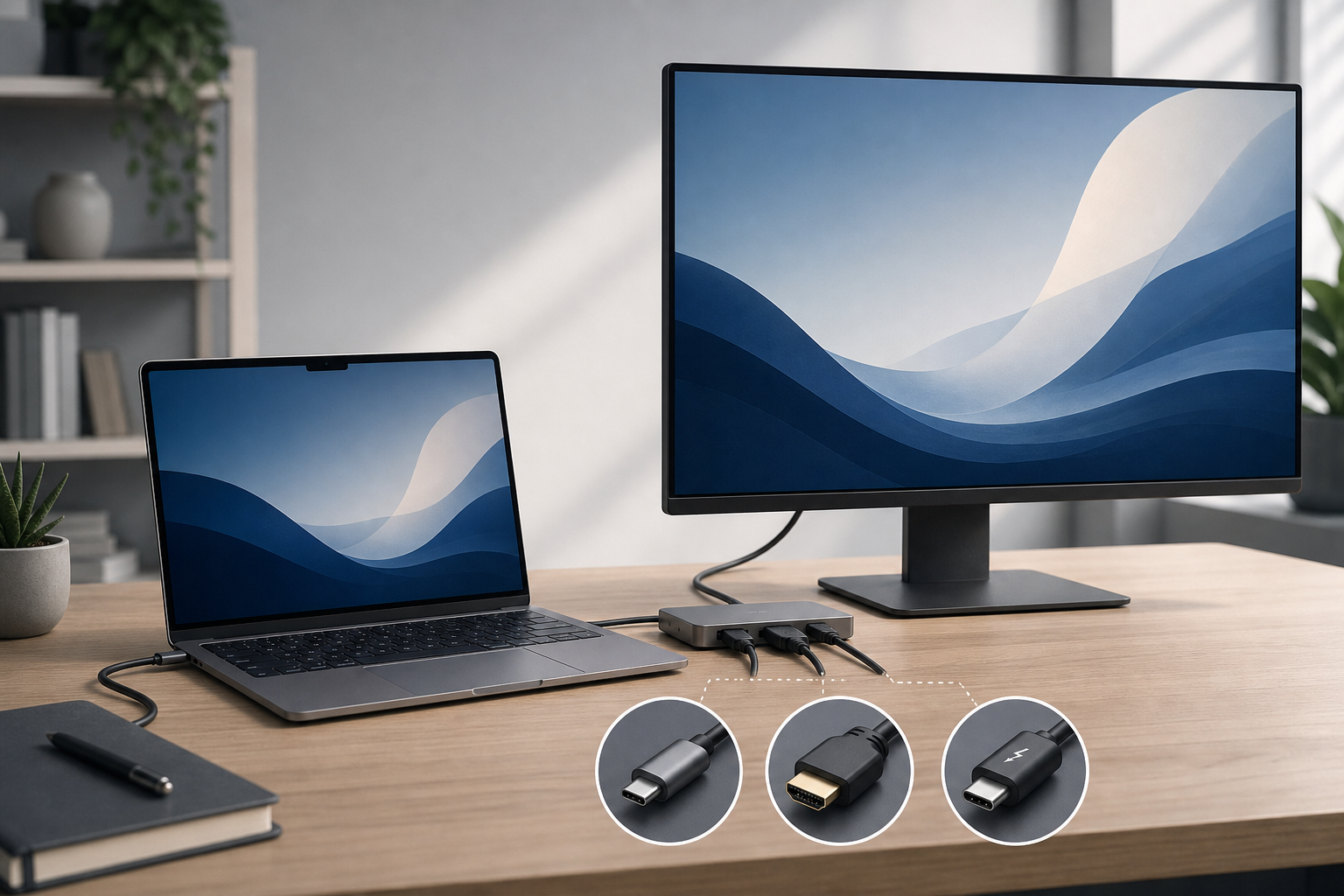
You can connect a MacBook to an external display with a compatible USB-C, HDMI, or Thunderbolt cable. Plug the cable into the MacBook and the monitor, select the correct input on the display, then arrange the screens in System Settings > Displays. The exact method depends on your MacBook’s ports, the display’s inputs, and the … Read more
How to Arrange Multiple Displays and Choose the Main Screen on a MacBook

Illustration for How to Arrange Multiple Displays and Choose the Main Screen on a MacBook

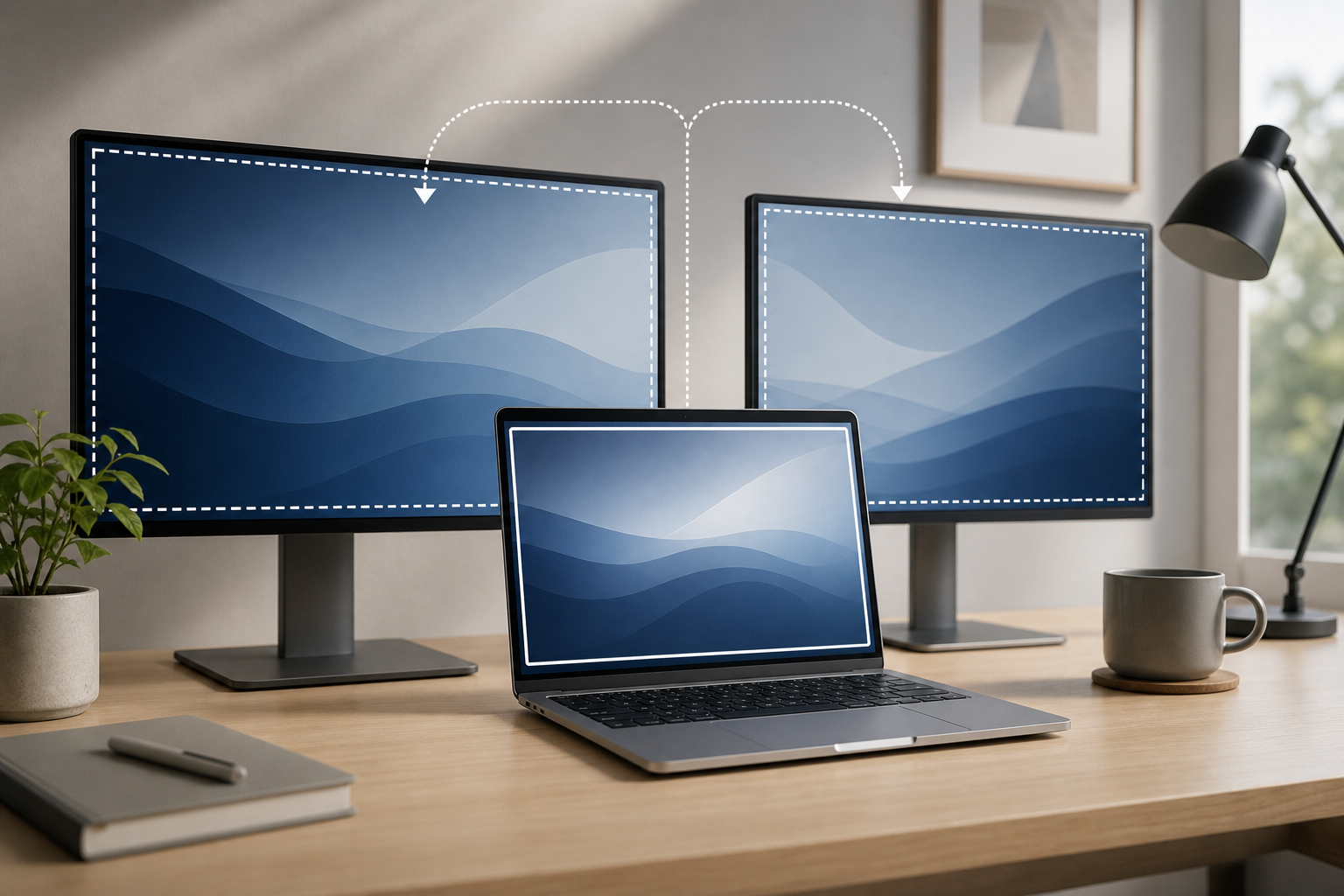
macOS lets you arrange external monitors, choose which display acts as the main screen, mirror the same image, or extend your desktop across several displays. The key setting is the main display indicator: in System Settings > Displays, select the display you want to use as the primary screen, then choose where the menu bar … Read more

How to Fix Blurry Text on an External Monitor Connected to a MacBook

Illustration for How to Fix Blurry Text on an External Monitor Connected to a MacBook

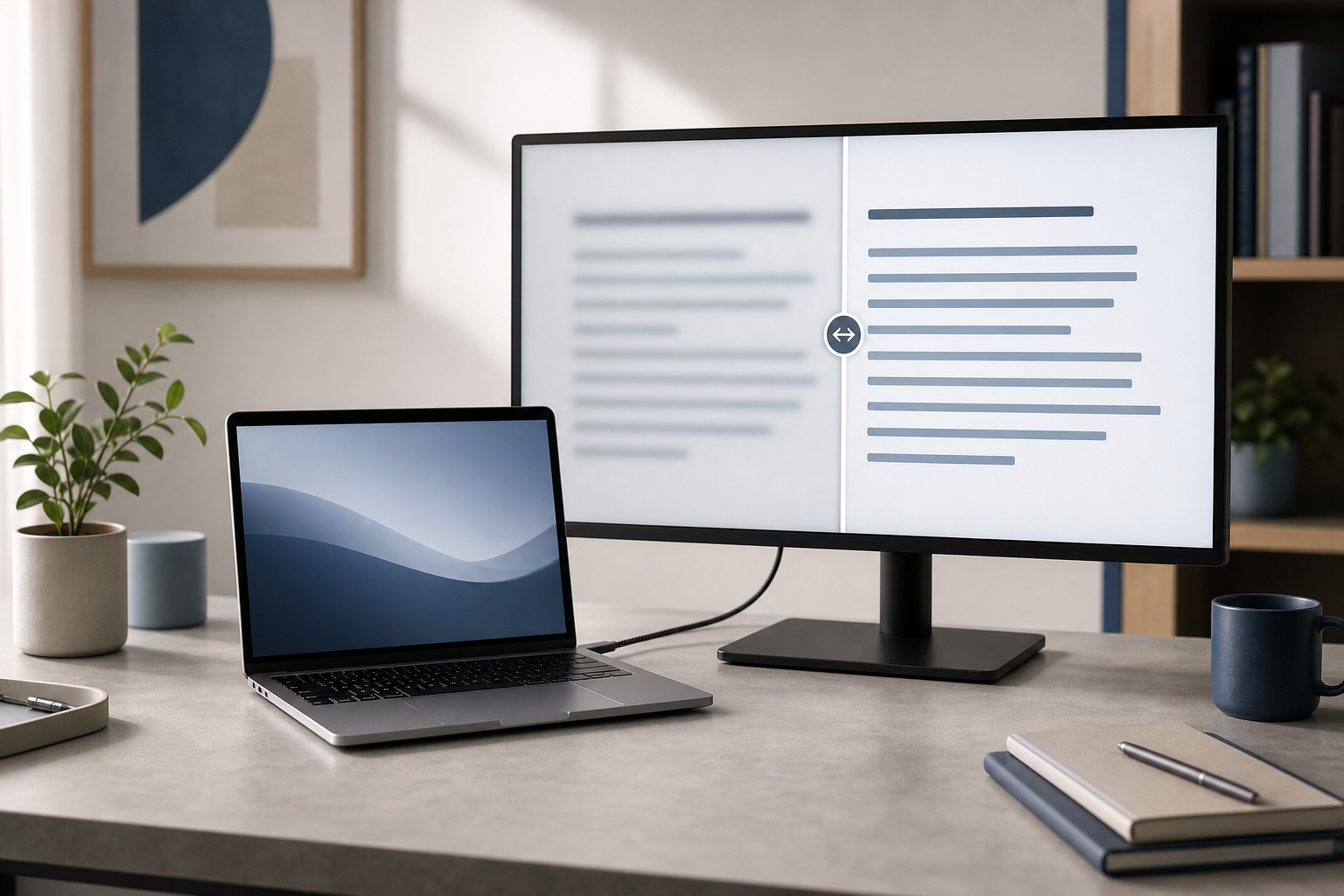
Blurry text on an external monitor connected to a MacBook is usually caused by an unsuitable display resolution or scaling setting, a low-quality cable or adapter, or a mismatch between the monitor and macOS. Start by selecting the monitor’s native resolution in System Settings > Displays, then check the cable, refresh rate, and display connection. … Read more

How to check mac hardware information in terminal

Illustration for How to check mac hardware information in terminal

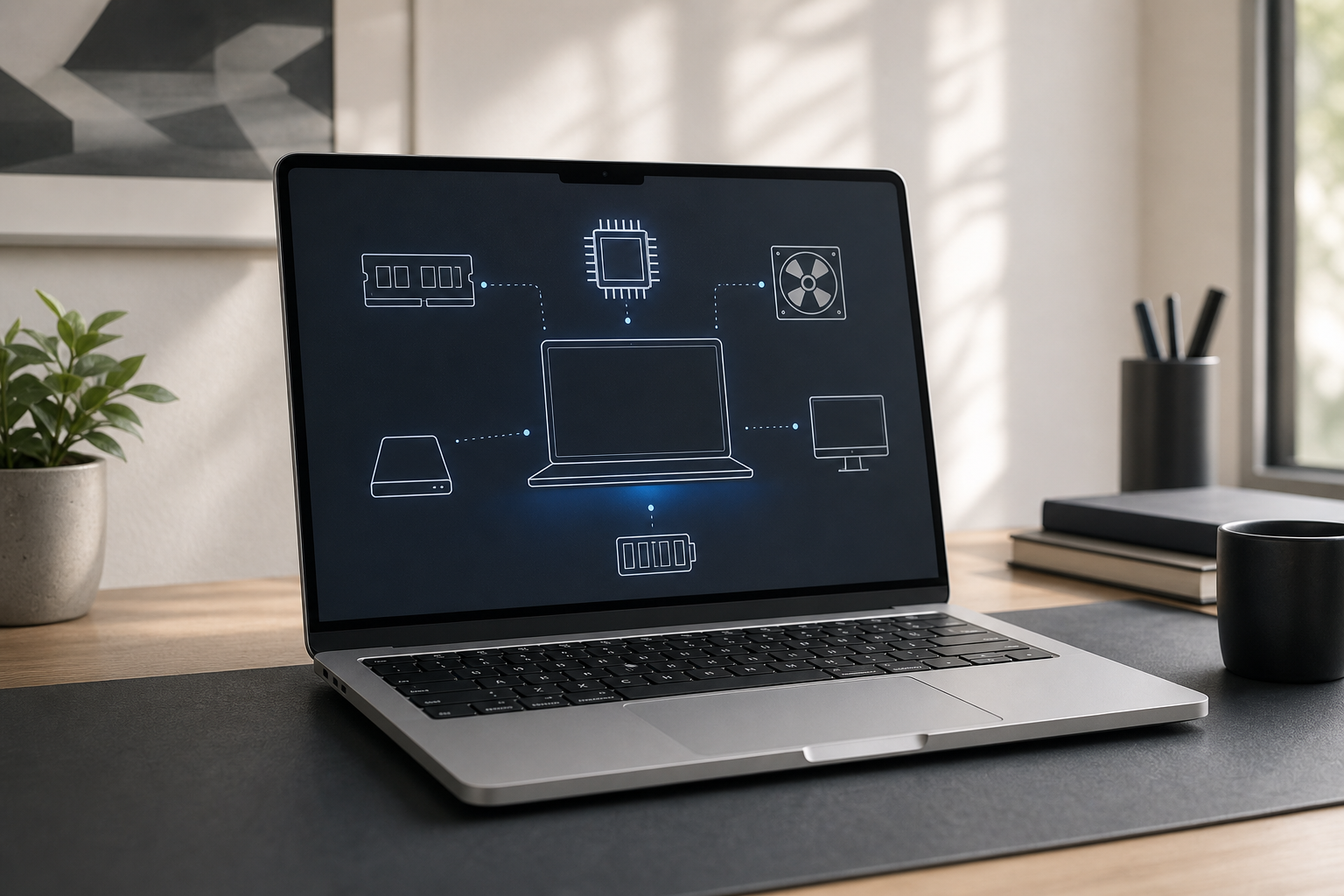
You can check many details about your Mac’s hardware directly in Terminal, including the model identifier, serial number, chip, memory, storage devices, displays, batteries, and connected USB or Thunderbolt devices. Terminal is especially useful when you need information in a copyable text format or want to inspect a specific hardware category. Quick Answer Open Terminal … Read more

How to Check Which Apps Can Access Your Camera and Microphone on a Mac

Illustration for How to Check Which Apps Can Access Your Camera and Microphone on a Mac

Quick Answer To see which apps can use your Mac’s camera or microphone, open Apple menu > System Settings > Privacy & Security. Select Camera or Microphone to view the permission list. An enabled switch means the app is allowed to use that device. An app that is not listed has not requested access, or … Read more

How to Fix AirPods That Keep Disconnecting from a Mac

Illustration for How to Fix AirPods That Keep Disconnecting from a Mac

If your AirPods connect to your Mac but disconnect repeatedly, check their battery level, turn off automatic device switching, reconnect Bluetooth, and then forget and re-pair the AirPods if necessary. Updating macOS, reducing wireless interference, and testing the AirPods with another device can help identify whether the problem is caused by the Mac, the AirPods, … Read more

How to Fix a MacBook That Is Not Charging Over USB-C

Illustration for How to Fix a MacBook That Is Not Charging Over USB-C

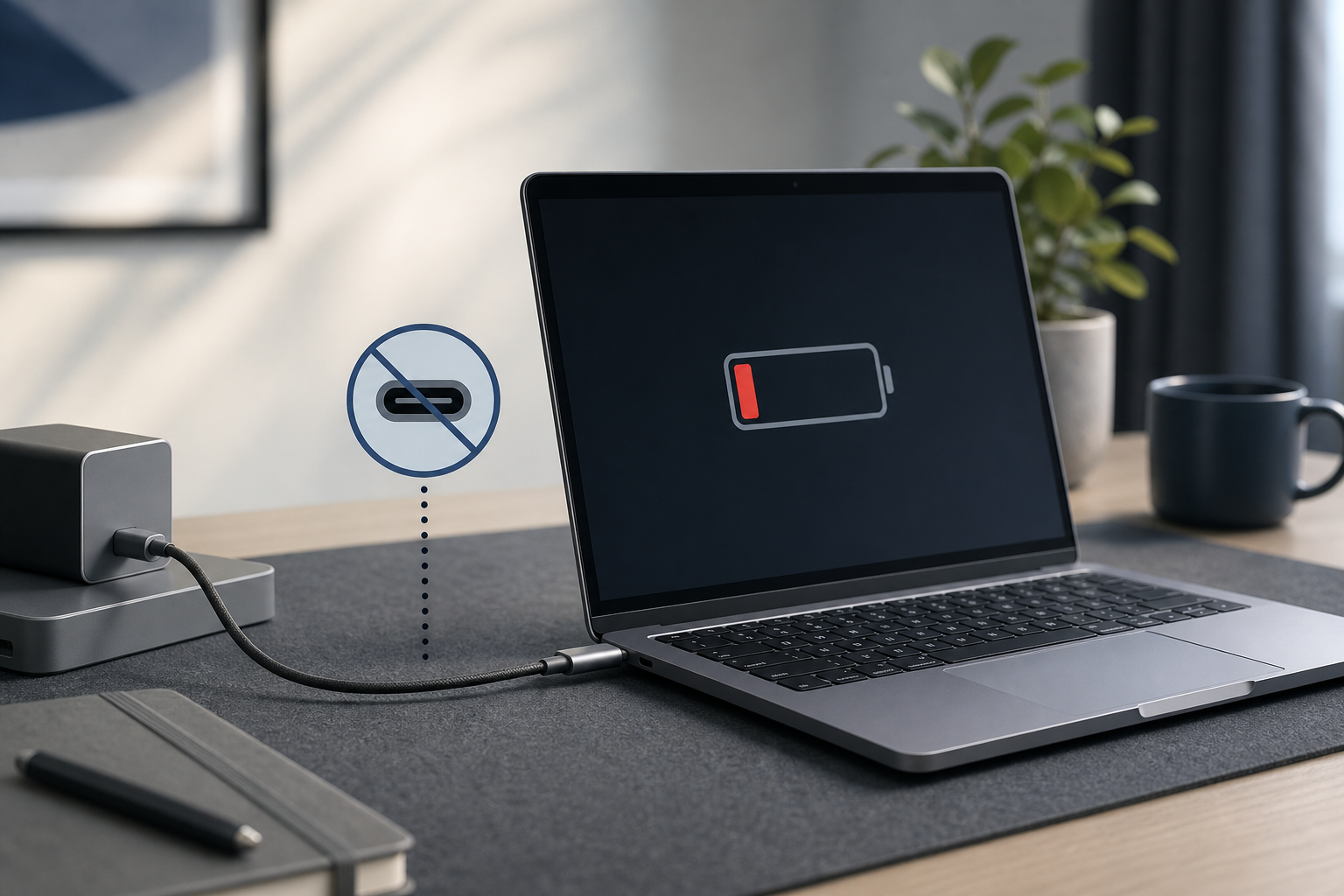
If your MacBook is not charging over USB-C, start by checking the charger’s wattage, trying another USB-C cable, and testing a different power outlet. Then inspect the MacBook’s USB-C ports, restart the Mac, and check whether macOS reports a battery or power-source problem. The issue is often caused by a damaged cable, an underpowered adapter, … Read more

How to Calibrate an External Display on a Mac

Illustration for How to Calibrate an External Display on a Mac

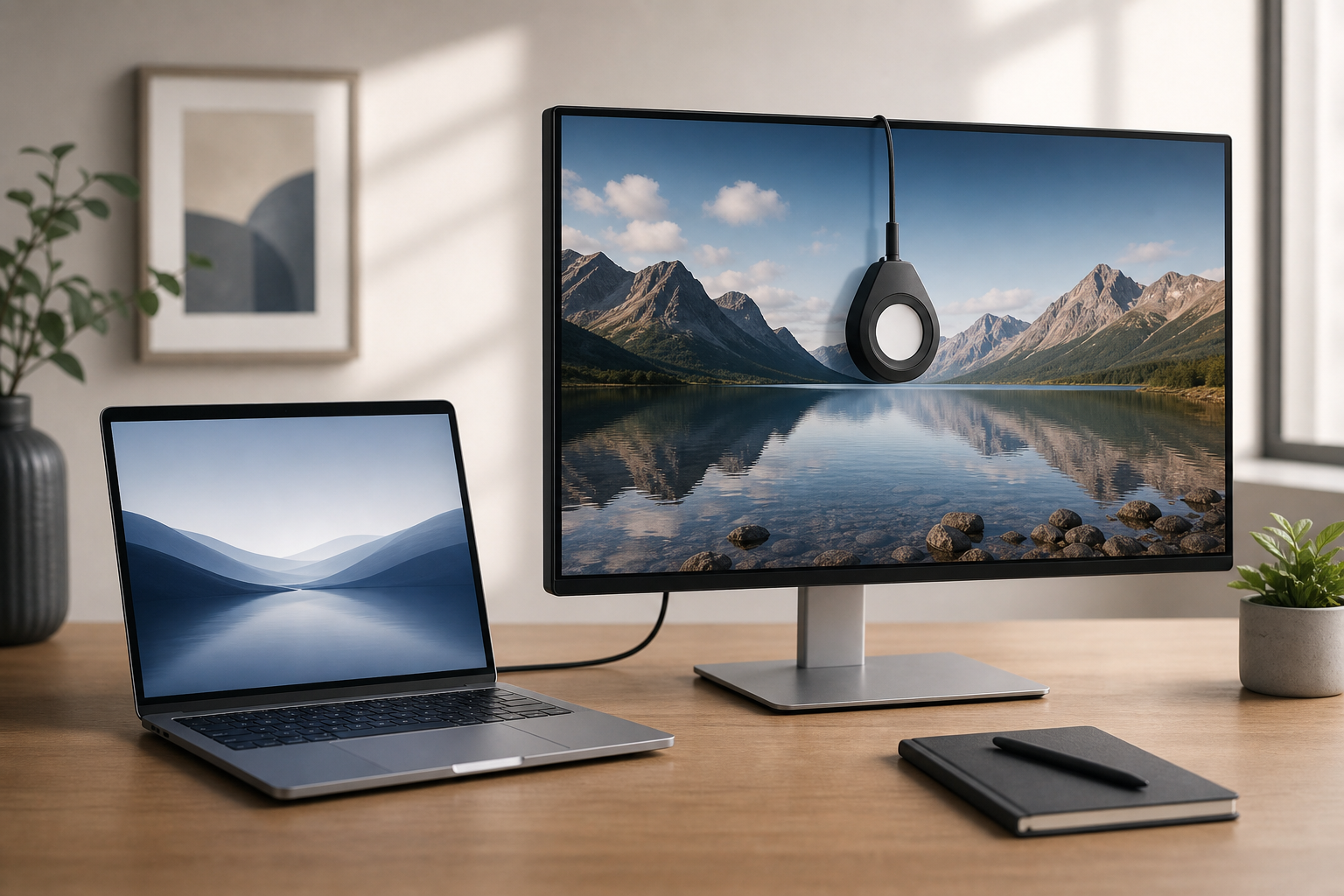
An external display can look too warm, too cool, overly bright, or noticeably different from your MacBook’s built-in screen. macOS includes a built-in Display Calibrator Assistant that can create a custom color profile for the monitor. It is free and useful for everyday work, photo viewing, and more consistent color between screens. For the most … Read more

How to Fix an External Display That Keeps Flickering on a Mac

Illustration for How to Fix an External Display That Keeps Flickering on a Mac

An external display that flickers, flashes black, or repeatedly disconnects from a Mac usually has a problem with the connection, refresh rate, resolution, adapter, dock, or display software. Start by reseating the cable and restarting the Mac and monitor. If that does not help, test a different cable or port, use a standard refresh rate … Read more