
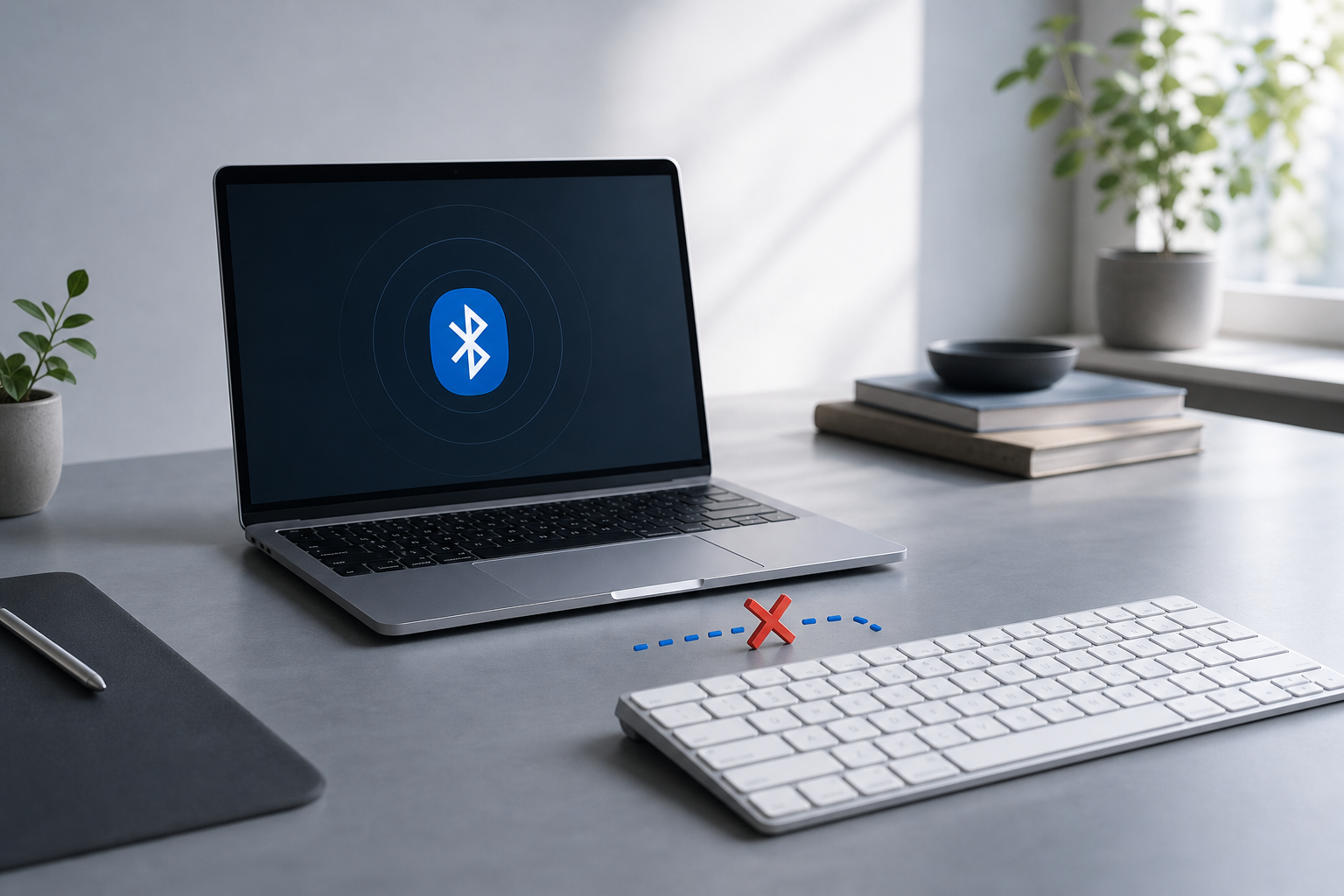
A Bluetooth keyboard that will not connect to a Mac is usually affected by low battery power, pairing with another device, an incomplete Bluetooth connection, or a temporary macOS problem. Start by charging or replacing the keyboard batteries, turning the keyboard off and on, and checking System Settings > Bluetooth on your Mac. If the keyboard appears but will not connect, remove it from Bluetooth settings and pair it again.
Follow the steps below in order. Test the keyboard after each major step so you know which fix worked.
Quick Answer
- Charge the keyboard or replace its batteries.
- Turn the keyboard off, wait a few seconds, and turn it on again.
- Make sure it is not connected to another Mac, iPad, iPhone, or computer nearby.
- Open System Settings > Bluetooth and select Connect next to the keyboard.
- If it is listed but fails to connect, select the information button next to it, choose Forget This Device, and pair it again.
- Restart both the Mac and keyboard.
- If no Bluetooth devices connect, troubleshoot Bluetooth on the Mac rather than the keyboard alone.
Check the Keyboard Before Troubleshooting the Mac
Before changing settings, rule out the most common keyboard-side problems.
Charge or replace the batteries
A keyboard may turn on but still lack enough power to complete Bluetooth pairing. Charge it fully if it has a built-in battery. For a battery-powered keyboard, replace all batteries with fresh ones and check that they are installed in the correct direction.
If the keyboard has a charging indicator, leave it connected to power for several minutes before trying again. Some keyboards cannot enter pairing mode reliably while the battery is nearly empty.
Turn the keyboard off and on
Turn the keyboard off, wait about 10 seconds, and turn it on again. This clears a temporary connection state and may make the keyboard discoverable again.
If the keyboard has a dedicated Bluetooth or pairing button, press it according to the manufacturer’s instructions. A flashing light usually indicates pairing mode, while a steady light may indicate that it is already connected.
Move the keyboard closer
Place the keyboard within a few feet of the Mac while pairing. Temporarily move away other wireless devices, USB hubs, and cables that may interfere with the process. You do not need to permanently rearrange your desk; this is only a basic test.
Disconnect it from other devices
Many Bluetooth keyboards remember multiple devices or automatically reconnect to the last device they used. Turn off Bluetooth on nearby devices that may have connected to the keyboard, such as an iPad, iPhone, Windows PC, or another Mac.
If the keyboard has device-selection keys, switch to an unused device slot before pairing it with your Mac. Refer to the keyboard’s manual if you are unsure how those keys work.
Connect the Keyboard in System Settings
Once the keyboard is charged and in pairing mode, connect it from macOS.
- Select the Apple menu in the upper-left corner.
- Open System Settings.
- Select Bluetooth in the sidebar.
- Make sure Bluetooth is turned on.
- Find the keyboard under nearby or known devices.
- Select Connect next to its name.
- If macOS displays a pairing code, type that code on the Bluetooth keyboard and press Return.
Keep the keyboard in pairing mode until the connection finishes. If it disappears from the list, turn it off and on again, then repeat the process.
If you cannot use the keyboard to enter the pairing code, use your Mac’s built-in keyboard, a wired USB keyboard, or another input device temporarily. A Mac laptop’s built-in keyboard is also useful when reconnecting an external keyboard.
Forget the Keyboard and Pair It Again
If the keyboard appears in Bluetooth settings but repeatedly fails to connect, its saved pairing information may be corrupted or incomplete. Removing the device and pairing it again often resolves this problem.
Warning: Forgetting the keyboard disconnects it from the Mac. Make sure you have another way to control the Mac before continuing, such as the built-in keyboard, a wired keyboard, or a mouse.
- Open Apple menu > System Settings > Bluetooth.
- Find the keyboard in the device list.
- Select the information button next to the keyboard.
- Choose Forget This Device.
- Confirm the action if macOS asks you to do so.
- Turn the keyboard off and on.
- Put it into pairing mode.
- Select it in System Settings > Bluetooth and choose Connect.
- Enter the pairing code if macOS displays one.
If the keyboard does not appear after you forget it, turn Bluetooth off and on from System Settings > Bluetooth, then place the keyboard into pairing mode again.
Restart Bluetooth and the Mac
A temporary macOS Bluetooth process can prevent a keyboard from connecting even when the hardware is working properly.
Toggle Bluetooth
- Open Apple menu > System Settings > Bluetooth.
- Turn Bluetooth off.
- Wait approximately 10 seconds.
- Turn Bluetooth back on.
- Try connecting the keyboard again.
If the Bluetooth controls appear unresponsive, restart the Mac.
Restart the Mac
- Save your work in all open apps.
- Select the Apple menu.
- Choose Restart.
- Wait for macOS to start completely.
- Turn the keyboard on and try pairing it again.
Warning: Restarting can close apps and may cause unsaved work to be lost. Save documents before choosing Restart.
A restart is especially useful after installing a macOS update, connecting a new USB or Thunderbolt accessory, or switching between several Bluetooth devices.
Check Whether Another Bluetooth Device Connects
Try connecting a different Bluetooth device, such as a mouse, trackpad, or headphones.
- If another device connects normally, the problem is probably limited to the keyboard, its saved pairing, battery, or pairing mode.
- If no Bluetooth device connects, the problem may involve macOS Bluetooth, interference, or the Mac’s Bluetooth hardware.
Do not pair several new devices at the same time while troubleshooting. Disconnect unnecessary Bluetooth accessories temporarily and test only the keyboard.
For broader Mac Bluetooth checks, see How to Fix Bluetooth Not Working on a Mac.
Check for Interference and USB Issues
Bluetooth operates wirelessly, so nearby hardware can sometimes affect the connection.
Try these tests:
- Disconnect unnecessary USB devices, docks, and hubs from the Mac.
- Move external drives, USB adapters, and wireless receivers farther from the Mac.
- If the Mac is connected to a monitor or dock, disconnect the dock temporarily and pair the keyboard directly with the Mac.
- Move the keyboard closer and test again.
- Turn off nearby Bluetooth devices that are not needed.
If the keyboard works after disconnecting a hub or dock, reconnect accessories one at a time. This helps identify which device or cable is contributing to the problem.
Install Available macOS Updates
Updates can include fixes for Bluetooth, USB, and device compatibility problems. To check for updates:
- Open the Apple menu.
- Select System Settings.
- Choose General in the sidebar.
- Select Software Update.
- Install an available update if one is offered.
Warning: A macOS update may restart the Mac. Save your work, connect the Mac to power if it is a laptop, and avoid starting the update if you need the computer immediately.
After the update finishes, turn the keyboard off and on, then try connecting it again.
Reset the Keyboard’s Pairing Memory
Some Bluetooth keyboards store several connections and provide a method for clearing them. The exact procedure varies by manufacturer. Common methods include holding a pairing button, pressing a function-key combination, or selecting a device slot and holding its key.
Consult the keyboard’s manual or the manufacturer’s support instructions for the correct reset procedure. Do not use a random key combination from another model, because it may switch profiles, disable a feature, or change the keyboard’s operating mode.
After resetting the keyboard:
- Turn off Bluetooth on nearby devices.
- Put the keyboard into pairing mode.
- On the Mac, open System Settings > Bluetooth.
- Select the keyboard and choose Connect.
- Enter the pairing code if requested.
A keyboard reset may remove all previously saved device connections. You may need to pair it with your other devices again.
Troubleshooting Common Connection Problems
The keyboard is not listed in Bluetooth settings
Make sure the keyboard is turned on and actively discoverable. A keyboard that is already connected to another device may not appear. Charge it, turn off Bluetooth on nearby devices, and activate pairing mode again.
Then toggle Bluetooth on the Mac off and on. If it still does not appear, restart the Mac and reset the keyboard’s pairing memory if the manufacturer provides that option.
The keyboard appears, but “Connect” does nothing
Forget the keyboard, restart the Mac, and pair it again. Also check that another nearby device has not taken the connection.
If the keyboard is listed as connected but does not type, click into a text field and test it. If it still does not respond, disconnect and reconnect it from System Settings > Bluetooth.
macOS asks for a code, but pairing fails
Type the code on the Bluetooth keyboard itself, not on the Mac’s built-in keyboard, and press Return. Type the numbers carefully and complete the process before the pairing prompt times out.
If it fails repeatedly, forget the device and begin pairing again with the keyboard fully charged.
The keyboard disconnects shortly after connecting
Low battery power is the first thing to check. Then reduce the distance between the keyboard and Mac, disconnect unnecessary wireless accessories, and test without a dock or USB hub.
If the keyboard disconnects only after inactivity, check its power-saving behavior in the manufacturer’s documentation. Some models sleep aggressively and may take a moment to reconnect.
The keyboard works with another device but not the Mac
Forget the keyboard on the Mac and clear its pairing memory if possible. Then make sure the keyboard is not still connected to the other device. A keyboard that supports multiple device profiles may need to be switched to a different profile before it becomes available to the Mac.
The keyboard does not work anywhere
Replace or charge the batteries, try the keyboard’s pairing reset procedure, and test it with another compatible device. If it still cannot connect, the keyboard may have a hardware problem. Contact the manufacturer or consider a replacement.
When to Contact Support
Contact the keyboard manufacturer if:
- The keyboard will not enter pairing mode.
- It cannot connect to any device after charging or a battery replacement.
- A key combination or reset procedure does not work.
- The keyboard disconnects from every computer.
- The keyboard was recently exposed to liquid or physical damage.
Contact Apple Support or an Apple service provider if multiple Bluetooth devices fail to connect to the Mac, Bluetooth settings behave abnormally, or the Mac cannot detect Bluetooth hardware.
Frequently Asked Questions
Why won’t my Bluetooth keyboard connect to my Mac?
The most common causes are low battery power, pairing with another nearby device, incorrect pairing mode, saved pairing information, or a temporary macOS Bluetooth issue. Charge the keyboard, disconnect it from other devices, and pair it again in System Settings > Bluetooth.
How do I reconnect a Bluetooth keyboard after forgetting it?
Turn the keyboard on and put it into pairing mode. On the Mac, open Apple menu > System Settings > Bluetooth, find the keyboard, and select Connect. Enter the displayed pairing code on the keyboard if macOS requests one.
Can I connect the keyboard without another keyboard?
Yes. Use the Mac’s built-in keyboard if it is a laptop, a wired USB keyboard, or another available input device. You may need one of these options to enter a pairing code or navigate Bluetooth settings.
Why does my keyboard connect and then disconnect?
Low battery power, distance, wireless interference, a connection to another device, or a problem with the keyboard’s saved pairing profile can cause repeated disconnections. Charge the keyboard, move it closer, remove unnecessary wireless devices, and pair it again.
Should I reset Bluetooth on my Mac?
Most connection problems can be fixed by toggling Bluetooth, restarting the Mac, forgetting the keyboard, and pairing it again. More advanced Bluetooth resets are not usually necessary and may remove saved connections, so use them only when simpler steps fail.
Final Thoughts
Start with the keyboard’s battery, pairing mode, and connection to nearby devices. If the keyboard appears in Bluetooth settings but will not connect, forget it and pair it again. When several Bluetooth devices fail, restart the Mac, reduce wireless interference, and check for macOS updates. If the keyboard cannot connect to any device, the keyboard itself may need service or replacement.