How to Safely Eject an External Drive on a Mac

Illustration for How to Safely Eject an External Drive on a Mac
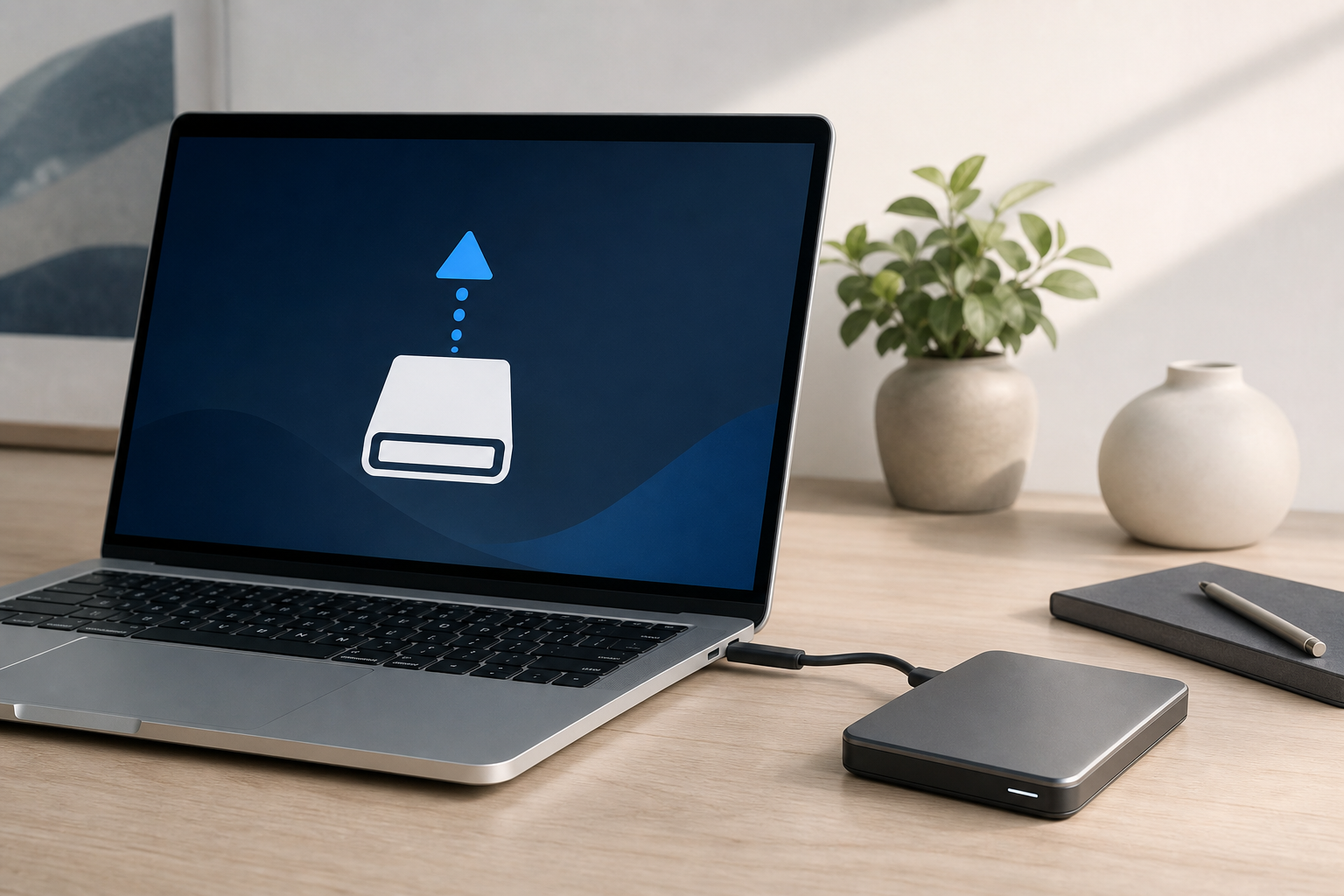
To safely eject an external drive on a Mac, first close files and apps that are using it. Then open Finder, select the drive in the sidebar, and click the Eject button next to its name. Wait for the drive to disappear from Finder before unplugging it. You can also eject a drive from the … Read more
How to Recover Deleted Files from the Trash on a Mac

Illustration for How to Recover Deleted Files from the Trash on a Mac

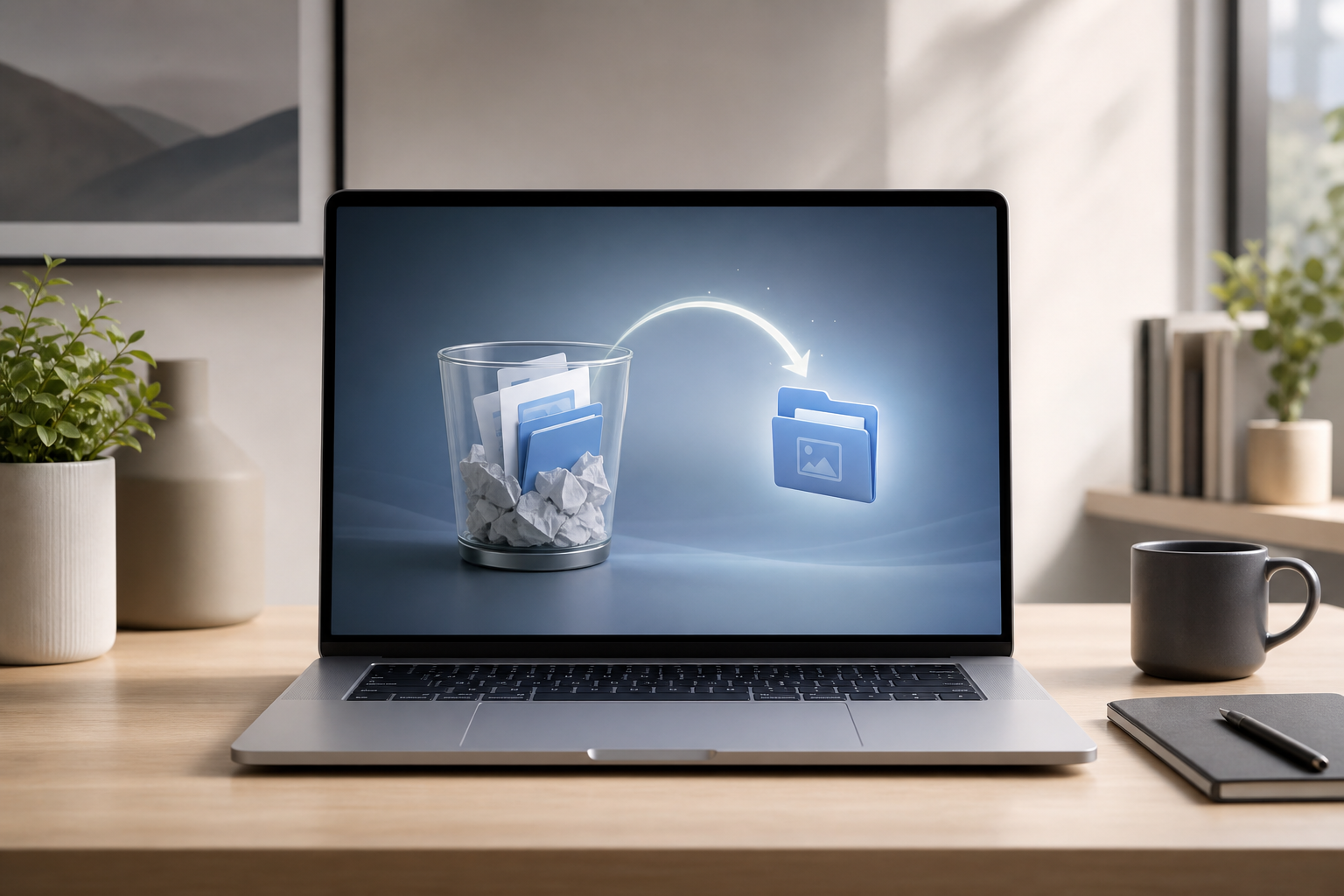
If you recently deleted a file, you can usually recover it by opening Trash, selecting the file, and choosing File > Put Back. The file returns to its original folder. You can also drag it from Trash to another location, such as the Desktop. If you emptied Trash, recovery becomes more difficult. Check Time Machine, … Read more

APFS vs exFAT: Which Format Should You Use on a Mac?

Illustration for APFS vs exFAT: Which Format Should You Use on a Mac?

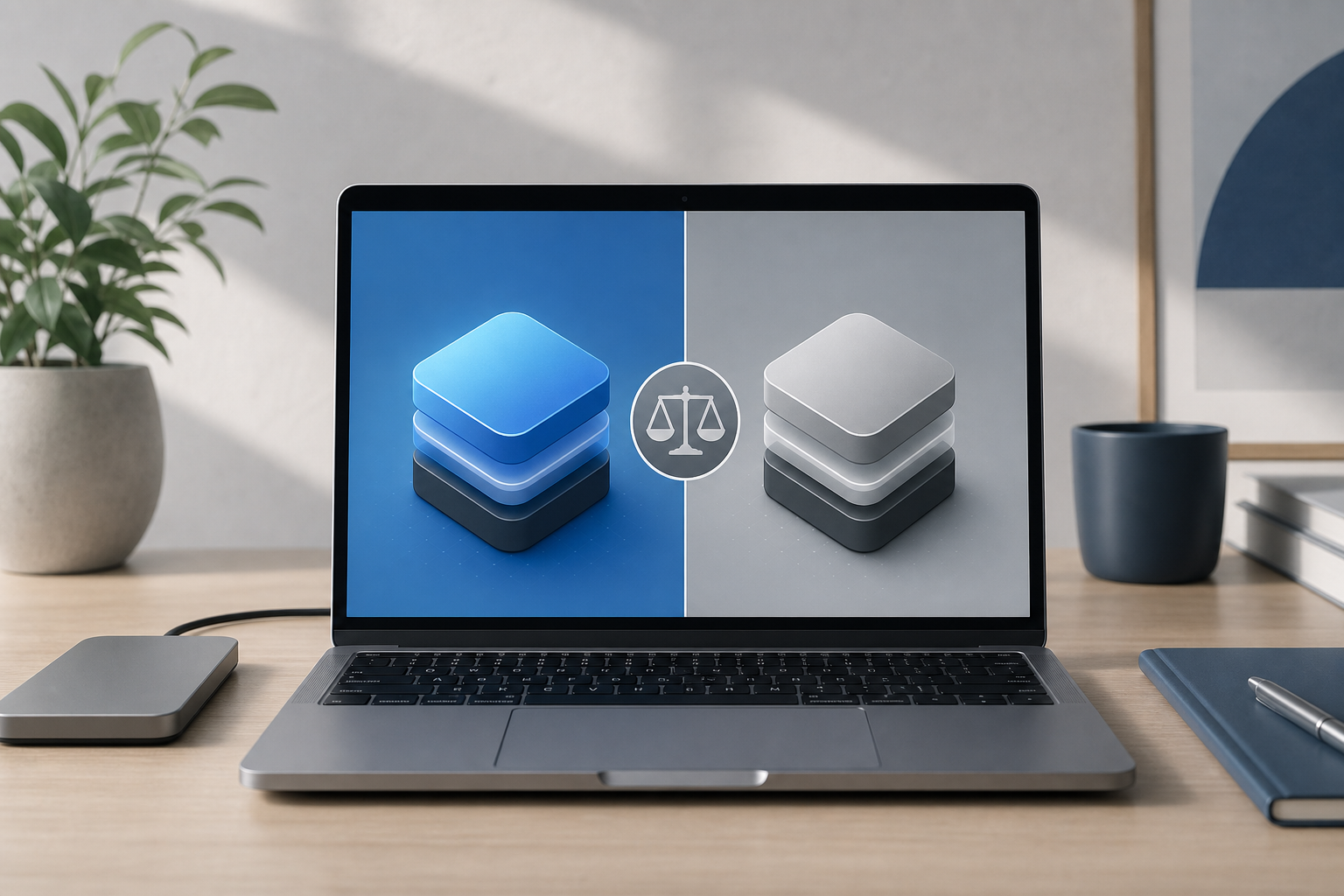
Quick Answer Choose APFS if the drive will be used only with Macs, especially if it is an SSD or will store a Time Machine backup. APFS is Apple’s modern file system and supports features such as encryption, snapshots, and space sharing. Choose exFAT if you need to move files between a Mac and a … Read more

How to Partition an External Drive on a Mac

Illustration for How to Partition an External Drive on a Mac

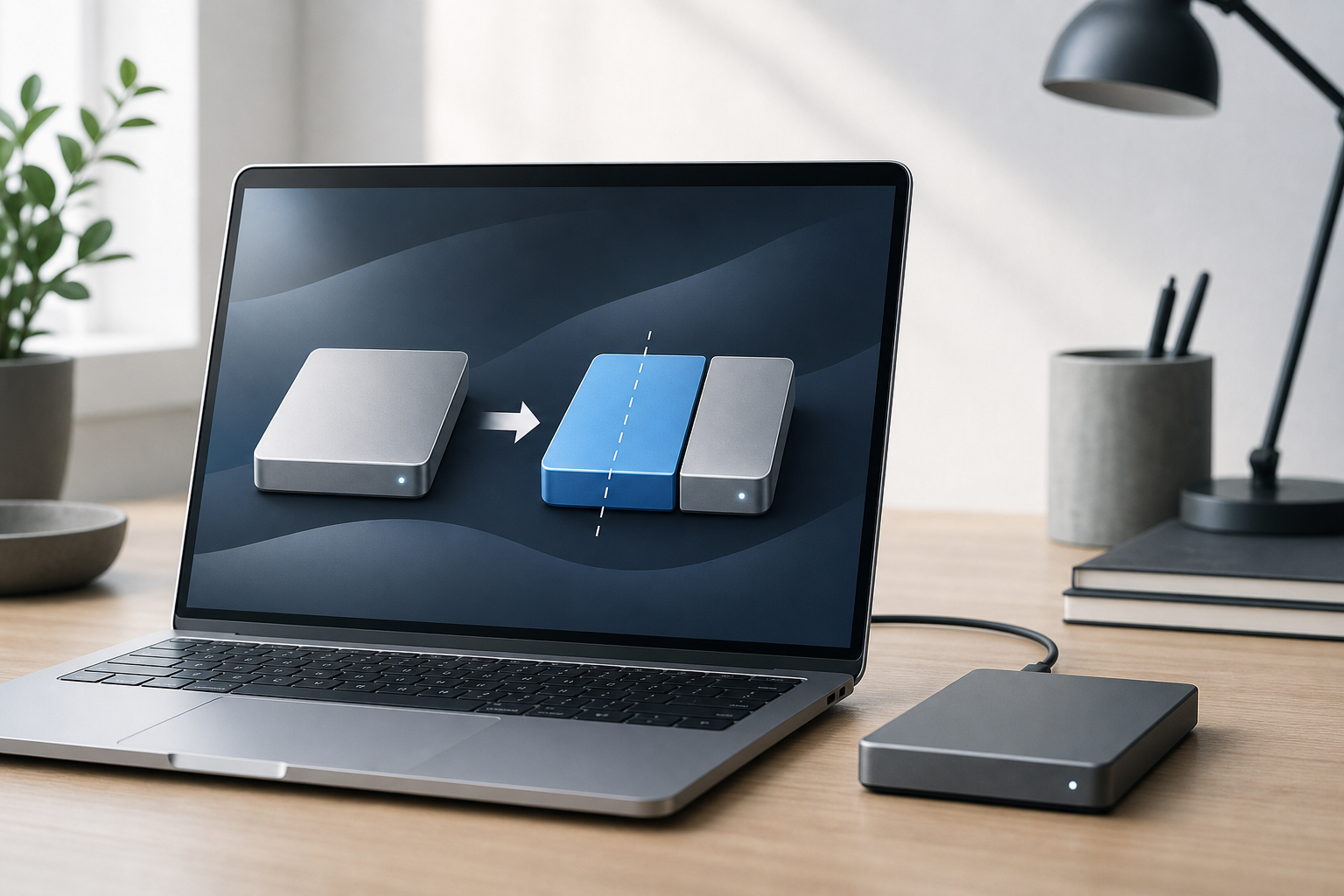
To partition an external drive on a Mac, use Disk Utility. Select the physical drive in the sidebar, choose Partition, select GUID Partition Map if you are erasing the drive, and create one or more partitions with the file systems you need. Important: Partitioning can erase data, especially when you change the drive’s partition scheme … Read more

How to Use Screen Time on a Mac

Illustration for How to Use Screen Time on a Mac

Screen Time on a Mac shows how you spend time in apps and websites, helps you set app-use limits, schedules periods of reduced access, and applies content restrictions. To open it, choose Apple menu  > System Settings > Screen Time. Older versions of macOS may use System Preferences instead of System Settings. Quick Answer … Read more

How to Format an External Drive on a Mac

Illustration for How to Format an External Drive on a Mac

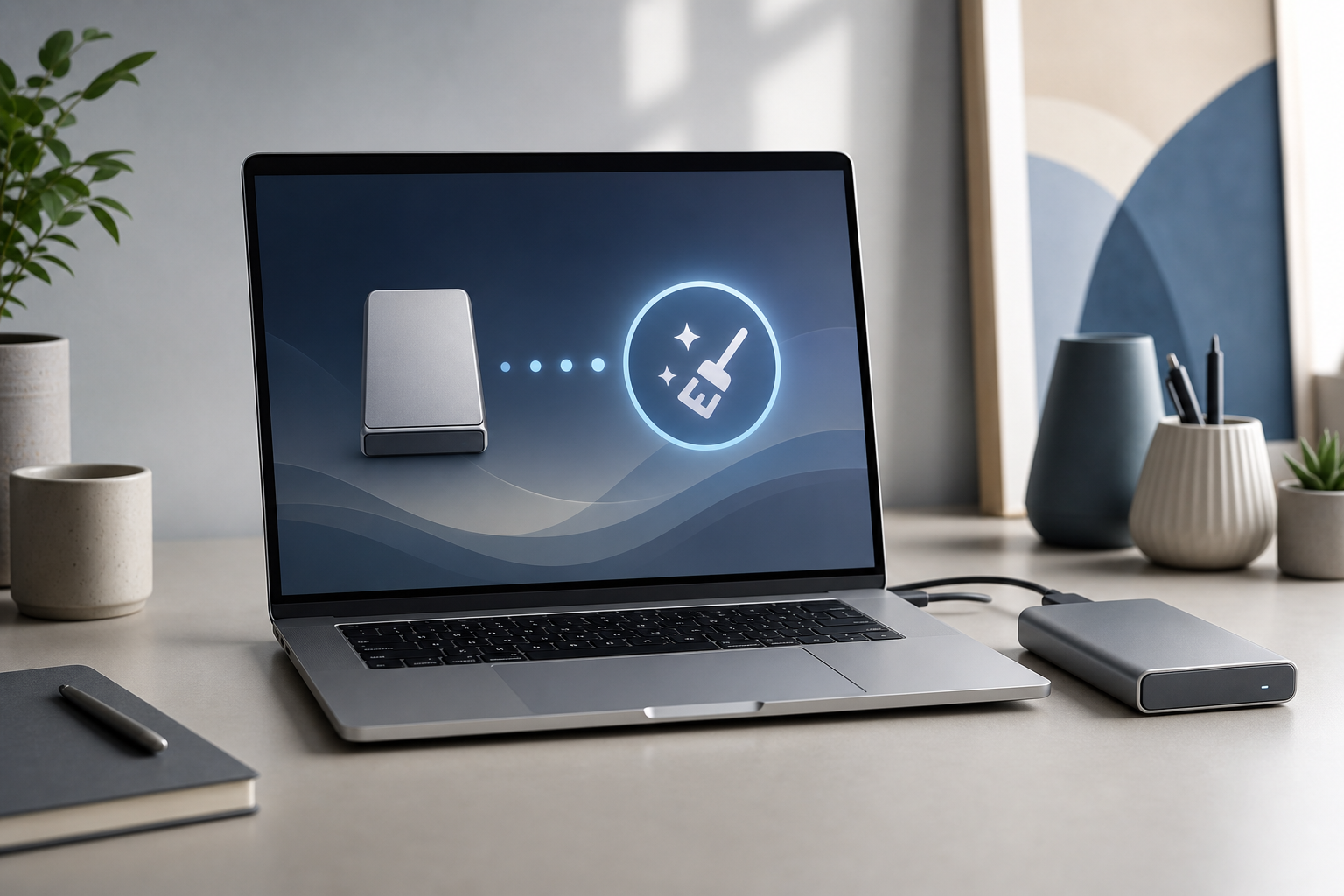
To format an external drive on a Mac, open Disk Utility, select the correct physical drive, click Erase, choose a format and partition scheme, and confirm. Formatting erases everything on the selected drive, so copy any files you want to keep before continuing. For most uses, choose: APFS for a drive used primarily with modern … Read more

How to Lock Your Mac Quickly

Illustration for How to Lock Your Mac Quickly

The fastest way to lock your Mac is to press Control–Command–Q. Your Mac immediately shows the Lock Screen, while your apps and documents remain open. Enter your account password, use Touch ID, or authenticate another available way to return to your session. Quick Answer To lock your Mac quickly: Press Control–Command–Q. Wait for the Lock … Read more

How to Use Lockdown Mode on a Mac

Illustration for How to Lock Your Mac Quickly

Lockdown Mode is a security feature on Mac that reduces certain features, connections, and website capabilities to help protect against highly sophisticated cyberattacks. It is designed primarily for people who may be personally targeted by advanced spyware or other exceptionally sophisticated threats—not for routine malware protection. To turn it on, open Apple menu > System … Read more

How to Set Up Touch ID on a Mac

Illustration for How to Set Up Touch ID on a Mac

Touch ID lets you use your fingerprint to unlock a compatible Mac, approve Apple Pay purchases, fill in saved passwords, and authorize certain system actions. To set it up, open Apple menu > System Settings > Touch ID & Password, select Add Fingerprint, and follow the onscreen instructions. Quick Answer To add a fingerprint to … Read more

How to Manage Notifications on a Mac

Illustration for How to Manage Notifications on a Mac

To manage notifications on a Mac, open Apple menu > System Settings > Notifications, select an app, and adjust whether it can send notifications, where those notifications appear, whether they play a sound, and whether their content is shown. You can also use Control Center, Notification Center, Focus, and Scheduled Summary to control when notifications … Read more