
macOS Tahoe (version 26) is the twenty-third and current major release of Apple’s macOS operating system, the successor to macOS Sequoia. It was announced at WWDC 2025 on June 9, 2025.


A paused macOS update download usually resumes automatically when your Mac reconnects to the internet and has enough available storage. Open System Settings > General > Software Update, then select Resume, Download, or Update Now if that button appears. If no resume button is available, keep the Mac connected to power, use a stable internet … Read more

Quick Answer To check your current macOS version, choose Apple menu > About This Mac. The window shows the macOS name and version number. For more detailed information, open System Information: Hold the Option key and choose Apple menu > System Information. Select Software in the sidebar. Choose Installations. Review the list of … Read more

A failed macOS update download can leave behind incomplete installer files, consume storage, or cause Software Update to repeatedly display the same error. In most cases, you can remove the failed download safely by deleting the macOS installer from the Applications folder and restarting your Mac. If that does not work, you can clear temporary … Read more

A clean installation of macOS 27 no longer includes AirPort Utility as a standard app. If you erase your Mac and install macOS 27 from scratch, you may not find AirPort Utility in the Applications folder or through Spotlight. This does not necessarily mean that your Mac cannot connect to Wi-Fi or that your network … Read more

The safest way to update macOS is to check compatibility, back up your Mac, connect it to power, confirm that you have enough free storage, and install the update from System Settings or System Preferences. Do not interrupt the Mac while the update is installing, and allow extra time for several restarts. Quick Answer Before … Read more
macOS Tahoe (version 26) is the twenty-third and current major release of Apple’s macOS operating system, the successor to macOS Sequoia. It was announced at WWDC 2025 on June 9, 2025.
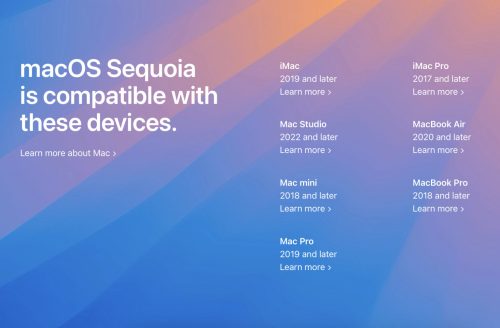
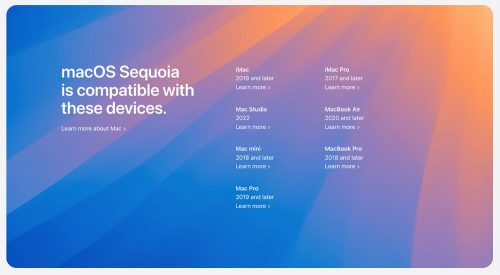
The list of gadgets that will support the latest operating system has not changed and remained the same as for OS X Sonoma. I am very happy that the support for old Macbooks, which are built on the basis of Intel with the T2 controller, is still preserved. We will tell you how to install the new OS X on an older MacBook in the second article.
Starting with macOS Sonoma, Apple changed the way users receive beta updates. Instead of installing the macOS Beta Access Utility, users can directly install beta updates from System Preferences after registering as a developer.
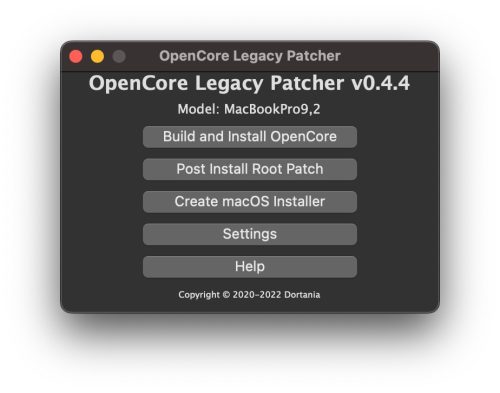 Unsupported Mac Models That Can Run MacOS Ventura with OpenCore.OpenCore Legacy Patcher will allow you to run MacOS Ventura on some Macs going all the way back to 2008 and 2007. The full list of officially unsupported Macs that can run Ventura with OpenCore is as follows:
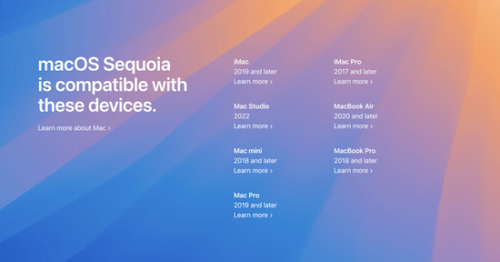
macOS Sequoia is compatible with many Mac models, allowing a large number of users to enjoy new features.