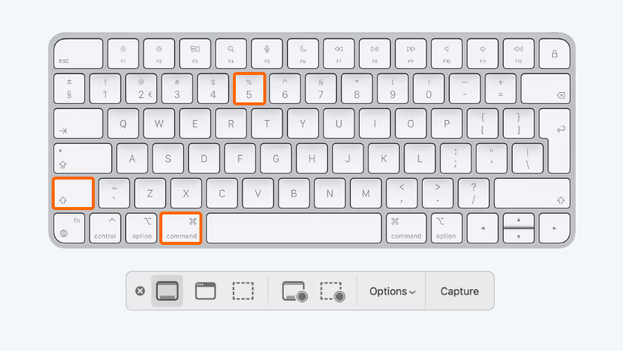
If you need to show something on the computer, it is best to do it with the help of a screenshot. In macOS, a key combination is provided for ego creation. Moreover, you can hide both the entire screen and the area selected on it.
How to create a screenshot on Apple Macbook, Mac Mini, Mac?
Taking a screenshot in Mac OS X
Creating a screenshot of the entire screen
Press Command-Shift-3
A screenshot will be created and saved to a file on the desktop.
Creating a screenshot of a part of the screen
Press Command-Shift-4 and use the cross cursor to select the area to capture.
Release the keys while still holding the mouse button.
When the screenshot area is selected, release the mouse button.
A screenshot will be created and saved to a file on the desktop.