
Your Mac records sleep and wake activity in system logs. The quickest way to review that history is to use Terminal with the pmset command:
pmset -g log | grep -i " Sleep "
This displays logged sleep events. To find wake events, run:
pmset -g log | grep -i " Wake "
You can also combine both searches to see sleep and wake activity together. These commands only read system information; they do not change your Mac’s settings or delete anything.
Quick Answer
- Open Terminal from Applications > Utilities.
- Run:
bash

   pmset -g log | grep -Ei " Sleep  | Wake  "
- Read the timestamps and event details in the results.
- Use
pmset -g assertionsif your Mac appears unable to sleep. - Use the
log showmethod below when you need a time-limited search through the unified system log.
The exact amount of history available depends on what macOS has retained in its logs. Older events may no longer be available.
What Mac Sleep and Wake Logs Can Tell You
Sleep and wake history can help answer questions such as:
- Did the Mac actually enter sleep?
- When did it wake?
- Did it wake repeatedly overnight?
- Did a scheduled event or connected device appear in the log?
- Is an app or system service preventing sleep?
The log may contain technical terms such as DarkWake, AutoWake, Maintenance, or Wake reason. A normal wake event does not always mean someone opened the lid or pressed the power button. macOS can briefly wake for maintenance or other system activity without fully returning to the desktop.
The results also may not identify a single clear cause. Sleep and wake logging is useful evidence, but it is not always a complete explanation of battery drain, unexpected wake-ups, or a Mac that refuses to sleep.
Method 1: Display Sleep and Wake Events with pmset
The pmset command reports power-management information. Its -g log option displays power events recorded by macOS. Piping that output to grep filters the list so you see only lines containing sleep or wake events.
Search for both sleep and wake events
- Open Terminal.
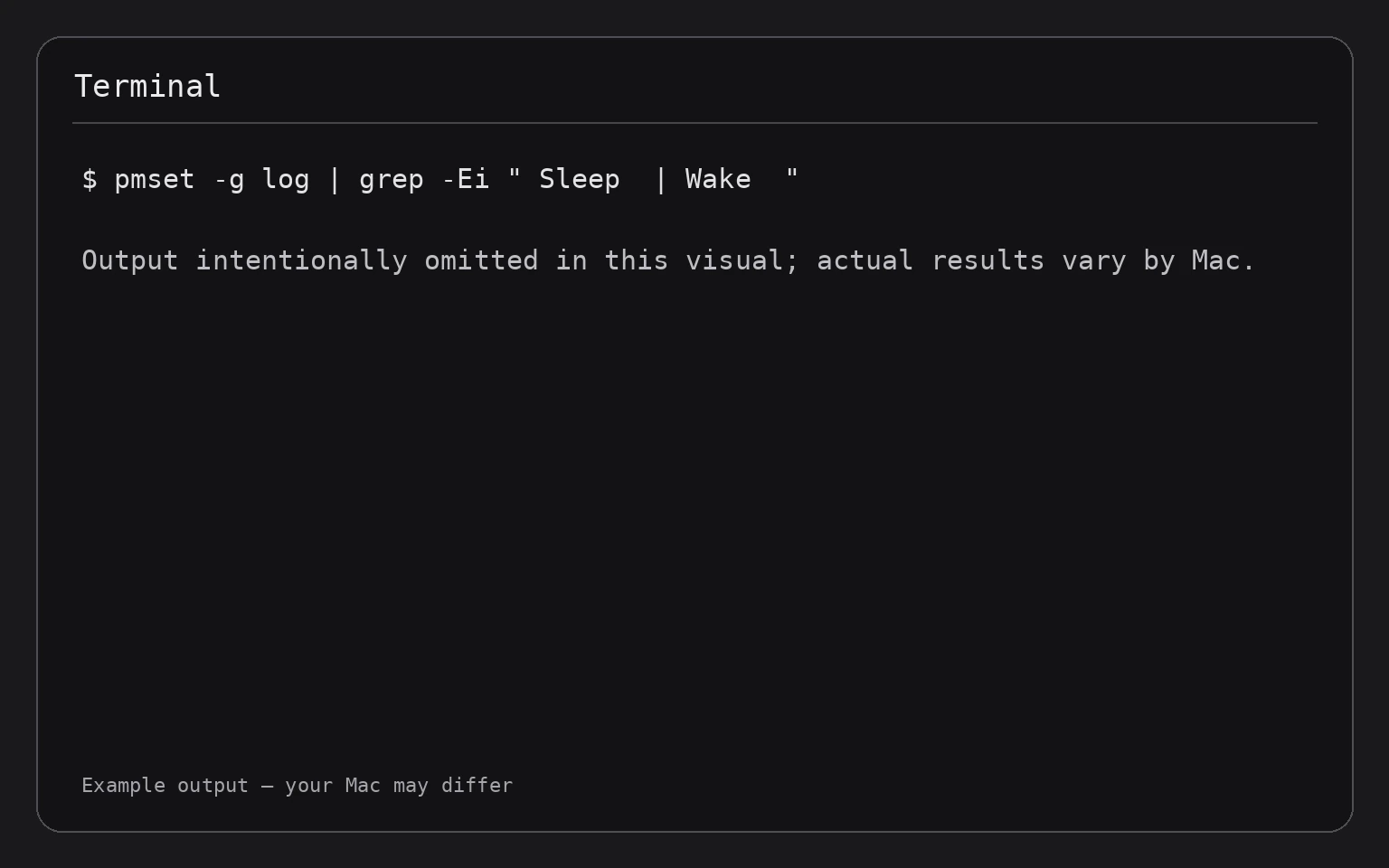
- Run this command:
bash

   pmset -g log | grep -Ei " Sleep  | Wake  "
grep -Ei performs a case-insensitive search using the two alternatives separated by |. The command does not modify power settings.
- Review the timestamps at the beginning of each result.
- Look for the sequence of events. A sleep entry followed later by a wake entry shows that macOS recorded both transitions.
The output can be lengthy. To read it more comfortably, you can save a copy to a temporary text file and open it in Terminal with less:
pmset -g log | grep -Ei " Sleep | Wake " > /tmp/mac-sleep-wake.log && less /tmp/mac-sleep-wake.log
This creates a temporary file in /tmp; it does not change your Mac’s power behavior. While viewing the file in less, use the arrow keys or Page Up and Page Down to move through the results. Press q to quit.
When you finish, remove only that temporary file with:
rm /tmp/mac-sleep-wake.log
This deletes the temporary log copy, not the original system log. If you do not remove it, macOS may clear temporary files automatically, but deleting it yourself is the more predictable cleanup option.
Search for sleep events only
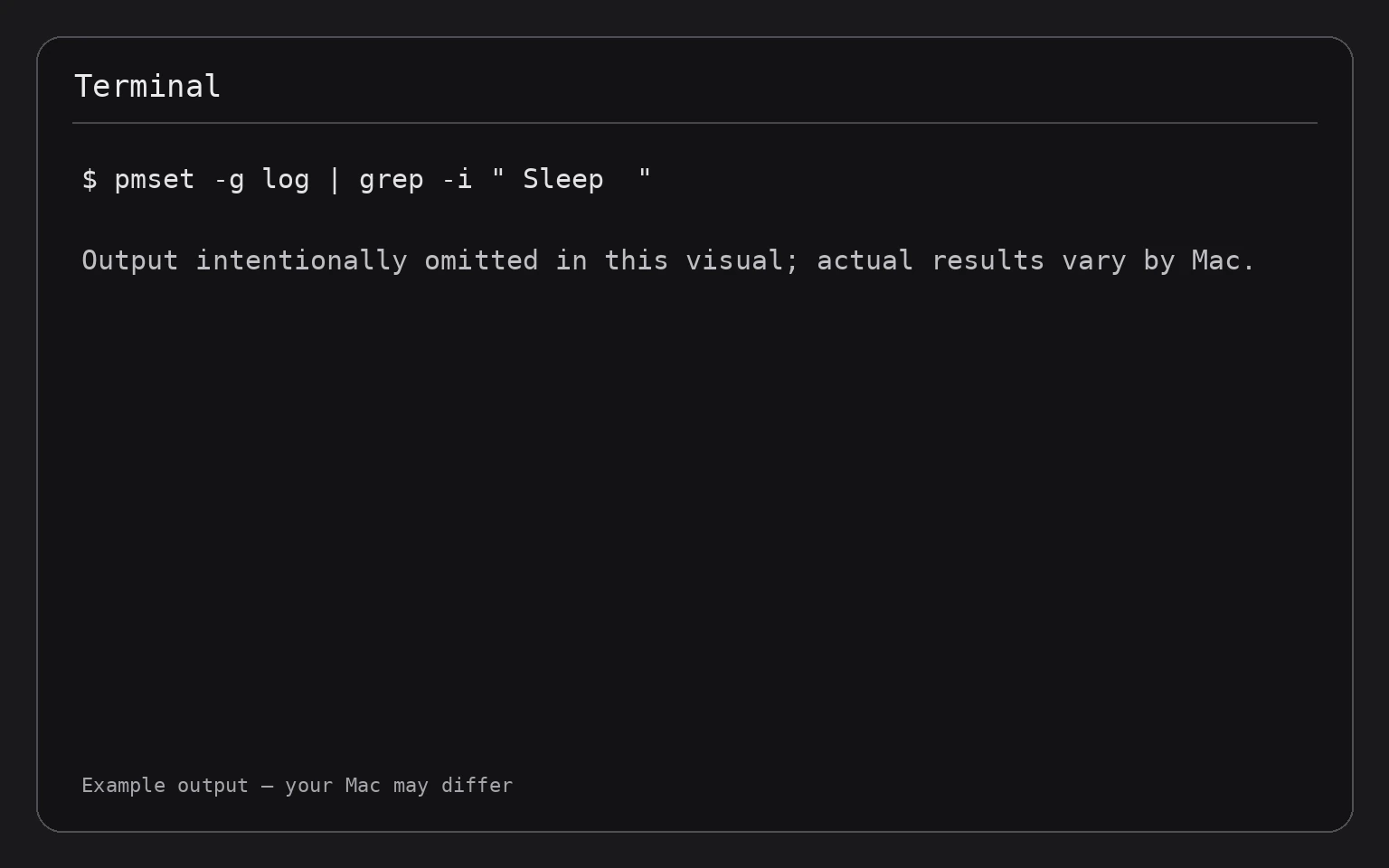
To show only entries containing Sleep, run:
pmset -g log | grep -i " Sleep "
This is useful when you want to determine whether the Mac entered sleep at a particular time. If you see a wake event but no corresponding recent sleep event, the available log may be incomplete or the Mac may have restarted, shut down, or changed power state in another way.
Search for wake events only
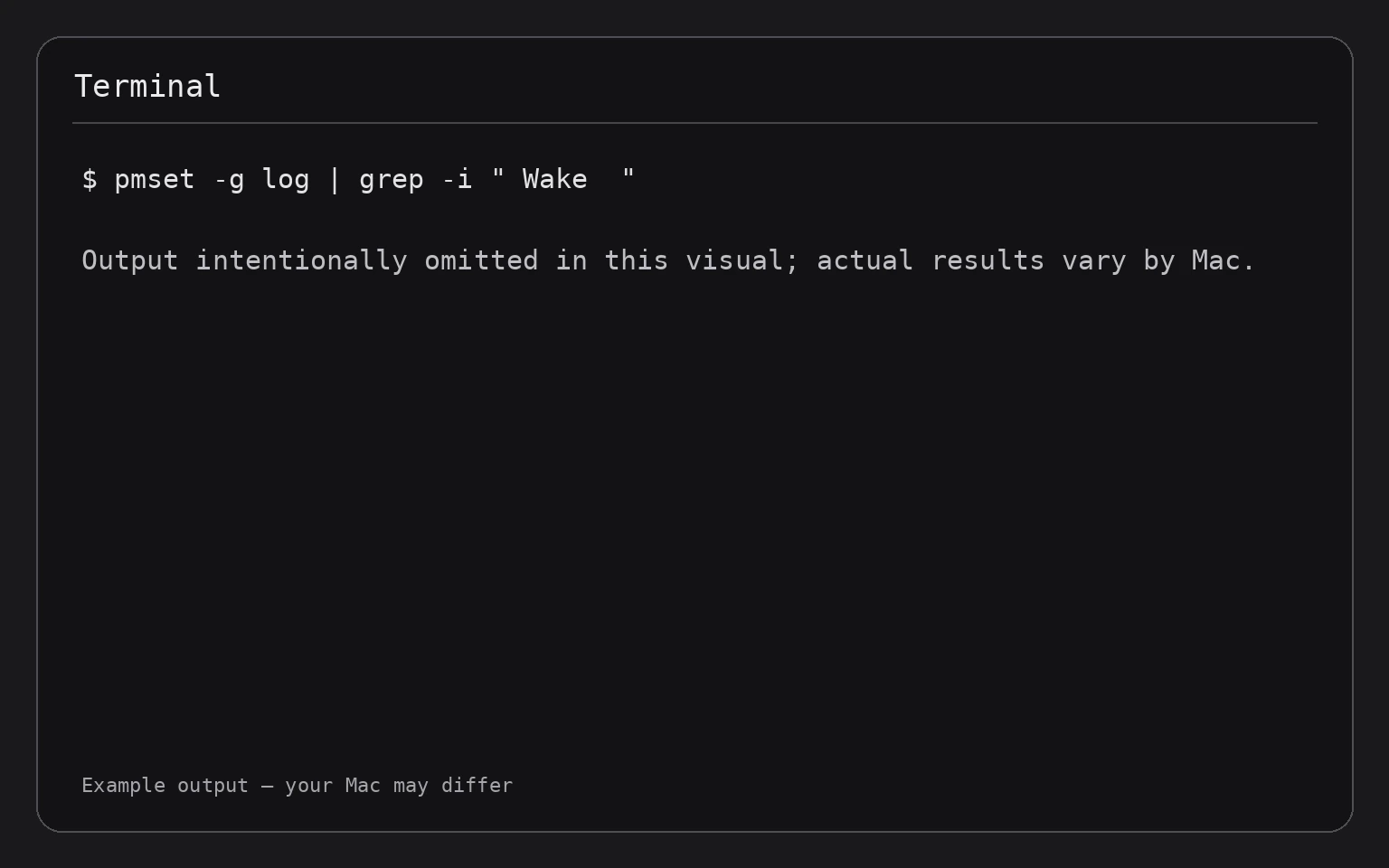
To show only wake entries, run:
pmset -g log | grep -i " Wake "
Pay attention to the event time and any text after the wake label. Terms such as DarkWake can indicate a brief background wake rather than a full return to the normal desktop state.
Method 2: Search a Specific Time Range with log show
The unified log contains system messages from a specified period. The following command searches the last 24 hours for messages containing sleep or wake:
log show --last 24h --style compact --predicate 'eventMessage CONTAINS[cd] "sleep" OR eventMessage CONTAINS[cd] "wake"'
--last 24h limits the search to the previous 24 hours. --style compact makes the output easier to scan, and the predicate filters messages by their event text. This command only reads the log.
To search a different period, replace 24h with another supported time expression, such as 2h or 7d:
log show --last 7d --style compact --predicate 'eventMessage CONTAINS[cd] "sleep" OR eventMessage CONTAINS[cd] "wake"'
A longer search can produce a large amount of output. If Terminal appears busy, allow the command to finish or press Control- C to stop the search. Stopping the search does not change system settings.
You can also search a calendar interval by providing start and end dates:
log show --start "2025-01-01 00:00:00" --end "2025-01-02 00:00:00" --style compact --predicate 'eventMessage CONTAINS[cd] "sleep" OR eventMessage CONTAINS[cd] "wake"'
Replace the dates with the period you want to inspect. Use the date format shown in the command. The results depend on how long macOS has retained the relevant messages.
When to use pmset versus log show
Use pmset -g log first when you want a concise power-management history. Use log show when:
- You need to limit the search to a precise time range.
- You want to investigate surrounding system messages.
- The
pmsetoutput does not provide enough context. - You are comparing a suspected wake-up time with other logged activity.
Neither method guarantees a complete historical record. Logs can rotate, messages can be summarized, and a particular event may not include a plain-language cause.
Method 3: Check What May Be Preventing Sleep
If your Mac does not sleep when expected, inspect active power assertions. An assertion is a temporary request from an app or system service to keep the Mac awake.
Run:
pmset -g assertions
This displays current assertions and related power-management information. It does not disable or alter those assertions.
Look for entries associated with applications, processes, downloads, media playback, file transfers, external displays, or other active tasks. An assertion may explain why the Mac remains awake, but the output alone does not prove that a listed process caused every sleep problem.
Do not randomly terminate processes or change power settings based only on this list. First close the related app normally, finish or cancel its active task, or disconnect a peripheral if appropriate. If closing an app could lose unsaved work, save your files first.
To check the list again after closing an app, rerun:
pmset -g assertions
There is no reversal command because this diagnostic command does not change state.
How to Interpret Common Results
Sleep and Wake
These are the most direct indicators of transitions into and out of sleep. Compare their timestamps with the time you left the Mac unattended or opened its lid.
DarkWake
A dark wake is generally a background wake in which the Mac may perform limited activity without presenting the normal desktop. It can be associated with maintenance or other system functions. Treat it as evidence that the Mac woke in some capacity, not automatically as proof of a user-initiated wake.
AutoWake or scheduled activity
These entries may indicate a scheduled power event. The exact reason can vary, and the surrounding log lines provide useful context. Avoid changing scheduled power settings until you understand what created the event.
Repeated wake entries
Several wake events close together can point to a peripheral, network activity, scheduled task, software process, or another power-management condition. The logs may not identify one definitive cause. Note the timestamps, disconnect nonessential accessories, and compare the results during another sleep period.
Troubleshooting Missing or Unclear History
Terminal returns no results
If a filtered command returns nothing, try the unfiltered power log:
pmset -g log
If the log itself contains no relevant events, macOS may not retain the period you need, or the event may be recorded under different wording. You can then try the broader log show search.
The output is difficult to read
Use less:
pmset -g log | less
Search within less by pressing /, typing a term such as Wake, and pressing Return. Press n to move to the next match and q to quit.
You can also narrow the output by date or keyword with the earlier grep commands. Avoid copying extremely large logs into another app if you only need a few lines.
The Mac wakes again after sleeping
Record the approximate time of the unexpected wake, then search around that period with log show. Disconnect nonessential USB, Thunderbolt, Bluetooth, or display accessories for a controlled test. Also check active assertions with:
pmset -g assertions
If the Mac still fails to sleep or wakes repeatedly, review Apple’s sleep settings and hardware troubleshooting steps. For a MacBook that does not wake normally, see How to Fix a MacBook That Does Not Wake from Sleep. If it wakes but you want to identify the specific cause, see How to Check What Woke Your MacBook from Sleep.
You need more history than the logs provide
Terminal cannot recover events that macOS has already removed from its logs. Start recording the approximate time of future sleep and wake events, then check the logs soon afterward. Keeping a brief note of whether the lid was closed, a charger was connected, or an accessory was attached makes the results easier to compare.
Frequently Asked Questions
Does checking sleep history in Terminal change anything?
No. The commands in this guide read power-management or system-log information. They do not change sleep settings, disable security, or delete system logs.
Can Terminal show exactly who woke the Mac?
Not always. The log may show a wake type, scheduled activity, or technical reason, but it may not identify a person or one definitive cause.
How far back can I check?
There is no guaranteed history length. It depends on the logs macOS still retains. The pmset output and unified log may cover different periods.
What is the safest command to start with?
Use:
pmset -g log | grep -Ei " Sleep | Wake "
It is read-only and focuses the output on the most relevant event names.
Can I prevent a specific wake event from happening?
Do not change settings solely from an ambiguous log line. First identify whether the event relates to an accessory, scheduled activity, network behavior, or an application. Changing sleep behavior can affect convenience, battery life, and security.
Final Thoughts
Terminal provides two useful ways to inspect Mac sleep and wake history: pmset -g log gives a focused power-management record, while log show lets you search a defined time range. Start with the read-only commands, compare timestamps with what you observed, and use pmset -g assertions when the Mac appears unable to sleep. Keep in mind that system logs are evidence, not always a complete diagnosis.