
Quick Answer
To compare two text files in Terminal, use diff:
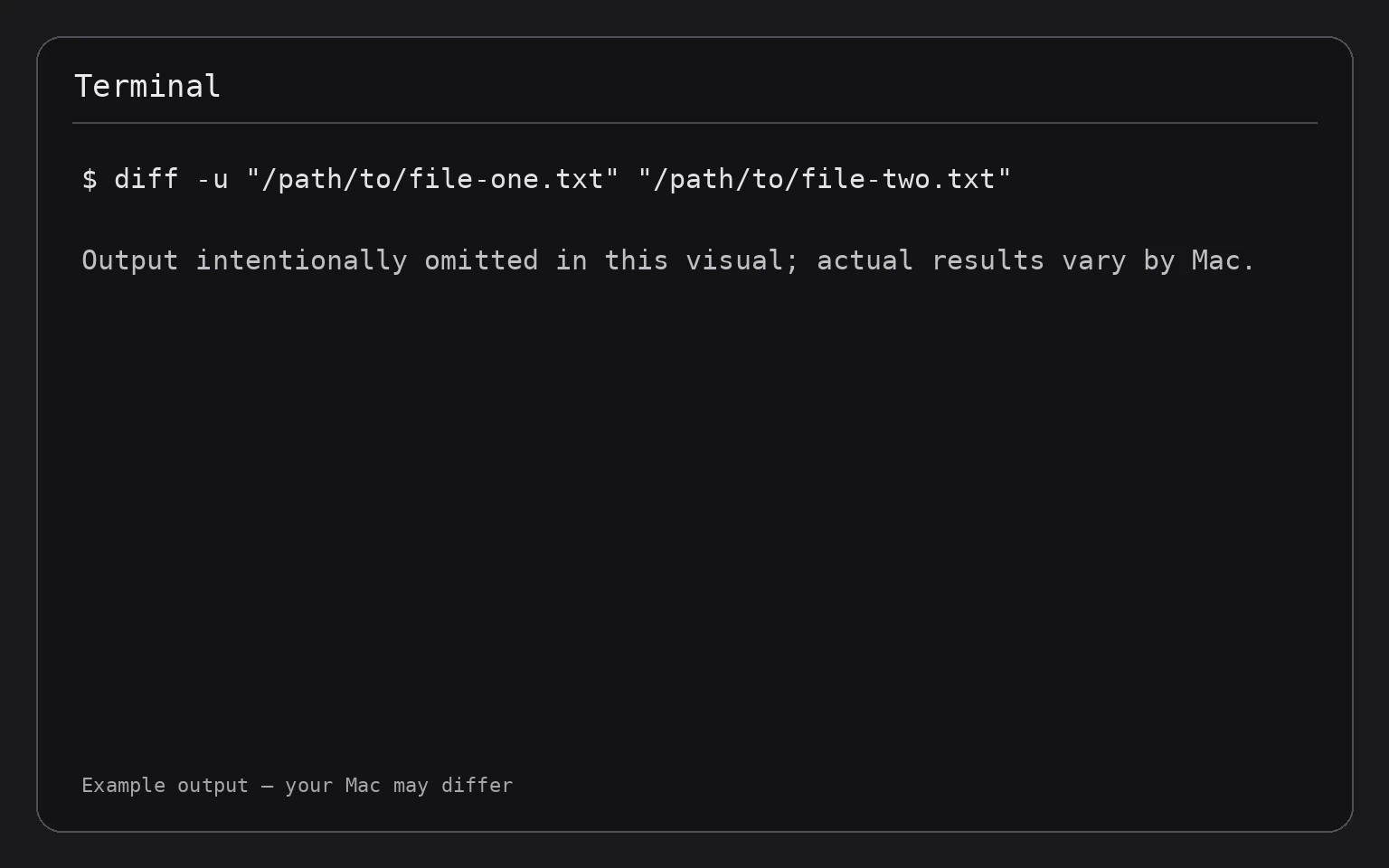
diff -u "/path/to/file-one.txt" "/path/to/file-two.txt"
To compare two folders and their contents, use:
diff -rq "/path/to/folder-one" "/path/to/folder-two"
The -u option shows readable line-by-line differences. The -r option checks subfolders recursively, and -q reports only whether files differ. These commands compare data without changing either file or folder.
Before You Begin
Terminal uses file paths to identify files and folders. The easiest way to avoid typing a path incorrectly is to type the command up to the opening quotation mark, then drag the file or folder from Finder into the Terminal window. macOS inserts its full path automatically.
For example, type:
diff -u
Then drag the first file into Terminal, type a space, and drag the second file into the window. You can also type paths manually. Quotation marks are useful when a name contains spaces.
Do not add a trailing slash to one path unless you use it consistently. A folder and the same folder with a trailing slash generally refer to the same location, but consistent formatting makes commands easier to read.
The commands in this guide only read and compare data. They do not edit, move, rename, or delete files.
Compare Two Text Files
The diff command compares text line by line. This makes it useful for configuration files, notes, scripts, exported data, and other plain-text documents.
1. Open Terminal
Open the Terminal app from the Applications folder, or press Command-Space, type Terminal, and press Return.
2. Run a unified comparison
The following command compares two text files and formats the result as a unified diff:
diff -u "/path/to/file-one.txt" "/path/to/file-two.txt"
Replace both example paths with the files you want to compare. The command does not modify either file.
A unified diff uses symbols to identify changes:
- Lines beginning with
-appear in the first file but not the second. - Lines beginning with
+appear in the second file but not the first. - Lines beginning with a space are unchanged context.
- A header identifies the two compared paths.
If the files are identical, diff normally produces no output. That is a successful comparison, not an error.
To compare files whose names contain spaces, keep each path inside quotation marks:
diff -u "/Users/your-name/Documents/Project Notes/old.txt" "/Users/your-name/Documents/Project Notes/new.txt"
The example uses placeholder paths. Replace them with real paths on your Mac.
3. Make long differences easier to read
For large files, send the result to less, which lets you scroll without changing the files:
diff -u "/path/to/file-one.txt" "/path/to/file-two.txt" | less
Use the Up Arrow and Down Arrow keys to move through the output. Press Space to move down one screen and press q to quit the viewer.
You can also compare without showing unchanged context:
diff --brief "/path/to/file-one.txt" "/path/to/file-two.txt"
This reports whether the files differ, rather than displaying every changed line. On macOS, diff --brief is equivalent to using the short option -q.
Compare Two Folders
Use recursive diff when you need to compare folder contents, including nested folders.
1. Compare folders and list differences
Run:
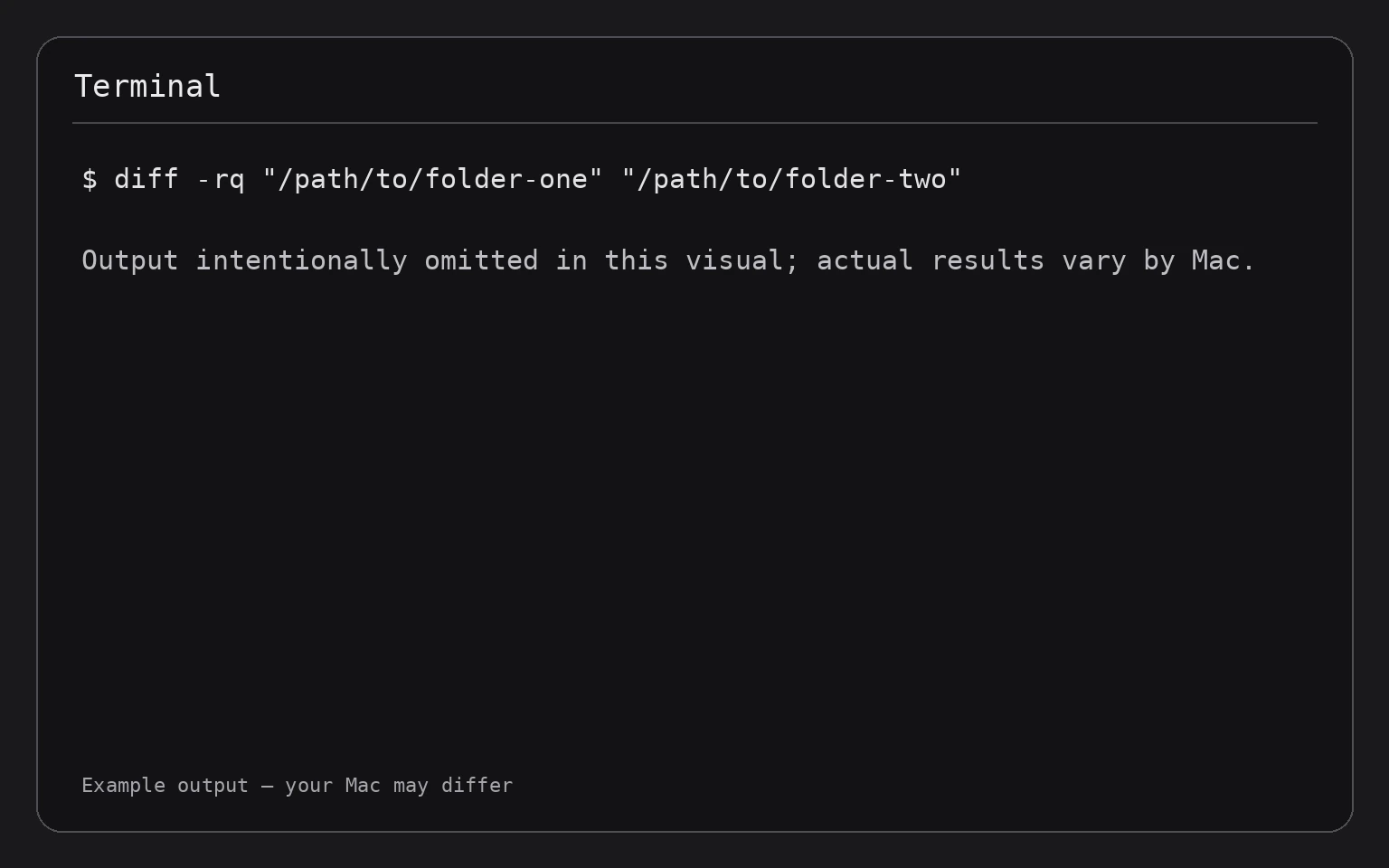
diff -rq "/path/to/folder-one" "/path/to/folder-two"
Here is what the options do:
-rtellsdiffto inspect subfolders recursively.-qtells it to report only whether corresponding files differ.
The result can identify files that are present in one folder but missing from the other, as well as files that exist in both locations but contain different content.
If there is no output, the folders contain matching files and contents as evaluated by diff. If the folders contain binary files, such as images or applications, diff may report that they differ without showing meaningful line-by-line content.
For a folder comparison that includes readable differences for text files, omit -q:
diff -r "/path/to/folder-one" "/path/to/folder-two"
This still checks nested folders, but it may produce much more output. Use | less if the result is long:
diff -r "/path/to/folder-one" "/path/to/folder-two" | less
2. Compare only the folder structure and file names
If you need a quick inventory comparison rather than content comparison, generate sorted file lists:
find "/path/to/folder-one" -type f -print | sort
find "/path/to/folder-two" -type f -print | sort
find searches each folder for regular files, while sort places the results in a predictable order. This displays each list separately, so you must compare the output yourself.
You can save temporary lists in /tmp and compare them with diff:
find "/path/to/folder-one" -type f -print | sort > /tmp/folder-one-files.txt
find "/path/to/folder-two" -type f -print | sort > /tmp/folder-two-files.txt
diff -u /tmp/folder-one-files.txt /tmp/folder-two-files.txt
This command creates two temporary text files in /tmp; it does not change either source folder. To remove only those generated lists after reviewing the result, run:
rm -f /tmp/folder-one-files.txt /tmp/folder-two-files.txt
This rm command permanently deletes the two temporary list files without moving them to the Trash. Confirm that the paths are exactly the temporary files you created before pressing Return. Do not substitute a source-folder path.
Compare Files by Checksum
A checksum is a short value calculated from a file’s contents. If two files have different checksums, their contents differ. A matching checksum is useful evidence that the files are the same, although checksum comparisons are not a replacement for checking file names, permissions, or other metadata.
macOS includes shasum, which can calculate a SHA-256 checksum:
shasum -a 256 "/path/to/file-one"
shasum -a 256 "/path/to/file-two"
Compare the long hexadecimal values at the beginning of each output line. Matching values indicate matching content for this comparison. Different values indicate different content.
You can calculate both values and compare them automatically:
if cmp -s "/path/to/file-one" "/path/to/file-two"; then
  echo "Files are identical"
else
  echo "Files are different"
fi
The cmp command compares files byte by byte. The -s option suppresses normal comparison output and uses the result only as a condition. The command does not change either file.
For a direct, silent comparison, use:
cmp "/path/to/file-one" "/path/to/file-two"
No output means the files match. If they differ, cmp reports the first differing location. This method works well for binary files because it compares bytes rather than trying to interpret them as text.
Compare File Metadata
diff primarily compares contents. It does not give you a complete comparison of ownership, permissions, timestamps, extended attributes, or other metadata.
To inspect basic metadata for each item, use:
stat "/path/to/file-one"
stat "/path/to/file-two"
The output includes information such as the file type, size, permissions, and modification time. Compare the two results manually.
To inspect extended attributes separately, use:
xattr -l "/path/to/file-one"
xattr -l "/path/to/file-two"
Extended attributes are additional metadata attached to a file. They can affect how macOS treats downloaded or managed files. For a more focused explanation of this metadata, see how to check extended attributes on Mac files using Terminal.
Do not use xattr -d or xattr -c merely to make two files look alike. Those commands remove metadata and can change how macOS handles a file. If you intentionally remove an attribute, record its original value first so you can restore it with xattr -w when appropriate.
Save a Comparison Report
You can save diff output to a text file for later review:
diff -rq "/path/to/folder-one" "/path/to/folder-two" > "$HOME/Desktop/folder-comparison.txt"
The > operator writes the command’s output to the specified file. If that file already exists, its contents are replaced. This does not change either folder, but it does overwrite the report file.
To avoid overwriting an existing report, use a new name or append a timestamp:
diff -rq "/path/to/folder-one" "/path/to/folder-two" > "$HOME/Desktop/folder-comparison-$(date +%Y%m%d-%H%M%S).txt"
The $(date ...) portion adds the current date and time to the file name. Open the resulting report in a text editor or display it in Terminal with:
less "$HOME/Desktop/folder-comparison.txt"
Press q to exit less.
Troubleshooting
“No such file or directory”
One of the paths is incorrect, or the item was moved. Drag the file or folder from Finder into Terminal to insert its current path. Check capitalization, spaces, and punctuation.
“Permission denied”
Terminal may not be allowed to access a protected location, such as certain folders containing personal data. If macOS asks for permission, review the request carefully before allowing access. Do not bypass protections by running an unfamiliar command with sudo.
If you use sudo, macOS may ask for your administrator password. The password will not appear as you type. Use elevated privileges only when you understand why they are needed; diff, cmp, find, stat, and shasum normally do not require them for files you can already access.
The output is too long
Use less:
diff -r "/path/to/folder-one" "/path/to/folder-two" | less
Alternatively, use -q to see only which files differ:
diff -rq "/path/to/folder-one" "/path/to/folder-two"
The files look identical, but diff reports a difference
The files may contain different line endings, hidden characters, encoding details, or binary data. Use cmp to confirm whether their bytes differ:
cmp "/path/to/file-one" "/path/to/file-two"
Also check metadata with stat and extended attributes with xattr -l. A content comparison and a metadata comparison answer different questions.
Folder sizes do not match
Different sizes do not always mean that the same files differ. Folders can contain hidden files, package contents, caches, or metadata that are not obvious in Finder. To investigate storage usage separately, see how to compare folder sizes in Terminal on a Mac.
Frequently Asked Questions
Does diff change my files?
No. The comparison commands shown here read the specified files and folders. They do not edit, move, rename, or delete the source items.
What does an empty diff result mean?
It normally means that diff found no differences for the comparison you requested. For files, that means matching text content. For recursive folders, it means no reported differences in the items and contents it examined.
Can I compare photos or other binary files?
Yes. Use cmp for a byte-by-byte comparison:
cmp "/path/to/photo-one.jpg" "/path/to/photo-two.jpg"
diff can report that binary files differ, but it cannot provide a useful text-style explanation of changes inside most images, videos, or applications.
Can I compare folders without checking every file’s content?
Use a file-list comparison with find and sort, or use diff -rq for a concise recursive report. A file-list comparison focuses on paths; diff -rq also detects content differences in corresponding files.
What is the easiest way to compare two files?
For readable text differences, use:
diff -u "/path/to/file-one.txt" "/path/to/file-two.txt"
For binary files, use cmp or compare SHA-256 checksums with shasum -a 256.
Final Thoughts
Use diff -u for readable text-file changes, diff -rq for a concise recursive folder comparison, and cmp or shasum for binary files. Start with paths inserted by dragging items from Finder, review the output carefully, and remember that these comparison commands are read-only.