

Quick Answer
To manage storage on your Mac, open System Settings > General > Storage. Review the largest categories, remove files you no longer need, empty the Trash, and uninstall apps you do not use. Keep enough free space for macOS and your everyday work rather than deleting system files at random.
For a more detailed breakdown, use Terminal’s du command to measure folder sizes. Before deleting anything, confirm the path and move personal files to an external drive or cloud storage when possible.
Check what is using storage
Use System Settings first
The Storage settings provide the safest overview for most users.
- Choose Apple menu > System Settings.
- Select General in the sidebar.
- Click Storage.
- Wait for macOS to calculate the categories.
- Review the largest categories, such as Applications, Documents, Messages, Photos, and System Data.
The category names and available recommendations can vary depending on the files and apps on your Mac. Select a category to see the available management options. Read each recommendation before applying it, especially if it involves deleting files or removing downloads.
Measure folders with Terminal
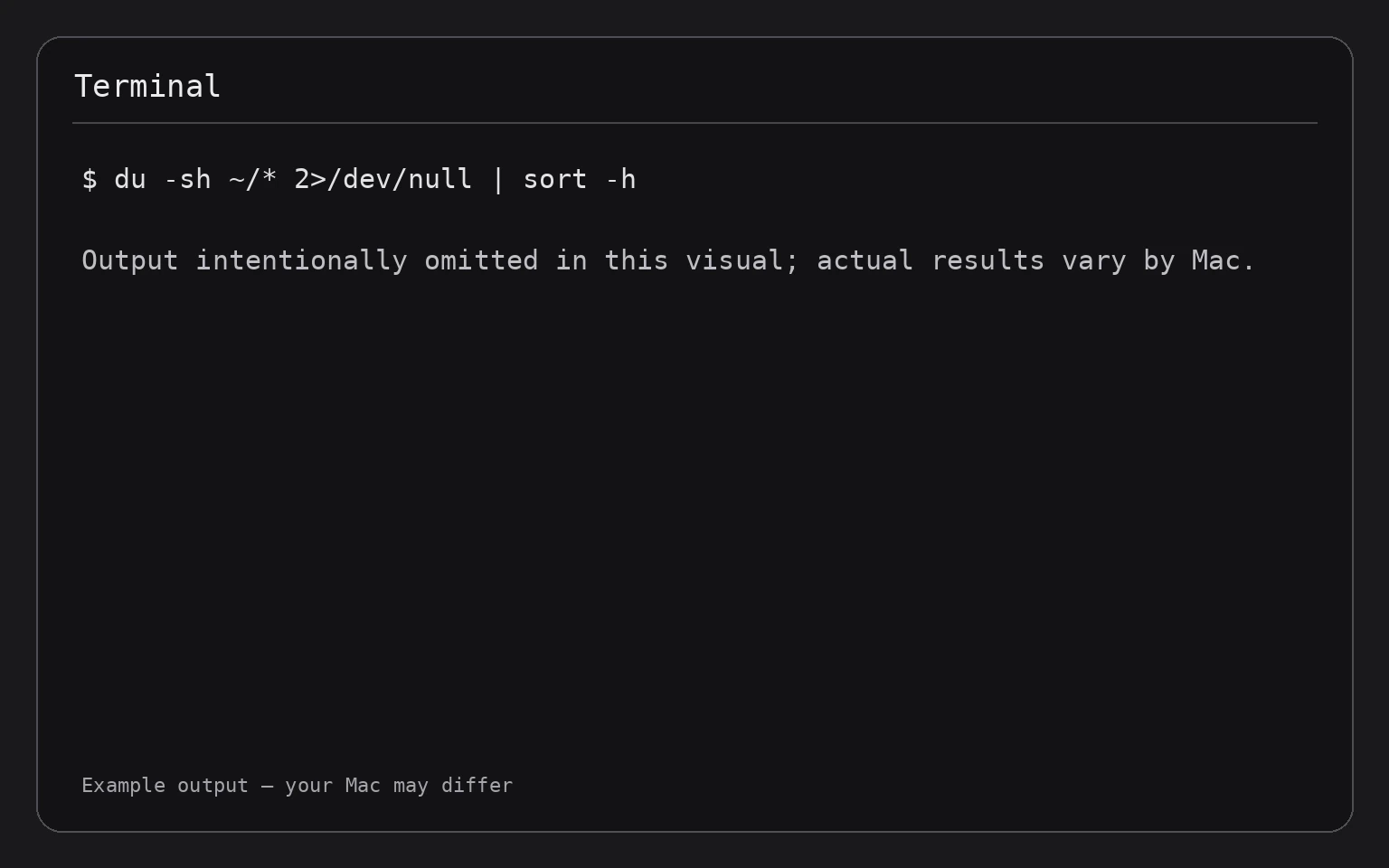
Terminal can show which folders occupy the most space. This command measures the contents of your home folder and sorts the results from smallest to largest:
du -sh ~/* 2>/dev/null | sort -h
du -sh reports each item’s total size in a readable format. The ~/* path represents items directly inside your home folder. 2>/dev/null hides permission warnings, and sort -h sorts sizes in a way that understands units such as megabytes and gigabytes.
This command only reads storage information; it does not change or delete anything. Large folders commonly include Downloads, Movies, Pictures, Documents, and Library. A large Library folder requires extra care because it contains app data, settings, caches, and other files that macOS and apps may need.
For another read-only approach, see how to check disk space and storage usage in Terminal on a Mac.
Remove files safely
Empty the Trash
Moving a file to the Trash does not immediately make its space available. Emptying the Trash permanently removes the items in it.
Warning: Do not empty the Trash until you have checked its contents. Emptying it can permanently delete files and may remove items you still need.
- Open the Trash from the Dock.
- Review the files.
- If you need an item, drag it out of the Trash.
- When you are sure, click Empty and confirm.
There is no general Undo command after the Trash is emptied. If a deleted file exists in a backup, you may be able to restore it from that backup.
Review Downloads
The Downloads folder often contains installers, archives, duplicate documents, and files downloaded for one-time use.
- Open Finder.
- Select Downloads in the sidebar.
- Choose View > as List if needed.
- Click the Size column to sort by file size. If the column is not visible, Control-click a column heading and select Size.
- Open files you do not recognize before deleting them.
- Move unneeded items to the Trash, then empty the Trash when ready.
Do not delete an installer if you still need to install that app on another Mac. You can copy it to external storage first.
Remove applications you no longer use
Many applications can be removed by dragging them from Applications to the Trash.
- Open Finder > Applications.
- Select an app you no longer need.
- Move it to the Trash.
- Empty the Trash only after confirming that you selected the correct app.
Some apps include uninstallers or supporting components. Check the app’s documentation before removing it if you need to preserve settings or completely uninstall related services. Never remove an app just because its name is unfamiliar if it appears to be part of macOS or another app you use.
If you later need a removed app, reinstall it from its original trusted source. Removing an app does not necessarily remove documents it created.
Review large documents
System Settings can help identify large files. You can also inspect common folders manually in Finder. Use View > Show View Options and enable Calculate all sizes when available, but calculating sizes for many files can take time.
Focus on files you recognize:
- Old video exports
- Disk images ending in
.dmg - Compressed archives such as
.zip - Duplicate installers
- Old virtual-machine files
- Projects you have already backed up
Keep the original if a file is important and you have not verified a backup. A file copied to another location is not necessarily backed up unless you can access a reliable second copy.
Use Terminal for targeted cleanup
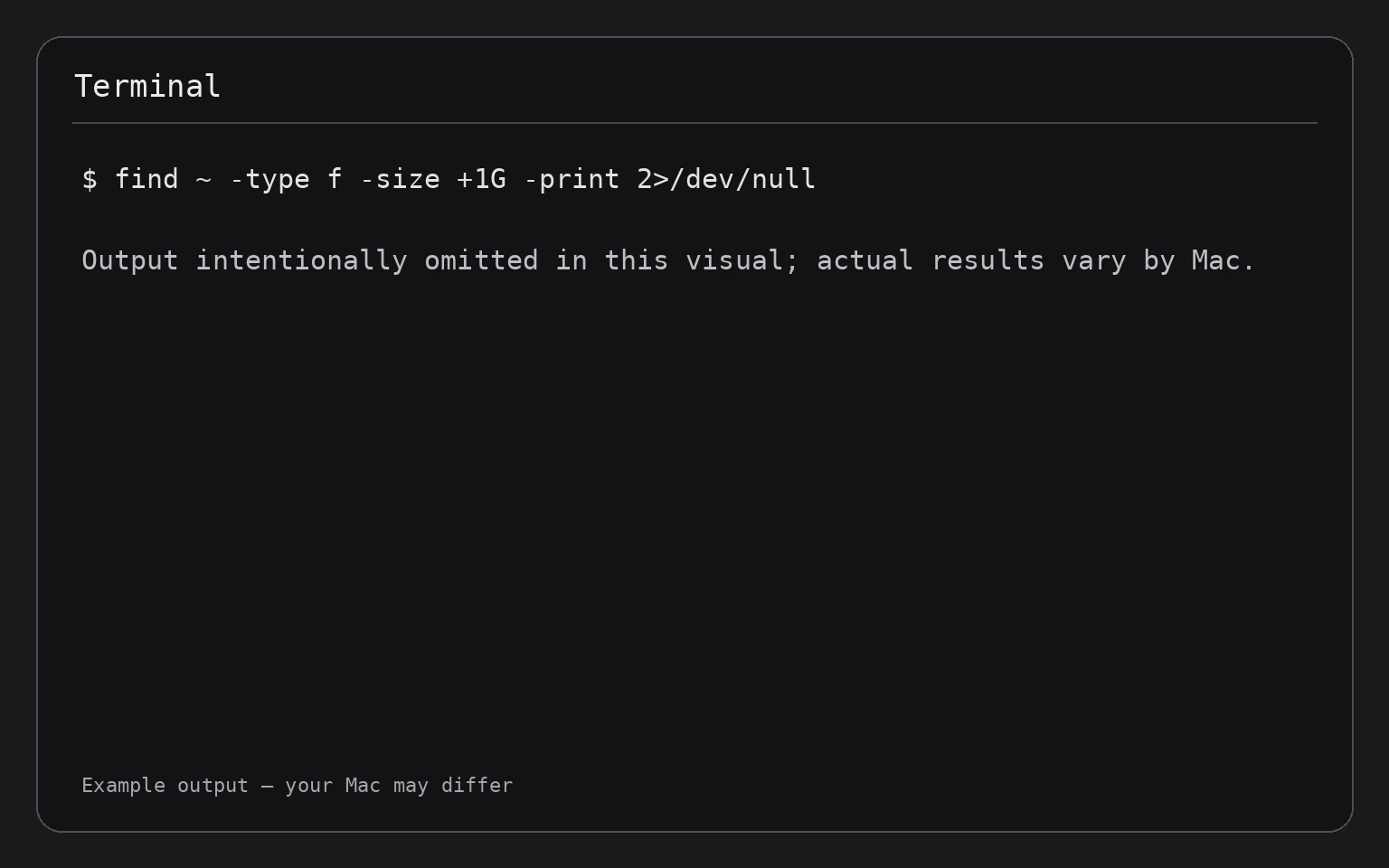
Terminal is useful when Finder is slow or when you need to locate files by type or age. The following command lists files larger than 1 gigabyte in your home folder:
find ~ -type f -size +1G -print 2>/dev/null
This command searches for regular files (-type f) under your home folder and prints files larger than 1 gigabyte. It only reads file information and does not delete anything.
Review every path before taking action. Paths can contain spaces, unusual characters, or files managed by an app. If a result belongs to a project, photo library, backup, or virtual machine, use that app’s own management tools instead of deleting individual files.
You can copy a file to another volume with cp, but copying is not a substitute for a verified backup. A safer general workflow is to move known personal files using Finder, confirm that the copy opens correctly, and only then remove the original.
Find old files without deleting them
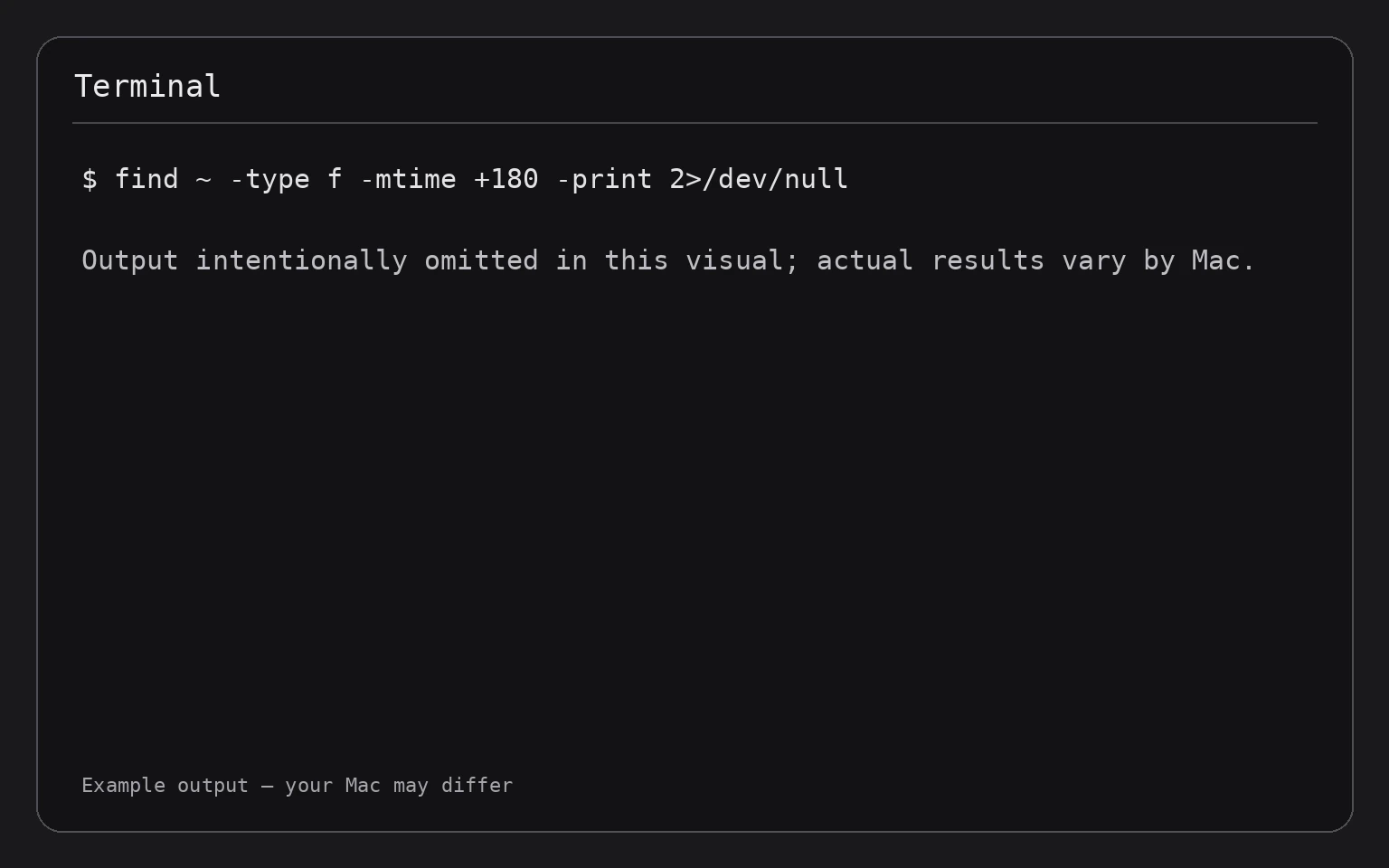
This command lists files under your home folder that were modified more than 180 days ago:
find ~ -type f -mtime +180 -print 2>/dev/null
It reports files based on modification time, not when you last opened or needed them. An old file may still be important, so treat the output as a review list only.
To avoid an overwhelming list, search one folder at a time:
find ~/Downloads -type f -mtime +180 -print 2>/dev/null
The command reads the Downloads folder and makes no changes. Delete selected files through Finder after checking them, or move them to external storage if you may need them later.
Manage common storage categories
Photos
Photo libraries can be large. Before deleting photos, confirm whether you use iCloud Photos and understand how deletion synchronizes across devices. Deleting a photo from a synchronized library can delete it from the library on your other devices as well.
Use Photos to review videos, duplicates, and unwanted items. If you want to reduce local storage while keeping iCloud Photos, review how to free up storage used by Photos on a Mac without deleting iCloud Photos.
Messages
Attachments in Messages can consume significant space. In Messages, review conversations with large attachments and remove only items you no longer need. If Messages is synchronized through iCloud, deletion may affect other devices.
Backups
Do not delete backup folders manually unless you know which backup system created them and how restoration works. Time Machine and other backup tools may manage files using their own rules. Removing backup data can reduce your ability to recover an older file.
System Data
System Data is a broad category, not one folder you should delete. It may include caches, logs, temporary files, app support files, local snapshots, and other items macOS groups together.
Some of this data is temporary and may be reclaimed automatically. Avoid deleting items inside /System, /Library, or your home folder’s Library simply because they appear large. If a particular app is responsible, use that app’s settings or uninstall process.
Free space without risking your files
macOS may offer storage recommendations in System Settings > General > Storage. Review each one individually. You may see options related to optimizing storage, automatically removing watched content, or reducing clutter. These options can change what remains stored locally, so make sure you understand whether content will be downloaded again when needed.
You can also review how to use Optimize Storage on a Mac for a focused explanation of those controls.
A practical cleanup order is:
- Empty only the Trash items you have verified.
- Remove unneeded installers, archives, and downloads.
- Uninstall unused applications.
- Review large videos and project files.
- Check Photos and Messages attachments.
- Restart the Mac if an app or macOS has recently removed temporary data.
- Recheck System Settings > General > Storage.
If you need a broader checklist, use how to free up storage space on a Mac.
Troubleshooting
Storage does not change after deleting files
Check whether the deleted items are still in the Trash. Also close the app that created the files and reopen Storage settings. macOS may take time to recalculate categories.
The Mac says the disk is full
Stop downloading or creating large files until you free space. Empty verified Trash items, remove known large files, and restart if macOS is behaving unexpectedly. Do not delete random system files to make space quickly.
If you cannot complete normal cleanup, connect an external drive and move large personal files after verifying that they copy successfully. Keep the Mac powered during large transfers.
Terminal reports “Permission denied”
The command may have encountered a protected folder. The 2>/dev/null portion in the examples hides those messages, but it does not grant access or change the files. Do not bypass protections just to obtain a complete list. Use Finder and the relevant app’s storage controls instead.
A deleted file is needed
If it is still in the Trash, select it and choose File > Put Back. If the Trash was emptied, restore the file from Time Machine, another backup, or the service where it was originally stored. Avoid writing many new files to the Mac if you are considering specialized data recovery.
Frequently Asked Questions
How much free storage should a Mac have?
There is no single amount that suits every Mac. Keep enough free space for macOS updates, temporary files, applications, and your normal work. If warnings appear or everyday tasks fail, begin cleaning up rather than waiting for the disk to become completely full.
Is it safe to delete “System Data”?
Do not delete System Data directly. It is a category containing different types of files, and some may be required by macOS or your apps. Remove known personal files and use app-specific cleanup tools instead.
Does uninstalling an app delete its documents?
Usually not. Documents, libraries, preferences, and support files may remain. This can be useful if you reinstall the app, but it also means uninstalling alone may not recover all related storage.
Can I delete files in the Library folder?
Only delete Library items when you know exactly what they are and what created them. Many Library folders contain essential app data. Prefer the app’s own settings or an official uninstaller.
Does moving a file to an external drive free Mac storage?
It frees space only after the original is removed from the Mac and the copy has been verified. Open several important files from the external drive before deleting the originals.
Final Thoughts
Start with System Settings > General > Storage, then clean up recognizable personal files in a controlled order. Use Terminal for read-only investigation, not guesswork. Before permanently deleting anything, verify the file, confirm a backup when needed, and keep the Trash as a recovery step until you are certain.