
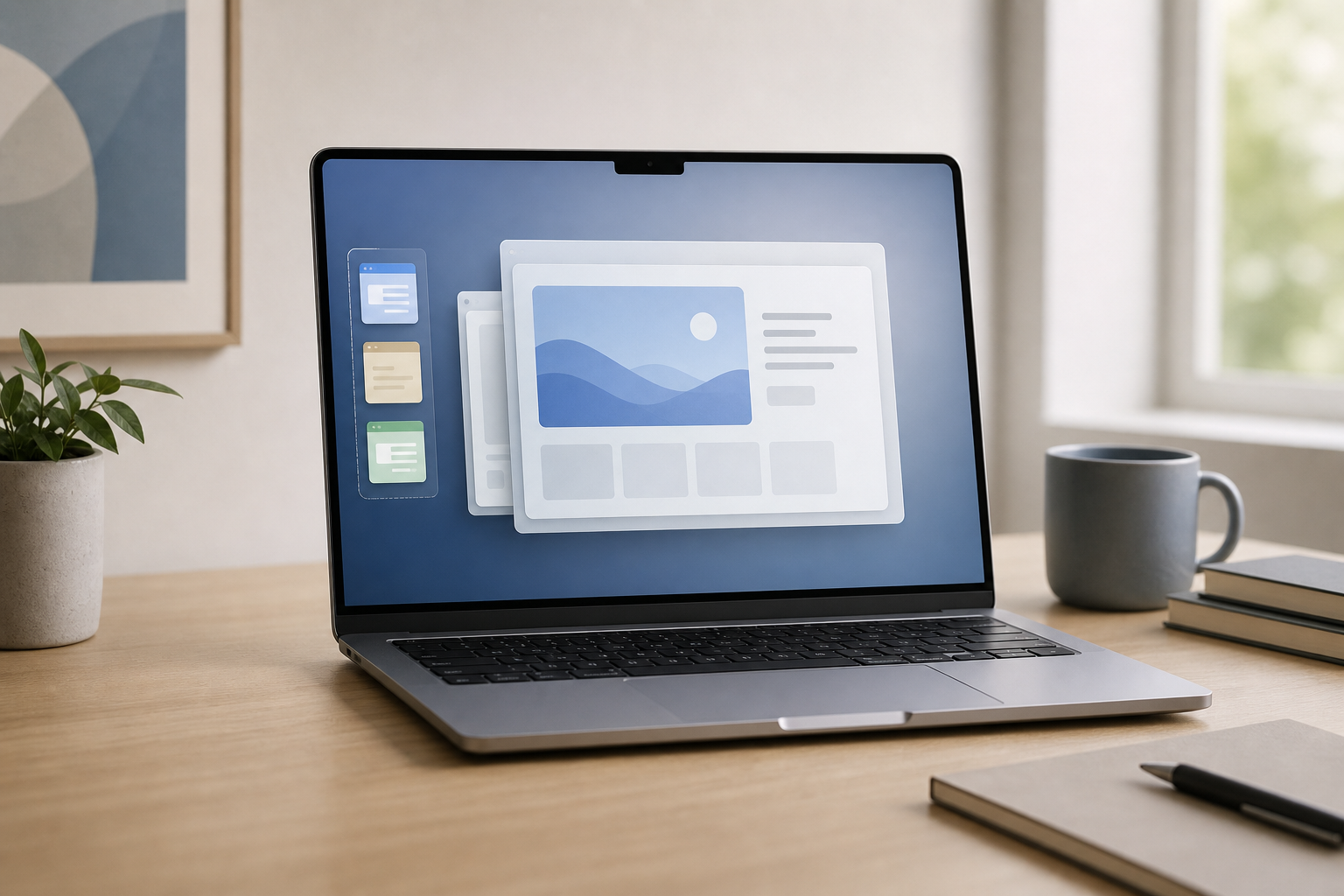
Stage Manager helps you organize windows on your Mac by keeping your current work in the center of the screen and moving other open apps and windows into a strip along the left side. To turn it on, open Control Center from the menu bar, select Stage Manager, and then click the app or window you want to use.
You can also combine apps into groups—for example, Safari, Notes, and Mail for research—so they open together when you select that group.
Quick Answer
To use Stage Manager on a Mac:
- Click Control Center in the menu bar.
- Click Stage Manager to turn it on.
- Open or select an app. Its window appears in the main workspace.
- Click another app or window in the recent-apps strip on the left to switch.
- Drag a window from the strip into the main workspace to create an app group.
- Customize Stage Manager from System Settings > Desktop & Dock.
Stage Manager is designed to reduce clutter when several windows are open. It does not close your apps or erase documents; it changes how open windows are arranged and displayed.
What Is Stage Manager?
Stage Manager is a macOS window-management feature. It displays the app or group of apps you are currently using in the center of the screen while placing other open apps and windows in a vertical strip on the left, called the recent-apps area.
When you click an item in the recent-apps area, macOS brings that app or window to the front and moves your previous work aside. This makes it easier to switch between tasks without searching through overlapping windows.
Stage Manager is useful for tasks such as:
- Writing in Pages while referencing information in Safari
- Comparing files in Finder
- Managing email while working in another app
- Keeping communication apps separate from work apps
- Organizing multiple windows around a single project
Stage Manager manages windows; it does not replace full-screen mode, Spaces, or Mission Control. You can use these features together, depending on how you prefer to work.
How to Turn On Stage Manager
The quickest way to enable Stage Manager is through Control Center.
- Click Control Center in the menu bar.
- Click Stage Manager.
- If Stage Manager is off, click it to turn it on.
Once enabled, your active window appears in the main area of the desktop. Other open windows move to the recent-apps area on the left.
If you do not see the Stage Manager option in Control Center, open System Settings, select Desktop & Dock, and look for the Stage Manager settings. If the feature is not listed, your Mac or installed version of macOS may not support it.
Turn Stage Manager off
You can disable Stage Manager from either Control Center or System Settings.
From Control Center
- Click Control Center in the menu bar.
- Click Stage Manager.
- Click the Stage Manager switch to turn it off.
From System Settings
- Open System Settings.
- Select Desktop & Dock in the sidebar.
- Find the Stage Manager section.
- Turn Stage Manager off.
Turning Stage Manager off does not quit your apps. Your windows return to the regular desktop arrangement, although their positions may not be exactly as they were before Stage Manager was enabled.
How to Switch Between Apps and Windows
With Stage Manager active, open apps and windows appear in the recent-apps area along the left side of the screen.
- Move the pointer to the left edge of the screen if the recent-apps area is hidden.
- Click the app or window you want to use.
- macOS brings it into the main workspace.
If an app has more than one open window, those windows may be grouped together in the recent-apps area. Click the group to bring its windows into the workspace.
You can also use familiar Mac methods while Stage Manager is enabled:
- Press Command-Tab to switch between open apps.
- Use Mission Control to view windows and spaces.
- Click an app’s icon in the Dock.
- Use Command-` to cycle through windows in the current app, when supported.
Stage Manager is a visual organization tool, so these other shortcuts continue to be useful when you need to switch quickly.
How to Create App Groups
An app group keeps multiple apps visible together in the main workspace. This is useful when you regularly use the same apps for one task.
For example, you could group:
- Safari and Notes for research
- Mail and Calendar for scheduling
- Finder and Preview for reviewing files
- Messages and a document app for collaboration
Create a group by dragging an app
- Turn on Stage Manager.
- Open the first app you want in the group.
- Move the pointer to the left edge of the screen to show recent apps.
- Drag another app or window from the recent-apps area into the main workspace.
- Position the window where you want it.
- Repeat the process for any additional apps or windows.
The apps remain together in the workspace. When you select another recent app, the group moves aside as a unit. Click the group again to return to the same set of windows.
Add an app to the current group from the Dock
You can also add an app from the Dock:
- Select the app group you want to use.
- Control-click the app’s icon in the Dock.
- Choose Show Windows if needed.
- Drag the app’s window into the current workspace.
The exact options may vary depending on the app and whether it has an open window. If the app is not already open, open it first and then move its window into the group.
Remove an app from a group
To remove a window from a group:
- Select the group.
- Drag the window out of the main workspace toward the recent-apps area.
- Release the window when the recent-apps area appears.
The window becomes a separate item. It remains open; it is simply no longer part of that group.
Close a window in a group
To close a window, select it and use the app’s normal close command or press Command-W.
Warning: Closing a window can discard unsaved changes if the app does not automatically save them. Save your work before closing a document or window. Closing a window is different from quitting the app; the app may remain open in the background.
How to Customize Recent Apps
Stage Manager lets you control how the recent-apps area behaves. These settings are useful if you want more workspace or prefer to see your other apps at all times.
- Open System Settings.
- Select Desktop & Dock.
- Scroll to the Stage Manager section.
- Adjust the available settings.
Depending on your Mac and installed macOS version, you may see options for:
- Recent applications in Stage Manager: Choose whether recent apps remain visible at the side of the screen.
- Desktop items: Choose whether items on the desktop remain visible while Stage Manager is active.
- Show windows from an application: Choose whether selecting an app displays all of its windows together or only the current window.
Show or hide recent apps
When recent apps are visible, you can switch between them quickly. When they are hidden, more space is available for the current app.
If the recent-apps area is hidden, move the pointer to the left edge of the screen to reveal it temporarily. This gives you a larger workspace without preventing access to your open apps.
Show or hide desktop items
If desktop items are hidden, files, folders, and other items on the desktop may not be visible while you are using Stage Manager. They are not deleted; they are simply hidden from view until the setting changes or Stage Manager is turned off.
To change this behavior:
- Open System Settings.
- Select Desktop & Dock.
- Find Stage Manager.
- Change the setting for desktop items.
Important: This setting changes visibility, not storage. Do not delete desktop files simply because they are not currently displayed.
Choose how an app displays its windows
Some apps use several windows, such as Finder, Safari, or Preview. Stage Manager can display an app’s windows together or handle them individually, depending on your settings and how the windows were opened.
If you want all windows from an app available together:
- Open System Settings.
- Select Desktop & Dock.
- Find Stage Manager.
- Adjust Show windows from an application.
The available choices may include showing all windows at once or showing one window at a time. Choose the option that best fits your workflow.
How to Use Stage Manager With Multiple Displays
Stage Manager can be useful when your Mac is connected to an external display. You can use each screen for a different part of your workflow, such as keeping a document on one display and reference material on the other.
The exact behavior depends on your display arrangement and macOS settings.
Arrange your displays first
- Open System Settings.
- Select Displays.
- Select Arrange or the display arrangement controls.
- Position the display icons to match the physical placement of your screens.
Correctly arranging the displays makes it easier to move the pointer and windows between them.
Use Stage Manager on an external display
- Connect and identify the external display.
- Turn on Stage Manager from Control Center.
- Open the apps you want to use.
- Drag windows between displays as needed.
- Use the recent-apps area on the display where the active workspace is located.
You can keep a Stage Manager workspace on one display and use the other for a separate app or set of windows. For example, keep Safari and Notes together on the external display while using a document on the Mac’s built-in screen.
Change display-specific behavior
If Stage Manager does not behave as expected across multiple displays:
- Open System Settings.
- Select Desktop & Dock.
- Review the Stage Manager settings.
- Open System Settings > Displays and check the display arrangement.
- Turn Stage Manager off and on again after changing the settings.
Some windows may move when displays are disconnected or reconnected. Save your work before disconnecting a display, especially if you have documents with unsaved changes.
Warning: Disconnecting a display does not normally close your apps, but it can cause windows to move, resize, or become temporarily unavailable. Save important work before changing your display setup.
How to Use Stage Manager With Full-Screen Apps
A full-screen app occupies its own Space rather than appearing like a normal window in the Stage Manager workspace. You can switch between full-screen apps and the Stage Manager desktop using Mission Control, the Dock, or keyboard shortcuts.
To enter full-screen mode:
- Move the pointer over the green button in the upper-left corner of an app window.
- Click the button.
- Choose Enter Full Screen.
To exit full-screen mode:
- Move the pointer to the top of the screen.
- Move the pointer over the green button.
- Click it.
- Choose Exit Full Screen.
The wording and available options can vary by app. Full-screen mode may be useful for focused work, while Stage Manager is usually better when you need to see multiple windows together.
How to Use Stage Manager With Mission Control
Stage Manager and Mission Control solve different window-management problems:
- Stage Manager keeps your current apps organized in groups.
- Mission Control provides an overview of open windows and Spaces.
- Spaces let you create separate desktops for different tasks.
To open Mission Control:
- Press the Mission Control key on your keyboard, or
- Swipe up with three or four fingers on the trackpad, depending on your gesture settings.
Mission Control can help when a window is not visible in the Stage Manager area or when you want to see all open windows at once.
Troubleshooting Stage Manager
Stage Manager does not appear in Control Center
Open System Settings > Desktop & Dock and look for Stage Manager there. If it is not available, check that your Mac and installed version of macOS support the feature.
You can also try:
- Open System Settings.
- Select Control Center.
- Review the settings for Control Center and the menu bar.
- Restart your Mac if the option is missing or Control Center is not responding.
The recent-apps area is missing
Move the pointer to the left edge of the screen. If it still does not appear:
- Open System Settings.
- Select Desktop & Dock.
- Review the Stage Manager setting for recent applications.
- Turn Stage Manager off and on again.
The recent-apps area may also be hidden temporarily when the pointer is away from the edge.
An app is not in the group
Select the app from the recent-apps area or open it from the Dock. Then drag its window into the current workspace.
If the app has multiple windows, bring the specific window you want forward before dragging it.
Windows keep moving or resizing
Check whether you are using full-screen mode, Mission Control, multiple displays, or different Spaces. These features can change where windows appear.
Try turning Stage Manager off and on again. If you recently connected or disconnected a display, open System Settings > Displays and verify the arrangement.
Desktop files are not visible
Open System Settings > Desktop & Dock and review the Stage Manager setting for desktop items. Hidden items have not been deleted; the setting only changes whether they are displayed while Stage Manager is active.
Stage Manager feels crowded
Hide recent apps temporarily by moving them out of the way or changing the Stage Manager settings in System Settings > Desktop & Dock. You can also use full-screen mode for a single app or create a separate Space with Mission Control.
Frequently Asked Questions
Does Stage Manager close apps?
No. Stage Manager changes how open apps and windows are arranged. It does not normally quit apps when you switch between them.
Does Stage Manager save my work?
No. Stage Manager is not a file-saving feature. Save documents using the app’s normal Save command, especially before closing windows, quitting apps, disconnecting displays, or restarting your Mac.
Can I use Stage Manager with Finder?
Yes. Finder windows can be used in Stage Manager groups. This is useful when working with files alongside apps such as Preview, Safari, or a document editor.
Can I put more than two apps in a group?
Yes. Drag additional open windows from the recent-apps area into the current workspace. The number of practical windows depends on your screen size and how much space each app needs.
Can I use keyboard shortcuts with Stage Manager?
Yes. Standard shortcuts such as Command-Tab, Command-W, and Command-Q continue to work. Be careful with Command-Q, which quits the selected app.
Warning: Quitting an app can close its windows and may require you to save unsaved work. Save before using Command-Q.
Why are some windows not visible?
The window may be in another Stage Manager group, Space, or full-screen environment. Check the recent-apps area, open Mission Control, or use Command-Tab to locate the app.
Can I use Stage Manager on more than one display?
Yes, Stage Manager can be used with an external display. Your experience depends on your display arrangement and the available Stage Manager settings. Review System Settings > Displays and System Settings > Desktop & Dock if windows appear on the wrong screen.
Final Thoughts
Stage Manager is a practical way to organize windows on macOS without manually arranging every app. Turn it on from Control Center, group related apps by dragging their windows together, and adjust recent-app and desktop-item settings in System Settings > Desktop & Dock. For more complex setups, combine Stage Manager with Mission Control, Spaces, and multiple displays to keep each task organized.