How to Use Screen Time on a Mac

Illustration for How to Use Screen Time on a Mac

Screen Time on a Mac shows how you spend time in apps and websites, helps you set app-use limits, schedules periods of reduced access, and applies content restrictions. To open it, choose Apple menu  > System Settings > Screen Time. Older versions of macOS may use System Preferences instead of System Settings. Quick Answer … Read more

How to Set Up Focus Modes on a Mac

Illustration for How to Set Up Focus Modes on a Mac

To set up a Focus mode on your Mac, open Apple menu > System Settings > Focus, select an existing Focus such as Do Not Disturb, or click Add Focus to create one. Then choose which people and apps can notify you, set a schedule, and decide whether the Focus should sync with your other … Read more

How to Use Clipboard History on a Mac

Illustration for How to Use Clipboard History on a Mac

macOS includes a built-in clipboard history feature that lets you view and reuse items you copied recently. To open it, press Command (⌘)–Space to open Spotlight, then select the Clipboard section in the Spotlight window. Select an item to copy it again, and paste it wherever you need it. Clipboard history can save time when … Read more

How to Add and Customize Widgets on a Mac

Illustration for How to Add and Customize Widgets on a Mac

Mac desktop widgets give you quick access to information and controls without opening a full app. You can add widgets to the desktop or Notification Center, resize and rearrange them, use interactive controls, and display compatible iPhone widgets on your Mac. Quick Answer To add a widget to your Mac desktop, Control-click an empty area … Read more

How to Use Shortcuts on a Mac

Illustration for How to Use Shortcuts on a Mac

The Shortcuts app lets you combine several actions into one automated workflow on your Mac. You can use a shortcut to open a group of apps, resize images, create reminders, start a timer, send a message, or perform another repeated task with a click, a keyboard shortcut, Siri, or a menu bar command. Quick Answer … Read more

How to Use Stage Manager on a Mac

Illustration for How to Use Stage Manager on a Mac

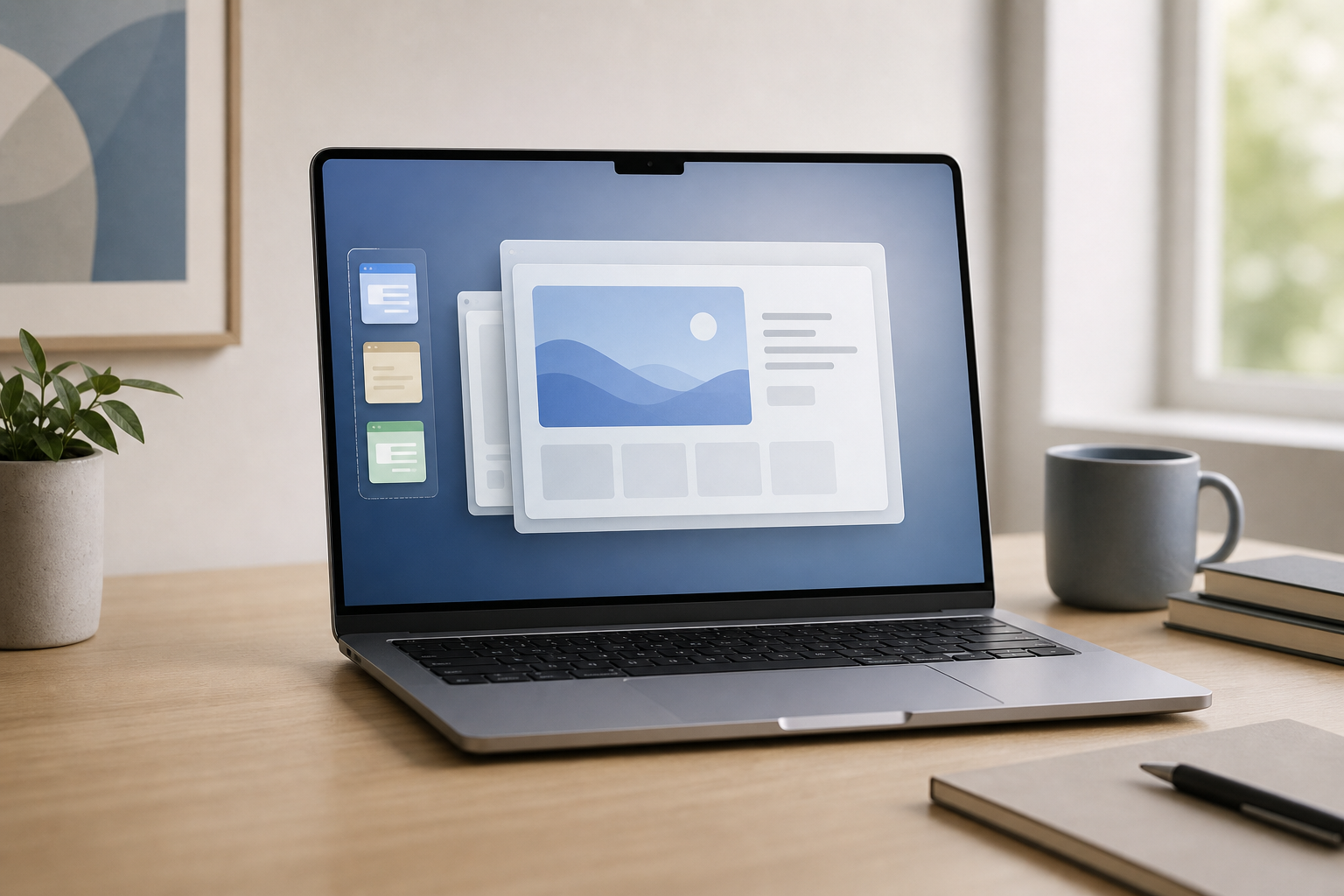
Stage Manager helps you organize windows on your Mac by keeping your current work in the center of the screen and moving other open apps and windows into a strip along the left side. To turn it on, open Control Center from the menu bar, select Stage Manager, and then click the app or window … Read more

How to Use Multiple Desktops on a Mac

Illustration for How to Use Multiple Desktops on a Mac

You can use multiple desktops on a Mac by creating additional Spaces in Mission Control. Each Space is a separate desktop where you can organize windows and apps—for example, one for work, one for personal tasks, and another for communication. You can switch between Spaces with a trackpad gesture, keyboard shortcut, or Mission Control. Quick … Read more

How to Use Quick Look on a Mac

Illustration for How to Use Quick Look on a Mac

Quick Look lets you preview a file on a Mac without opening it in its full application. In Finder, select a file and press the Space bar. A preview window appears with the file’s contents, basic information, and—when supported—tools for actions such as marking up documents, rotating images, or trimming audio and video. Quick Look … Read more