
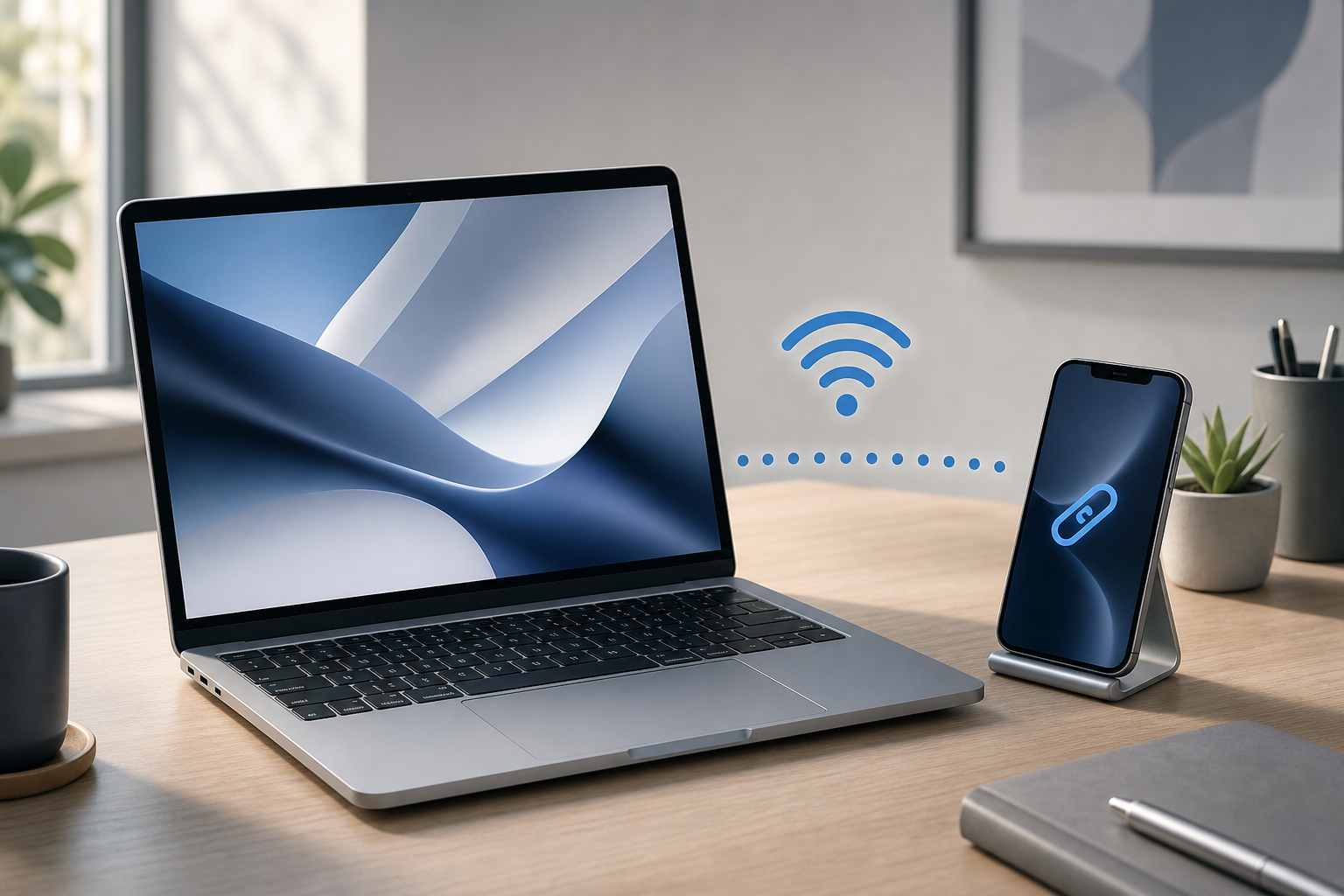
You can connect a Mac to an iPhone Personal Hotspot over Wi-Fi, Bluetooth, or a USB cable. Wi-Fi is usually the quickest option: turn on Allow Others to Join on the iPhone, then select the iPhone from the Mac’s Wi-Fi menu and enter the displayed password.
Quick Answer
- On your iPhone, open Settings and tap Personal Hotspot. On some iPhones, this is under Settings > Cellular > Personal Hotspot.
- Turn on Allow Others to Join.
- Keep the iPhone nearby with Cellular Data enabled.
- On your Mac, click the Wi-Fi icon in the menu bar.
- Select your iPhone from the list of available networks.
- Enter the Wi-Fi password shown in Settings > Personal Hotspot on the iPhone.
Your Mac will use the iPhone’s cellular data connection. Cellular data charges or limits may apply, depending on your carrier plan.
Before You Connect
Personal Hotspot shares the iPhone’s cellular internet connection with another device. It does not share a Wi-Fi network that the iPhone is currently using. The iPhone must have an active cellular data connection, and Personal Hotspot must be supported by your carrier.
Before starting:
- Make sure Cellular Data is turned on: open Settings > Cellular and check Cellular Data.
- Keep the iPhone and Mac close together.
- If possible, connect the iPhone to power. Hotspot use can drain its battery quickly.
- Check your carrier’s data limits if you plan to stream video, download large files, or install software.
- If you use a VPN, firewall, or network-filtering app on the Mac, be prepared to test without it if the connection fails.
Connect a Mac to an iPhone Hotspot Over Wi-Fi
Wi-Fi is the most convenient way to connect. It does not require a cable, and the connection is usually fast enough for web browsing, email, video calls, and other everyday tasks.
Turn on Personal Hotspot on the iPhone
- Open Settings on the iPhone.
- Tap Personal Hotspot. If you do not see it, tap Cellular, then Personal Hotspot.
- Turn on Allow Others to Join.
- Note the Wi-Fi Password shown on this screen.
Leave the Personal Hotspot screen open while connecting if your iPhone does not appear on the Mac. Some devices become easier to discover while this screen is active.
Join the hotspot from the Mac
- On the Mac, click the Wi-Fi icon in the menu bar.
- Make sure Wi-Fi is turned on.
- Look under available networks for your iPhone’s name.
- Click the iPhone’s name.
- Enter the password displayed under Wi-Fi Password on the iPhone.
- Click Join or press Return.
After a few seconds, the Mac should show the Wi-Fi connection as active. The iPhone may display a green Personal Hotspot indicator or a status indicator at the top of the screen.
To disconnect, click the Mac’s Wi-Fi menu and select another network, or turn off Allow Others to Join on the iPhone.
Use Instant Hotspot when available
If the Mac and iPhone use the same Apple Account and have Wi-Fi and Bluetooth enabled, the iPhone may appear as an available hotspot without requiring you to type the password. This feature is often called Instant Hotspot.
- On the iPhone, turn on Personal Hotspot.
- On the Mac, click the Wi-Fi icon in the menu bar.
- Select the iPhone under the Personal Hotspot or available network section.
If prompted, follow the on-screen instructions. The devices may need to have Wi-Fi and Bluetooth turned on, and some Continuity features may require compatible hardware and current software. If Instant Hotspot does not appear, connect manually using the Wi-Fi password.
Connect Using a USB Cable
A USB connection can be useful when Wi-Fi is unreliable or when you want to avoid creating a wireless network. It can also help keep the iPhone charged while the Mac uses its cellular connection.
Before beginning, use a cable that supports data, not only charging.
- Connect the iPhone to the Mac with a USB cable.
- Unlock the iPhone.
- If the iPhone asks whether to trust the Mac, tap Trust and enter the iPhone passcode.
- Open Settings > Personal Hotspot on the iPhone. If necessary, first open Settings > Cellular > Personal Hotspot.
- Turn on Allow Others to Join.
- On the Mac, open System Settings.
- Click Network in the sidebar.
- Look for an iPhone USB connection in the network services list.
The Mac may connect automatically. If it does not, select the iPhone USB service and check its status. You may need to disconnect and reconnect the cable, unlock the iPhone again, or accept the trust prompt.
Important USB limitations
- A damaged or charge-only cable may not provide a network connection.
- The iPhone must remain connected to the Mac.
- Disconnecting the cable ends the USB hotspot connection.
- The Mac may continue using Wi-Fi instead of the iPhone unless the iPhone USB connection becomes the active service.
USB Personal Hotspot does not erase data, but always avoid disconnecting a device during an important transfer or software operation.
Connect Using Bluetooth
Bluetooth can provide a hotspot connection when Wi-Fi is unavailable or when you want a lower-power wireless link. It is generally slower than Wi-Fi and may require more setup.
Pair the iPhone and Mac
- On the iPhone, open Settings > Bluetooth.
- Turn on Bluetooth.
- On the Mac, open System Settings > Bluetooth.
- Make sure Bluetooth is turned on.
- Find the iPhone in the list and click Connect or Pair.
- Confirm that the pairing code shown on both devices matches.
Use the iPhone’s Bluetooth connection
- Turn on Personal Hotspot on the iPhone.
- On the Mac, open System Settings > Network.
- Select Bluetooth PAN if it appears.
- Choose the iPhone from the device list.
- Click Connect.
The exact options can vary depending on the Mac and software version. If Bluetooth PAN does not appear, Wi-Fi or USB is usually the better alternative.
If Bluetooth pairing fails repeatedly, see our guide to fixing Bluetooth problems on a Mac.
Manage the Hotspot Connection
Check which connection the Mac is using
Click the Wi-Fi icon in the menu bar to confirm whether the Mac is connected to the iPhone. You can also open System Settings > Network and review the connection status.
If the Mac is connected to another saved Wi-Fi network, it may not use the iPhone hotspot. Select the iPhone manually from the Wi-Fi menu.
Change the hotspot password
To change the password on the iPhone:
- Open Settings.
- Tap Personal Hotspot, or tap Cellular > Personal Hotspot.
- Tap Wi-Fi Password.
- Enter a new password.
- Tap Done.
Changing the password disconnects devices that were using the previous password. You must reconnect them with the new one.
Prevent unnecessary data use
A Mac can use cellular data quickly through automatic updates, cloud synchronization, video streaming, photo uploads, and large downloads. To reduce unexpected usage:
- Pause large downloads and operating system updates.
- Avoid high-resolution video streaming.
- Quit apps that synchronize large libraries.
- Check whether cloud storage apps are uploading files.
- Turn off the hotspot when you are finished.
The iPhone may disconnect inactive devices automatically to conserve battery and reduce data use.
Troubleshooting
The iPhone does not appear in the Mac’s Wi-Fi menu
Try these steps in order:
- Confirm that Cellular Data is enabled on the iPhone.
- Open Settings > Personal Hotspot and turn on Allow Others to Join.
- Keep the Personal Hotspot screen open temporarily.
- Turn Wi-Fi off and back on from the Mac’s Wi-Fi menu.
- Move the devices closer together.
- Restart the iPhone and Mac.
- Check that the iPhone has cellular service by opening a webpage on the iPhone with Wi-Fi turned off.
If the iPhone has no cellular internet connection, the Mac cannot use its hotspot. Contact your carrier if Personal Hotspot is missing from Settings or cannot be enabled.
The Mac rejects the hotspot password
Make sure you are entering the current password shown under Settings > Personal Hotspot. Passwords are case-sensitive. If you recently changed it, forget the old connection on the Mac or select the iPhone again and enter the new password.
You can also change the password to a simpler one containing standard letters and numbers, then try again.
The Mac connects but has no internet access
Check the iPhone first:
- Turn off Wi-Fi on the iPhone.
- Open a webpage using cellular data.
- If the webpage does not load, resolve the iPhone’s cellular connection before troubleshooting the Mac.
If cellular data works on the iPhone, disconnect and reconnect the Mac. Also check whether a VPN or security app is blocking the connection. Turn off such software only for testing, and turn it back on afterward. If the Mac has broader wireless issues, review our guide to fixing Wi-Fi problems on a Mac.
The connection is slow or keeps dropping
Hotspot performance depends on cellular signal strength, network congestion, distance, and the connection method. Try the following:
- Move the iPhone to a location with a stronger cellular signal.
- Keep the iPhone near the Mac.
- Connect with USB instead of Wi-Fi.
- Disconnect other devices from the hotspot.
- Stop streaming and large downloads.
- Keep the iPhone connected to power.
- Restart both devices.
A weak cellular signal cannot be corrected by changing Mac Wi-Fi settings. If the iPhone itself has inconsistent cellular service, contact your carrier.
USB hotspot is not available
Unlock the iPhone and reconnect the cable. Accept the Trust This Computer? prompt if it appears. Then check System Settings > Network again.
If the iPhone still does not appear:
- Try another USB cable.
- Try another port or adapter.
- Make sure the cable supports data.
- Restart the iPhone and Mac.
- Test Wi-Fi Personal Hotspot to determine whether the issue is limited to USB.
Bluetooth hotspot will not connect
Confirm that the devices are paired and that Bluetooth is enabled on both. Remove the iPhone from the Mac’s Bluetooth device list, then pair the devices again. If the connection remains unreliable, use Wi-Fi or USB instead. Bluetooth is often the least convenient hotspot method for everyday use.
Frequently Asked Questions
Can a Mac use an iPhone hotspot without Wi-Fi?
Yes. You can connect through USB or Bluetooth. Wi-Fi is usually the simplest option, but USB can be more stable and can charge the iPhone at the same time.
Does Personal Hotspot use cellular data?
Yes. The iPhone shares its cellular data connection with the Mac. Web browsing, video, downloads, updates, and cloud synchronization all count toward your cellular data usage.
Why does my iPhone hotspot keep turning off?
The iPhone may disconnect inactive devices to conserve battery and data. Weak cellular service, low battery, or a temporary connection problem can also cause disconnections.
Can I use Personal Hotspot if the iPhone is connected to Wi-Fi?
Personal Hotspot shares cellular data rather than the iPhone’s current Wi-Fi connection. Turn off Wi-Fi on the iPhone and confirm that cellular data works if the hotspot cannot provide internet access.
Is USB better than Wi-Fi for Personal Hotspot?
USB can be more stable and avoids wireless interference, while Wi-Fi is easier and lets you move the Mac without a cable. Choose USB for longer sessions or unreliable Wi-Fi, and Wi-Fi for convenience.
Final Thoughts
For most Mac users, Wi-Fi is the fastest way to connect to an iPhone Personal Hotspot: enable Allow Others to Join, select the iPhone from the Mac’s Wi-Fi menu, and enter the displayed password. Use USB when you need a steadier connection or want to charge the iPhone, and use Bluetooth as a backup option. Monitor cellular data use and turn off Personal Hotspot when you are finished.