How to Turn On and Configure the Firewall on Mac

Illustration for How to Turn On and Configure the Firewall on Mac

Quick Answer To enable the Mac firewall, open the Apple menu, choose System Settings, select Network in the sidebar, and click Firewall. Turn on Firewall, then use Options to control which apps and services can accept incoming connections. On older versions of macOS, open System Preferences, select Security & Privacy, click the Firewall tab, and … Read more


How to Find a Lost or Stolen Mac

If your Mac is lost or stolen, use Find My as soon as possible. Open the Find My app on another Apple device, or visit iCloud.com/find in a web browser. Select your Mac to view its approximate location, play a sound, mark it as lost, or erase it remotely. Do not try to recover a … Read more

How to Add a New User or Guest Account on Mac

Illustration for How to Add a New User or Guest Account on Mac

Quick Answer To add a new user on a Mac, open Apple menu > System Settings > Users & Groups, click Add User, authenticate if prompted, choose an account type, enter the person’s name and password, and click Create User. For a temporary visitor, turn on Guest User instead: Open Apple menu > System Settings … Read more

How to Share and Control Another Mac Screen

Illustration for How to Share and Control Another Mac Screen

You can share and control another Mac by turning on Screen Sharing on the Mac you want to access, selecting which users are allowed to connect, and then connecting from Finder or the Screen Sharing app. The remote user can have full control or only view the screen, depending on the permissions you choose. Mac … Read more

How to Connect to a Shared Folder or NAS on a Mac

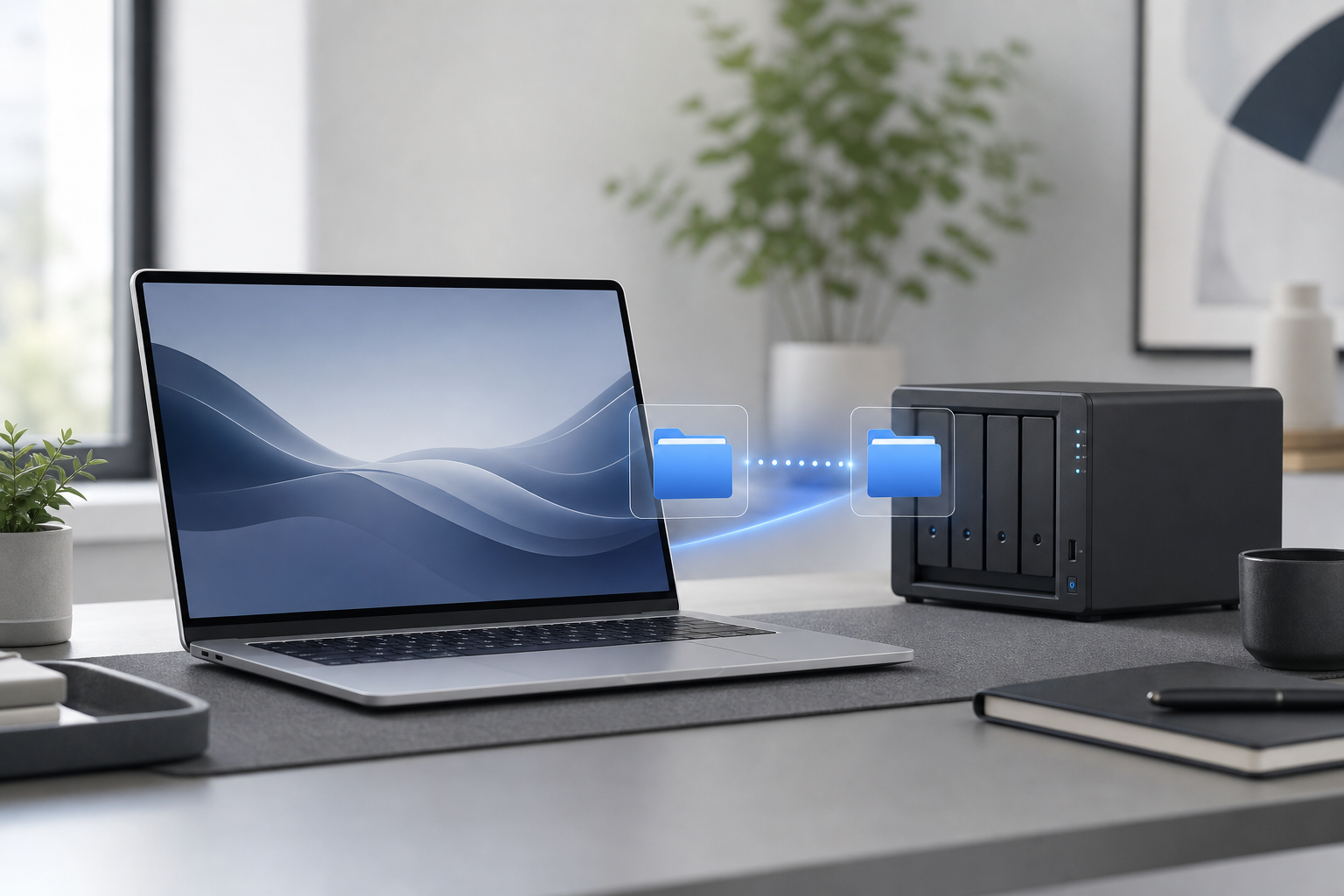
Illustration for How to Connect to a Shared Folder or NAS on a Mac

You can connect to a shared folder or NAS (network-attached storage) on a Mac through Finder. Open Finder, select Go > Connect to Server, enter the server’s address—usually in the format smb://server-name/share-name—and select Connect. After you enter the required credentials, the shared folder appears in Finder under Locations and on the Mac desktop if external … Read more

How to Share Files Between Two Macs

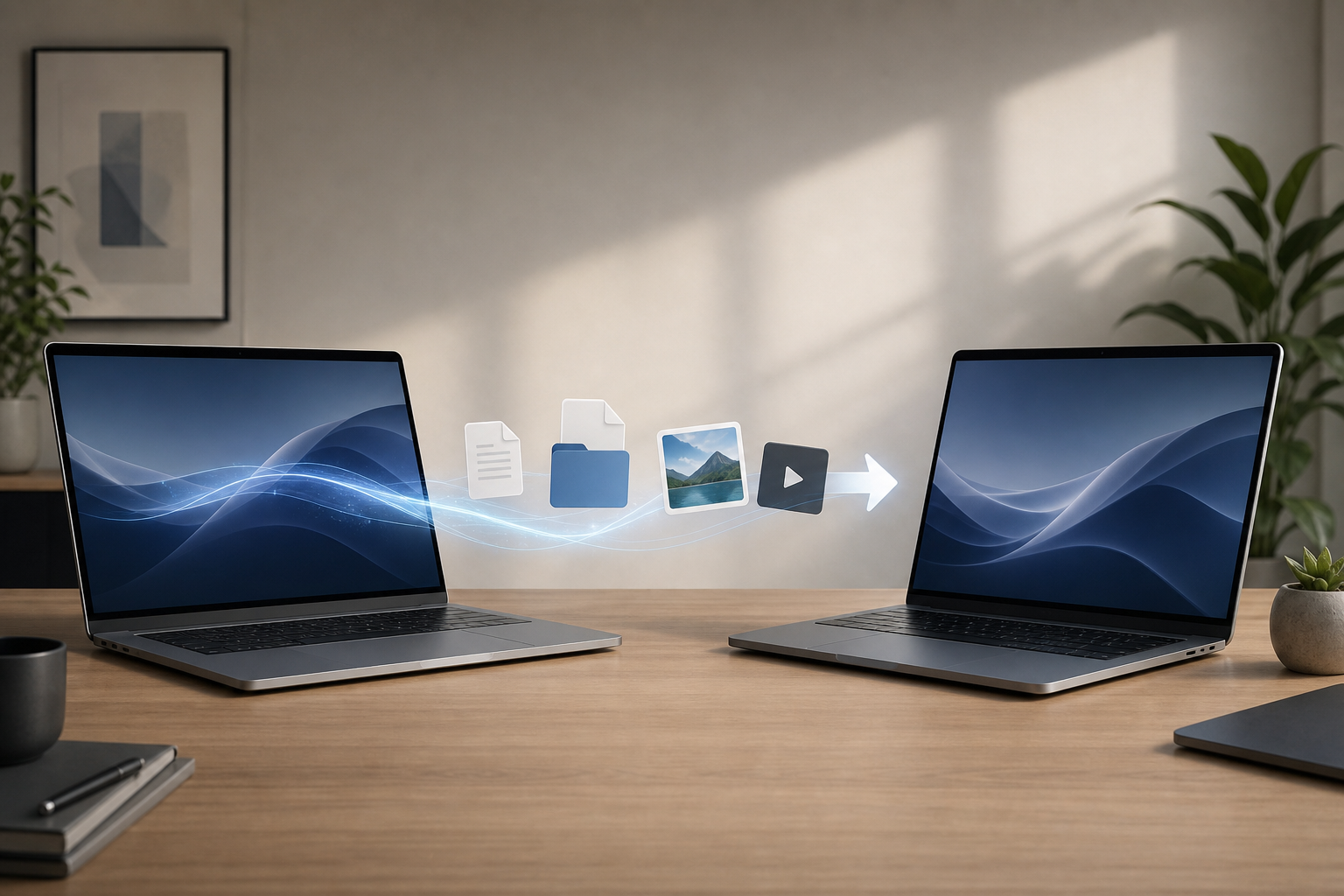
Illustration for How to Share Files Between Two Macs

The easiest way to share files between two Macs on the same network is to turn on File Sharing on the Mac that contains the files, choose which folders and users can access them, and connect from the other Mac through Finder. You can also use AirDrop for a quick, temporary transfer without setting up … Read more

How to Make and Receive Phone Calls on a Mac

Illustration for How to Make and Receive Phone Calls on a Mac

You can make and receive regular cellular phone calls on a Mac by connecting it to an iPhone signed in to the same Apple Account. After you enable Calls on Other Devices on the iPhone and Calls from iPhone on the Mac, you can start calls from FaceTime, Contacts, Safari, Mail, Maps, and other apps … Read more

How to Use Live Activities from iPhone on Mac

Illustration for How to Use Live Activities from iPhone on Mac

Live Activities from your iPhone can appear in the menu bar on your Mac, allowing you to check ongoing updates without picking up your phone. These updates may include information such as a delivery, a sports score, a ride, or another time-sensitive event supported by an iPhone app. To use Live Activities on your Mac, … Read more

How to Copy Text from Photos and Images on a Mac

Illustration for How to Copy Text from Photos and Images on a Mac

You can copy text from a photo or image on a Mac with Live Text. Open the image in Photos, Preview, Quick Look, or Safari, move your pointer over the words until the text-selection cursor appears, and then drag across the text. Press Command-C or choose Edit > Copy. Live Text can also translate selected … Read more