
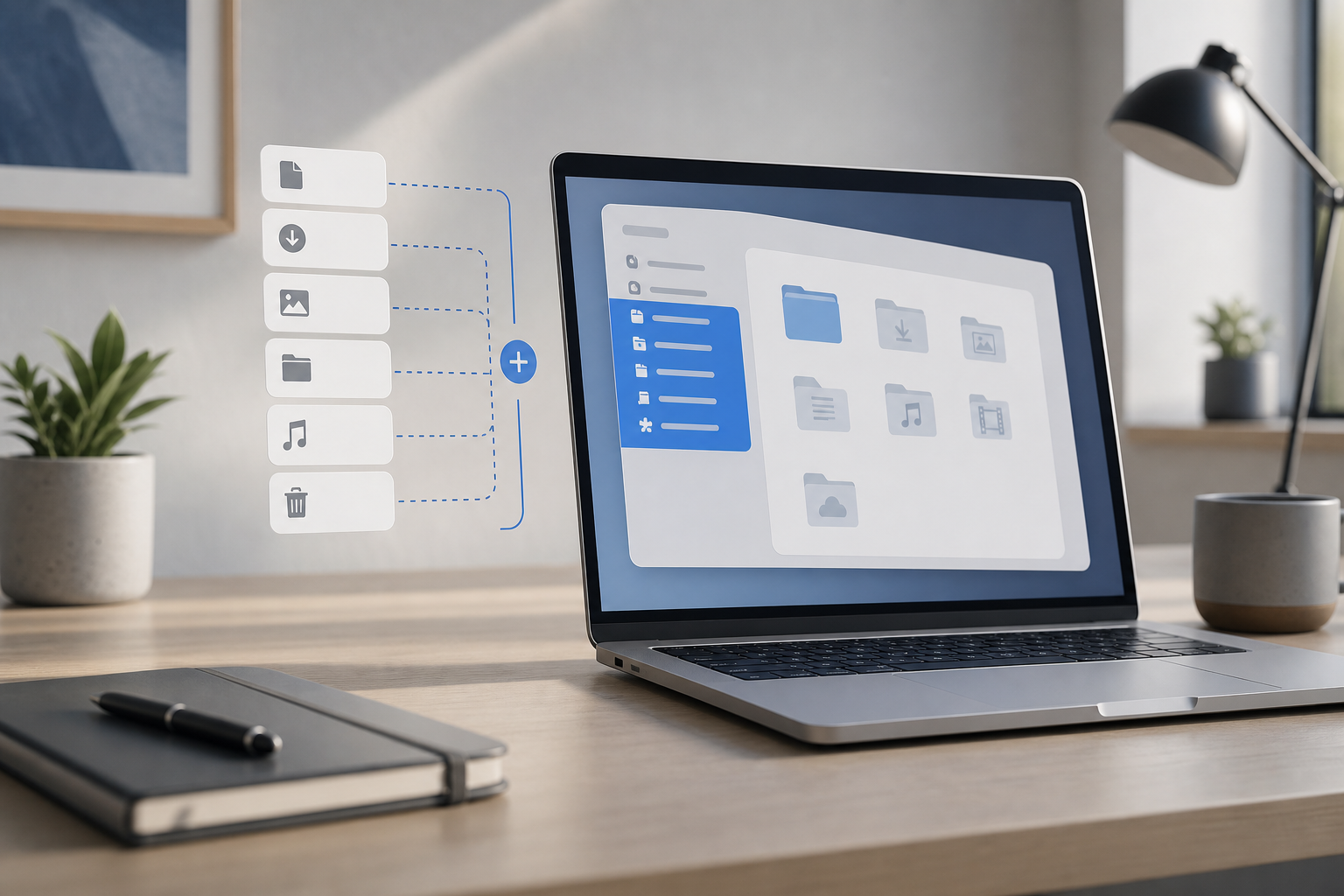
You can customize the Finder sidebar on a Mac from Finder > Settings > Sidebar. There, you can choose which standard locations, iCloud services, drives, tags, and shared items appear. You can also drag folders, files, and apps into the Favorites section, then rearrange or remove them as needed.
Quick Answer
To customize the Finder sidebar:
- Open Finder.
- In the menu bar, choose Finder > Settings.
- Select Sidebar.
- Select or clear the checkboxes for the items you want to show.
- To add a custom folder, drag it into the Favorites section of the sidebar.
- To remove a favorite, Control-click it and choose Remove from Sidebar.
- Drag items up or down to rearrange them.
The sidebar provides shortcuts; removing an item from it does not normally delete the original folder, file, drive, or tag.
What the Finder Sidebar Contains
The Finder sidebar is the column on the left side of a Finder window. It can contain several sections:
- Favorites: Shortcuts to folders, files, apps, and other locations you use often
- iCloud: iCloud Drive and other available iCloud locations
- Locations: Your Mac, connected drives, network locations, iPhones, iPads, and other devices
- Tags: Finder tags you have created or applied to files
- Shared: Shared computers, servers, and other network resources
Some sections or items appear only when they are available. For example, a connected external drive appears under Locations only while it is connected.
If the sidebar is hidden, choose View > Show Sidebar in Finder. You can also use Option-Command-S to show or hide it.
Choose Which Items Appear in the Sidebar
Finder provides checkboxes for many built-in sidebar items. This is the simplest way to customize common locations.
- Open a Finder window.
- Choose Finder > Settings from the menu bar.
- Click Sidebar.
- Select the checkbox beside each item you want to display.
- Clear the checkbox beside items you do not want to display.
- Close the Finder Settings window.
Available options can vary depending on your Mac and the services or devices connected to it. Common choices include:
- Recent Tags
- AirDrop
- Applications
- Desktop
- Documents
- Downloads
- Home folder
- iCloud Drive
- Shared
- Connected servers
- Removable disks
- CDs, DVDs, and iOS Devices
- Your Mac’s internal drive
The checkboxes control whether these shortcuts appear. They do not move, rename, or delete the underlying items.
Show your Mac’s internal drive
If you want to browse your Mac’s storage from the sidebar:
- Choose Finder > Settings.
- Click Sidebar.
- Select the checkbox for your Mac or internal disk under Locations, if available.
The internal drive may be labeled Macintosh HD or have a custom name. You can then expand it in the sidebar to browse folders such as Applications, Library, System, Users, and Volumes.
Use care when working inside system folders. Moving or deleting files there can affect macOS or your apps.
Add a Folder to Finder Favorites
Adding a folder to Favorites creates a convenient shortcut without moving the folder.
Method 1: Drag the folder into the sidebar
- Open Finder and locate the folder.
- Drag the folder to the Favorites section in the sidebar.
- Release it when a line appears in the desired position.
You can add folders stored on your Mac, an external drive, or an available network location. The original folder remains where it was.
If the Favorites section is collapsed, move the pointer over its heading and click the arrow beside it. If the sidebar is hidden, choose View > Show Sidebar first.
Method 2: Use the context menu
In some Finder views, you can add a folder by Control-clicking it and choosing Add to Sidebar. If that option is not available, use the drag-and-drop method.
Add a file or app
You can also drag an individual file or app into Favorites. This adds a shortcut to the item, not a duplicate. Be careful when dragging: release the item in the sidebar, not inside another folder, to avoid moving it.
An app added to the sidebar opens from its current location. If you later move or delete the app, its sidebar shortcut may stop working.
Add iCloud Locations
iCloud locations appear in the sidebar when the related services are available and enabled.
Add iCloud Drive
- Open Finder > Settings.
- Click Sidebar.
- Select iCloud Drive.
- Close the settings window.
You can also drag an important folder inside iCloud Drive into Favorites. This creates a shortcut to that folder while leaving its iCloud location unchanged.
iCloud Drive folders may synchronize across your Apple devices. Before deleting or moving files inside iCloud Drive, confirm that you understand the effect. Deleting a synchronized file can remove it from iCloud Drive and other devices using the same Apple Account, although it may remain recoverable in Recently Deleted for a limited time.
Add other iCloud-related items
Depending on your setup, Finder may show items such as:
- Desktop & Documents Folders
- Shared
- iCloud Drive
- Folders shared with you through iCloud
To show available iCloud entries, open Finder > Settings > Sidebar and select the relevant checkboxes. If an iCloud item does not appear, check that you are signed in to your Apple Account and that the related iCloud feature is enabled in System Settings.
Add Drives, Servers, and Devices
Connected storage and network resources usually appear under Locations.
Add an external drive
- Connect the drive to your Mac.
- Open Finder.
- If necessary, choose View > Show Sidebar.
- Look under Locations.
- Drag the drive into Favorites if you want a shortcut that remains easy to find.
A drive must be connected and mounted for Finder to access it. If you eject it, the drive disappears from the sidebar until you connect and mount it again.
To safely disconnect a drive, select it in the Finder sidebar and click the Eject button next to its name, or Control-click it and choose Eject. Do not unplug a drive while files are being copied or opened.
Add a network server
To connect to a server:
- In Finder, choose Go > Connect to Server.
- Enter the server address.
- Click Connect.
- Follow the sign-in instructions if prompted.
- After it mounts, find the server under Locations.
- Drag it into Favorites if desired.
The server shortcut may be unavailable when you are disconnected from the network or the server is offline. Removing it from Favorites does not delete anything from the server.
Show connected devices
To control whether devices appear:
- Choose Finder > Settings.
- Click Sidebar.
- Select options such as External disks, CDs, DVDs, and iOS Devices, or Connected servers, depending on which choices are available.
An iPhone or iPad may appear in Finder only after it is connected, unlocked, and trusted by the Mac.
Customize Finder Tags
Tags are colored labels and names that help you organize files without moving them into different folders.
Show or hide tags
- Choose Finder > Settings.
- Click Sidebar.
- Select or clear the tag-related options, including Recent Tags if available.
You can also manage tag names and colors from the Tags section of Finder Settings.
Add a tag to the sidebar
If a tag is not displayed:
- Open Finder.
- Choose Finder > Settings.
- Click Tags.
- Drag the tag into the Favorite Tags area, if available.
- Return to the Sidebar tab and make sure tag display is enabled.
You can apply a tag by Control-clicking a file or folder and choosing a tag, or by using the tags control in a Finder window.
Remove a tag from the sidebar
Control-click the tag in the sidebar and choose Remove from Sidebar when that option is available. This removes the shortcut from the sidebar; it does not necessarily remove the tag from files that already use it.
To remove a tag completely, use the Tags tab in Finder Settings. Removing a tag can change the organization labels applied to files, so review the confirmation or warning before proceeding.
Add and Remove Shared Items
Shared resources can include other computers, servers, and folders shared over a network or through iCloud.
Show shared computers and servers
- Choose Finder > Settings.
- Click Sidebar.
- Select Connected servers or Shared, depending on the available options.
Shared devices may appear only when they are online and visible on the same network. Some networks block device discovery, so a computer might be reachable by its address even when it does not automatically appear.
Add a shared folder to Favorites
- Connect to the shared computer or server.
- Open the shared folder.
- Drag the folder into Favorites.
You may be asked to sign in again when you use the shortcut later.
Remove a shared item
Control-click the item in the sidebar and choose Remove from Sidebar. If it is a connected server, you can also select it and click the Eject button. Removing or ejecting a connection does not delete the shared files from the other computer or server.
Rearrange Sidebar Sections and Items
You can change the order of many sidebar entries by dragging them.
- Open a Finder window.
- Locate the item you want to move.
- Drag it up or down within its section.
- Release it when the insertion line appears.
You can rearrange individual Favorites and, in some Finder configurations, other sidebar items. Finder controls the overall order of certain built-in sections, so you may not be able to place every section wherever you want.
To collapse a section, move the pointer over its heading and click the arrow. Collapsing a section hides its contents temporarily; it does not remove the items.
Remove Items Without Deleting Them
Removing a sidebar entry is different from deleting the original item.
Remove a favorite
- Control-click the folder, file, app, or location in the sidebar.
- Choose Remove from Sidebar.
You can also drag some favorite items out of the sidebar and release them when the removal indicator appears.
This removes only the shortcut. The original item stays on your Mac, in iCloud Drive, on the external drive, or on the server.
Important exception: ejecting a drive
Choosing Eject disconnects a drive or mounted server. It does not erase the drive, but any unsaved work or file transfer involving that device may be interrupted. Save your work and finish file operations before ejecting.
Restore Missing Sidebar Items
If an item disappears, work through these checks.
Make sure the sidebar is visible
In Finder, choose View > Show Sidebar. If the menu says Hide Sidebar, the sidebar is already visible.
Re-enable built-in items
- Choose Finder > Settings.
- Click Sidebar.
- Select the missing item’s checkbox.
For example, enable Applications, Downloads, iCloud Drive, External disks, or Connected servers, depending on what is missing.
Check whether a section is collapsed
Click the arrow beside Favorites, iCloud, Locations, Tags, or Shared. A collapsed section can make its items appear to be missing.
Reconnect the source
An external drive, iPhone, iPad, or server cannot appear if it is disconnected. Reconnect the device, unlock it if necessary, and wait for Finder to mount it.
Add a custom item again
If a custom favorite is missing, locate the original folder or file and drag it back into Favorites. If the item was moved or renamed, Finder may no longer be able to use the old shortcut.
Check iCloud and network access
If an iCloud or shared item is missing, verify that:
- You are signed in to the expected Apple Account.
- The relevant iCloud feature is enabled in System Settings.
- You are connected to the correct network.
- The shared computer or server is turned on and accessible.
Relaunch Finder
If the sidebar does not update:
- Hold the Option key and Control-click the Finder icon in the Dock.
- Choose Relaunch.
Relaunching Finder closes and reopens Finder windows. Save work in open files first, because closing a window or disconnecting a location can interrupt an operation.
Troubleshooting Finder Sidebar Problems
The sidebar is too narrow
Drag the vertical divider between the sidebar and the main Finder area to the right. This gives longer names more room. If you drag it too far, move it back toward the left.
An item cannot be dragged into Favorites
Confirm that you are dragging the item itself, not text or a search result. Move the pointer over the Favorites section until the insertion line appears, then release.
Some temporary locations, search results, or system-managed items cannot be added as permanent favorites.
A favorite shows a question mark
A question mark usually means Finder cannot find the original item. The folder or file may have been moved, renamed, deleted, or disconnected.
Locate the item in its new location and drag it into Favorites again. Then remove the old broken shortcut.
A drive does not appear
Check the cable, adapter, power supply, and connection. Then open Disk Utility from Applications > Utilities to see whether macOS detects the drive. Do not erase or reformat the drive unless you have a backup and intentionally want to remove its contents.
A server does not appear under Shared
Use Go > Connect to Server and enter the server address manually. If the connection fails, confirm the server is online, your Mac is on the correct network, and you have permission to access it.
Frequently Asked Questions
Can I add any folder to the Finder sidebar?
Most accessible folders can be added by dragging them into Favorites. Some temporary locations, search results, and system-managed items may not remain available as sidebar favorites.
Does removing a folder from the sidebar delete it?
No. Remove from Sidebar removes the shortcut only. The original folder remains in its existing location.
How do I add Downloads back to the sidebar?
Open Finder > Settings > Sidebar, then select Downloads. If it is already selected but not visible, expand the Favorites section or choose View > Show Sidebar.
Can I change the order of Finder sidebar sections?
You can rearrange many individual items, especially Favorites. Finder may control the order of some built-in sections, so complete section rearrangement is not always available.
How do I hide the Finder sidebar temporarily?
In Finder, choose View > Hide Sidebar, or press Option-Command-S. Choose View > Show Sidebar to display it again.
Why does an external drive disappear?
External drives disappear when they are ejected, disconnected, powered off, or not mounted by macOS. Reconnect the drive and check Finder Settings under Sidebar to make sure external disks are enabled.
Can I add an iCloud folder to Favorites?
Yes. Open the folder in iCloud Drive and drag it into the Favorites section. The shortcut points to the existing iCloud folder; it does not create another copy.
Do Finder tags move files?
No. Tags label files and folders. Applying or removing a tag does not move the item to another folder.
Can I customize the sidebar separately on different Macs?
Yes. Finder sidebar preferences are generally configured on each Mac. Some iCloud-related content may be available across devices, but your local sidebar arrangement and favorite shortcuts may not be identical.
Final Thoughts
The Finder sidebar is easiest to manage through Finder > Settings > Sidebar. Use the checkboxes for built-in locations, drag frequently used folders into Favorites, and remove shortcuts with Remove from Sidebar. Remember that removing a shortcut does not delete the original item, while ejecting a drive disconnects it and should be done only after saving work and completing file transfers.