
Quick Answer
To compare the sizes of folders in your current Terminal location, run:
du -sh -- */ 2>/dev/null
This displays one total for each folder. The -s option shows a summary instead of every file, -h uses readable units such as MB or GB, and -- */ limits the result to directories in the current location.
To compare specific folders, run:
du -sh "$HOME/Documents" "$HOME/Downloads" "$HOME/Desktop"
These commands only read storage information. They do not delete, move, or modify files.
What You Need to Know Before Comparing Folders
Terminal reports folder usage with the du command, short for “disk usage.” It calculates the space used by files inside a directory and its subdirectories.
There are two useful ways to compare folders:
- Compare folders in the current location: useful for seeing which folders in one directory use the most space.
- Compare named folders: useful when you already know which locations you want to check.
The results may differ from the size shown in Finder because storage calculations can include filesystem details, hidden files, file permissions, and other data that Finder presents differently.
You may also see permission-related messages when checking protected locations. That does not necessarily mean the command failed.
Compare All Folders in the Current Location
This method is useful when you want to compare folders inside your home folder, Downloads folder, or another directory.
1. Open Terminal
Open Terminal from Applications > Utilities, or use Spotlight to search for Terminal.
2. Move to the folder you want to inspect
The following command moves Terminal to your home folder:
cd "$HOME"
cd changes Terminal’s current working directory. The $HOME variable points to your macOS user folder. This command does not change files or folder contents.
To inspect another location, replace the path. For example:
cd "$HOME/Downloads"
If a path contains spaces, keep it inside quotation marks, as shown above.
3. Display the size of each folder
Run:
du -sh -- */ 2>/dev/null
This command works as follows:
ducalculates disk usage.-sprints one summary for each folder.-hformats sizes in a more readable way.--marks the end of command options.*/matches directories in the current location.2>/dev/nullhides error messages, such as warnings about folders you cannot read.
The command only reads folder information. There is no reversal step because it does not alter the filesystem.
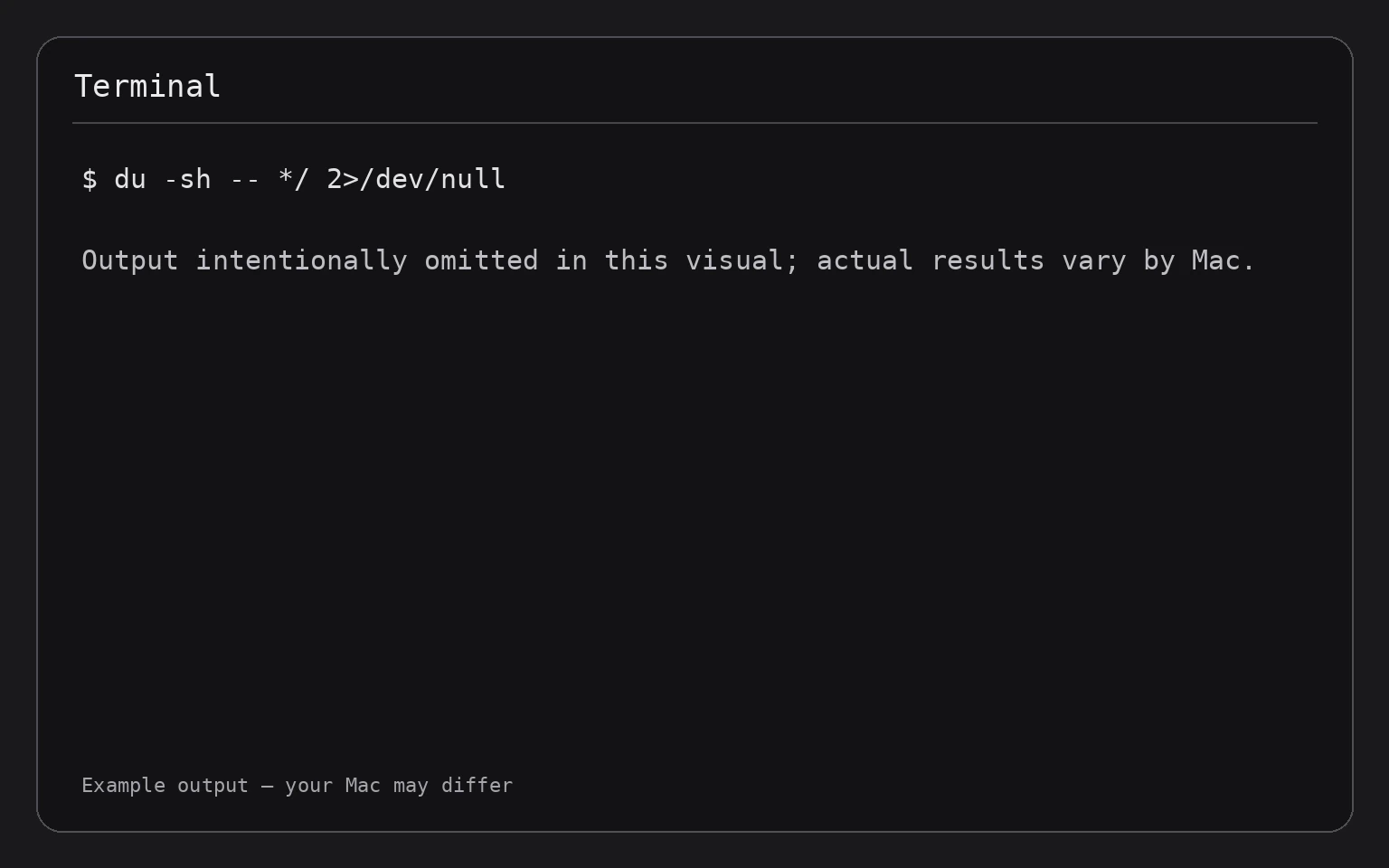
For example, if you first run cd "$HOME" and then the comparison command, Terminal will list the folders directly inside your home folder with their calculated sizes. The exact folders and values depend on the files stored on your Mac, so do not expect the output to match another computer.
4. Sort the results by size
To sort the folder totals, pipe the results to sort:
du -sh -- */ 2>/dev/null | sort -h
A pipe, represented by |, sends the first command’s output to the next command. sort -h understands human-readable units and arranges the results by size.
The smallest folders generally appear first and the largest folders last. To reverse the order so the largest folders appear first, add -r:
du -sh -- */ 2>/dev/null | sort -hr
This is often the quickest way to identify which folders deserve closer inspection.
Compare Specific Folders
If you want to compare known locations, provide each path after du -sh:
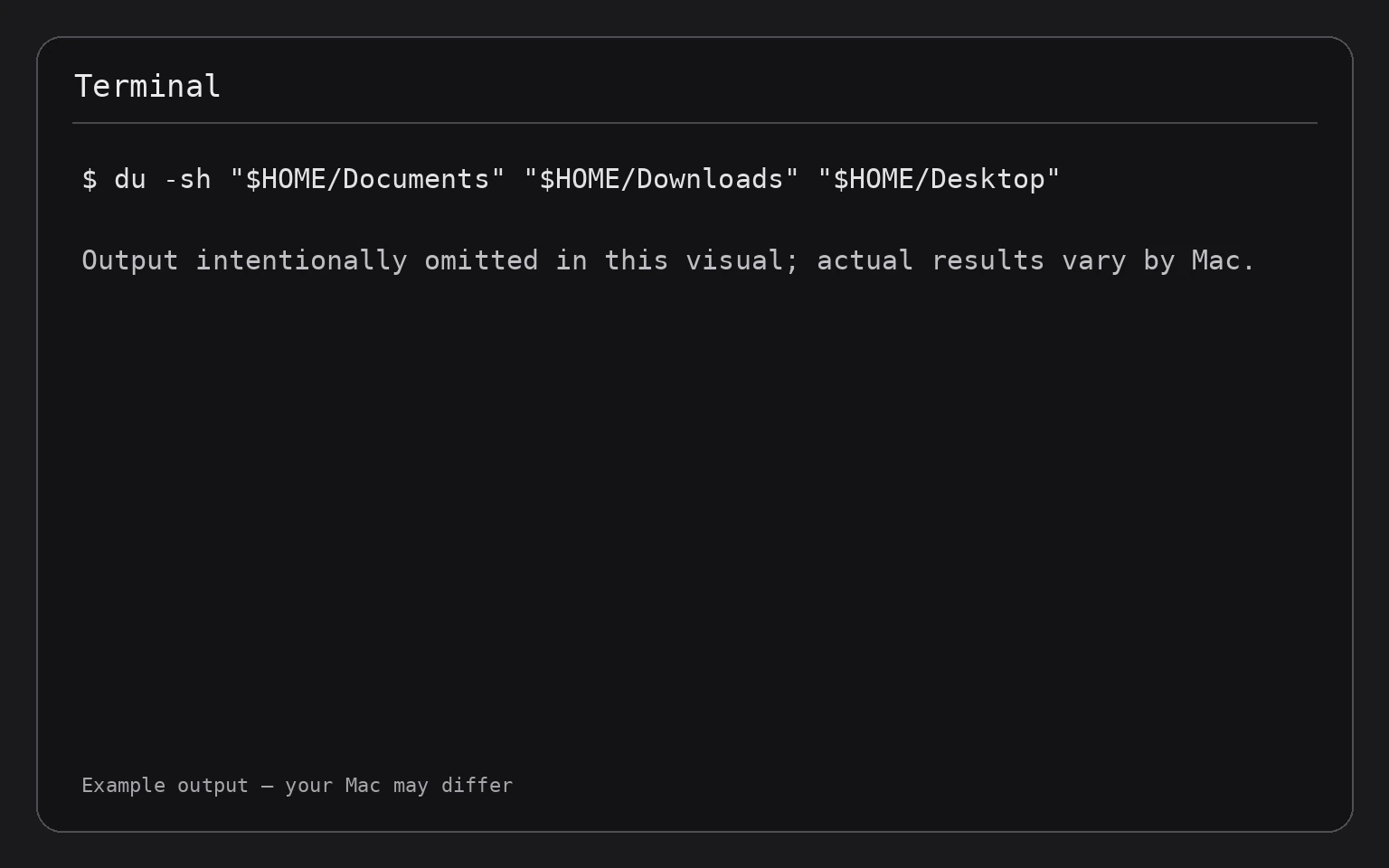
du -sh "$HOME/Documents" "$HOME/Downloads" "$HOME/Desktop"
This prints one total for Documents, Downloads, and Desktop. The command reads those folders recursively, including their contents, but does not change them.
You can include other locations:
du -sh "$HOME/Pictures" "$HOME/Movies" "$HOME/Music"
Use quotation marks around paths. They protect spaces and special characters from being interpreted by the shell.
For a broader storage review, you can compare common folders under your home folder:
du -sh "$HOME"/* 2>/dev/null | sort -hr
This checks items directly inside your home folder and sorts them from largest to smallest. Unlike */, the * pattern includes both files and folders. If you want folders only, use:
du -sh "$HOME"/*/ 2>/dev/null | sort -hr
The trailing slash restricts the pattern to directories.
Check a Folder’s Subfolders
After finding a large folder, inspect its immediate subfolders. For example, this command checks the contents of Downloads:
du -sh "$HOME/Downloads"/*/ 2>/dev/null | sort -hr
This shows the sizes of directories one level below Downloads. It does not list every nested file, so the output remains easier to read.
To include both files and folders directly inside Downloads, use:
du -sh "$HOME/Downloads"/* 2>/dev/null | sort -hr
If the folder contains a large file rather than a large subfolder, the second command will help reveal it.
For more detailed investigation, you can use the find command together with du, but be cautious with complex command combinations. Start with the summary commands above, then inspect only the largest locations.
Include Hidden Folders
The * wildcard does not match hidden names that begin with a period. Examples include folders such as .config or .cache.
To compare visible and hidden folders in your home folder, use:
du -sh "$HOME"/* "$HOME"/.[!.]* 2>/dev/null | sort -hr
The .[!.]* pattern matches hidden names while avoiding the special . and .. directory entries.
Hidden folders can contain application settings, caches, and other support files. Do not delete them simply because they appear large. First identify what created them and whether the related application still needs them.
This command only reads data. It does not make hidden items visible in Finder or change their contents.
Understand the Numbers
Terminal may show sizes using units such as:
Kfor kilobytesMfor megabytesGfor gigabytesTfor terabytes
The displayed value is an estimate of space used by the folder’s contents according to du. It may not match a folder’s Finder size exactly.
Several factors can affect the result:
- Hidden files: A folder may contain data that is not obvious in Finder.
- Permissions: Terminal may be unable to read some files or directories.
- Symbolic links: A symbolic link is a reference to another location, and tools may treat it differently from a regular folder.
- Cloud storage: Files managed by cloud services may be represented locally in different ways.
- Filesystem behavior: Storage accounting is not always identical across tools.
If you need to determine how much free space remains on a volume, use df rather than du:
df -h
df -h reports available and used space for mounted filesystems. It does not compare individual folders. For a broader volume-focused review, see how to list mounted disks and volumes in Terminal on a Mac.
Compare Folders Without Changing Anything
All commands in this guide are read-only. They calculate sizes, change Terminal’s current location, or sort text displayed in the Terminal window.
They do not:
- Delete files
- Move or rename folders
- Change permissions
- Empty the Trash
- Turn on or off macOS features
- Close applications
Because these commands do not change state, no recovery procedure is required. If you accidentally change Terminal’s location with cd, return to your home folder with:
cd "$HOME"
If a command seems to be taking a long time, press Control-C to stop the current command. This interrupts the calculation; it does not delete or modify the files that were already scanned.

Troubleshooting
“Permission denied” appears
Some folders are protected by macOS privacy controls or your user account’s permissions. Redirecting standard error hides many warnings:
du -sh "$HOME"/* 2>/dev/null | sort -hr
If you need to inspect a protected location, avoid granting broad access automatically. macOS may require Terminal to have access through System Settings > Privacy & Security. Only change permissions when you understand why the access is needed.
A permission warning can also mean that the result is incomplete. Do not treat an incomplete result as a full accounting of the folder.
The command says “No such file or directory”
The path may be misspelled, or the folder may not exist. Check your current location with:
pwd
pwd prints the working directory. List its visible contents with:
ls
Then use a path that exists. You can also drag a folder from Finder into the Terminal window to insert its path, then add it after du -sh.
Folder names contain spaces
Put the complete path in quotation marks:
du -sh "$HOME/My Folder"
Without quotation marks, the shell may interpret the space as a separator between arguments.
The results seem too small
Check whether you are in the location you intended:
pwd
Then include hidden folders if necessary:
du -sh .[!.]* */ 2>/dev/null | sort -hr
Also remember that cloud-managed files, protected data, and unreadable folders can affect the result.
The command is slow
du must examine the contents of the folders it reports. Large folders, external drives, network locations, and folders containing many small files can take time.
To stop a running calculation safely, press Control-C. This stops the command without changing the scanned data.
Once you identify the largest folders, a more targeted review is usually faster than repeatedly scanning an entire volume. You can also use how to find the largest files and folders in Terminal on a Mac for a deeper investigation.
The totals do not match available disk space
du measures folder contents, while df reports space used and available on mounted filesystems. They answer different questions.
For a volume-level view, run:
df -h
Differences can also result from protected data, snapshots, deleted files still held open by applications, and filesystem accounting. Folder comparison is best used to locate visible storage users, not as a guaranteed explanation of every byte on a disk.
Frequently Asked Questions
Can I compare folders on an external drive?
Yes. Change to the external drive’s mounted location or provide its path directly:
du -sh "/Volumes/Drive Name"/*/ 2>/dev/null | sort -hr
Replace Drive Name with the actual volume name. The drive must be mounted and readable.
How do I find the largest folder quickly?
Run the comparison command and sort it in reverse order:
du -sh -- */ 2>/dev/null | sort -hr
The largest result should appear first.
Does du delete anything?
No. The commands shown here only read folder information and sort text output. They do not remove or modify files.
Why are hidden folders missing?
Shell wildcards such as * do not match names beginning with a period. Use a pattern that includes hidden names when you need a more complete comparison:
du -sh .[!.]* */ 2>/dev/null | sort -hr
What should I do after finding a large folder?
Open the folder in Finder and review its contents before deleting anything. Pay particular attention to backups, media libraries, virtual machines, and application data. If you are looking for practical cleanup options, read how to free up storage space on a Mac.
Final Thoughts
The du command provides a quick, read-only way to compare folder sizes in Terminal. Start with du -sh -- */, add sort -hr to put the largest folders first, and inspect hidden or protected locations only when necessary. Use df -h separately when you need to understand free space on an entire drive rather than the size of individual folders.