
Quick Answer
Open Terminal from Applications > Utilities, then use du to measure folder sizes and sort to rank them. To find the largest items in your home folder, run:
du -sh ~/* 2>/dev/null | sort -h
The largest entries appear at the bottom. This command only reads storage information; it does not delete or change files.
For a more detailed search that includes hidden files and nested folders, use:
du -ah ~ 2>/dev/null | sort -h | tail -n 25
This lists the 25 largest files and folders inside your home folder.
Before You Start
Terminal commands can reveal storage usage more precisely than Finder, but they also require careful attention to the location being searched.
Keep these points in mind:
- A folder’s size includes the files and subfolders inside it.
- The size shown by
dumay differ from the storage amount shown in System Settings because macOS reports some system, snapshot, and cloud-related storage differently. - Some folders are protected or inaccessible. The
2>/dev/nullpart hides permission error messages so the useful results remain readable. - Do not run deletion commands until you have identified exactly what the files are and confirmed that you no longer need them.
- If a command appears to stop, it may still be scanning a large folder. Wait for the Terminal prompt to return before starting another command.
If you prefer a graphical overview, see How to Find Large Files on a Mac. Terminal is especially useful when you want to rank folders or inspect a specific location.
Open Terminal and Understand the Commands
- Open Finder.
- Select Applications in the sidebar.
- Open the Utilities folder.
- Double-click Terminal.
The commands in this guide combine several standard tools:
duestimates the disk space used by files and folders.-hformats sizes in a human-readable form, such as megabytes or gigabytes.-sshows one total for each item instead of listing every nested item.-aincludes files as well as directories.sort -hsorts human-readable sizes correctly.tail -n 25keeps only the last 25 lines.2>/dev/nullhides error messages caused by folders you cannot read.
The tilde character, ~, means your user home folder. This is normally where your Documents, Downloads, Desktop, Movies, Music, and Pictures folders are stored.
Find the Largest Folders in Your Home Folder
The quickest overview compares the items directly inside your home folder.
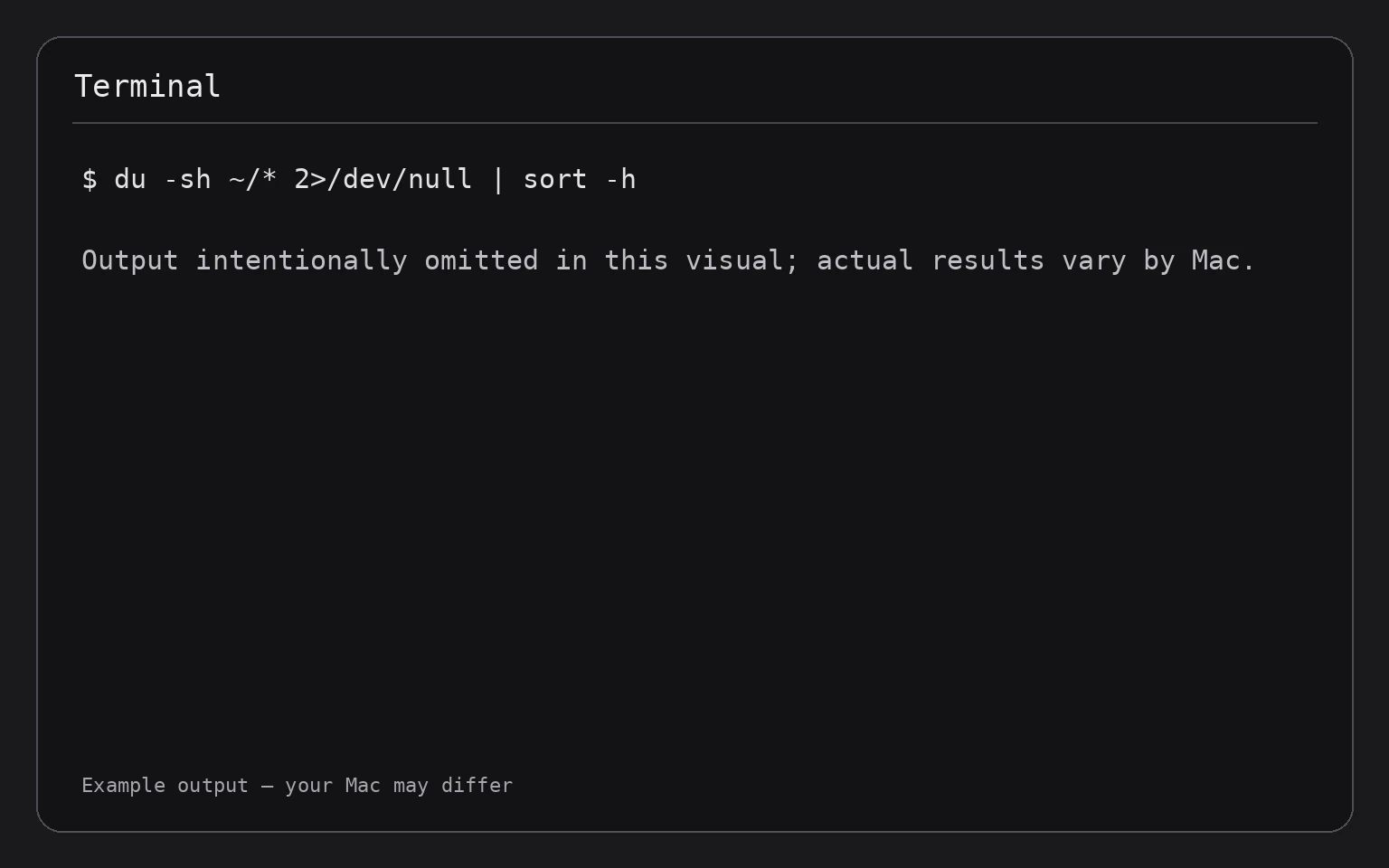
du -sh ~/* 2>/dev/null | sort -h
This command measures each visible item in your home folder, sorts the results by size, and displays the smallest items first. The largest folder appears at the bottom of the output.
The command does not include hidden items whose names begin with a period. It also does not change, move, or delete anything.
To inspect a different location, replace the path after du -sh. For example, this command compares the folders directly inside Downloads:
du -sh ~/Downloads/* 2>/dev/null | sort -h
If the folder name contains spaces, enclose the path in quotation marks:
du -sh "$HOME/Shared Files"/* 2>/dev/null | sort -h
The "$HOME/Shared Files" portion safely represents a folder named Shared Files inside your home folder.
Show the Largest Files and Folders Together
The previous command summarizes only the immediate contents of a folder. To search every level beneath your home folder and include individual files, run:
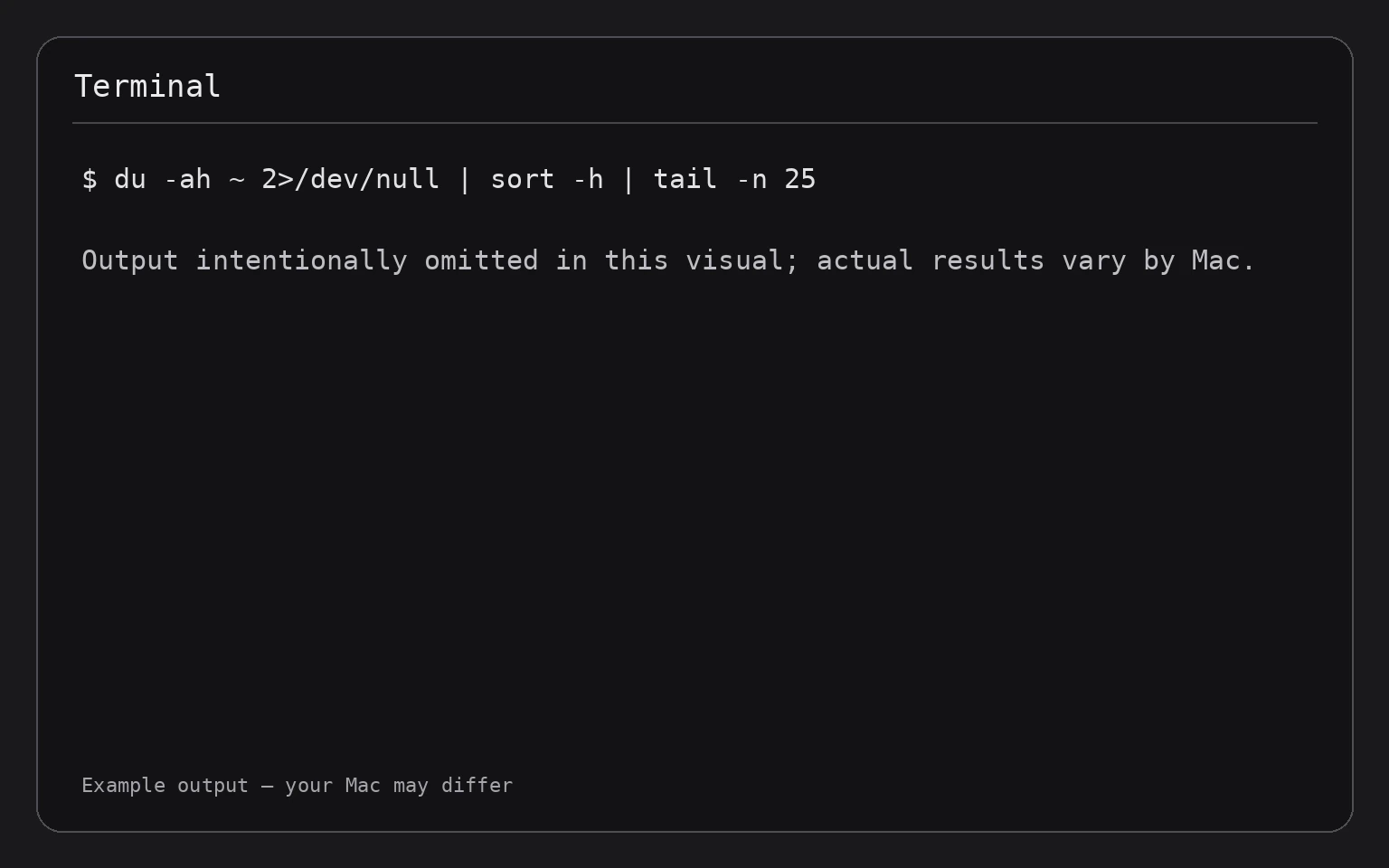
du -ah ~ 2>/dev/null | sort -h | tail -n 25
This command:
- Scans your home folder recursively.
- Includes both files and folders.
- Sorts all results by size.
- Displays the 25 largest entries.
The search can take time if your home folder contains many files. It may also produce results from application-support folders, cached data, virtual machines, developer tools, or other locations that are not obvious in Finder.
The command is read-only. It does not modify the files it finds.
Search for a Specific Number of Results
Change 25 to another number if you want more or fewer results. For example, the following command displays the 50 largest entries:
du -ah ~ 2>/dev/null | sort -h | tail -n 50
Use a smaller number when you want a quick shortlist. Use a larger number when the biggest entries are mostly parent folders and you need to see more detail.
Inspect One Large Folder at a Time
Once you identify a large folder, scan its immediate contents separately. For example:
du -sh ~/Library/* 2>/dev/null | sort -h
Your user Library folder contains application support files, caches, preferences, logs, and other data. It is often useful for investigation, but do not delete items from it casually. Removing the wrong file can reset an app, remove local data, or cause an application to behave unexpectedly.
You can inspect common storage locations with these commands:
du -sh ~/Downloads/* 2>/dev/null | sort -h
du -sh ~/Movies/* 2>/dev/null | sort -h
du -sh ~/Pictures/* 2>/dev/null | sort -h
du -sh ~/Documents/* 2>/dev/null | sort -h
Run only the command for the folder you want to examine. Each command reads sizes and sorts the results; none changes the folder’s contents.
Find the Largest Files Only
To list large individual files while excluding directory totals, use find with du:
find ~ -type f -exec du -h {} + 2>/dev/null | sort -h | tail -n 25
Here is what the command does:
find ~searches your home folder.-type flimits the results to regular files.-exec du -h {} +measures the files thatfinddiscovers.sort -hranks the sizes.tail -n 25shows the 25 largest results.
This can be slower than the earlier commands because it processes individual files. It may also skip locations that macOS does not allow Terminal to read.
Large files may include movies, disk images, archived installers, backups, virtual machines, exported projects, and files stored by creative or development applications. Confirm what a file is before removing it.
Search a Folder Outside Your Home Folder
You can provide another path instead of ~. For example, to inspect an attached volume named Archive, use:
du -sh "/Volumes/Archive"/* 2>/dev/null | sort -h
To search that volume recursively and show its 25 largest entries:
du -ah "/Volumes/Archive" 2>/dev/null | sort -h | tail -n 25
The volume name must match the name shown in Finder. Quotation marks are important when the name contains spaces.
You can also inspect the top level of your Mac’s startup volume, but system locations may produce permission errors or results that are difficult to interpret:
sudo du -sh /* 2>/dev/null | sort -h
This command may ask for your administrator password. When you type a password in Terminal, no characters or symbols appear on screen; press Return after entering it.
Using sudo gives the command additional access. It still does not change files because this command only measures disk usage, but it can expose system folders that are not relevant to ordinary storage cleanup. For most users, searching the home folder is safer and easier to understand.
Save the Results to a Text File
If a scan produces too much output to review in Terminal, save it to a file on your Desktop:
du -ah ~ 2>/dev/null | sort -h | tail -n 50 > ~/Desktop/largest-items.txt
This creates largest-items.txt on the Desktop and writes the 50 largest entries into it. It does not alter the files being measured.
To open the report in the default text editor, run:
open ~/Desktop/largest-items.txt
If you no longer need the report, delete it from the Desktop in Finder. Alternatively, the following command removes only the report created above:
rm ~/Desktop/largest-items.txt
Warning: rm permanently removes the specified file without sending it to the Trash. Use it only when you have confirmed the path and filename. If you prefer a recoverable option, delete the report through Finder instead.
What to Do After Finding Large Items
Finding a large item is only the first step. Before deleting anything, identify its purpose and decide whether it can be recreated or restored.
Use these safer approaches:
- Personal files: Open the file in Finder and move unneeded copies to the Trash. Empty the Trash only after checking its contents.
- Downloads: Remove old installers, archives, and duplicate files that you can download or recreate later.
- Videos and photos: Confirm that important originals are backed up before deleting local copies.
- Application data: Check the application’s own settings or support documentation before removing files from
~/Library. - Caches: Do not assume every cache is safe to delete. Some caches are temporary, but removing them can sign you out, reset preferences, or make an app rebuild data.
- External volumes: Verify that you are working on the intended drive before moving or deleting anything.
For a broader cleanup process, see How to Free Up Storage Space on a Mac. You can also review Apple’s built-in storage recommendations through Apple menu > System Settings > General > Storage.
Troubleshooting
Terminal says “Operation not permitted”
macOS may prevent Terminal from reading protected folders. You can usually avoid the problem by searching your home folder rather than the entire startup disk.
If you need to inspect protected locations, open System Settings, select Privacy & Security, choose Full Disk Access, and enable access for Terminal if it appears in the list. Quit and reopen Terminal afterward, then run the command again.
Granting broader access is optional. Do not enable it simply to make a general storage scan work.
The command returns no results
Check the path carefully. A folder with spaces must be quoted, as shown here:
du -sh "$HOME/Shared Files"/* 2>/dev/null | sort -h
You can also confirm that a folder exists by opening it in Finder and using its exact name.
The scan is taking too long
Recursive searches examine many files and can take a while. Press Control-C to stop the current command. This interrupts the scan; it does not delete or modify the files.
Then narrow the search to one likely location:
du -sh ~/Downloads/* 2>/dev/null | sort -h
The sizes do not match Finder or System Settings
Different tools measure storage in different ways. du reports space used by files and folders that it can read, while macOS storage summaries may include categories such as system data, local snapshots, or cloud placeholders. Use Terminal results to locate large readable items, not as a guaranteed duplicate of the storage graph.
For a disk-capacity overview using Terminal, see How to Check Disk Space and Storage Usage in Terminal on a Mac.
A folder looks large, but its contents do not explain the size
The folder may contain hidden files, protected content, nested folders, or storage that is represented differently by macOS. Run a recursive search inside that folder:
du -ah ~/Library 2>/dev/null | sort -h | tail -n 25
Do not delete items solely because they appear in the results. First determine which application or process created them.
Frequently Asked Questions
Does du delete anything?
No. The commands in this guide only read file and folder sizes. The exception is the optional rm command, which deletes the specific report file you provide and does not use the Trash.
How do I show the largest item first?
Use tail after sort -h, as in the examples. sort -h puts the largest value last, so tail displays the largest entries.
Why are hidden files missing?
The pattern ~/* matches visible items only. Use a recursive command such as du -ah ~ when you need a broader search. Some protected locations may still be inaccessible.
Can I search the entire Mac?
Yes, but a full-disk search is slower and may produce permission errors or difficult-to-interpret system data. Start with your home folder, then inspect specific locations or external volumes.
Is it safe to delete a large cache?
Not automatically. Some caches can be rebuilt, but deleting application data may sign you out, remove local content, or reset settings. Identify the application and use its built-in cleanup options whenever possible.
Final Thoughts
Terminal makes it easy to rank the largest folders and files on a Mac without installing another utility. Start with du -sh ~/* 2>/dev/null | sort -h, then use a recursive command to investigate the largest locations. Treat the results as a map for cleanup—not as permission to delete files without checking what they do.