
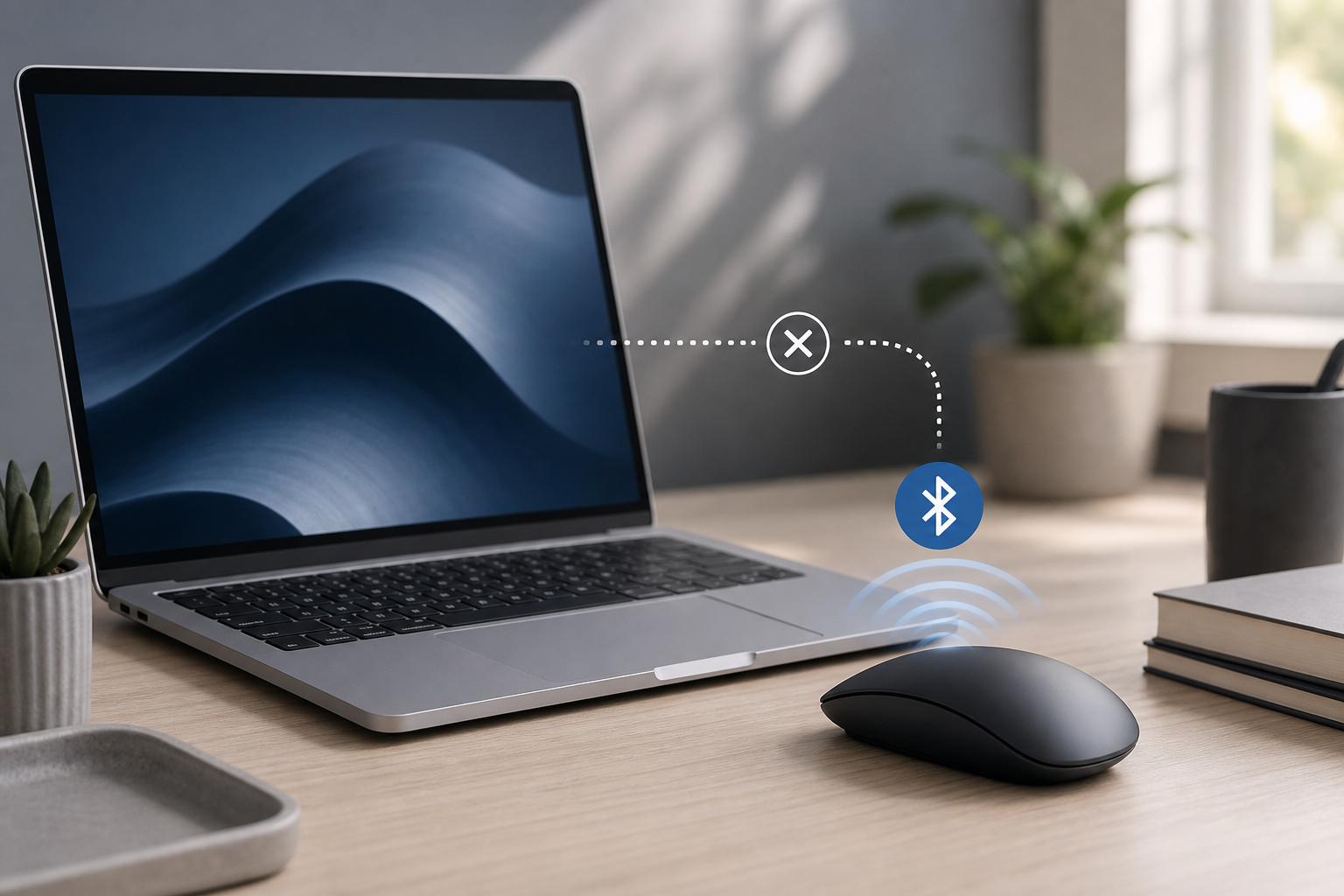
A Bluetooth mouse that repeatedly disconnects from a Mac usually has a low battery, an unstable pairing, wireless interference, outdated software, or a problem with the mouse itself. Start by replacing or charging the battery, moving the mouse closer to the Mac, and removing and reconnecting it in System Settings. If that does not help, restart both devices, test without nearby wireless accessories, and check whether another mouse works normally.
Quick Answer
Try these fixes in order:
- Charge the mouse or replace its batteries.
- Turn the mouse off and back on.
- Keep the mouse close to the Mac and remove possible sources of interference.
- Forget the mouse in System Settings > Bluetooth, then pair it again.
- Restart the Mac.
- Install available macOS updates and update the mouse through its manufacturer’s software, if available.
- Test the mouse with another computer or test a different mouse with the Mac.
The steps below explain each fix and help identify whether the problem comes from the mouse, the Mac, or the wireless environment.
1. Check the Mouse Battery or Charge
An almost-empty battery can cause intermittent disconnects before the mouse stops working completely. Some mice also enter a low-power state that makes reconnecting unreliable.
- Replace the batteries with a fresh set, or charge the mouse fully.
- If the mouse has a battery indicator, check its status in the manufacturer’s app or in System Settings > Bluetooth.
- Turn the mouse off, wait a few seconds, and turn it back on.
- Move the mouse for several seconds to wake it.
If the mouse uses rechargeable batteries, try a different charging cable or power adapter if charging appears inconsistent. A damaged charging port or cable can leave the mouse with too little power even when it appears to be charging.
2. Keep the Mouse Close to the Mac
Bluetooth has a limited range, and the connection can become unstable when the mouse is far from the computer or blocked by objects.
Place the mouse near the Mac while testing it. Avoid using it behind a monitor, inside a drawer, or on the opposite side of a desk. Metal surfaces and large electronic devices can also weaken the connection.
If you use a Mac mini or Mac Studio, make sure the computer is not enclosed in a cabinet or placed immediately beside other wireless equipment. For a MacBook, test with the mouse next to the laptop rather than at the edge of a desk.
3. Reduce Wireless Interference
Bluetooth shares the 2.4 GHz wireless spectrum with some Wi-Fi networks and many other devices. Interference may cause cursor stuttering, delayed movement, or repeated disconnections.
Temporarily move or turn off nearby devices such as:
- Wireless speakers and headphones
- Game controllers
- USB 3 hubs, docks, and external drives
- Wireless keyboards
- Phones, tablets, and other computers
- Wi-Fi routers positioned immediately beside the Mac
You do not need to permanently remove these devices. The goal is to determine whether the mouse becomes reliable when fewer wireless signals are nearby.
If the mouse works normally after you disconnect a USB hub or dock, reconnect your accessories one at a time to find the device causing the problem. You can also try plugging the hub or dock into another port and moving it farther away from the Mac’s Bluetooth antenna.
4. Disconnect and Reconnect the Mouse
A temporary Bluetooth pairing error can often be resolved by disconnecting and reconnecting the mouse.
- Open the Apple menu and choose System Settings.
- Select Bluetooth in the sidebar.
- Find the mouse in the list of devices.
- If it is connected, click the information button next to it and choose Disconnect, if that option is available.
- Turn the mouse off and back on.
- Return to Bluetooth and select the mouse to reconnect it.
Test the mouse for several minutes. If it disconnects again, remove the saved pairing and create a new one.
5. Forget the Mouse and Pair It Again
Removing the mouse from Bluetooth deletes its saved pairing information. You will need to pair it again, and the mouse may be unavailable until the process is complete.
Before starting, make sure you have another way to control the Mac, such as the built-in trackpad, a wired mouse, or a USB keyboard.
- Open System Settings from the Apple menu.
- Click Bluetooth.
- Locate the mouse and click the information button next to it.
- Choose Forget This Device or Forget This Device…, depending on the macOS interface.
- Confirm the removal.
- Turn the mouse off and back on.
- Put the mouse into pairing mode. The exact method varies by manufacturer; commonly, you hold a Bluetooth or pairing button for several seconds.
- In System Settings > Bluetooth, wait for the mouse to appear under nearby devices.
- Click Connect next to the mouse.
If the mouse does not appear, switch Bluetooth off and back on in System Settings > Bluetooth, then try pairing mode again. Also check that the mouse is not still connected to another computer, tablet, or phone. Many mice connect to only one device at a time unless they support multiple device profiles.
6. Restart the Mac and the Mouse
Restarting clears temporary system and Bluetooth processes that may have stopped responding correctly.
- Save your work.
- Close open apps if possible.
- Open the Apple menu and choose Restart.
- After the Mac starts, turn the mouse off and on again.
- Test the connection.
If the mouse is difficult to use, you can navigate macOS with the keyboard or use a wired pointing device temporarily. Do not restart until important documents are saved, because open applications may not preserve unsaved changes.
7. Install macOS and Mouse Updates
System updates can include fixes for Bluetooth, power management, and compatibility problems. To check for updates:
- Open the Apple menu and choose System Settings.
- Select General.
- Click Software Update.
- Install any available update and follow the onscreen instructions.
You may need to restart the Mac. Save your work first.
Also check the mouse manufacturer’s support app or website for firmware updates. Firmware is the software built into the mouse. An update may improve stability or compatibility, but follow the manufacturer’s instructions carefully. Keep the mouse charged during the update and do not turn it off unless instructed.
8. Remove Unused Bluetooth Devices
A Mac can remember many paired Bluetooth devices, and nearby devices may automatically try to reconnect. Removing devices you no longer use can simplify troubleshooting and prevent unexpected connections.
- Open System Settings > Bluetooth.
- Find an unused device.
- Click the information button next to it.
- Choose Forget This Device and confirm.
Only remove devices you recognize and no longer need. You will have to pair them again if you later decide to use them.
After removing old devices, restart the Mac and pair the mouse again.
9. Check for a Mouse-Specific Problem
Testing the mouse with another device helps separate a mouse problem from a Mac problem.
Try one of these tests:
- Connect the mouse to another Mac or compatible computer.
- Connect a different Bluetooth mouse to your Mac.
- Use the mouse without its USB receiver, if it supports both Bluetooth and receiver connections.
- Use the mouse with its receiver instead of Bluetooth, if the receiver is available.
If the same mouse disconnects from multiple computers, its battery, hardware, or firmware is probably responsible. If another mouse also disconnects from your Mac, the issue is more likely related to macOS, interference, or the Mac’s Bluetooth hardware.
A mouse may also work poorly on a particular surface. This usually causes tracking problems rather than Bluetooth disconnections, but testing on a clean, nonreflective surface can rule out separate cursor issues.
10. Test Without a Dock or USB Accessories
USB-C docks, hubs, external drives, and other accessories can sometimes interfere with nearby wireless devices, especially when they use high-speed USB connections or have poorly shielded cables.
Shut down or disconnect nonessential accessories temporarily:
- Save your work.
- Disconnect the dock, hub, external drives, and other USB devices.
- Restart the Mac.
- Pair the mouse again and test it.
- Reconnect accessories individually.
If the problem returns after connecting one accessory, move it farther from the Mac and the mouse. Try a different cable or port, and check whether the accessory manufacturer provides a firmware update.
11. Check Bluetooth and General Mac Settings
Make sure Bluetooth is enabled and the Mac is not in a state that limits normal operation.
Open System Settings > Bluetooth and verify that Bluetooth is on. If it is already on, turn it off, wait briefly, and turn it on again.
Also check the Mac’s battery and power behavior. If disconnects happen only after the Mac wakes from sleep, note whether the mouse reconnects after a few seconds or remains disconnected. A short delay may be normal for some mice, while repeated failures suggest a pairing, battery, or software issue.
If Bluetooth itself seems unreliable with several devices, follow a broader guide to fix Bluetooth not working on a Mac. Avoid changing unrelated network settings when the problem affects only one mouse.
Troubleshooting
The mouse does not appear in Bluetooth settings
Confirm that it is charged, turned on, and in pairing mode. Move it away from other computers and turn Bluetooth off on nearby devices that may be connecting to it. Then toggle Bluetooth off and on in System Settings > Bluetooth.
If the mouse has a device-selection button, switch it to a different channel and back. Refer to the mouse’s manual for the exact pairing procedure.
The mouse disconnects only after the Mac wakes from sleep
Make sure the mouse has enough battery power and install available macOS and mouse firmware updates. Forget the mouse and pair it again. If the behavior continues, test another Bluetooth mouse to determine whether the issue is specific to that model.
The cursor freezes, but Bluetooth still says the mouse is connected
This may be a tracking or mouse-surface problem rather than a connection failure. Clean the sensor, try another surface, and replace or recharge the battery. If the cursor remains frozen, disconnect and reconnect the mouse from System Settings > Bluetooth.
The mouse works, but it lags or skips
Move it closer to the Mac, remove nearby wireless interference, and disconnect USB hubs or docks temporarily. If the issue is limited to one desk location, nearby electronics or the desk surface may be contributing to the problem.
The mouse keeps reconnecting to another device
Turn Bluetooth off on nearby computers, tablets, or phones, or remove the mouse from their saved Bluetooth devices. Then put the mouse into pairing mode and connect it to the Mac again.
Nothing fixes the disconnections
Test the mouse with another computer and test a different mouse with the Mac. If multiple Bluetooth devices fail with the Mac, contact Apple Support or an Apple-authorized service provider. If only one mouse fails, contact its manufacturer or replace the mouse.
Frequently Asked Questions
Why does my Bluetooth mouse keep disconnecting from my Mac?
The most common causes are low battery power, wireless interference, excessive distance, a damaged mouse, or corrupted pairing information. Replacing the battery and pairing the mouse again are good first steps.
Should I turn Bluetooth off and on?
Yes. Turning Bluetooth off and on can clear a temporary connection problem. Open System Settings > Bluetooth, switch Bluetooth off, wait a few seconds, and turn it on again.
Will forgetting the mouse delete anything?
Forgetting the mouse removes its saved Bluetooth pairing from the Mac. It does not delete files or change other Mac data, but you must pair the mouse again.
Can a USB-C hub make a Bluetooth mouse disconnect?
It can contribute to interference, particularly when the hub, cable, or connected device is close to the Mac. Disconnect the hub temporarily to test, then try another port or cable and move it farther away.
Is the mouse defective if it disconnects once?
Not necessarily. A single disconnection can result from temporary interference, a brief low-battery condition, or a momentary software problem. Repeated disconnections across different computers point more strongly to a hardware or firmware issue.
Final Thoughts
Start with the simple causes: charge the mouse, reduce the distance, remove interference, and restart both devices. If the problem continues, forget the mouse and pair it again, then test without docks and other Bluetooth accessories. Comparing the mouse with another computer or testing a different mouse on the Mac will usually show whether the fault is in the mouse or the Mac.