
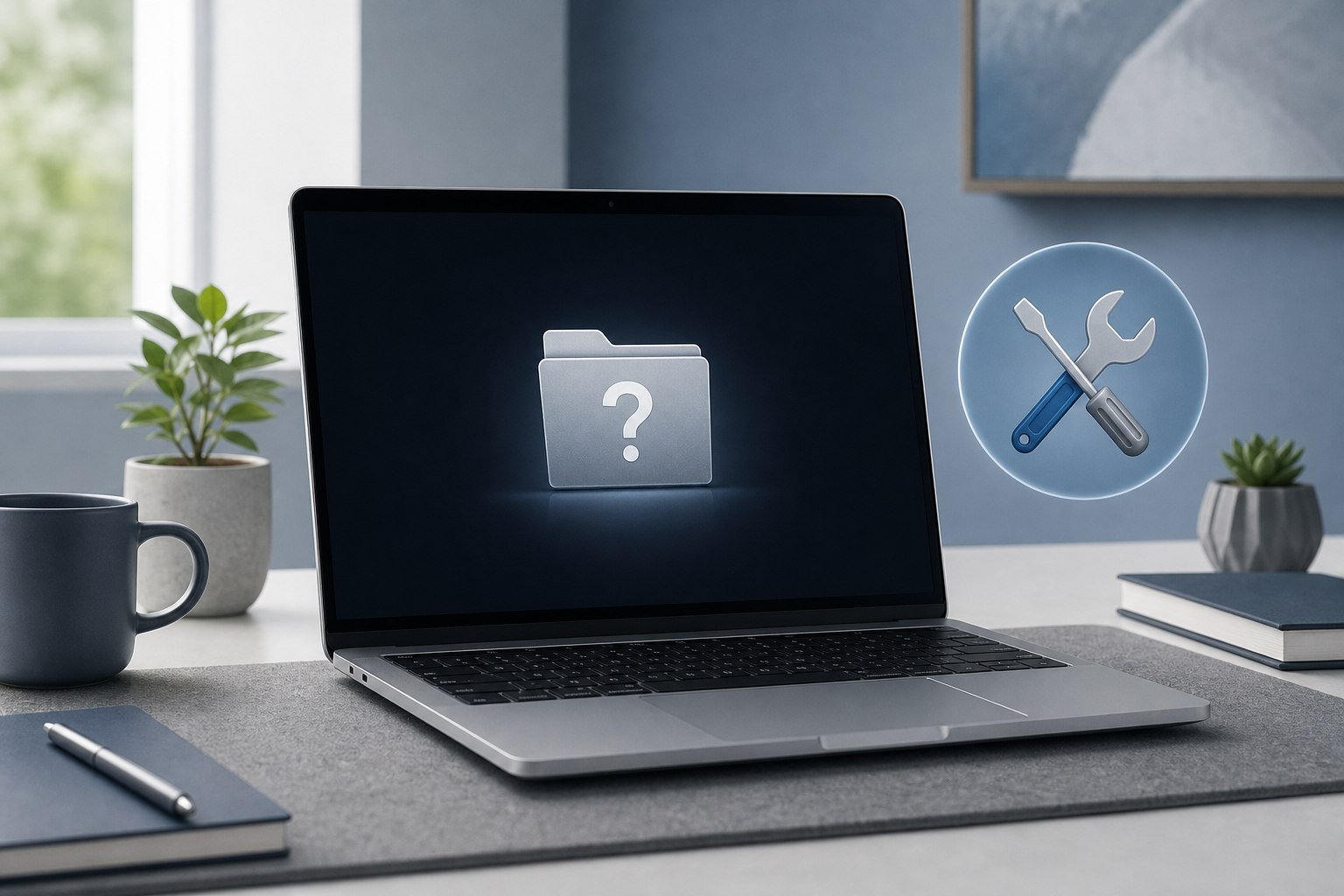
A flashing folder with a question mark means your Mac cannot find a startup disk containing macOS. The problem may be temporary, such as an incorrect startup-disk selection, or it may indicate a damaged macOS installation or a failing internal drive.
Start by turning the Mac off completely, disconnecting external storage, and starting macOS Recovery. From there, select the correct startup disk, run Disk Utility’s First Aid, and reinstall macOS if necessary. If the internal disk does not appear in Disk Utility, stop before erasing anything and consider professional data recovery or service.
Quick Answer
- Press and hold the power button until the Mac turns off.
- Disconnect external drives, USB accessories, memory cards, and hubs.
- Start macOS Recovery:
– Apple silicon: Press and hold the power button until “Loading startup options” appears, then select Options and Continue.
– Intel: Turn on the Mac and immediately hold Command (⌘)-R. - Open Disk Utility and choose View > Show All Devices.
- Select the internal startup volume and run First Aid.
- Restart and check whether the Mac starts normally.
- If the issue remains, return to Recovery and choose Reinstall macOS.
Do not erase the disk unless you have a current backup or have decided that recovering its data is no longer necessary.
What the Flashing Folder Means
During startup, your Mac looks for a disk that contains a usable macOS system. The flashing folder with a question mark appears when it cannot locate or start from that system.
Common causes include:
- The startup disk is not selected correctly.
- The internal storage is disconnected or not detected.
- The file system on the startup disk is damaged.
- Important macOS startup files are missing or corrupted.
- A macOS installation or update did not finish correctly.
- An external disk that was previously used as a startup disk is unavailable.
- The internal storage is beginning to fail.
The icon does not necessarily mean your personal files are gone. However, repeated startup attempts, disk repairs, or an erase can complicate data recovery, so proceed carefully if the files are important.
Before You Begin
Disconnect external devices
Turn off the Mac, then disconnect external hard drives, USB flash drives, SD cards, docks, and other accessories. Leave the power adapter connected.
A Mac can show the question-mark folder if it is trying to start from an external disk that is unavailable or no longer contains a working macOS installation. Removing those devices also makes the startup process easier to diagnose.
Check power and the display
If the Mac is a laptop, connect its charger. If it is a desktop Mac, verify that the power cable and display are connected securely.
If the Mac does not show the folder at all and appears completely unresponsive, follow a guide for how to fix a Mac that won’t turn on. The steps in this article are for Macs that power on and display the flashing folder.
Avoid erasing the disk for now
Warning: Erasing a disk permanently removes its contents. Do not use Erase in Disk Utility until you have backed up your files or accepted that they may be lost.
Step 1: Shut Down the Mac Completely
Press and hold the Mac’s power button until it turns off. This can take several seconds. Wait a few seconds after the screen goes dark.
Then disconnect every nonessential accessory and leave the power adapter connected. A complete shutdown clears a temporary startup state and gives you a clean starting point for Recovery.
Step 2: Start macOS Recovery
The correct startup method depends on whether your Mac has Apple silicon or an Intel processor.
Apple silicon Mac
- Make sure the Mac is turned off.
- Press and hold the power button.
- Keep holding it until the startup options screen appears and you see Options.
- Select Options.
- Click Continue.
- Choose an administrator account if asked, then enter its password.
Intel-based Mac
- Turn off the Mac.
- Press the power button, then immediately press and hold Command (⌘)-R.
- Keep holding the keys until you see the Apple logo or a macOS Recovery screen.
- Select an administrator account if prompted and enter its password.
If Command-R does not open Recovery, shut down and try again. Timing matters: begin holding the keys immediately after pressing the power button. A wired keyboard can help if a wireless keyboard is not recognized early enough during startup.
If Recovery still does not load, try Internet Recovery by starting an Intel Mac while holding Option-Command-R. This may require an internet connection and can take longer.
Step 3: Check the Startup Disk
Once macOS Recovery opens, close any initial dialog that is not needed and open Startup Disk if it is available.
Look for an internal disk or volume containing macOS. Select it, then click Restart. If the correct startup volume was merely overlooked, the Mac should start normally.
If no internal startup volume appears, return to the Recovery utilities window and continue with Disk Utility.
Step 4: Run First Aid in Disk Utility
Disk Utility can check the disk’s structure and repair some file-system problems.
- In macOS Recovery, select Disk Utility.
- Click Continue.
- Choose View > Show All Devices from the menu bar.
- In the sidebar, look for the internal physical disk. It may be labeled APPLE SSD, Macintosh HD, or another name.
- Select the lowest-level volume or container that is visible, then click First Aid.
- Click Run or Continue, depending on what appears.
- If multiple volumes are listed, run First Aid on the data volume, the system volume, the container, and finally the physical disk when those items are available.
The exact names and layout can vary. On newer macOS installations, you may see separate system and data volumes, such as Macintosh HD and Macintosh HD – Data.
Warning: First Aid can repair file-system structures, but it is not a substitute for a backup. If the disk is making unusual noises, repeatedly disconnecting, or showing serious errors, stop using it and prioritize data recovery.
When First Aid finishes, note whether it reports that the volume was repaired, appears to be OK, or cannot be repaired.
Step 5: Restart and Test the Mac
Quit Disk Utility and choose Apple menu > Restart from macOS Recovery.
If the Mac starts normally, immediately back up important files. A startup problem can be an early sign of storage trouble even if First Aid repaired it successfully.
If the flashing folder returns, go back to Recovery. The startup disk may still be unselected, macOS may be damaged, or the internal disk may be failing.
Step 6: Reinstall macOS Without Erasing the Disk
If the internal disk appears in Disk Utility and First Aid does not resolve the problem, reinstall macOS from Recovery.
- Start macOS Recovery again.
- Select Reinstall macOS.
- Click Continue.
- Follow the onscreen instructions.
- When asked where to install macOS, select the existing system volume, usually Macintosh HD.
A standard reinstall is designed to replace macOS system files without intentionally removing personal files. Nevertheless, there is always some risk when working with a disk that may be damaged. If the data is irreplaceable and you do not have a backup, consider obtaining a backup or professional assistance before continuing.
Keep the Mac connected to power and connected to the internet if required. The installation may restart the Mac several times. Do not close the lid of a MacBook or interrupt the process unless the installer specifically instructs you to do so.
Step 7: Reset NVRAM on an Intel Mac
NVRAM is a small area of memory that stores certain startup settings, including information related to the startup disk. Resetting it can help if the Mac is repeatedly selecting an invalid startup volume.
This step applies primarily to Intel-based Macs. Apple silicon Macs manage these settings differently and generally do not use the same manual key combination.
- Shut down the Mac.
- Turn it on and immediately hold Option-Command-P-R.
- Keep holding the keys for about 20 seconds.
- Release them and allow the Mac to restart.
Resetting NVRAM normally does not delete personal files, but it can restore some system settings to their defaults. You may need to reselect preferences such as the startup disk, sound volume, or display resolution. For more background, see what NVRAM is and why resetting it can help on a Mac.
After the reset, open macOS Recovery and check Startup Disk again.
What to Do If the Internal Disk Does Not Appear
If the internal physical disk is missing from Disk Utility’s sidebar, the problem is more serious than a simple startup setting.
Try these checks:
- In Disk Utility, choose View > Show All Devices.
- Wait a moment for the sidebar to refresh.
- Shut down and start Recovery again.
- Disconnect all external devices and retry.
- If possible, test the Mac with a different power source or outlet.
If the internal disk still does not appear, the storage hardware, its connection, or the Mac’s logic board may have a problem. Do not erase an unrelated external disk because it happens to appear in Disk Utility.
If you need the files on the Mac, avoid repeated repair attempts and do not install macOS onto another volume as a test unless you understand the data-loss risks. Contact Apple Support, an Apple Authorized Service Provider, or a reputable data-recovery specialist.
Troubleshooting Common Problems
Recovery will not open
Confirm that the Mac is fully shut down before trying again. On an Intel Mac, hold Command-R immediately after pressing the power button. On an Apple silicon Mac, keep holding the power button until startup options appear.
If the built-in keyboard does not respond, try a wired keyboard. For Intel Macs, Internet Recovery using Option-Command-R may work when local Recovery does not.
First Aid reports that the disk cannot be repaired
First Aid cannot fix every type of disk damage. If you have a backup, you can erase the disk and reinstall macOS. Erasing permanently removes the disk’s contents, so do not proceed if you still need files that are not backed up.
If you do not have a backup, stop and seek data-recovery advice before erasing.
The Mac starts, then shows the question mark again
Back up your files immediately. Then restart in Recovery and verify the startup disk. If the problem returns after a reinstall or repair, suspect a failing internal drive rather than a one-time software error.
You can also review whether the Mac has other startup symptoms, such as frequent freezes, unexpected shutdowns, or files that become corrupted. These signs strengthen the case for replacing the storage or having the Mac inspected.
The Mac shows a different startup screen
A folder with a question mark is different from an Apple logo that never finishes loading, a progress bar that stops, or a prohibitory symbol. Each points to a different startup stage. If your Mac is stuck on the Apple logo instead, use the steps for fixing a Mac stuck on the Apple logo.
Frequently Asked Questions
Will the flashing folder delete my files?
No. The icon means the Mac cannot find a usable startup system; it does not, by itself, erase personal files. However, a damaged disk may already be at risk, so back up your files as soon as the Mac starts or use professional recovery if it cannot start.
Can I fix this without reinstalling macOS?
Sometimes. Selecting the correct startup disk, disconnecting an unavailable external drive, running First Aid, or resetting NVRAM on an Intel Mac may resolve the issue. Reinstall macOS is the next step when the system files are damaged.
Should I erase Macintosh HD?
Only if you have a current backup or no longer need the data. Erasing is not a first troubleshooting step because it permanently removes files and requires a complete macOS installation afterward.
Does a flashing folder always mean the hard drive has failed?
No. It can result from a wrong startup-disk selection or damaged system files. If the internal disk is absent from Disk Utility or the problem returns repeatedly, hardware failure becomes more likely.
Can I use an external macOS installer?
Yes, if you have a properly prepared installer and compatible Mac. However, starting from an external disk will not repair the internal disk by itself. It is generally more useful after you have protected your data and determined whether the internal storage is detected.
Final Thoughts
A flashing folder with a question mark means the Mac cannot find a working startup system. Disconnect external devices, open macOS Recovery, verify the startup disk, and run First Aid before considering a reinstall. If the internal disk is missing from Disk Utility or contains irreplaceable files, avoid erasing it and seek professional help.