
Time Machine snapshots are point-in-time copies of files stored on your Mac’s internal storage or an attached backup disk. They can help you recover files even when your Time Machine backup disk is not connected.
The Terminal command most commonly used to list them is:
tmutil listlocalsnapshots /
This lists local Time Machine snapshots for the Mac’s startup volume. To list snapshots associated with a specific mounted volume, replace / with that volume’s mount point.
Quick Answer
- Open Terminal from Applications > Utilities.
- Run:
bash

   tmutil listlocalsnapshots /
- Press Return.
- Read the snapshot names printed below the command.
For example, a local snapshot name may include a date and time, such as com.apple.TimeMachine.2024-01-15-103045.local. Do not treat that example as expected output for your Mac; the names and number of snapshots depend on your system.
Listing snapshots does not delete, restore, or change them.
What Time Machine snapshots are
A Time Machine snapshot records the state of files at a particular point in time. A local snapshot is stored on your Mac’s internal storage, while a standard Time Machine backup is usually stored on an external drive or network destination.
Snapshots are useful when:
- Your Time Machine backup disk is temporarily disconnected
- You need to identify available recovery points
- You are troubleshooting local storage usage
- You want to confirm whether macOS has created local Time Machine snapshots
The command below lists local snapshots, not every historical backup available on every Time Machine destination. If you need to inspect a connected backup disk or network destination, the results may require a different approach.
Before you begin
Before running commands, make sure you know which volume you want to inspect.
- Use
/to check the current startup volume. - A separate APFS volume may have a different mount point.
- Listing snapshots is read-only and does not require you to close apps.
- You do not need administrator access merely to list local snapshots.
If you are unfamiliar with Terminal, enter commands exactly as shown. Terminal commands are sensitive to spaces, punctuation, and capitalization.
List local Time Machine snapshots
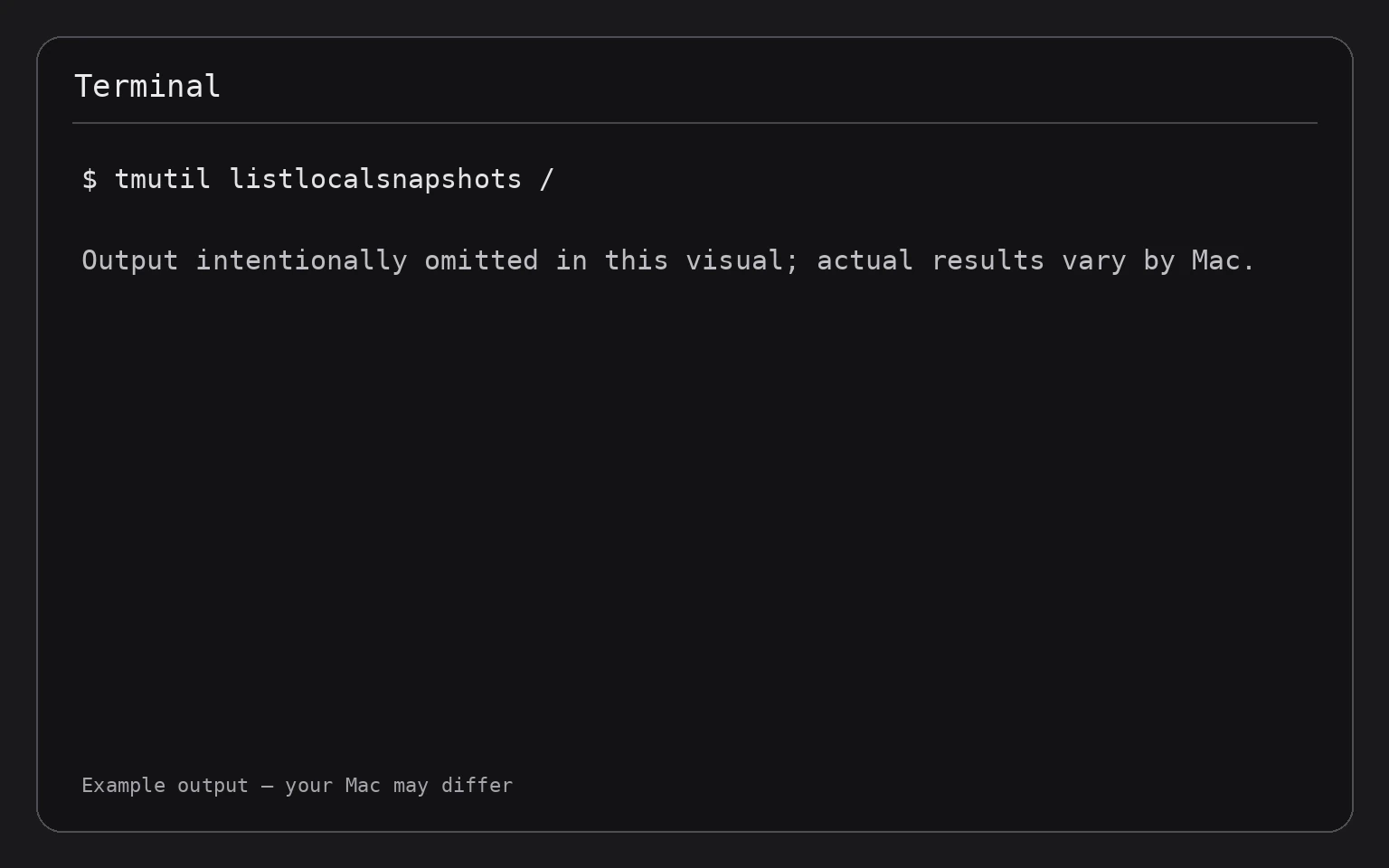
The following command asks tmutil, Apple’s command-line utility for Time Machine, to list local snapshots on the root volume:
tmutil listlocalsnapshots /
To run it:
- Open Finder.
- Select Applications in the sidebar.
- Open the Utilities folder.
- Double-click Terminal.
- Type or paste the command.
- Press Return.
Terminal prints any local snapshots it finds. If there are no local snapshots, the command may return no snapshot entries. That does not necessarily mean Time Machine is unavailable; it means no local snapshots were listed for the volume you checked.
Understand the command
The command has two parts:
tmutilopens the Time Machine command-line tool.listlocalsnapshots /requests local snapshots for the root volume.
The slash (/) represents the top level of the startup volume in the file-system path used by Terminal.
List snapshots for another volume
If your Mac has more than one mounted volume, you can provide that volume’s mount point instead of /.
First, list mounted volumes with:
ls /Volumes
This command displays the names of volumes mounted in the /Volumes folder. It only reads the folder contents; it does not modify disks or volumes.
If the volume name contains spaces, enclose its path in quotation marks. For example, the general pattern is:
tmutil listlocalsnapshots "/Volumes/Volume Name"
Replace Volume Name with the actual name shown by the ls /Volumes command. Do not run the example unchanged unless a volume with that exact name exists.
A volume’s name and mount point are not always identical to the name you see in Finder, so use the path reported by Terminal when possible.
List snapshots with more detail
The tmutil utility also provides a general snapshot-listing command:
tmutil list
This command can display available Time Machine snapshots and backup information that listlocalsnapshots does not show in the same way. Its output can vary depending on the Mac’s storage configuration, connected backup destinations, and the snapshots currently available.
Use tmutil listlocalsnapshots / when your specific goal is to identify local snapshots on the startup volume. Use tmutil list when you need a broader view of Time Machine-related snapshots and destinations.
Neither command changes your backup settings or deletes data.
Save the snapshot list to a text file
If the Terminal output is long, you can save it to a file on your Desktop:
tmutil listlocalsnapshots / > ~/Desktop/time-machine-snapshots.txt
This command runs the same read-only listing operation and redirects the output to a text file named time-machine-snapshots.txt on your Desktop.
The > symbol writes the command’s output to the specified file. If a file with that name already exists, the command replaces its contents. To avoid overwriting an existing file, use a different filename, such as:
tmutil listlocalsnapshots / > ~/Desktop/time-machine-snapshots-new.txt
To open the saved file in the default text application, run:
open ~/Desktop/time-machine-snapshots.txt
The open command launches the file using its associated macOS application. It does not change the snapshots.
If you no longer need the text file, delete it from the Desktop in Finder or run:
rm ~/Desktop/time-machine-snapshots.txt
The rm command deletes the text file immediately instead of moving it to the Trash. It does not delete Time Machine snapshots because the command targets only the text file. Check the filename carefully before pressing Return.
Count the listed snapshots
To count local snapshot entries, you can pipe the listing into wc:
tmutil listlocalsnapshots / | wc -l
The vertical bar (|) sends the first command’s output to the second command. wc -l counts lines.
This provides a quick estimate of the number of lines returned by the listing command. It is not a complete storage report, and the result may not represent a simple count of snapshots in every situation. For an exact review, inspect the original output rather than relying only on the count.
Identify storage used by local snapshots
Listing snapshots tells you which snapshots exist; it does not show how much storage each one uses. APFS, the file system used by many modern Mac startup volumes, can share storage between snapshots and current files. As a result, snapshot storage may not correspond directly to the apparent size of every file version.
To inspect the available and used space on mounted file systems, run:
df -h
The df -h command reports file-system capacity in a human-readable format. It does not remove snapshots or alter storage.
If you are investigating unexpectedly low disk space, do not delete snapshots immediately. macOS can manage local snapshot storage automatically, and deleting entries without understanding the storage situation may remove recovery points you still need. For a careful removal procedure, see How to Delete Local Time Machine Snapshots That Use Mac Storage.
Troubleshooting
Terminal says the command was not found
If Terminal reports that tmutil cannot be found, check that you entered the command correctly:
tmutil listlocalsnapshots /
tmutil is the command name; do not add spaces inside it. If the error continues, restart Terminal and try again. Avoid downloading an alternative utility just to list snapshots.
The command returns no snapshots
An empty result can be normal. Possible reasons include:
- No local snapshots currently exist.
- You checked a volume that does not contain local snapshots.
- Automatic local snapshot creation has not occurred recently.
- The available snapshots are associated with a different volume or destination.
Confirm that you used the correct volume path. To check the startup volume, use:
tmutil listlocalsnapshots /
You can also compare the result with the broader command:
tmutil list
These commands are safe to repeat because they only read information.
You see an “Operation not permitted” error
macOS privacy controls can restrict Terminal’s access to some data. If Terminal reports that the operation is not permitted, open System Settings, select Privacy & Security, and review the permissions available for Terminal. The exact options shown can vary by macOS version and configuration.
Do not grant broader access than necessary. After changing a permission, quit and reopen Terminal, then run the listing command again.
The output scrolls too quickly
Redirect the output to a file:
tmutil listlocalsnapshots / > ~/Desktop/time-machine-snapshots.txt
Then open the file:
open ~/Desktop/time-machine-snapshots.txt
You can also display the output one screen at a time with:
tmutil listlocalsnapshots / | less
Press the Space bar to move forward, the Up Arrow to move backward, and q to quit the less viewer. This command does not change snapshots.
You cannot find the snapshot in Finder
Local snapshots are managed by macOS and are not always presented as ordinary folders in Finder. The Terminal listing is the appropriate way to identify them. Do not attempt to browse system storage by opening hidden paths or deleting files manually.
If you need to recover a file, use the Time Machine interface or a supported restore workflow rather than copying files directly from internal system locations. For a specific Photos recovery task, see How to Restore a Photos Library from Time Machine on a Mac.
Time Machine is not creating or finding backups
Listing local snapshots does not test whether an external backup disk is working. If the backup destination is missing, check its connection and Time Machine settings. For help with a missing destination, see How to Fix Time Machine Not Finding a Backup Disk.
If a backup remains stuck while preparing, avoid repeatedly disconnecting the backup disk while it is active. See How to Fix Time Machine Stuck on Preparing Backup for troubleshooting steps.
Commands to avoid when you only want to list snapshots
The commands in this guide are intended for inspection. Do not substitute commands that delete or thin snapshots unless you have confirmed that you no longer need the recovery points.
In particular:
- Do not use
rmon system or snapshot paths. - Do not run a deletion command copied from an unrelated guide.
- Do not use
sudounless you understand why administrator privileges are required. - Do not remove a backup disk while Time Machine is actively using it.
The listing commands do not need a reversal because they do not change system state. If you saved the output to a file, delete only that text file when finished.
Frequently Asked Questions
Does listing snapshots delete anything?
No. tmutil listlocalsnapshots /, tmutil list, ls /Volumes, and df -h are inspection commands. They read information and do not delete snapshots or change Time Machine settings.
Do local snapshots replace an external Time Machine backup?
No. Local snapshots are stored on the Mac and are not a substitute for an independent backup destination. If the Mac is lost or its internal storage fails, local snapshots may not be available.
Can I list snapshots without connecting my Time Machine disk?
Yes, when you are checking local snapshots. Run:
tmutil listlocalsnapshots /
The external backup disk does not need to be connected for this local check.
Why does the snapshot list change over time?
macOS may create or remove local snapshots as storage conditions and Time Machine activity change. The list is a current view, not a permanent record.
Can I restore a file directly from a listed snapshot?
The listing identifies available snapshots, but it does not provide a file-restoration interface. Use Time Machine’s restore tools when possible, and avoid manually modifying protected system locations.
Final Thoughts
Use tmutil listlocalsnapshots / when you need a quick Terminal-based list of local Time Machine snapshots on your Mac’s startup volume. Use tmutil list for broader Time Machine information, and redirect the output to a Desktop text file if you need to review or share it. These commands are read-only, so they are safe for checking snapshot availability without changing your backups.