How to Copy Text from Photos and Images on a Mac

Illustration for How to Copy Text from Photos and Images on a Mac

You can copy text from a photo or image on a Mac with Live Text. Open the image in Photos, Preview, Quick Look, or Safari, move your pointer over the words until the text-selection cursor appears, and then drag across the text. Press Command-C or choose Edit > Copy. Live Text can also translate selected … Read more

How to Use Markup on a Mac

Illustration for How to Use Markup on a Mac

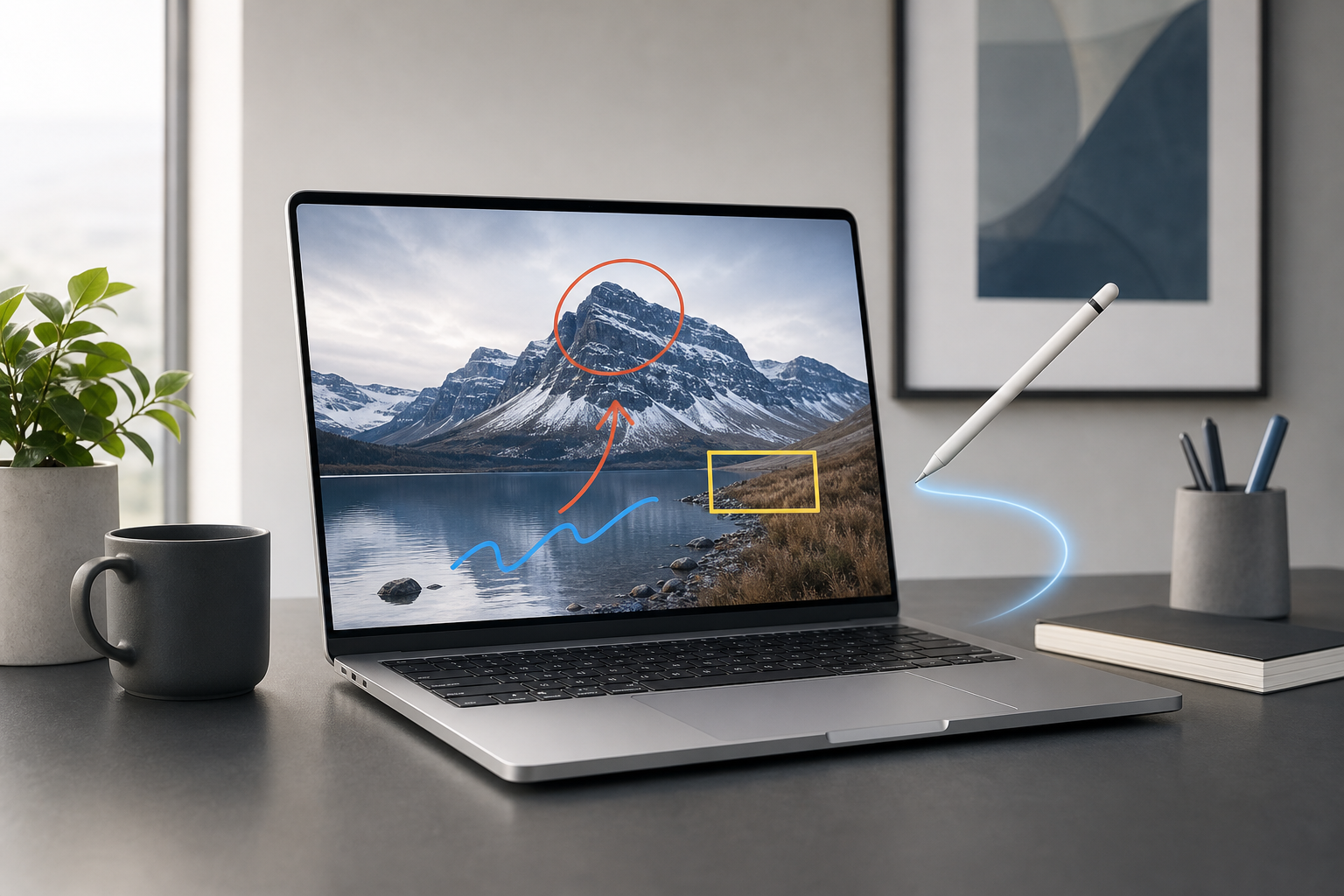
Markup lets you add notes, highlights, drawings, shapes, signatures, and other annotations to PDFs, images, screenshots, and documents on a Mac. You can use it in Preview, Quick Look, Mail, and the screenshot tools without installing another app. Quick Answer To use Markup on a Mac: Open a PDF or image in Preview, or select … Read more

How to Customize Folder Colors, Symbols, and Emoji on Mac

Illustration for How to Customize Folder Colors, Symbols, and Emoji on Mac

You can customize a folder on a Mac by changing its color, adding a symbol, or placing an emoji on its icon. In macOS Tahoe, Finder includes built-in folder customization tools that let you apply a color, symbol, and emoji without downloading another app. Quick Answer To customize a folder in Finder: Control-click the folder … Read more

How to Record Your Screen on a Mac

Illustration for How to Record Your Screen on a Mac

You can record your Mac screen with the built-in Screenshot app. Press Shift-Command-5, choose whether to record the entire screen or a selected portion, select a microphone if you need narration, and click Record. When you finish, click the Stop Recording button in the menu bar or press Command-Control-Escape. macOS saves the recording as a … Read more

How to Add and Customize Widgets on a Mac

Illustration for How to Add and Customize Widgets on a Mac

Mac desktop widgets give you quick access to information and controls without opening a full app. You can add widgets to the desktop or Notification Center, resize and rearrange them, use interactive controls, and display compatible iPhone widgets on your Mac. Quick Answer To add a widget to your Mac desktop, Control-click an empty area … Read more

How to Customize the Dock on a Mac

Illustration for How to Customize the Dock on a Mac

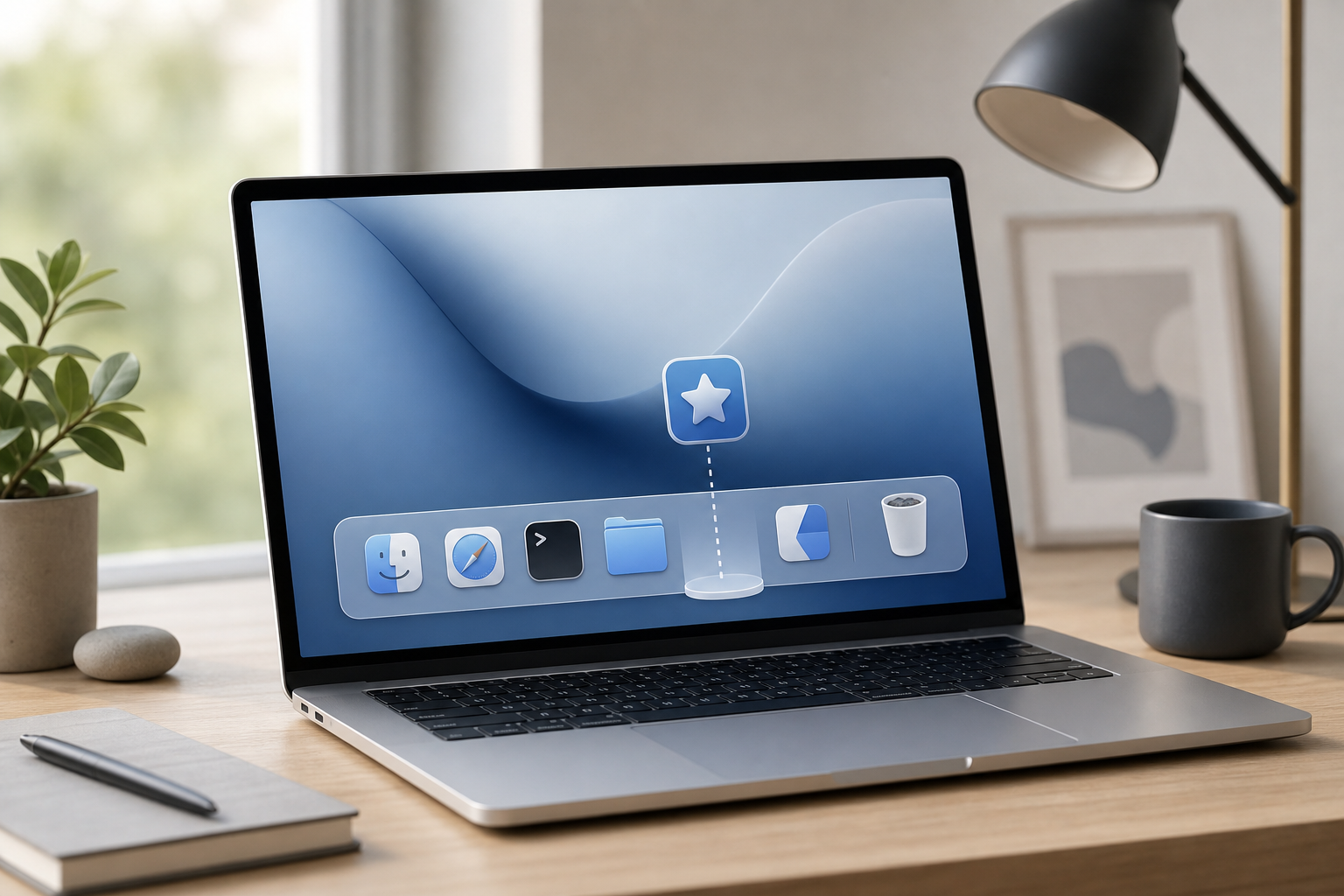
You can customize the Dock on a Mac from System Settings > Desktop & Dock. There, you can resize the Dock, turn on magnification, move it to another edge of the screen, and make it hide automatically. You can also organize the Dock directly by adding or removing apps, arranging items, and creating folders for … Read more

How to Set Up Hot Corners on a Mac

Illustration for How to Set Up Hot Corners on a Mac

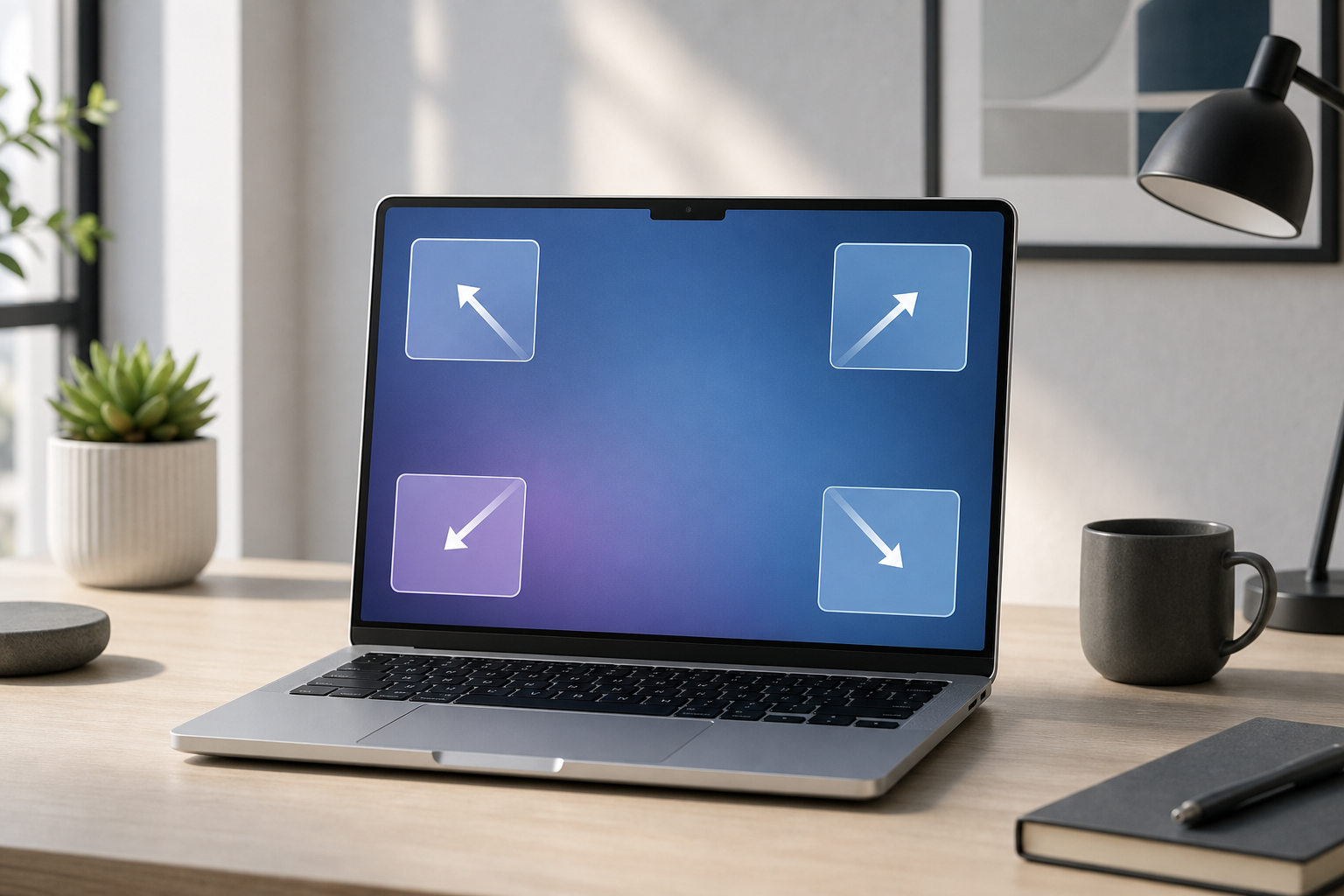
Hot Corners let you trigger shortcuts by moving your pointer to one of the four corners of your Mac’s screen. You can configure each corner to show the desktop, open Notification Center, start the screen saver, lock the screen, and perform other actions. To set up Hot Corners, open System Settings, select Desktop & Dock, … Read more

How to Combine Multiple Files into One PDF on Mac

Illustration for How to Combine Multiple Files into One PDF on Mac

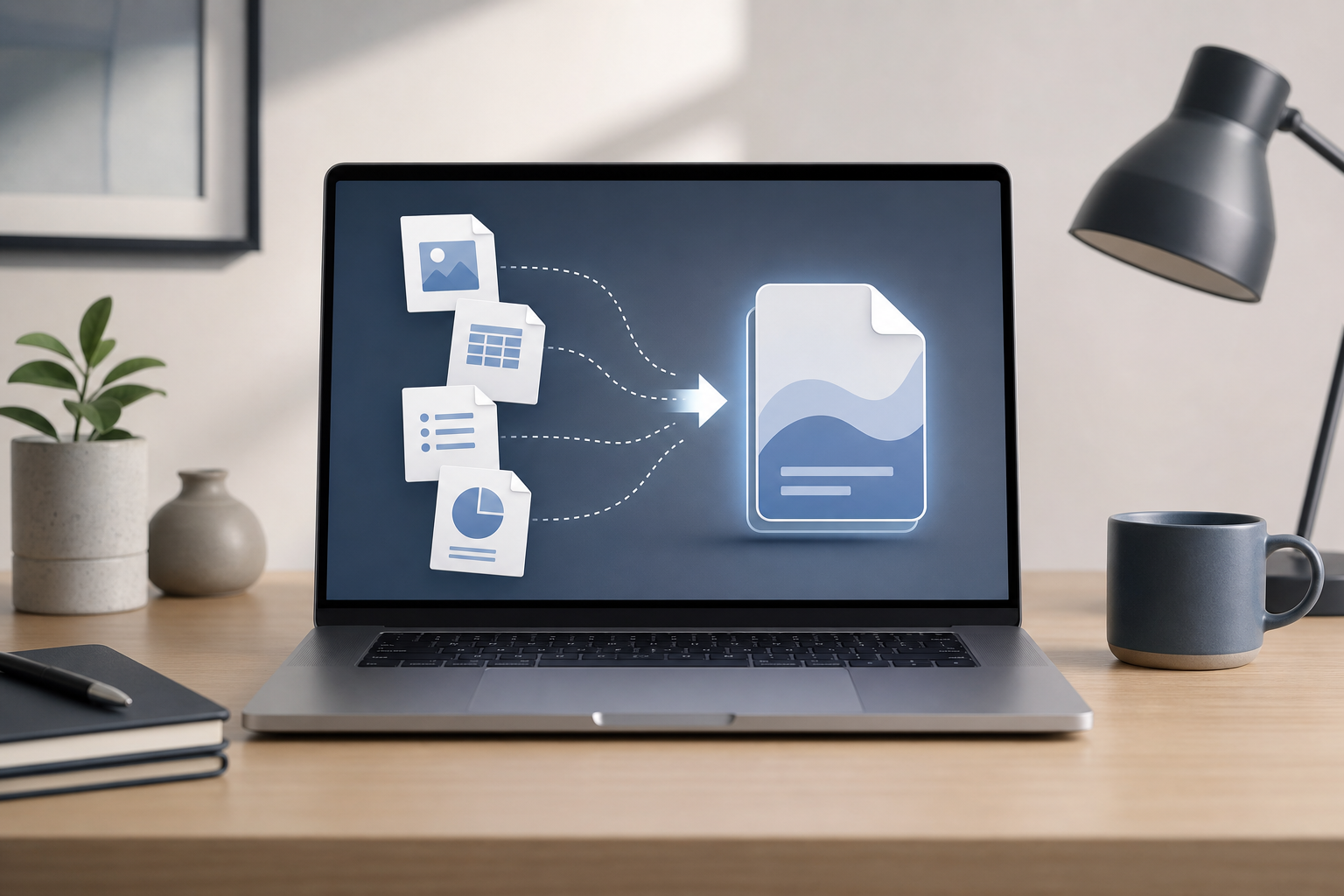
You can combine multiple files into one PDF on a Mac using Preview, Apple’s built-in PDF and image viewer. Preview can merge existing PDF files, combine images into a PDF, add pages from other documents, rearrange pages, and remove pages you do not need. For files that Preview cannot open directly—such as some word-processing documents, … Read more

How to Tile Windows on a Mac

Illustration for How to Tile Windows on a Mac

You can tile windows on a Mac by dragging a window to a screen edge, using the Window menu, or pressing a keyboard shortcut. macOS can place windows side by side, in full-screen layouts, or—when supported by your Mac and macOS version—in quarter-screen positions and other tiling arrangements. Quick Answer To tile two windows side … Read more

How to Organize Your Mac Desktop with Stacks

Illustration for How to Organize Your Mac Desktop with Stacks

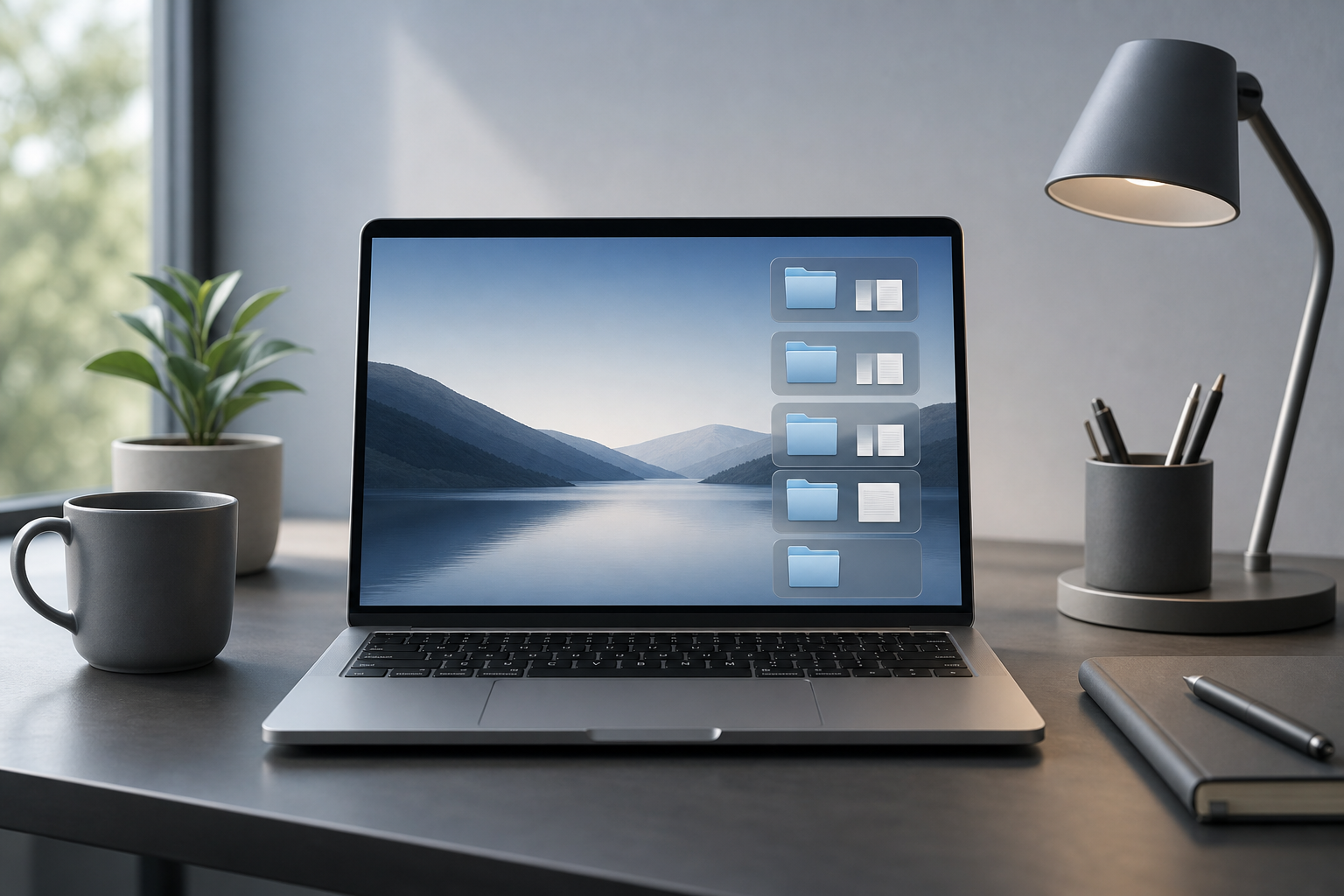
If your Mac desktop is covered with screenshots, downloads, documents, and folders, Stacks can organize those files automatically without moving them into separate folders. To enable Stacks, Control-click an empty area of the desktop, then select Use Stacks. macOS groups related desktop files into expandable piles based on file type, date, or another sorting method. … Read more