
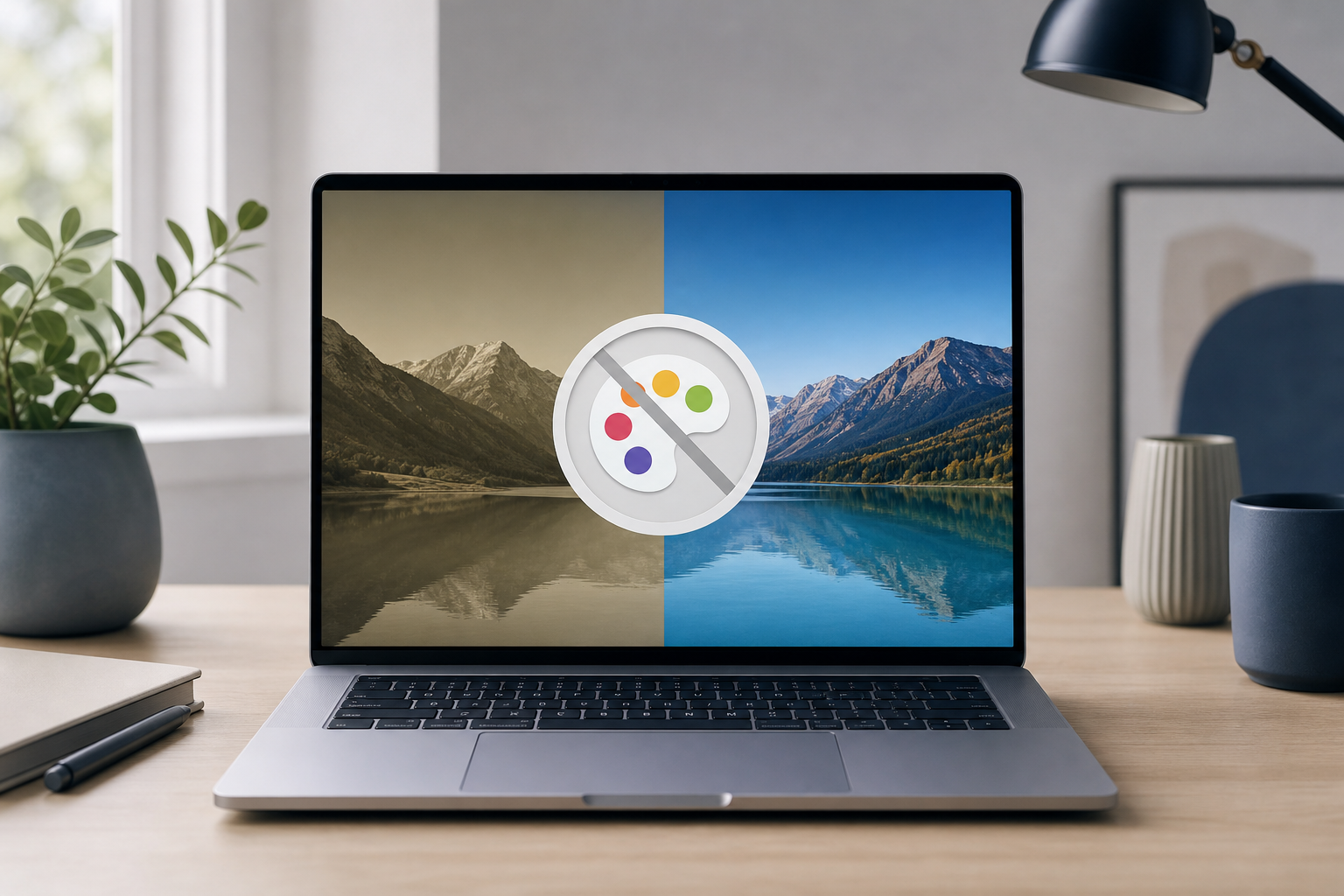
If your Mac screen suddenly looks yellow, red, blue, gray, or unusually tinted, a color filter may be turned on. You can turn it off in System Settings > Accessibility > Display > Color Filters.
Open Apple menu > System Settings, select Accessibility in the sidebar, choose Display, and click Color Filters. Turn off Color Filters. The screen should return to its normal appearance immediately.
If the colors change again later, check the Accessibility Shortcut settings. A keyboard shortcut may be enabling the filter accidentally.
Quick Answer
- Click the Apple menu in the top-left corner.
- Open System Settings.
- Select Accessibility.
- Click Display.
- Choose Color Filters.
- Turn off the Color Filters switch.
If the color filter keeps coming back, press Option-Command-F5 to open the Accessibility Shortcuts panel and make sure Color Filters is not selected.
Why Your Mac Screen Colors May Look Wrong
macOS includes color filters to help people distinguish colors or reduce the effect of color blindness. Available filter types can include options such as:
- Grayscale
- Red/Green filter
- Green/Red filter
- Blue/Yellow filter
- Color Tint
A filter can be enabled intentionally, but it may also be switched on accidentally through an accessibility shortcut. If Color Tint is selected, the tint color and intensity can make the entire display look strongly colored.
Color filters affect the appearance of items on your Mac’s screen. They do not normally change the colors stored in your photos, videos, documents, or other files. For example, a screenshot captured while a filter is enabled generally contains the normal image colors, even though the screenshot looked different on your display.
Turn Off Color Filters in System Settings
This is the standard method and works when you can navigate the screen normally.
- Click the Apple menu in the upper-left corner of the screen.
- Select System Settings.
- In the sidebar, click Accessibility.
- Select Display.
- Click Color Filters.
- Turn off the Color Filters switch.
The display should immediately return to its normal color settings.
You can leave the filter type and other options unchanged after turning the feature off. Those settings remain available if you need to enable the filter again later.
If You Use a Color Tint
If the Color Filters switch is already off but the screen still has a tint, check the other display settings in the Display section. A color tint is different from a color filter, and display features such as Night Shift or True Tone can also make the screen appear warmer or different from usual.
To check Night Shift:
- Open Apple menu > System Settings.
- Select Displays.
- Click Night Shift.
- Review the schedule and color temperature settings.
To check True Tone:
- Open Apple menu > System Settings.
- Select Displays.
- Look for the True Tone setting.
- Turn it off temporarily to see whether the screen returns to the expected appearance.
True Tone adjusts the display’s color and intensity based on surrounding light. It usually creates a subtle change rather than a strong red, blue, or green cast, but checking it can help identify the cause.
Disable the Color Filter Keyboard Shortcut
macOS provides an accessibility shortcut that can quickly turn selected features on or off. On many Macs, pressing Option-Command-F5 opens the Accessibility Shortcuts panel.
If Color Filters is selected in that panel, the feature can be enabled accidentally when you press the shortcut.
- Press Option-Command-F5.
- In the Accessibility Shortcuts panel, look for Color Filters.
- Clear the checkbox next to Color Filters.
- Click Done.
On some Mac keyboards, you may need to hold the Fn key as well, depending on how the function keys are configured.
You can also manage the shortcut from System Settings:
- Open Apple menu > System Settings.
- Select Accessibility.
- Scroll to the bottom of the page.
- Click Accessibility Shortcut.
- Remove Color Filters from the selected shortcuts.
This does not just turn off the current filter. It also helps prevent the same feature from being enabled unintentionally through the shortcut.
Turn Off Color Filters When the Screen Is Hard to Read
A strong color filter can make buttons and text difficult to recognize. If you can still use the mouse or trackpad, follow these steps:
- Open Apple menu > System Settings.
- Select Accessibility.
- Select Display.
- Open Color Filters.
- Turn off Color Filters.
If the screen is difficult to read but still usable, increase the interface size temporarily. Open System Settings, select Accessibility, and choose settings such as Display or Zoom, depending on the visual problem you are experiencing.
If you cannot distinguish the interface well enough to navigate, use the Accessibility Shortcut:
- Press Option-Command-F5.
- Select Color Filters to turn the feature off.
- Click Done.
If you use VoiceOver, you can also use spoken interface navigation to reach System Settings > Accessibility > Display > Color Filters. Do not repeatedly change unrelated accessibility settings while troubleshooting, because doing so can make it harder to identify the original cause.
Check Whether an App Is Causing the Color Change
If the filter turns off but the screen changes color again after opening a particular app, that app may have its own display or color settings.
Check for options named:
- Color profile
- Display mode
- Night mode
- Reading mode
- Darkroom mode
- Color adjustment
- Accessibility display settings
Quit the app and check whether the Mac display returns to normal. If the color change happens only inside one app, the problem is probably specific to that app rather than macOS’s global color filter.
Before quitting an app, save your work. Closing an app can cause unsaved changes to be lost if the app does not recover them automatically.
Check External Displays
If only an external monitor has unusual colors, the Mac’s color filter may not be the cause. Check the monitor’s own controls and its connection to the Mac.
Try the following:
- Open Apple menu > System Settings > Displays.
- Select the affected display if more than one appears.
- Review the available color profile or display options.
- Turn the external monitor off and on.
- Disconnect and reconnect the display cable.
- If possible, test another cable or port.
A monitor may have its own preset, such as a reading, gaming, movie, or low-blue-light mode. Use the monitor’s physical buttons or on-screen menu to restore its standard picture mode.
If the built-in Mac display looks normal but the external monitor does not, focus on the monitor, cable, dock, adapter, and display profile rather than the Color Filters setting.
Troubleshooting Color Filters That Keep Turning On
The filter returns after restarting
Open System Settings > Accessibility > Display > Color Filters and confirm that Color Filters is off. Then open Accessibility Shortcut and remove Color Filters from the shortcut list.
If the setting changes after you connect a monitor, dock, or accessibility device, disconnect those accessories temporarily and test the Mac again.
The screen is grayscale
Grayscale is one of the available color filter types. Open System Settings > Accessibility > Display > Color Filters and turn off Color Filters.
If the switch is already off, press Option-Command-F5 and verify that Color Filters is not selected in the Accessibility Shortcuts panel.
The screen is yellow or orange
A yellow or orange appearance is often caused by Night Shift, a color profile, or a monitor’s low-blue-light mode rather than a color filter.
Check:
- System Settings > Displays > Night Shift
- System Settings > Accessibility > Display > Color Filters
- The external monitor’s picture settings
Turn off one setting at a time so you can identify which feature changes the display.
The screen is red, green, or blue
A strong red, green, or blue tint commonly indicates a selected color filter or color tint. Check the Color Filters panel and turn off the main switch.
If the problem affects only one external display, inspect that display’s settings and cable. A damaged cable or adapter can also produce abnormal colors.
Color changes when you press a keyboard shortcut
Press Option-Command-F5 and remove Color Filters from the Accessibility Shortcuts panel. Also check whether another shortcut or keyboard utility is assigned to the same key combination.
If you use a third-party keyboard, remapping tool, or automation app, temporarily disable its keyboard shortcuts and test again.
The colors look wrong only in screenshots or recordings
First determine whether the issue is limited to your display or is present in the captured file. Open the screenshot or recording on another device, or send it to another user for comparison.
If the file looks normal elsewhere, the Mac’s display settings are affecting what you see rather than the underlying image. If the file itself has unusual colors, check the app used to capture or edit it and the display profile selected for the project.
For steps involving built-in screen capture, see our guide to how to record your screen on a Mac.
Nothing changes after turning off the filter
Restart the Mac after saving your work. A restart can refresh display-related processes and help determine whether the issue is temporary.
If the problem continues, test the display without external monitors, docks, adapters, and third-party display utilities. Then check for macOS updates through Apple menu > System Settings > General > Software Update.
Do not delete color profiles or system files as a first troubleshooting step. Removing them can change display behavior and make the original problem more difficult to diagnose.
Frequently Asked Questions
Do color filters change the actual colors in my photos?
Usually, no. Color filters change how colors appear on your display. They generally do not edit the image files or permanently alter the colors in your photos.
Why did my Mac color change unexpectedly?
The most common reasons are an accidentally enabled color filter, the Option-Command-F5 accessibility shortcut, Night Shift, True Tone, an external monitor setting, or a display color profile.
Can I turn off color filters without using System Settings?
Yes. Press Option-Command-F5 to open the Accessibility Shortcuts panel, then clear Color Filters. If the shortcut does not open the panel, try holding Fn as well.
Will turning off Color Filters affect my files?
No. Turning off the feature changes the display appearance. It does not delete or edit documents, photos, videos, or other files.
Why does my external monitor still look tinted?
The monitor may have its own color mode or low-blue-light setting. Check the monitor’s built-in menu, cable, adapter, dock, and display settings in System Settings > Displays.
Final Thoughts
To restore normal Mac screen colors, open System Settings > Accessibility > Display > Color Filters and turn off Color Filters. If the issue returns, disable the Option-Command-F5 accessibility shortcut and check Night Shift, True Tone, external display settings, and color profiles. Troubleshooting one setting at a time makes it easier to find the feature responsible.