
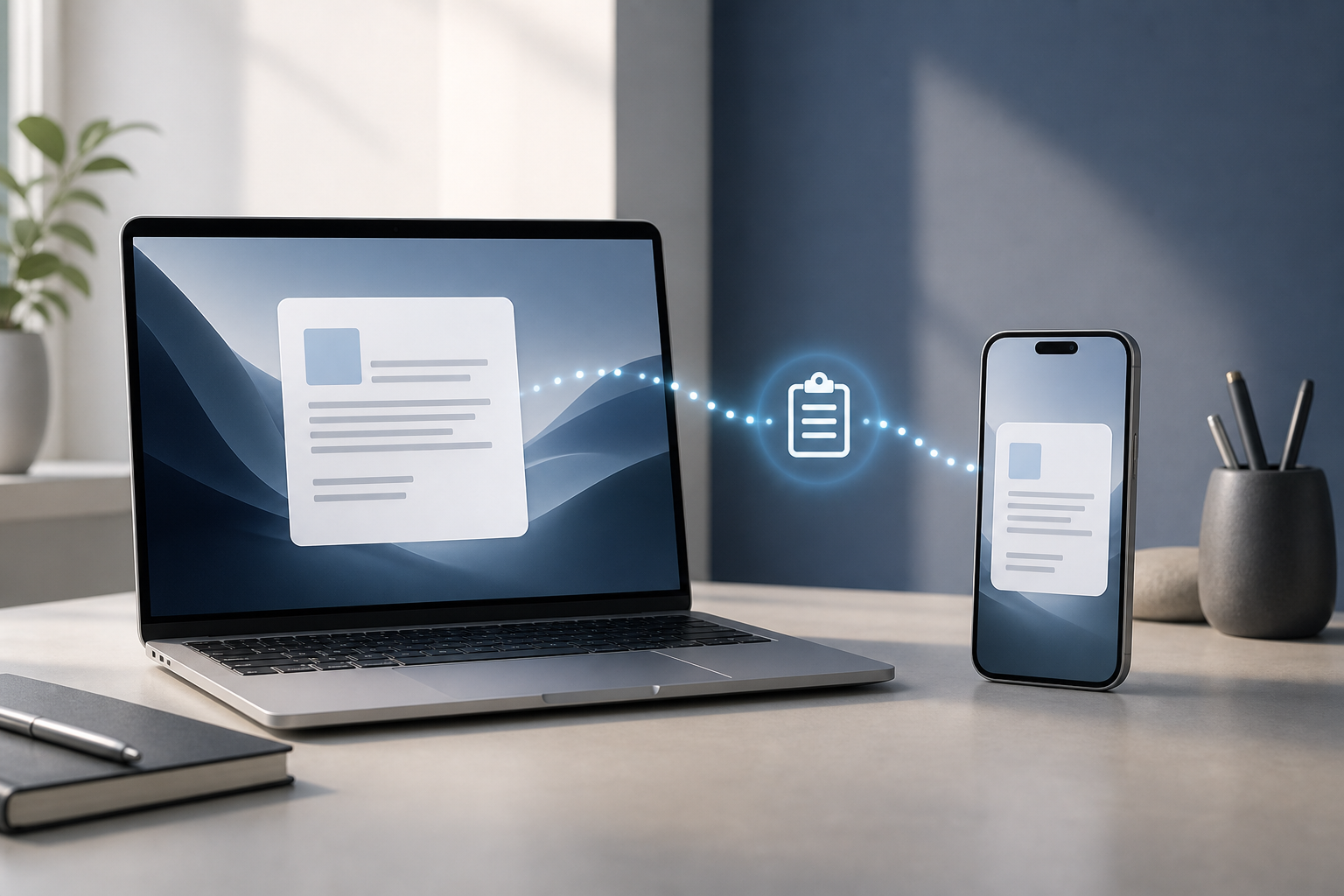
Universal Clipboard lets you copy text, photos, videos, and other supported content on an iPhone and paste it on a Mac—or copy something on a Mac and paste it on an iPhone. It works through Apple’s Continuity features and is useful when you want to move a small piece of information without sending yourself an email or message.
To use Universal Clipboard, sign in to both devices with the same Apple Account, turn on Wi-Fi and Bluetooth, keep the devices nearby, and enable Handoff. Then copy content on one device and paste it on the other within a short period.
Quick Answer
To copy and paste between a Mac and iPhone:
- Sign in to both devices with the same Apple Account.
- Turn on Wi-Fi and Bluetooth on both devices.
- Enable Handoff:
– On Mac: Apple menu > System Settings > General > AirDrop & Handoff, then turn on Allow Handoff between this Mac and your iCloud devices.
– On iPhone: Settings > General > AirPlay & Continuity, then turn on Handoff. - Keep the devices close to each other.
- Copy text or other supported content on one device.
- Open the destination app on the other device, click or tap where you want the content, and choose Paste.
Universal Clipboard content is available only temporarily, so paste it soon after copying.
What You Need Before Using Universal Clipboard
Universal Clipboard depends on Apple’s Continuity system. Check these requirements before troubleshooting:
- Both devices must support Continuity features.
- The Mac and iPhone must be signed in to the same Apple Account.
- Two-factor authentication should be enabled for that Apple Account.
- Wi-Fi must be turned on for both devices.
- Bluetooth must be turned on for both devices.
- Handoff must be enabled on both devices.
- The devices should be near each other.
- Both devices should be awake and unlocked when you copy and paste.
- The Mac and iPhone should have current software updates installed.
The devices do not necessarily need to use the same Wi-Fi network, but Wi-Fi must be turned on. Avoid testing Universal Clipboard while one device is in Airplane Mode or has Wi-Fi or Bluetooth disabled.
Check the Apple Account
On your Mac, open Apple menu > System Settings, then click your name in the sidebar. On your iPhone, open Settings and tap your name at the top. Confirm that the account information matches.
If the devices use different Apple Accounts, Universal Clipboard will not work between them.
Turn On Wi-Fi and Bluetooth
On your Mac, click Control Center in the menu bar and make sure Wi-Fi and Bluetooth are enabled. You can also manage these settings in Apple menu > System Settings > Wi-Fi and System Settings > Bluetooth.
On your iPhone, open Control Center and make sure the Wi-Fi and Bluetooth controls are enabled. You can also check them under Settings > Wi-Fi and Settings > Bluetooth.
Turning off Wi-Fi or Bluetooth from Control Center may disconnect the device from networks or accessories without completely disabling every related service. For troubleshooting, check the full settings pages if the connection still appears unavailable.
How to Enable Handoff
Handoff allows supported activities to move between Apple devices. Universal Clipboard uses this Continuity connection.
Enable Handoff on Mac
- Click Apple menu in the upper-left corner.
- Choose System Settings.
- Click General in the sidebar.
- Select AirDrop & Handoff.
- Turn on Allow Handoff between this Mac and your iCloud devices.
The wording or location may vary slightly depending on your Mac’s software version, but look for the Handoff setting under the general Continuity or AirDrop and Handoff options.
Enable Handoff on iPhone
- Open Settings.
- Tap General.
- Tap AirPlay & Continuity.
- Turn on Handoff.
If you do not see the setting, confirm that the iPhone supports Continuity features and that its software is updated.
How to Copy and Paste From iPhone to Mac
After completing the setup, copy content on your iPhone and paste it on your Mac.
- On your iPhone, open an app containing the content you want to copy.
- Select the content:
– Touch and hold text, then adjust the selection handles.
– Touch and hold an image or other supported item. - Tap Copy.
- On your Mac, open the app where you want to use the content.
- Click in a text field or select the destination area.
- Choose Edit > Paste from the menu bar, or press Command-V.
For example, you can copy an address from a webpage on your iPhone and paste it into a document, email, note, or search field on your Mac.
How to Copy and Paste From Mac to iPhone
You can also send content in the opposite direction.
- On your Mac, open the app containing the content.
- Select the text, image, file, or other supported content.
- Choose Edit > Copy, or press Command-C.
- On your iPhone, open the destination app.
- Tap a text field or destination area.
- Tap the insertion point, then tap Paste.
Depending on the app and the type of content, iPhone may show a permission prompt asking whether the app can paste from another app. Choose the option that matches your preference.
What You Can Copy With Universal Clipboard?
Universal Clipboard commonly works with content that can be copied using standard copy-and-paste commands, including:
- Plain text
- Web addresses
- Links
- Short passages of formatted text
- Photos and images
- Some videos
- Files and documents
- Content copied from supported apps
The destination app must support the type of content you are pasting. For example, a text editor may accept text but not a video, while a photo app or message composer may handle images differently.
Formatting may not transfer exactly. Fonts, colors, embedded objects, file permissions, and other app-specific details can change when content moves between apps or devices.
Universal Clipboard Is Not a Permanent Clipboard
Universal Clipboard is designed for short-term transfers. The copied content remains available for a limited time or until you copy something else. If you wait too long, copy different content, lock a device, or restart a device, the paste may no longer work.
For long-term access, use a method designed for storage or sharing, such as iCloud Drive, Notes, Messages, Mail, or AirDrop.
Privacy and Security Considerations
Universal Clipboard sends copied content between your nearby, signed-in Apple devices through Apple’s Continuity features. Your Mac and iPhone must use the same Apple Account, which helps prevent accidental transfers to unrelated devices.
However, the clipboard can contain sensitive information. Avoid leaving passwords, credit card numbers, authentication codes, private messages, or confidential work material in the clipboard longer than necessary. Copy something else after pasting sensitive content to replace it, and avoid pasting private information into an unintended app.
Also remember that clipboard access can depend on the destination app. If an iPhone app asks for permission to paste, review the request before allowing it.
Troubleshooting Universal Clipboard
If copying between your Mac and iPhone does not work, try the following solutions in order.
Confirm the Basic Requirements
Check that:
- Both devices use the same Apple Account.
- Wi-Fi is on for both devices.
- Bluetooth is on for both devices.
- Handoff is enabled on both devices.
- The devices are close together.
- Both devices are awake and unlocked.
- You copied the content recently.
- The destination app supports the content type.
Copy a short piece of plain text first. This is a simpler test than copying a large file, formatted document, or image.
Paste Immediately
Universal Clipboard content is temporary. Copy the content again, switch to the other device, and paste promptly. Do not copy anything else on either device while testing.
Unlock Both Devices
Unlock the Mac and iPhone, then repeat the copy-and-paste process. A locked device may not complete the Continuity transfer.
Check Handoff Again
Open the Handoff settings on both devices and confirm that the feature is still enabled. If it is already enabled, turn it off, wait a few seconds, and turn it on again.
Changing this setting should not delete your files or personal data, but it can temporarily interrupt Handoff-based features.
Toggle Wi-Fi and Bluetooth
Turn Wi-Fi and Bluetooth off and back on from the full settings pages:
- Mac: Apple menu > System Settings > Wi-Fi and Bluetooth
- iPhone: Settings > Wi-Fi and Settings > Bluetooth
This may disconnect accessories or networks. Reconnect any devices that do not automatically return.
Restart Both Devices
Save your work before restarting. A restart closes open apps and can cause unsaved changes to be lost.
After saving:
- Restart the Mac.
- Restart the iPhone.
- Unlock both devices.
- Confirm Wi-Fi, Bluetooth, and Handoff are enabled.
- Test with a short text selection.
Install Available Software Updates
Software updates can include fixes for Continuity and connection problems. Before updating, save your work and make sure the Mac or iPhone has enough battery or is connected to power.
On Mac, open Apple menu > System Settings > General > Software Update.
On iPhone, open Settings > General > Software Update.
Install updates according to the instructions shown on each device, then test Universal Clipboard again.
Check for VPN or Network-Management Interference
A VPN, security tool, firewall, or workplace management profile can affect connections between devices. If the Mac or iPhone belongs to an employer or school, do not remove security software or profiles without permission.
If you control the device, temporarily check whether the issue changes when a VPN is disconnected. Restore your normal security settings after testing.
Test Another App
Some apps restrict copying or pasting. Try copying plain text from a simple webpage or note and pasting it into a basic text field. If that works, the original app or content type may be the limitation.
Sign Out Only as a Last Resort
Signing out of an Apple Account can affect iCloud services and may require you to download or confirm data before proceeding. Do not sign out merely as a first troubleshooting step.
Before changing account settings, make sure you know your Apple Account password and that important data is synchronized or backed up. If Universal Clipboard works on other devices but not with one specific Mac or iPhone, contact Apple Support before signing out.
Frequently Asked Questions
Does Universal Clipboard work between a Mac and an iPhone?
Yes. Universal Clipboard can transfer supported copied content between a compatible Mac and iPhone when both devices use the same Apple Account and have Wi-Fi, Bluetooth, and Handoff enabled.
Do I need to use the same Wi-Fi network?
Not necessarily. Wi-Fi must be turned on for both devices, but the devices do not always need to be connected to the same Wi-Fi network. They should still be nearby and have Bluetooth enabled.
How long does Universal Clipboard keep copied content?
Universal Clipboard is temporary. Paste the content soon after copying. Copying something new or waiting too long can replace or remove the item.
Can I copy a photo from my iPhone to my Mac?
Yes, in many cases. Copy the image on the iPhone, then paste it into a compatible Mac app. The destination app must support pasted images.
Can I copy files between Mac and iPhone with Universal Clipboard?
Some files and documents may transfer through copy and paste, but support depends on the source and destination apps. For larger or permanent file transfers, iCloud Drive or AirDrop may be more appropriate.
Why does Universal Clipboard work with text but not images?
Text is supported by more apps and is easier to transfer between platforms. Image support depends on the app, image type, and destination. Test with a smaller or standard image and use an app that accepts pasted images.
Is Universal Clipboard the same as AirDrop?
No. Universal Clipboard is a temporary copy-and-paste feature. AirDrop is a direct sharing feature that lets you send files, photos, links, and other items to another Apple device.
Can I use Universal Clipboard with different Apple Accounts?
No. The Mac and iPhone generally need to be signed in to the same Apple Account for Universal Clipboard to work.
Does Universal Clipboard store everything I copy?
No. It is a temporary clipboard feature, not a permanent archive. Still, copied sensitive information may remain available briefly, so replace private content by copying something else after you finish.
Final Thoughts
Universal Clipboard is one of the simplest ways to move small pieces of content between a Mac and iPhone. Enable Handoff, keep Wi-Fi and Bluetooth turned on, use the same Apple Account on both devices, and paste soon after copying. If it stops working, check those requirements first, then restart both devices and test with plain text before investigating app or network restrictions.