
Quick Answer
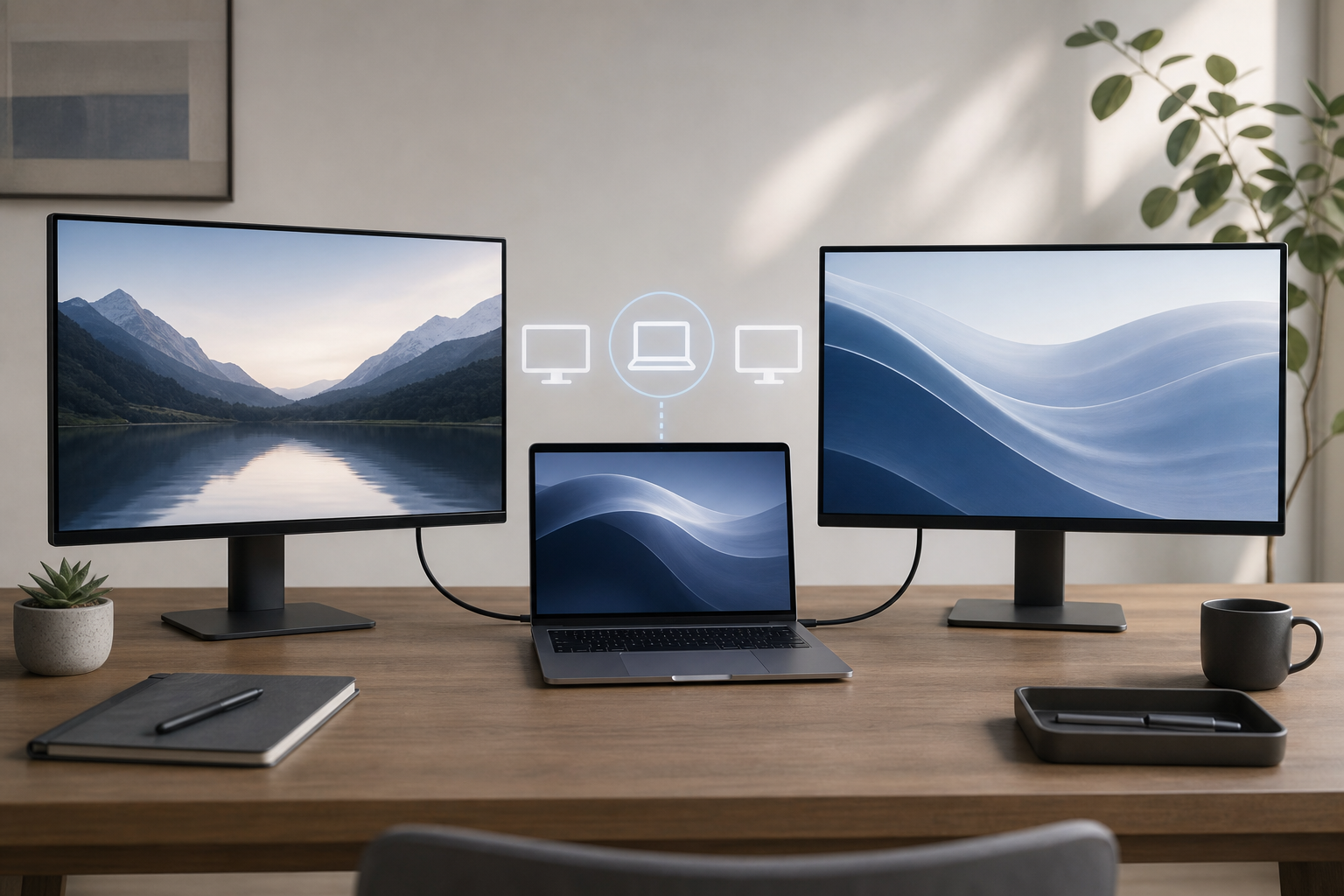
To connect two external monitors to a MacBook, first confirm that your MacBook model supports two external displays at the resolutions and refresh rates you want. Check Apple menu > About This Mac to identify the model, then compare its display limit with Apple’s technical specifications.
Connect the monitors directly to compatible Thunderbolt or HDMI ports, or use a compatible dock or hub. Open System Settings > Displays to arrange the screens, choose which one is the main display, and adjust resolution or refresh rate.
The most important limitation is that MacBook display support depends on the exact model and chip. Some MacBooks support two external monitors natively, while others support only one. A DisplayLink dock can add displays to some computers, but it requires software and may have limitations.
Before You Connect Anything
Two monitors require more than two available ports. Your MacBook must support:
- Two external displays at the same time
- The monitors’ resolutions and refresh rates
- The connection types used by the displays
- Enough bandwidth through the MacBook ports, hub, or dock
- Any required adapter or DisplayLink software
A MacBook may have two or more physical ports but still support only one external display. Conversely, a dock may provide two video outputs without guaranteeing that both monitors will work as separate extended desktops.
Check your MacBook model
- Select Apple menu > About This Mac.
- Note the MacBook model name, model year, and chip or processor information.
- If the displayed information is not specific enough, select System Report and look under Hardware Overview for the model identifier.
Use the exact model when checking Apple’s technical specifications. “MacBook Air” or “MacBook Pro” alone is not enough because display support can vary between model years and chip configurations.
Check the monitors
Find the following information in each monitor’s manual, product listing, or on-screen menu:
- Maximum resolution, such as 1,920 × 1,080 or 4K
- Maximum refresh rate, such as 60 Hz or 120 Hz
- Available inputs, such as HDMI, DisplayPort, or USB-C
- Whether the monitor supports USB-C video input
- Whether an adapter is required
The combined requirements matter. Two high-resolution monitors running at high refresh rates need more bandwidth than two basic 1080p displays.
Understand Your Connection Options
Direct connections
A direct connection runs each monitor to a separate compatible port on the MacBook. This is usually the simplest setup because it avoids dock-specific limitations.
Depending on the MacBook and monitor, you may need:
- A USB-C or Thunderbolt cable
- A USB-C-to-HDMI adapter or cable
- A USB-C-to-DisplayPort adapter or cable
- An HDMI cable
USB-C describes the connector shape, not necessarily the video capability. A USB-C port may support Thunderbolt, DisplayPort video, charging, data, or only some of these functions. Check the MacBook and accessory specifications before buying cables.
A Thunderbolt dock
A Thunderbolt dock connects to one MacBook port and provides additional ports for displays, storage, networking, and other devices. It can be convenient, but the dock must support two independent external displays with your MacBook.
Check whether the dock:
- Supports macOS
- Supports two extended displays rather than mirroring only
- Supports your required resolutions and refresh rates
- Requires DisplayLink software
- Needs its own power adapter
A dock that advertises two HDMI ports is not automatically compatible with every MacBook.
A USB-C hub
Basic USB-C hubs are useful for adding ports, but many are limited to one external display or mirror the same image on both outputs. Confirm the hub’s macOS display specifications before purchasing it.
DisplayLink docks and adapters
DisplayLink technology can provide additional displays on some Mac computers by sending display data through USB and software. This may help when the MacBook’s native hardware supports fewer displays than you need.
DisplayLink setups have trade-offs:
- They require DisplayLink software and related permissions.
- The software must remain available for the displays to work.
- Protected video or graphics-intensive tasks may behave differently.
- Performance can depend on the dock, USB connection, and workload.
- A DisplayLink solution is different from a normal USB-C video adapter.
Use DisplayLink only after checking the dock manufacturer’s compatibility information and software requirements.
Connect Two External Monitors Directly
Use this method when your MacBook supports two external displays and has suitable ports or adapters.
- Save your work before connecting or changing display hardware. macOS normally does not close your apps, but a display connection can briefly interrupt windows, full-screen apps, or video playback.
- Turn on both monitors.
- Connect the first monitor to a compatible MacBook port or adapter.
- Connect the second monitor to another compatible port or adapter.
- Wait several seconds for macOS to detect the displays.
- Open Apple menu > System Settings > Displays.
- Select a display in the settings window to review its options.
- Repeat for the other display.
If both monitors appear, macOS is using them as extended displays unless you choose a mirroring option. An extended desktop gives each monitor its own workspace. Mirroring shows the same image on multiple displays.
For the most reliable results, connect each monitor directly to the MacBook first. This helps determine whether the MacBook and monitors work before introducing a dock or hub.
Connect Two Monitors Through a Dock
A dock can reduce cable clutter and make it easier to connect the MacBook to several accessories.
- Check the dock’s instructions for the required connection. Use a Thunderbolt cable for a Thunderbolt dock; a regular USB-C cable may not provide the same capabilities.
- Connect the dock’s power adapter, if it has one.
- Connect the dock to the MacBook.
- Connect one monitor to the dock and wait for it to appear in System Settings > Displays.
- Connect the second monitor.
- Open System Settings > Displays and confirm that both monitors appear separately.
- Install the dock’s required driver or DisplayLink software only if the manufacturer specifies it.
If the dock requires software, download it from the manufacturer’s official support site and follow its installation and permission instructions. Restart the MacBook if the installer requests it, then test both displays again.
Arrange the Displays in macOS
After macOS detects both monitors, arrange them so the pointer moves naturally from one screen to the other.
- Open Apple menu > System Settings > Displays.
- Select Arrange if that option is available.
- Drag the display representations into the same physical layout as your monitors.
- Move the menu bar indicator to the display you want to use as the main display, if macOS shows one.
- Select Done, if required.
The main display usually contains the menu bar and controls where new windows open. You can place the second monitor on the left, right, above, or below the MacBook’s built-in display.
If you want to use the MacBook with its lid closed, connect power, a keyboard, and a mouse or trackpad before closing the lid. For more details, see how to use a MacBook with the lid closed.
Set Resolution and Refresh Rate
macOS may automatically choose a suitable resolution, but you can adjust it for text size, workspace, or motion smoothness.
- Open Apple menu > System Settings > Displays.
- Select one of the external monitors.
- Choose a resolution option under Resolution.
- To change the refresh rate, open the Refresh rate menu if it is available.
- Repeat these steps for the other display.
Higher resolutions provide more workspace but can make text and interface elements smaller. A scaled resolution enlarges content while using the display’s available pixels differently. Higher refresh rates can make scrolling and motion look smoother, but they require that the MacBook, cable, adapter, dock, and monitor all support them.
For detailed resolution instructions, see how to change display resolution and scaling on a Mac. If the refresh-rate menu is available, how to change the refresh rate on a Mac display explains the related settings.
How to Check Compatibility Before Buying Accessories
Use this checklist before purchasing a dock, hub, or adapter:
- Identify the exact MacBook model and chip.
- Confirm the maximum number of supported external displays.
- Check the supported resolution and refresh rate for each display.
- Confirm whether the connection is Thunderbolt, USB-C DisplayPort, HDMI, or DisplayLink.
- Verify that the dock or adapter supports two independent displays on macOS.
- Check whether both displays can use the required resolutions simultaneously.
- Confirm that the cables support the intended video signal.
- Check power requirements, especially if the MacBook must charge through the dock.
- Read the manufacturer’s macOS limitations, including requirements for drivers or permissions.
Do not rely only on the number of ports or the number of video outputs on a dock. The MacBook’s built-in display limit and the dock’s display technology determine whether the setup works.
Troubleshooting Two External Monitors
One monitor is not detected
- Confirm that the monitor is powered on and set to the correct input.
- Disconnect and reconnect the cable at both ends.
- Open System Settings > Displays and hold the Option key to reveal Detect Displays, if available.
- Select Detect Displays.
- Test the monitor with a different cable, adapter, or MacBook port.
- Connect the monitor directly to the MacBook if it is currently connected through a hub or dock.
If one display works by itself but not when both are connected, the MacBook, dock, or adapter may have reached its display limit.
Both monitors show the same image
Open System Settings > Displays, select a display, and check whether the arrangement is set to mirror another display. Choose an extended desktop arrangement instead.
Some inexpensive hubs cannot provide two independent displays. If macOS treats both outputs as one mirrored signal, check the hub’s specifications or use direct connections.
The display is blurry or the wrong size
Open System Settings > Displays and select the affected monitor. Choose a different resolution or scaling option. Also check that the monitor is connected with a cable and adapter capable of supporting its native resolution.
The screen flickers, goes black, or disconnects
Check the cable and adapter first. A loose connection, damaged cable, unsupported refresh rate, or overloaded dock can cause intermittent video. Select a lower refresh rate or resolution temporarily and test again.
If flickering continues, see how to fix an external display that keeps flickering on a Mac.
The dock works for charging but not for displays
Charging and video output are separate functions. A dock can charge the MacBook while lacking the required display support. Check whether the dock uses native Thunderbolt or USB-C video, or requires DisplayLink software.
If DisplayLink is required, install the manufacturer’s current software and approve the requested macOS permissions. If the software is already installed, check whether it is running and whether the dock appears in its settings.
The MacBook becomes slow
Two external displays increase graphics and data demands, particularly at high resolutions or refresh rates. Close unnecessary apps, lower the refresh rate or resolution for testing, and connect the displays directly instead of through several chained adapters.
Frequently Asked Questions
Can every MacBook connect to two external monitors?
No. Support depends on the exact MacBook model, chip, connection method, and display specifications. Some models support two external displays natively, while others support only one.
Can I use two HDMI monitors with a MacBook?
Yes, if the MacBook and the adapter or dock support two HDMI displays independently. Two HDMI ports on a hub alone do not guarantee that both screens will work as extended displays.
Does a USB-C splitter add a second monitor?
Usually not. Many splitters duplicate one video signal, creating mirrored screens rather than two independent displays. A true multi-display dock or a compatible DisplayLink solution may be required.
Do I need the MacBook’s lid open?
No. You can use external monitors with the lid open or closed. Closed-lid use requires external input devices and typically power connected to the MacBook.
Why does one monitor work when the other is disconnected?
This often indicates a display-support limit, insufficient dock bandwidth, an incompatible adapter, or a cable problem. Test each monitor alone, then verify the MacBook and dock’s two-display specifications.
Can I use different monitor resolutions?
Usually, yes, when the MacBook and connection hardware support both displays. Set each monitor separately in System Settings > Displays.
Final Thoughts
The reliable way to connect two external monitors is to verify the exact MacBook’s display limit before buying accessories, then test direct connections before adding a dock. Use System Settings > Displays to arrange the screens and adjust resolution or refresh rate. If native support is limited, a properly supported DisplayLink dock may be an option, but it requires additional software and can have restrictions.