
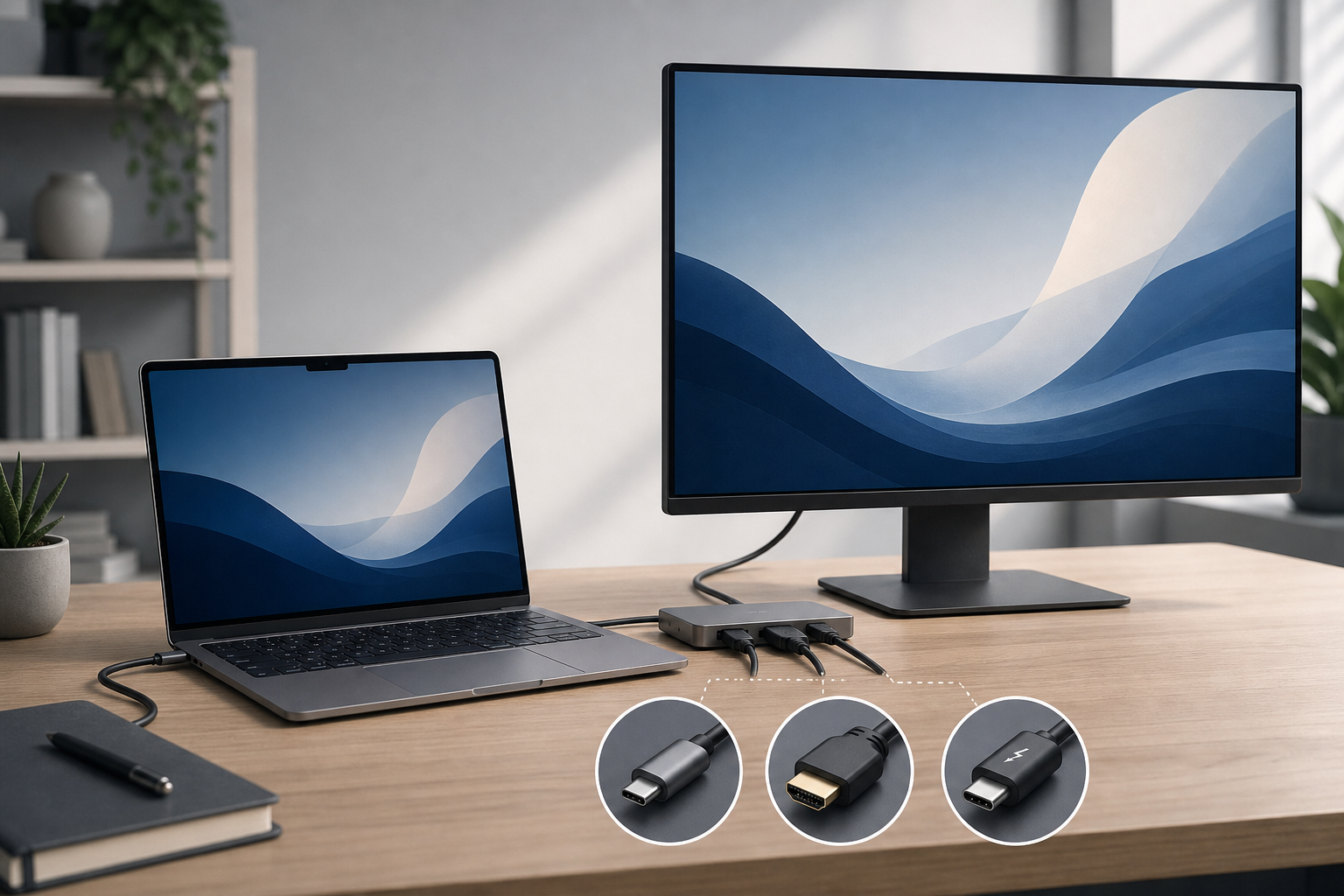
You can connect a MacBook to an external display with a compatible USB-C, HDMI, or Thunderbolt cable. Plug the cable into the MacBook and the monitor, select the correct input on the display, then arrange the screens in System Settings > Displays.
The exact method depends on your MacBook’s ports, the display’s inputs, and the number of external displays your Mac supports.
Quick Answer
- Check which video ports are available on your MacBook and external display.
- Use a direct cable whenever possible:
– USB-C to USB-C for a USB-C display
– HDMI to HDMI for an HDMI display
– Thunderbolt to Thunderbolt for a Thunderbolt display - Turn on the display and select the correct input.
- On your Mac, open Apple menu > System Settings > Displays.
- Choose whether to mirror the MacBook screen or use the external display as an extended desktop.
- If the display does not work, check the cable, input source, adapter, resolution, and MacBook display limits.
Check Your MacBook and Display Ports
Before buying a cable or adapter, identify the ports on both devices.
USB-C and Thunderbolt
USB-C ports are small, oval-shaped ports. A MacBook may use USB-C ports for charging, accessories, displays, or all three. However, not every USB-C cable supports video.
Thunderbolt ports use the same physical connector as USB-C. A Thunderbolt port may have a lightning-bolt symbol beside it. Thunderbolt cables and ports can carry video, data, and power, but a regular USB-C cable may not provide Thunderbolt capabilities.
For a USB-C display, use a USB-C cable that supports video. For a Thunderbolt display, use a compatible Thunderbolt cable.
HDMI
HDMI is a wider, tapered port commonly found on monitors and televisions. Some MacBook Pro models include a built-in HDMI port. If your MacBook has HDMI, you can usually connect it directly to an HDMI display with an HDMI cable.
If your MacBook does not have HDMI, use a USB-C-to-HDMI adapter or a USB-C-to-HDMI cable. The adapter or cable must support the resolution and refresh rate you want to use.
Adapters and docks
You may need an adapter when the MacBook and display use different connectors. Common options include:
- USB-C to HDMI
- USB-C to DisplayPort
- USB-C to USB-C
- USB-C to VGA for older projectors or monitors
A dock or hub can connect several devices through one MacBook port, but it adds another possible point of failure. For troubleshooting, connect the display directly to the MacBook first.
Connect a MacBook to a USB-C Display
Use this method when both the MacBook and monitor have USB-C ports that support video.
- Turn on the external display.
- Connect one end of a video-capable USB-C cable to the display.
- Connect the other end to the MacBook.
- Wait a few seconds for macOS to detect the display.
- Open Apple menu > System Settings > Displays.
- Select the external display in the settings window.
- Use the display settings to choose mirroring, arrangement, resolution, and refresh rate.
Some USB-C displays can charge a MacBook through the same cable. If the display does not charge the MacBook, connect the MacBook’s power adapter separately. Charging capability depends on the display, cable, and MacBook.
If the display has several USB-C ports, check its manual or labels. Some ports support video while others are intended only for data or charging.
Connect a MacBook to an HDMI Display
MacBook with a built-in HDMI port
- Turn on the monitor or television.
- Connect an HDMI cable to the MacBook’s HDMI port.
- Connect the other end to an HDMI input on the display.
- Use the display’s controls or remote to select the HDMI input you used.
- Open Apple menu > System Settings > Displays to configure the screen.
If the display includes speakers, macOS may automatically route sound to it. You can change this in System Settings > Sound.
MacBook without an HDMI port
Use a USB-C-to-HDMI adapter or a USB-C-to-HDMI cable.
- Connect the adapter to a USB-C or Thunderbolt port on the MacBook.
- Connect the HDMI cable between the adapter and the display.
- Turn on the display and select the correct HDMI input.
- Open System Settings > Displays and adjust the settings.
Check the adapter’s specifications before using it with a high-resolution or high-refresh-rate display. Some adapters support only limited resolutions or refresh rates.
Connect a MacBook to a Thunderbolt Display
Thunderbolt displays require a compatible Thunderbolt connection. A USB-C port may look identical, but a standard USB-C connection is not automatically Thunderbolt.
- Confirm that the MacBook has a Thunderbolt-compatible port.
- Use a compatible Thunderbolt cable.
- Connect the display directly to the MacBook or to a Thunderbolt dock.
- Turn on the display and select its appropriate input if necessary.
- Open System Settings > Displays to configure it.
Older Thunderbolt displays may use an older Thunderbolt connector or require an appropriate adapter. A simple USB-C cable may not work with them. Also, an adapter can change the connector type without converting the underlying video or Thunderbolt signal, so verify that the adapter is designed for the display you have.
Choose Mirroring or an Extended Desktop
After connecting the display, macOS can show the same image on both screens or give you a larger desktop.
- Open Apple menu > System Settings > Displays.
- Select the external display.
- Find the setting for using the display as a mirror or as an extension.
- Choose the option that fits your needs.
Mirror the MacBook screen
Mirroring shows the same content on the MacBook and external display. It is useful for presentations, classroom displays, and situations where another person needs to see your screen.
The displays may use a common resolution when mirroring. This can make one screen appear less sharp or leave unused space.
Extend the desktop
An extended desktop treats the external display as additional workspace.
To arrange the screens:
- In System Settings > Displays, select Arrange if that option appears.
- Drag the display representations so they match the physical positions of your screens.
- Move the pointer between screens to confirm the arrangement.
- Select the display you want to use as the main display, if macOS provides that option.
An extended desktop is useful for keeping one app, document, or browser window on the external display while using the MacBook screen for other work.
Adjust Resolution and Scaling
In System Settings > Displays, select the display and choose a resolution or scaling option. A higher resolution provides more workspace, while a scaled option may make text and interface elements easier to read.
If the picture looks blurry, make sure macOS is using a suitable resolution for the display and that the cable or adapter supports it. For more detailed instructions, see How to Change Display Resolution and Scaling on a Mac.
Change the Refresh Rate
The refresh rate controls how often the display updates the image. Higher refresh rates can make scrolling and motion look smoother, but the available options depend on the MacBook, display, connection type, cable, and adapter.
- Open Apple menu > System Settings > Displays.
- Select the external display.
- Locate Refresh Rate.
- Choose an available setting.
If a high refresh rate is unavailable, the connection may not provide enough bandwidth. Try a shorter or better-rated cable, connect the display directly, or remove an adapter or dock. More guidance is available in How to Change the Refresh Rate on a Mac Display.
Use the Display’s Built-In Features
External monitors may include speakers, microphones, webcams, USB ports, and charging. These features usually work only when the necessary connection carries both video and data.
After connecting the display, check:
- System Settings > Sound for audio output and input
- System Settings > Displays for video settings
- System Settings > Privacy & Security if macOS requests permission for an accessory
- The display’s built-in menu for input, USB mode, and power settings
A display may show video correctly while its USB ports or webcam remain unavailable. This often means the video connection works, but the required USB data connection is missing.
Check How Many Displays Your MacBook Supports
MacBook display support varies by model. Some MacBook models support one external display, while others support multiple displays. The supported number can also depend on the display resolution, refresh rate, connection method, and whether a dock is involved.
If a second display does not appear:
- Disconnect other external displays and docks.
- Connect one display directly to the MacBook.
- Open System Settings > Displays.
- Hold the Option key and look for Detect Displays, if it appears.
- Select it to make macOS scan for connected screens.
If the MacBook still cannot detect the display, check the specifications for your exact MacBook model rather than assuming every USB-C or Thunderbolt port supports multiple monitors.
Troubleshooting an External Display
The display says “No Signal”
Try these steps in order:
- Confirm that the display is powered on.
- Select the correct input using the display’s controls.
- Unplug and reconnect both ends of the video cable.
- Try another input on the display.
- Try another compatible cable.
- Connect the display directly to the MacBook instead of through a hub or dock.
- Open System Settings > Displays and hold Option to select Detect Displays, if available.
- Restart the MacBook with the display connected.
If you use an adapter, make sure it is connected firmly and supports video output. An adapter designed only for USB data or charging will not produce a picture.
The screen flickers
Flickering can result from a damaged cable, loose connection, unsupported refresh rate, adapter limitations, or a problem with the display input.
Try selecting a lower refresh rate in System Settings > Displays, replacing the cable, and connecting directly to the MacBook. If the problem continues, see How to Fix an External Display That Keeps Flickering on a Mac.
The image is blurry or the wrong size
Open System Settings > Displays and select a different resolution or scaling option. Also verify that the display is using its recommended or native resolution.
If you are mirroring screens with different shapes or resolutions, one display may show black bars or a softer image. Switching to an extended desktop can improve the result.
Sound still comes from the MacBook
Open Apple menu > System Settings > Sound and choose the external display under the output device list. If the display does not appear, its connection may carry video but not audio, or the display may not have built-in speakers.
The external display works, but its USB ports do not
Video and USB data may use separate paths. If you connected through a USB-C-to-HDMI adapter, the HDMI connection can carry video while providing no USB data connection.
Connect the display’s USB upstream cable to the MacBook, or use a dock that supports both display output and USB data.
The MacBook becomes hot or runs slowly
Driving a high-resolution external display can increase power use. Close unnecessary apps, connect the MacBook to power, and use a direct connection when possible. If a dock is involved, test the display without it to determine whether the dock is contributing to the problem.
The display disconnects when the MacBook sleeps
Some monitors and docks take time to wake or renegotiate the connection. Check the display’s power-saving settings, reconnect the cable, and test the monitor directly from the MacBook. If the problem happens only through a dock, check for firmware or compatibility information from the dock manufacturer.
Frequently Asked Questions
Can I connect a MacBook to any monitor with USB-C?
No. The monitor’s USB-C port must support video input, and the cable must support video. Some USB-C ports support only charging or data.
Is Thunderbolt the same as USB-C?
No. USB-C describes the connector shape, while Thunderbolt describes a connection standard. Thunderbolt uses the USB-C connector on many MacBook models but provides different capabilities.
Can I connect a MacBook to an HDMI TV?
Yes. Use the MacBook’s built-in HDMI port or a compatible USB-C-to-HDMI adapter or cable. Select the HDMI input used on the TV.
Why does my MacBook charge through the monitor but show no picture?
The USB-C connection may support power delivery but not video, or the cable may be intended for charging only. Try a USB-C cable explicitly rated for video and verify that the monitor’s USB-C port supports display input.
Can I use a hub to connect an external display?
Yes, if the hub supports video output and is compatible with your MacBook and display. For the most reliable setup, test the monitor with a direct connection first.
Should I use USB-C, HDMI, or Thunderbolt?
Use the connection that matches your equipment and requirements. A direct USB-C connection is convenient for compatible monitors, HDMI is common for televisions and many monitors, and Thunderbolt is useful when the display or dock requires Thunderbolt features.
Final Thoughts
Connecting a MacBook to an external display usually requires only the correct cable or adapter, the right display input, and a few settings in System Settings > Displays.