
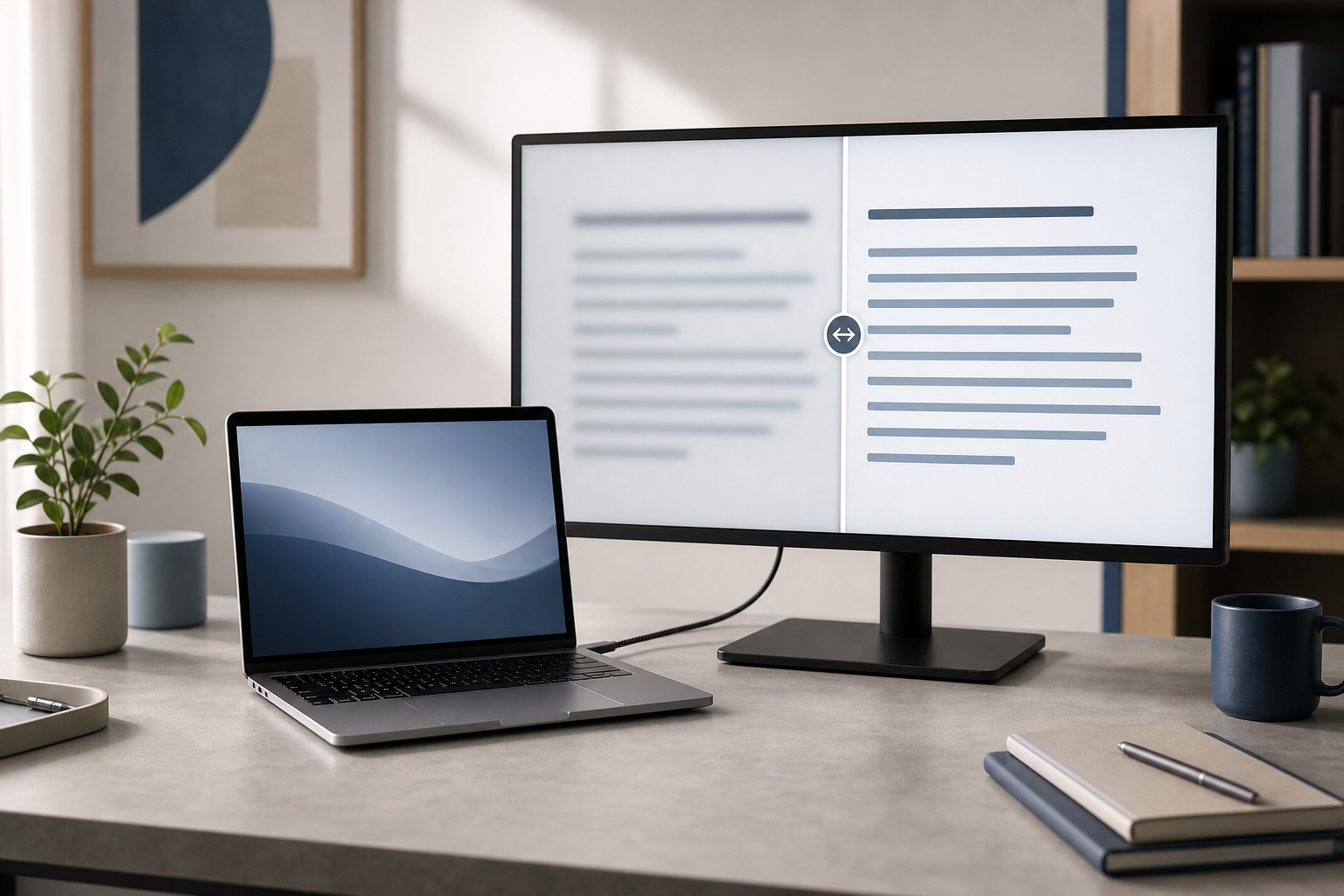
Blurry text on an external monitor connected to a MacBook is usually caused by an unsuitable display resolution or scaling setting, a low-quality cable or adapter, or a mismatch between the monitor and macOS. Start by selecting the monitor’s native resolution in System Settings > Displays, then check the cable, refresh rate, and display connection.
Quick Answer
- Open Apple menu > System Settings > Displays.
- Select the external monitor.
- Choose Default or the monitor’s native resolution under Resolution.
- If text is still blurry, try a different scaling option, cable, port, or adapter.
- Make sure the monitor is connected directly to the MacBook when possible.
- Restart the MacBook and monitor after changing display settings.
Text may also look soft if a non-Retina monitor is being driven at an awkward scaled resolution. A 4K monitor generally produces clearer text than a 1080p monitor at the same physical size, but the correct setting depends on the display’s size, resolution, and viewing distance.
1. Select the Correct Display Resolution
A display’s resolution is the number of pixels it uses to create the image. Its native resolution is the setting that matches the panel’s physical pixels. Using a different resolution can make letters appear soft, especially on external monitors.
- Click the Apple menu in the upper-left corner.
- Select System Settings.
- Click Displays in the sidebar.
- Select the external monitor from the display list or preview.
- Under Resolution, select Default.
If Default does not look sharp, select Scaled and try the options one at a time. Give each setting a few seconds before judging it. Avoid choosing a resolution simply because it makes text larger; some scaled settings can reduce clarity.
For more detailed guidance on choosing a suitable size and resolution, see How to Change Display Resolution and Scaling on a Mac.
Use the monitor’s native resolution when available
Some displays show their native resolution by name or by the number of horizontal and vertical pixels, such as 1920 × 1080 or 3840 × 2160. If you are unsure which option is native, check the monitor’s manual or specifications.
A 27-inch 4K monitor, for example, may look sharp at a scaled setting that makes interface elements larger while still using the panel’s high pixel density. A 27-inch 1080p monitor has fewer pixels, so text may naturally look less refined even when configured correctly.
2. Check the Connection, Cable, and Adapter
The signal path between the MacBook and monitor can affect image quality. A damaged, poorly shielded, or unsuitable cable may cause flickering, missing options, incorrect resolution, or a soft-looking image.
Check the following:
- Disconnect and reconnect the cable at both ends.
- Make sure the cable is fully inserted.
- Try another cable of the same connection type.
- If possible, connect the monitor directly to the MacBook instead of through a dock or hub.
- Test another USB-C, Thunderbolt, HDMI, or DisplayPort port.
- If you use an adapter, test a different adapter designed for the monitor’s resolution and refresh rate.
- Check the monitor’s input menu and select the port that is physically in use.
A USB-C cable is not automatically capable of carrying every display signal. Some cables support charging and data but have limited video capability. Similarly, an inexpensive adapter may work at a basic resolution but fail to provide the monitor’s full resolution or refresh rate.
If you use a dock, temporarily bypass it. If the text becomes sharp when the monitor is connected directly, the dock, adapter, or its firmware may be limiting the signal.
3. Choose an Appropriate Refresh Rate
Refresh rate describes how often the display updates its image. It usually affects motion smoothness more than text sharpness, but an unsuitable refresh rate can cause flickering, instability, or a display mode that does not look right.
- Open Apple menu > System Settings > Displays.
- Select the external monitor.
- Locate Refresh Rate.
- Choose the monitor’s recommended or default setting.
Do not select a refresh rate that the monitor does not support. If changing it introduces flickering or other visual problems, return to the previous setting.
For related instructions, see How to Change the Refresh Rate on a Mac Display.
4. Check the Monitor’s Built-In Picture Settings
The monitor itself may be applying image processing that makes small text look soft. Use the monitor’s physical buttons or on-screen menu to review its picture settings.
Look for options such as:
- Sharpness
- Picture Mode
- Scaling
- Aspect Ratio
- Overscan
- Input Signal Plus or a similar enhanced-input option
Set the monitor’s aspect ratio to Auto, 1:1, or the option recommended by the manufacturer. Avoid aggressive image modes intended for movies or games when reading text.
Do not increase Sharpness to the maximum. Excessive sharpening can create bright outlines around letters and make text appear worse. Start with the monitor’s default sharpness setting, then make small adjustments if necessary.
Some monitors also have a picture mode intended for office work or reading. It may reduce contrast or brightness, but it can provide a more comfortable image for text.
5. Disable Overscan and Underscan Problems
Overscan enlarges the image so that parts of the desktop extend beyond the visible edges. It is more common with televisions used as monitors, but it can also appear with certain HDMI connections.
Open System Settings > Displays and look for an Underscan control if one is available. Adjust it only when the desktop is cropped or does not fit correctly. If the display shows the full desktop but text looks blurry, overscan is less likely to be the main cause.
When using a television, change its input label to PC if that option exists. Also check for a picture setting such as Just Scan, Screen Fit, or 1:1. The exact name varies by manufacturer.
6. Turn Off Display Mirroring for Testing
When the MacBook’s built-in display and the external monitor use different resolutions, mirroring can force both screens into a compromise mode. This may make the external monitor look less sharp.
- Open Apple menu > System Settings > Displays.
- Select the external monitor.
- Find the option for using the display as an extended desktop or mirrored display.
- Choose to extend the desktop rather than mirror it.
Test the monitor as a separate desktop. If the text becomes clearer, the mirrored configuration was likely limiting the available resolution or scaling.
If you normally use the MacBook with its lid closed, make sure the MacBook is connected to power and has an external keyboard or mouse available. See How to Use a MacBook with the Lid Closed for that setup.
7. Adjust Brightness and Contrast
Text can appear blurry when the image is too dim, excessively bright, or low in contrast. These adjustments do not increase the monitor’s actual resolution, but they can improve readability.
Try the following:
- Set the monitor to a neutral or standard picture mode.
- Adjust brightness until white areas are comfortable rather than glaring.
- Set contrast to the monitor’s default value.
- Avoid extremely low brightness combined with low contrast.
- Clean the screen with a suitable microfiber cloth if smudges are affecting fine detail.
Also check System Settings > Displays for a brightness control. If the monitor has its own brightness controls, use those as well. Avoid enabling a night-shift or color-temperature mode while diagnosing sharpness, because a warmer color cast can make text edges seem less distinct.
8. Test a Different Display Profile
A display profile describes how macOS interprets the monitor’s colors. A damaged or inappropriate profile generally affects color more than sharpness, but testing another profile can help rule out a configuration problem.
- Open Apple menu > System Settings > Displays.
- Select the external monitor.
- Look for the Color profile setting.
- Choose the default profile for the display, if one is listed.
- Compare it with another available profile.
Do not delete profiles while troubleshooting. Simply selecting another profile is reversible and does not remove personal data.
If the monitor’s colors look incorrect after changing the profile, return to the previous option. For color-specific adjustments, see How to Calibrate an External Display on a Mac.
9. Restart the Display Connection
A temporary communication problem between macOS and the monitor can leave the display in an unsuitable mode.
- Save your work.
- Shut down or turn off the external monitor.
- Disconnect its video cable from the MacBook.
- Wait several seconds.
- Reconnect the cable and turn the monitor back on.
- Restart the MacBook if the image remains blurry.
Restarting can cause open applications to close if you choose Restart without saving. Save documents first, and check whether your applications will reopen windows automatically.
If you use a dock, disconnect and reconnect its power and MacBook connection as well. Do not repeatedly unplug a dock while a storage device is actively writing data.
Troubleshooting Blurry External-Monitor Text
The monitor is clear at one resolution but text is too small
This usually means the display is sharp at its native resolution, but the interface is not scaled to a comfortable size. In System Settings > Displays, test a scaled option that increases the apparent size of text without forcing the monitor into a low-resolution mode.
If none of the scaled options are both comfortable and sharp, the monitor’s pixel density may not be suitable for your preferred viewing distance.
Text is blurry only in some applications
If the desktop and most applications look clear, the problem may be limited to an application’s zoom, font rendering, or display settings. Quit and reopen the affected application, then check its own View, zoom, or appearance settings.
Also compare text in a native macOS application, such as TextEdit, with text in a web browser. If only one application looks blurry, the monitor connection is less likely to be the cause.
The display flickers as well as looking blurry
Flickering points more strongly to a cable, adapter, dock, port, refresh-rate, or power problem. Try a direct connection, a different cable, and the monitor’s recommended refresh rate.
For additional steps, see How to Fix an External Display That Keeps Flickering on a Mac.
The monitor is recognized but the resolution is missing
Disconnect the monitor, restart the MacBook, and reconnect it directly if possible. Then check System Settings > Displays again. A different cable or adapter may be required to support the monitor’s full resolution.
If the monitor is connected through a hub, confirm that the hub supports the display standard and resolution you are trying to use. Some hubs share bandwidth between display, storage, and other connected devices.
The text looks blurry after closing the MacBook’s lid
Open the lid and compare the external monitor with the MacBook’s built-in display. If the external display changes modes when the lid closes, check its resolution and refresh rate again. Connect the MacBook to power and make sure the external monitor is already on before closing the lid.
Nothing improves the image
Test the monitor with another computer. If text is blurry there as well, the monitor or its settings may be responsible. If it looks sharp on another computer, test another cable, adapter, or MacBook port.
A monitor with a low native resolution may simply produce less-detailed text than a higher-resolution display. No macOS setting can add physical pixels to the panel.
Frequently Asked Questions
Why is text blurry on my external monitor but sharp on my MacBook?
MacBook displays typically have high pixel density, while many external monitors have fewer pixels spread over a larger area. The external monitor may also be using a non-native resolution, an unsuitable scaled mode, or a low-quality connection.
What is the best resolution for an external monitor connected to a MacBook?
The best choice is usually Default or the monitor’s native resolution. If text is too small, use a scaled option that keeps the image sharp. The correct setting depends on the monitor’s size and pixel density.
Does HDMI make text blurry on a Mac?
HDMI does not automatically make text blurry. Blurriness can result from the cable, adapter, monitor mode, resolution, refresh rate, or television-style overscan. A direct, properly supported HDMI connection can produce clear text.
Should I use a 4K monitor with a MacBook?
A 4K monitor can provide clearer text than a lower-resolution display of the same size, but the result still depends on scaling, connection quality, and the monitor’s own picture settings.
Can changing the refresh rate fix blurry text?
Changing the refresh rate may fix flickering or instability, but it is not usually the main solution for soft text. Check the resolution and connection first.
Final Thoughts
Start with System Settings > Displays and select Default or the monitor’s native resolution. If the text remains blurry, test the cable, adapter, dock, refresh rate, monitor picture settings, and display mode in that order. If the monitor is working at its native settings but still looks less detailed than the MacBook screen, its pixel density may be the limiting factor rather than a macOS problem.