

If websites are not loading correctly, a domain opens at the wrong address, or a network change is not taking effect, flushing the DNS cache may help. On a Mac, you can clear the local DNS cache from Terminal with one command:
sudo dscacheutil -flushcache; sudo killall -HUP mDNSResponder
The command does not delete personal files or change your Wi-Fi password. It clears cached name-resolution data and restarts the macOS DNS responder process. You may be asked to enter your administrator password. Terminal will not display the password as you type.
Quick Answer
- Open Terminal from Applications > Utilities.
- Paste the following command and press Return:
bash

   sudo dscacheutil -flushcache; sudo killall -HUP mDNSResponder
- Enter your Mac administrator password if prompted, then press Return.
- Try loading the affected website or app again.
The command normally produces no confirmation message. If Terminal returns to the prompt without an error, the cache-clearing command generally completed.

sudo dscacheutil -flushcache; sudo killall -HUP mDNSResponder
What the DNS Cache Does
DNS, or Domain Name System, translates readable domain names such as example.com into IP addresses that computers use to connect to servers. Your Mac temporarily stores some of these lookups in a DNS cache so it does not need to ask a DNS server for the same information repeatedly.
A stale or incorrect cached entry can sometimes cause problems such as:
- A website failing to open even though it works on another device
- A domain resolving to an old server after a site has moved
- Network changes not appearing immediately
- An app reporting that it cannot connect to a server
- Intermittent “server not found” or similar errors
Flushing the cache removes locally stored DNS information. Your Mac then requests fresh information the next time an app needs to resolve a domain.
DNS caching is only one part of connecting to a website. Flushing it will not repair an inactive internet connection, an incorrect DNS server, a website outage, a firewall block, or an application-specific problem.
How to Flush the DNS Cache in Terminal
1. Open Terminal
Open Finder, select Applications in the sidebar, open the Utilities folder, and double-click Terminal.
You can also press Command-Space, type Terminal, and press Return to open it with Spotlight.
2. Run the cache-flushing command
The following command first clears the macOS directory-service cache and then sends a signal to the mDNSResponder process, which handles local DNS resolution:
sudo dscacheutil -flushcache; sudo killall -HUP mDNSResponder
Paste the entire line into Terminal and press Return.
Here is what each part does:
sudoruns the command with administrator privileges.dscacheutil -flushcacheclears cached directory-service information, including relevant DNS cache data.- The semicolon separates two commands so the second command runs after the first.
killall -HUP mDNSRespondersends a hang-up signal to the DNS responder process. This prompts it to reload its state without requiring you to restart the Mac.
This command changes temporary system networking state, but it does not remove documents, applications, browser data, or saved network credentials.
3. Enter your administrator password
If Terminal displays a password prompt, enter the password for an administrator account on your Mac and press Return.
For security, Terminal does not show characters, dots, or asterisks while you type. This is expected. If the password is rejected, run the command again and carefully enter the correct administrator password.
If your account is not an administrator account, macOS may require credentials for an administrator account. Do not guess repeatedly; verify the account password before trying again.
4. Wait for the Terminal prompt
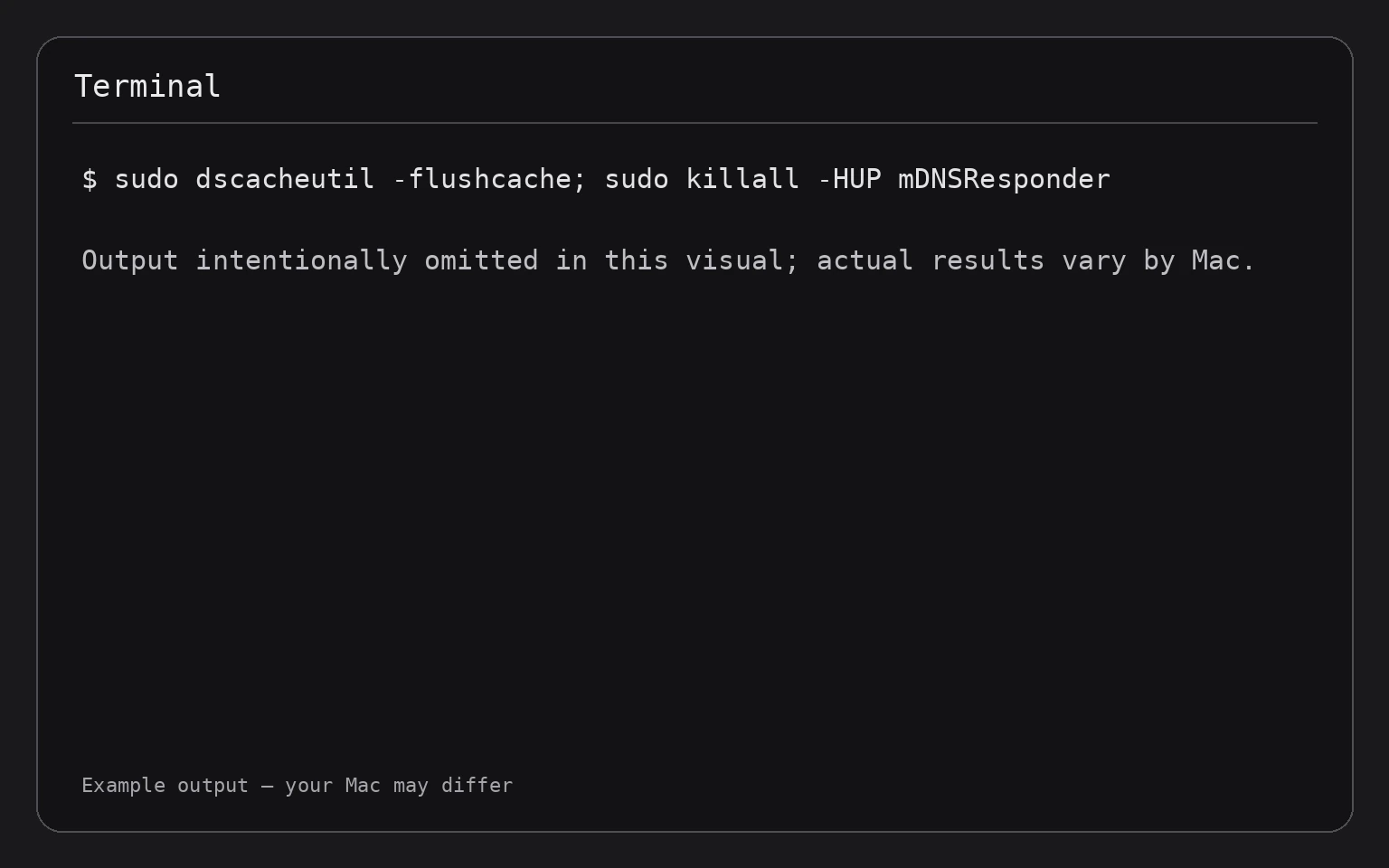
A successful cache flush usually does not display a completion message. Terminal should return to the command prompt.
Do not expect a new list of DNS entries or a progress indicator. The command is designed to perform the operation quietly.
sudo dscacheutil -flushcache; sudo killall -HUP mDNSResponder
5. Test the connection
Return to the affected app or browser and try the connection again. If a website was already open, reload the page. For a more reliable test, enter the domain again in a new browser tab.
If you want to inspect DNS settings or test how a domain resolves, use tools such as scutil, dscacheutil, and dig. See How to Check DNS Settings and DNS Resolution in Terminal on a Mac for those checks.
If the Command Returns an Error
Read the message Terminal displays before trying additional commands. Common causes include an incorrect password, insufficient privileges, or a command being entered incorrectly.
“Sorry, try again”
This means the administrator password was not accepted. Remember that Terminal does not display typing feedback. Press Control-C if necessary, then run the command again and enter the password carefully.
Control-C stops a command that is waiting for input. It does not undo a completed cache flush or delete data.
“command not found”
Check that you copied the command exactly. The command uses a lowercase dscacheutil, a lowercase mDNSResponder with capital DNSR, and a hyphen in -flushcache.
Do not replace the hyphen with a longer typographic dash. Terminal commands require the regular keyboard hyphen-minus character.
“Operation not permitted” or a permission error
The command requires administrator privileges. Confirm that you used sudo at the beginning and that the account credentials belong to an administrator.
If the command still fails, restart the Mac and try again after opening a new Terminal window. Save any work first, because restarting closes open applications and may cause unsaved changes to be lost.
No visible output
No output is normally expected. A returned prompt is not itself an error. Test the affected connection after running the command.
A More Targeted DNS Test
Flushing the cache is useful only if cached DNS information is part of the problem. You can test whether a particular domain resolves by using dscacheutil:
dscacheutil -q host -a name example.com
Replace example.com with the domain you want to test. This command asks the macOS resolver for host information and prints any result it receives. It does not change system settings or clear the cache.
For example, if a website is not loading, test its main domain rather than copying the entire URL. Do not include https://, a path, or a page name.

dscacheutil -q host -a name example.com
If the command returns an address, DNS resolution is working for that query. If it returns no result or an error, the issue may involve the configured DNS servers, the domain itself, your network connection, or a DNS service outage.
What to Try If Flushing DNS Does Not Help
Check whether the problem affects one app or everything
If only one browser or app is affected, quit and reopen that app. Before quitting, save unsaved work. Some apps maintain their own DNS or connection state, so clearing macOS’s cache may not immediately change their behavior.
If every browser and network app is affected, continue checking the network connection and DNS settings.
Test another network
Connect the Mac to another trusted network, such as a different Wi-Fi network or a personal hotspot. If the domain works there, the original network, router, or DNS service may be responsible.
Do not share sensitive information over an untrusted public network while testing.
Restart the network equipment
If you control the router, restart it according to its instructions. This can temporarily disconnect every device using that network. Warn other users first, and make sure you are not interrupting an important call, download, or work session.
Restarting a router is different from flushing the Mac’s DNS cache: it refreshes the network equipment and its connection to the internet.
Check DNS settings
A manually configured DNS server may be unavailable or may return unexpected results. Review the DNS settings in System Settings > Network, select the active connection, and open its network details. The exact controls can vary by connection type and macOS release.
Do not remove DNS entries unless you know why they were added. If you change a setting, record the original values first so you can restore them.
Check the domain itself
Try another website. If other sites work but one domain does not, the problem may be limited to that domain or its server. Flushing your local cache cannot fix a website that is offline or incorrectly configured on the internet.
Is There Anything to Undo?
There is no normal reversal command for a DNS cache flush because the operation removes temporary cached data rather than changing a permanent setting. Your Mac rebuilds the cache naturally as it performs new DNS lookups.
If you changed DNS settings while troubleshooting, restore the values you recorded before making the change. If you cannot remember them, return the DNS configuration to its previous automatic or administrator-provided state rather than entering random server addresses.
The flush command itself does not require a recovery step, and restarting the Mac is not normally necessary.
Frequently Asked Questions
Does flushing the DNS cache delete browsing history?
No. Flushing the macOS DNS cache does not delete browser history, cookies, bookmarks, downloads, or saved passwords. Browsers may maintain separate caches and DNS-related data, however.
Will flushing DNS make my internet faster?
Usually not. It may fix a connection that is using stale or incorrect DNS information, but it does not increase your internet service speed. DNS lookup speed is only one small part of loading a website.
Do I need to run the command regularly?
No. Run it when you have a specific DNS-related problem or after a network or domain change that appears not to have taken effect. Regularly flushing the cache is not generally necessary.
Why does Terminal ask for my password?
The command uses sudo, which temporarily grants administrator privileges needed to clear system-level cache information and signal the DNS responder process. Terminal hides the password while you type.
Do I need to restart my Mac afterward?
No. The command signals the DNS responder process directly, so a restart is normally unnecessary. Restart only if other troubleshooting steps call for it, and save your work first.
Can I flush DNS without Terminal?
The Terminal command is the direct method covered here. You can also resolve many DNS problems by checking network settings, restarting a connection, or restarting the Mac, but those actions are broader and do not specifically run the cache-flush command.
Final Thoughts
To flush the DNS cache on a Mac, open Terminal and run:
sudo dscacheutil -flushcache; sudo killall -HUP mDNSResponder
Enter an administrator password if prompted, wait for the command prompt to return, and test the connection again. If the problem continues, check DNS resolution, network settings, the router, and whether the affected website is available.