
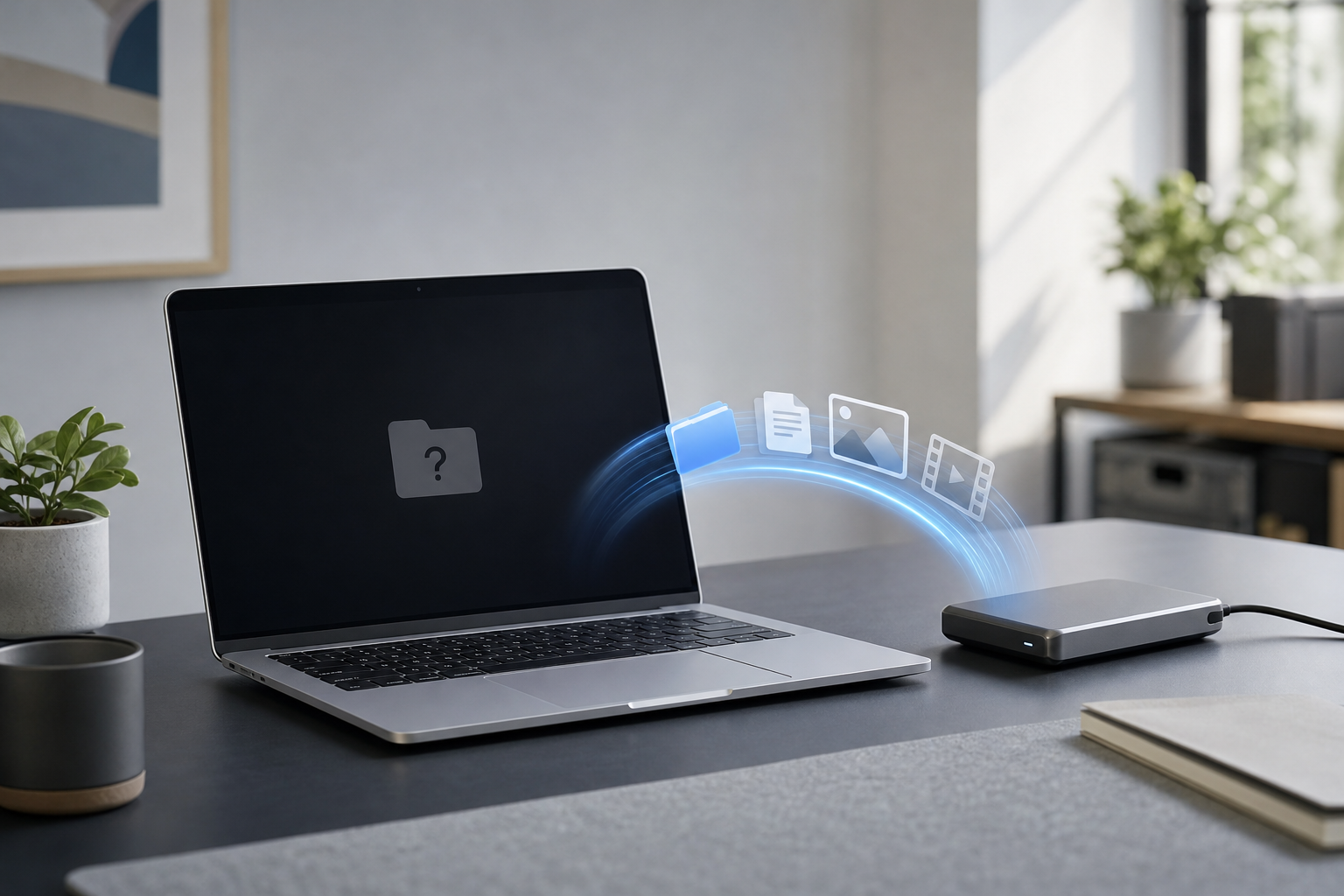
Quick Answer
If your Mac won’t boot, stop trying fixes that could erase the drive and focus on copying your files first. Start with a backup or cloud service if your files are already synced. Otherwise, use macOS Recovery to access Disk Utility, Terminal, or a connected external drive. You can also remove the internal drive and connect it to another Mac, but newer Macs and FileVault encryption may require your Mac’s login password or recovery key.
Do not choose Erase, Restore, or Reinstall macOS until you have confirmed that your important files are safely copied.
Before You Begin
A Mac that will not start may have a software problem, a damaged startup volume, or failing hardware. Every additional attempt to use a failing drive can make recovery more difficult.
Before following the steps below:
- Disconnect unnecessary USB devices, hubs, and external drives.
- Connect the Mac to power.
- Have an external drive with enough free space available.
- If you use FileVault, locate the password for a user account that can unlock the disk.
- If you have an iCloud, Dropbox, OneDrive, or other cloud account, check whether your files are already synchronized on another device.
If the Mac does not power on at all, rather than displaying a startup error, follow a general power and startup troubleshooting guide first: How to Fix a Mac That Won’t Turn On.
Method 1: Check Backups and Cloud Storage First
The safest recovery method is to copy files from an existing backup instead of working on the potentially damaged internal drive.
Check Time Machine
If you used Time Machine, you may be able to restore files to another Mac or to a replacement installation of macOS.
You need:
- The Time Machine backup disk
- The password used to encrypt the backup, if encryption was enabled
- Another working Mac, or a Mac that has been repaired enough to start
Connect the backup drive to a working Mac and open it in Finder. You can browse dated backup folders and copy individual files. If you are restoring an entire Mac, use Migration Assistant after macOS starts and follow the onscreen instructions.
Do not erase the nonworking Mac before checking that the backup contains the files you need.
Check cloud services
On another device, sign in to the services you use, such as:
- iCloud Drive
- Photos in iCloud
- Dropbox
- Google Drive
- Microsoft OneDrive
- A work or school storage account
Cloud files marked as online-only may not have been stored on the Mac itself, but that is useful if you can download them elsewhere. Be careful when deleting files from a synchronized folder: deletion may synchronize to your other devices.
Method 2: Copy Files Using macOS Recovery
macOS Recovery is a special startup environment that can provide access to Disk Utility, Safari, Terminal, and reinstall options. The exact startup procedure depends on whether your Mac has Apple silicon or an Intel processor.
Start macOS Recovery
Apple silicon Mac
- Shut down the Mac. If it is frozen, hold the power button until it turns off.
- Press and hold the power button.
- Release it when you see Loading startup options.
- Select Options, then select Continue.
- If asked, select a user account and enter its password.
Intel-based Mac
- Shut down the Mac.
- Turn it on and immediately hold Command-R.
- Release the keys when you see the Apple logo or a spinning globe.
- If asked, select a user account and enter its password.
If Recovery does not load, try starting the Mac again while connected to a reliable network. An Intel Mac may also offer Internet Recovery when local recovery data is unavailable.
Identify the internal drive
In the Recovery window, open Disk Utility. Choose View > Show All Devices from the menu bar. The internal storage device generally appears above its volumes.
Look for the volume that normally contains your files. It may be named Macintosh HD, although you or an administrator may have renamed it.
If the volume is dimmed, select it and click Mount. Enter your Mac login password if requested. FileVault-encrypted storage cannot be read until it is unlocked.
Use First Aid carefully
You can use First Aid to check and repair certain file-system problems:
- In Disk Utility, select the internal volume.
- Click First Aid.
- Select Run and wait for the process to finish.
First Aid is not a file-recovery tool, and it cannot repair every type of hardware failure. If the drive is making unusual noises, repeatedly disconnecting, or reporting serious errors, avoid repeated repair attempts. Copy or image the drive through a professional recovery service instead.
Connect an external drive
Attach a USB, USB-C, or Thunderbolt drive with enough free space. If macOS Recovery asks whether Terminal or another tool may access the drive, allow access when appropriate.
Open Disk Utility and confirm that the external drive appears. Do not click Erase unless you are certain it contains no needed data. If the drive is new and empty, formatting it may be necessary before it can accept files, but formatting deletes existing content.
Copy files with Terminal
Return to the Recovery utilities window and choose Utilities > Terminal.
Terminal does not provide the usual Finder interface, but it can copy folders when Finder is unavailable. First, list the mounted volumes:
ls /Volumes
You may see names such as:
Macintosh HD
External Backup
Spaces in volume names must be escaped with a backslash or enclosed in quotation marks. For example:
ls "/Volumes/Macintosh HD - Data/Users"
On many modern installations, personal files are stored on the volume ending in – Data. List the user folders:
ls "/Volumes/Macintosh HD - Data/Users"
Replace yourname with the short name of your macOS user account and replace External Backup with the name of the connected destination drive:
mkdir -p "/Volumes/External Backup/Recovered Files"
cp -R "/Volumes/Macintosh HD - Data/Users/yourname/Documents" "/Volumes/External Backup/Recovered Files/"
cp -R "/Volumes/Macintosh HD - Data/Users/yourname/Desktop" "/Volumes/External Backup/Recovered Files/"
cp -R "/Volumes/Macintosh HD - Data/Users/yourname/Pictures" "/Volumes/External Backup/Recovered Files/"
These commands create a destination folder and copy the Documents, Desktop, and Pictures folders. They do not alter the source folders, but the destination may already contain files with matching names. Check the copied data afterward on another Mac.
To copy a different folder, replace the source path. For example:
cp -R "/Volumes/Macintosh HD - Data/Users/yourname/Movies" "/Volumes/External Backup/Recovered Files/"
Important Terminal limitations
- A password may be required to unlock the internal volume.
- Some folders may be inaccessible because of permissions or privacy protections.
- Applications and system files are not the same as personal documents and usually do not need to be copied for basic file recovery.
cp -Rcan take a long time and may not display progress.- Do not use commands containing
rm,diskutil erase, orddunless you fully understand their effect. They can delete data or overwrite a disk.
The commands above change only the destination by creating a folder and copying files into it. To reverse the change, delete the copied Recovered Files folder from the external drive after checking that it is not needed. Do not delete anything from the internal drive.
Method 3: Use Target Disk Mode or Share Disk
If Recovery cannot copy files conveniently, you may be able to connect the nonbooting Mac to another Mac and access its internal storage.
Apple silicon: Share Disk
- Shut down the nonworking Mac.
- Press and hold the power button until startup options appear.
- Select Options, then select Continue.
- From the menu bar, choose Utilities > Share Disk.
- Select the internal volume to share.
- Follow the instructions to connect it to another Mac with a suitable USB-C or Thunderbolt cable.
The other Mac may show the shared volume in Finder. Unlock it with the affected Mac’s password if requested, then copy files to the working Mac or an external drive.
Intel Mac: Target Disk Mode
- Shut down the affected Mac.
- Connect it to another Mac using an appropriate Thunderbolt or USB cable.
- Turn it on while holding the T key.
- Release the key when a disk icon appears.
If the internal drive appears on the working Mac, open it in Finder and copy your files. FileVault may require the affected Mac’s login password before the disk can be accessed.
Target Disk Mode is not available on every Mac or connection type. If it does not work, use macOS Recovery or a professional recovery service.
Method 4: Remove the Drive or Use Professional Recovery
On some older Macs, the internal storage can be removed and connected to another Mac using an enclosure or adapter. This is not generally practical for many newer Macs, whose storage is integrated into the computer’s logic board or otherwise difficult to remove.
Opening a Mac can:
- Damage cables or connectors
- Void a remaining warranty
- Expose the drive to additional damage
- Make professional recovery more difficult
Use a reputable data-recovery service if:
- Disk Utility cannot see the internal drive.
- The drive repeatedly disconnects.
- The Mac shows a folder with a question mark and recovery tools cannot access the disk.
- Files are extremely important.
- The drive has physical damage or unusual sounds.
- You accidentally erased or formatted the disk.
Do not install recovery software onto the failing internal drive. Installation can overwrite the very data you are trying to recover.
If You Only Need to Make the Mac Boot Again
Once your important files are copied, you can troubleshoot the startup problem more aggressively. First Aid may be appropriate, and reinstalling macOS can sometimes repair system files without removing personal data. However, reinstalling is not a substitute for a backup, and you should verify the destination and options carefully before continuing.
If the Mac stops at the Apple logo, see How to Fix a Mac Stuck on the Apple Logo. You can also try How to Start a Mac in Safe Mode after confirming that your files are protected.
Troubleshooting
The internal drive does not appear in Disk Utility
Select View > Show All Devices. If it still does not appear, restart into Recovery and check again. Try a different power connection if available. If the drive remains absent, the storage hardware, logic board, or connection may have failed.
The volume appears but will not unlock
Enter the password for a Mac user account authorized to unlock FileVault. A different account’s password may not work. If you have a FileVault recovery key, use it when offered. Without an authorized password or recovery key, encrypted data may not be accessible.
Terminal says “No such file or directory”
Run:
ls /Volumes
Then copy the exact volume name, including spaces and punctuation. Enclose names in quotation marks, as in:
ls "/Volumes/External Backup"
Also verify whether your files are on Macintosh HD or Macintosh HD – Data.
The external drive is not available
Reconnect it directly to the Mac instead of through a hub. Try another cable or port. Some drives require their own power adapter. In Disk Utility, select the device and check whether it is mounted. Do not erase it merely because it does not appear in Finder.
The copy stops or reports an input/output error
This often indicates a damaged or unstable source. Stop repeated attempts if the files are important. A recovery specialist may be able to create a complete disk image and work from the copy rather than stressing the original drive.
Frequently Asked Questions
Can I recover files if my Mac will not start at all?
If the Mac shows no signs of power, recovery may require hardware repair or professional data recovery. If it powers on but cannot load macOS, macOS Recovery, Share Disk, or Target Disk Mode may provide access to the files.
Will reinstalling macOS delete my files?
A standard reinstall may preserve personal files, but you should not rely on that without a backup. Do not erase the disk during the process unless you have already recovered everything important.
Can I recover files without my Mac login password?
FileVault encryption may prevent access without an authorized password or recovery key. If the disk is not encrypted, some data may still be accessible, but permissions can limit what you can copy.
Does Safe Mode recover files?
Safe Mode is mainly a diagnostic startup mode. If the Mac starts in Safe Mode, copy your important files immediately to an external drive before trying other repairs.
Should I reset NVRAM before recovering files?
Resetting NVRAM usually does not recover files and should not be your first step. Prioritize backups and disk access. If startup settings are causing a problem, NVRAM reset instructions may help after your data is safe.
Final Thoughts
The safest order is simple: check existing backups, start macOS Recovery, unlock the internal volume, and copy personal files to a separate drive. Avoid erasing, reinstalling, or repeatedly repairing a drive until you have verified your recovery. If the storage device is missing, unstable, or physically damaged, stop experimenting and contact a professional data-recovery service.