

When a Mac app freezes, uses excessive CPU, or refuses to close, Terminal can help you identify and stop the process behind it. The main commands are:
pslists processes running on your Mac.topshows live CPU and memory activity.killsends a signal to stop a process.
These commands are useful when an app does not respond to normal controls. However, stopping a process can close an app immediately and may discard unsaved work. Always try to save your work and quit the app normally before using kill.
Quick Answer
- Open Terminal from Applications > Utilities.
- Use
psto find an app’s process ID, or PID. - Use
topto watch which processes are using the most CPU. - Run
kill PIDto ask a process to quit. - If it does not stop, use
kill -9 PIDonly as a last resort.
Replace PID with the number shown for the process you want to stop. Check the process name carefully before running a command.
Understand processes and PIDs
macOS runs apps and background tasks as processes. Each process has a process ID, or PID, which is a number assigned by the operating system.
For example, an app named ExampleApp might appear with a PID such as 1234. The number is not permanent; it can change every time the app starts.
You can use a PID to monitor or stop one specific process. Do not assume that a process is safe to stop based only on its name. System processes may be required for macOS to work correctly.
Find an app with ps
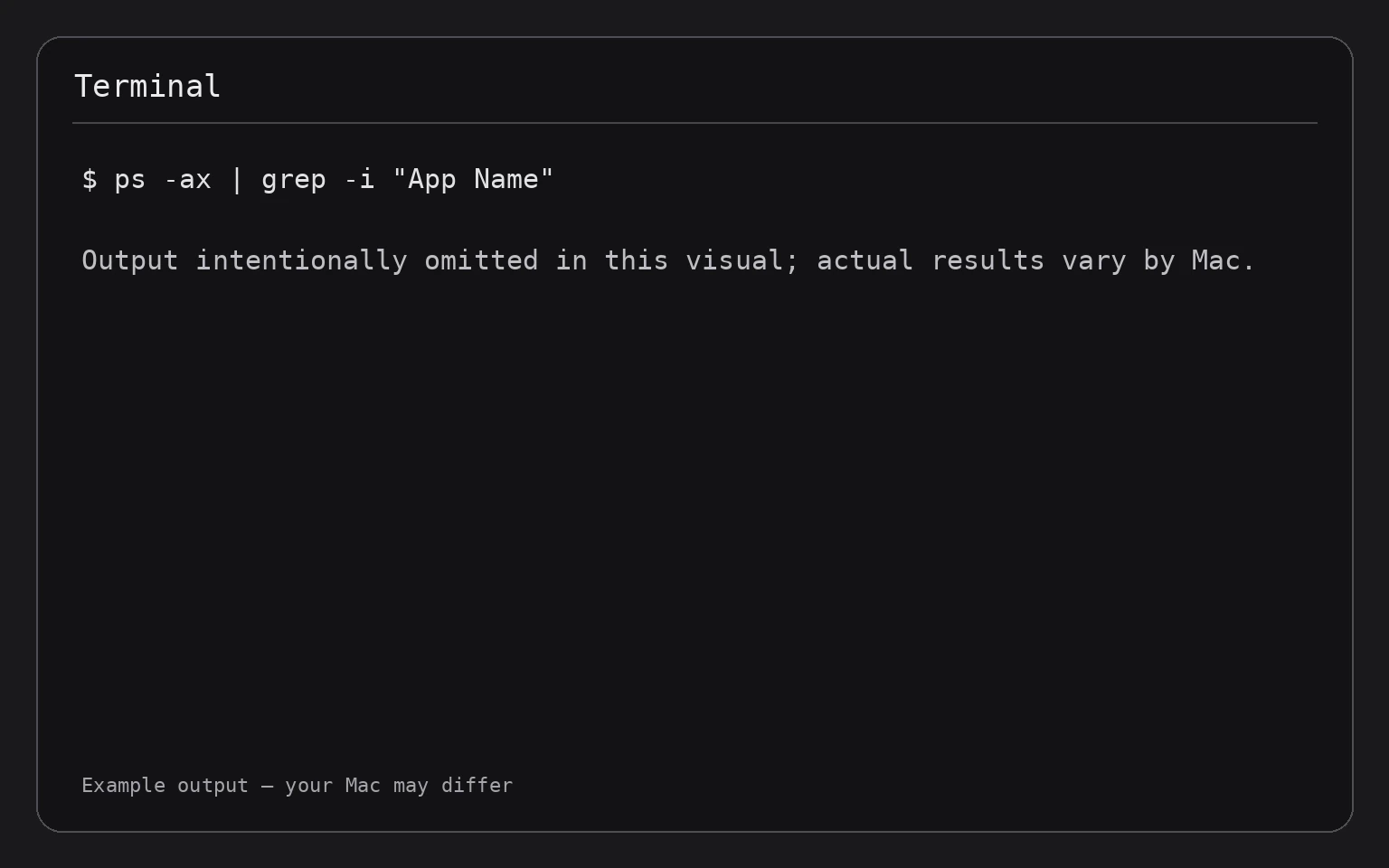
The ps command displays information about currently running processes. A useful command for finding a particular app is:
ps -ax | grep -i "App Name"
This command does three things:
ps -axlists processes for all users, including processes without a terminal.- The pipe symbol,
|, sends that list to another command. grep -i "App Name"searches for the app name without distinguishing uppercase and lowercase letters.
Replace App Name with the name of the app. For example:
ps -ax | grep -i "Safari"
Look for a line containing the app name. The first number on the line is usually the PID.
The search may also display the grep command itself because it contains the search text. Ignore that line. If no matching app appears, the app may not be running, or its process may use a different name.
A more precise process search
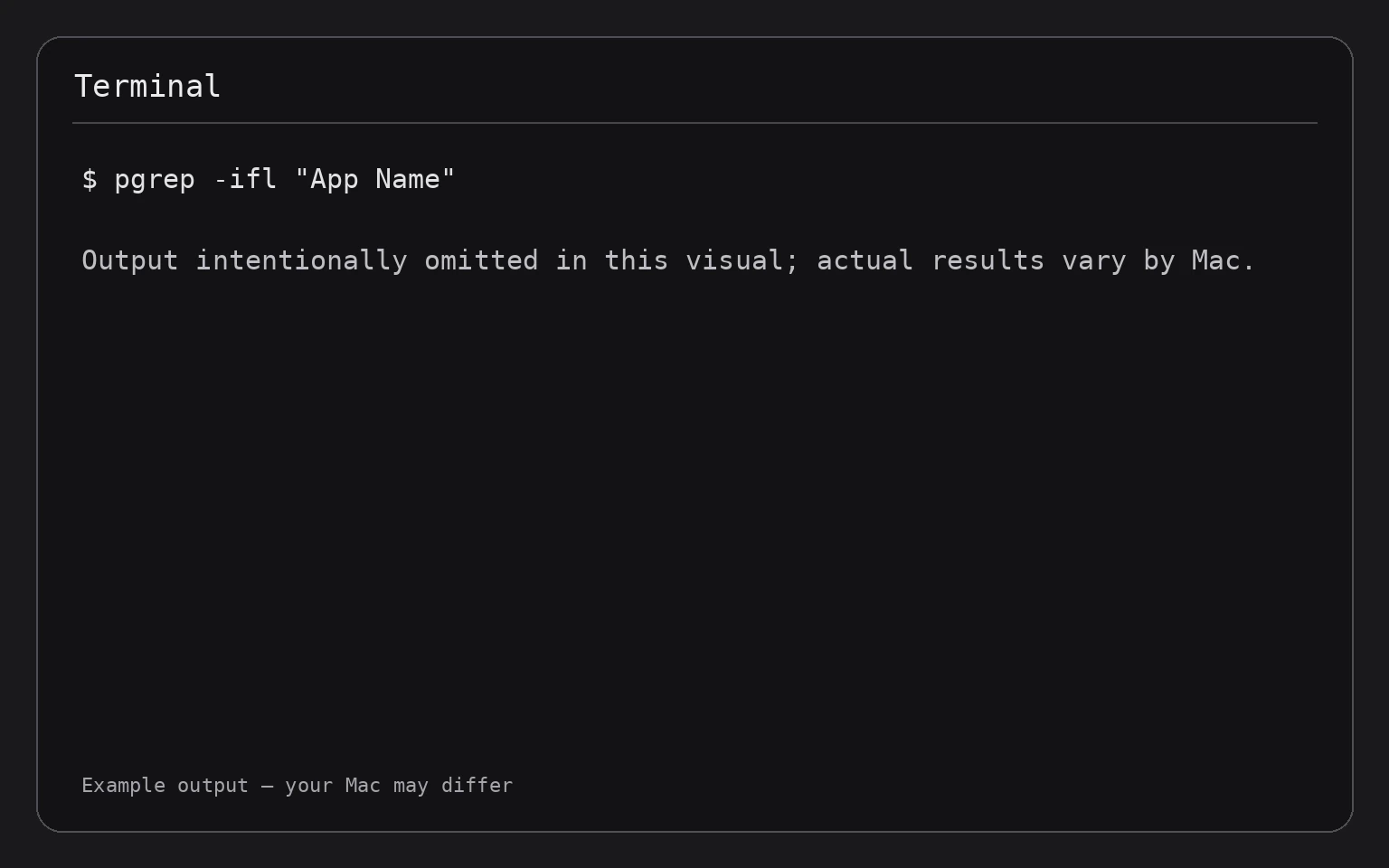
If you know the exact process name, use pgrep:
pgrep -ifl "App Name"
pgrep searches process names directly. The options used here mean:
-iignores uppercase and lowercase differences.-fsearches the complete command line.-ldisplays the process name with the PID.
For example:
pgrep -ifl "Safari"
This can be easier to read than the output from ps and grep. Still, verify the result before stopping anything, especially when several related processes are listed.
Monitor activity with top
Use top when you need to watch CPU and memory use in real time:
top
The display refreshes continuously. Processes using the most CPU generally appear near the top, although the exact layout can vary. Look for the process name and its PID.
To stop top, press:
q
The top command only displays information. It does not change or stop processes.
If you want a shorter snapshot rather than a continuously updating display, use:
top -l 1 -o cpu
This requests one sample and sorts the results by CPU use. Because the command is a report, it does not alter system behavior.
If you are specifically investigating high CPU usage, a focused guide to checking which process uses the most CPU in Terminal can provide additional context.

Stop an app with kill
Before using kill, save any available work and close the app normally if possible. The command may terminate the app and can cause unsaved changes to be lost.
First, identify the correct PID:
ps -ax | grep -i "App Name"
Then send the default termination signal:
kill PID
Replace PID with the actual number. For example, if the app’s PID is 1234, the command would be:
kill 1234
The default signal asks the process to terminate cleanly. This gives the app an opportunity to close files and perform normal cleanup.
Wait a few seconds, then check whether it is still running:
ps -p PID
The -p option limits the result to the specified PID. If the process no longer appears, it has stopped.
You can also verify by searching for the app again:
pgrep -ifl "App Name"
Use kill -TERM explicitly
TERM means “terminate.” It is the same general type of graceful request as the default kill signal:
kill -TERM PID
This command changes the process state by requesting that it exit. There is no separate reversal command. If you stopped the wrong app, reopen it normally from Applications, Launchpad, or Spotlight. Any unsaved work that was lost cannot be restored by Terminal.
Force-stop a process only as a last resort
If a process ignores the normal termination request, you can send the KILL signal:
kill -9 PID
This immediately stops the process. It does not give the app an opportunity to save data or clean up. Use it only when the process remains stuck after you have tried the normal command.
Before pressing Return, confirm all of the following:
- The PID belongs to the frozen or unwanted app.
- You have saved any work that can still be saved.
- You have already tried quitting the app normally.
- You have already tried
kill PID.
Afterward, confirm that the process stopped:
ps -p PID
If it has stopped, reopen the app normally. If it starts again by itself, a helper process, login item, document, or background service may be launching it. Do not repeatedly force-stop an important system process without identifying why it is running.
Stop an app by name with pkill
When you are certain that a process name identifies only the app you want to close, pkill can send a signal by name:
pkill -TERM -x "ProcessName"
The -TERM option requests a normal termination. The -x option requires an exact process-name match, which helps avoid matching similarly named processes.
For example:
pkill -TERM -x "ExampleApp"
This can affect more than one process if multiple processes have the same exact name. Because of that, using a verified PID with kill PID is usually safer.
Do not use a broad pattern such as the following unless you fully understand which processes it may match:
pkill -f "App"
The -f option can match the full command line and may stop related processes unexpectedly.
When Terminal says “Operation not permitted”
Some processes belong to another user or are protected by macOS. You may see an error if your account does not have permission to signal a process.
You can inspect the process owner with:
ps -o user,pid,command -p PID
This displays the account, PID, and command for the selected process. If the process belongs to your account, you may be able to stop it normally. If it belongs to another account or is protected, do not try random force commands.
Some commands may require administrator privileges. Adding sudo changes the command’s permissions and causes macOS to request your account password:
sudo kill PID
Only use sudo when you understand exactly which process you are targeting. The password is not displayed while you type it. If the command stops a system service, macOS may restart the service or other system features may be affected.
A safer approach is to use Activity Monitor or restart the Mac if a protected process is malfunctioning.
Troubleshooting common problems
The app name does not appear
The visible app name and process name may differ. Search for a distinctive part of the name:
ps -ax | grep -i "keyword"
You can also list processes and inspect them manually:
ps -ax
Avoid stopping a process just because its name looks similar. Confirm the command path and the process owner when possible.
kill PID did not close the app
The process may need more time to exit, or the visible app may have separate helper processes. Check the PID again:
ps -p PID
If it remains, try the graceful signal explicitly:
kill -TERM PID
Only if that fails should you consider:
kill -9 PID
Force-stopping the wrong PID can close a different app or system component.
The PID changed
A PID can change when an app restarts. Always find the current PID immediately before sending a signal:
pgrep -ifl "App Name"
Do not reuse an old PID from an earlier Terminal command or note.
The app keeps returning
Stopping a process does not prevent it from launching again. Check whether the app is configured to open at login, whether another app is launching it, or whether a background helper is involved. Removing a login item changes system behavior, so make that change only after identifying the responsible app.
You are investigating storage-related slowdowns
High CPU is not the same as low storage. If your Mac is slow while saving files, updating apps, or opening documents, check available storage separately in Apple menu > System Settings > General > Storage. The commands in this guide identify processes; they do not measure free disk space or repair storage problems.
Frequently Asked Questions
Is kill dangerous on a Mac?
It can be. A normal kill PID asks an app to quit, but it may still close without saving. kill -9 PID stops it immediately and can cause data loss. Always verify the PID and try a normal quit first.
What is the difference between ps and top?
ps provides a process snapshot. top continuously refreshes process information so you can watch CPU and memory activity. Use ps to find a process and top to observe changing resource use.
Can I undo a kill command?
You cannot undo a termination signal. If you stopped an ordinary app, reopen it normally. Unsaved data lost during termination may not be recoverable.
Should I use kill -9 whenever an app freezes?
No. Start with kill PID, which requests a clean exit. Use kill -9 PID only when the process remains stuck and you accept the risk of losing unsaved work.
Is Activity Monitor easier for beginners?
Often, yes. Activity Monitor provides a graphical list of processes and controls for quitting them. Terminal is useful when you need exact PIDs, repeatable commands, or information that is easier to search in text.
Final Thoughts
Use ps to identify an app’s process, top to observe resource use, and kill PID to request a clean shutdown. Treat kill -9 PID as an emergency option, verify every PID before running a command, and save your work whenever possible.