
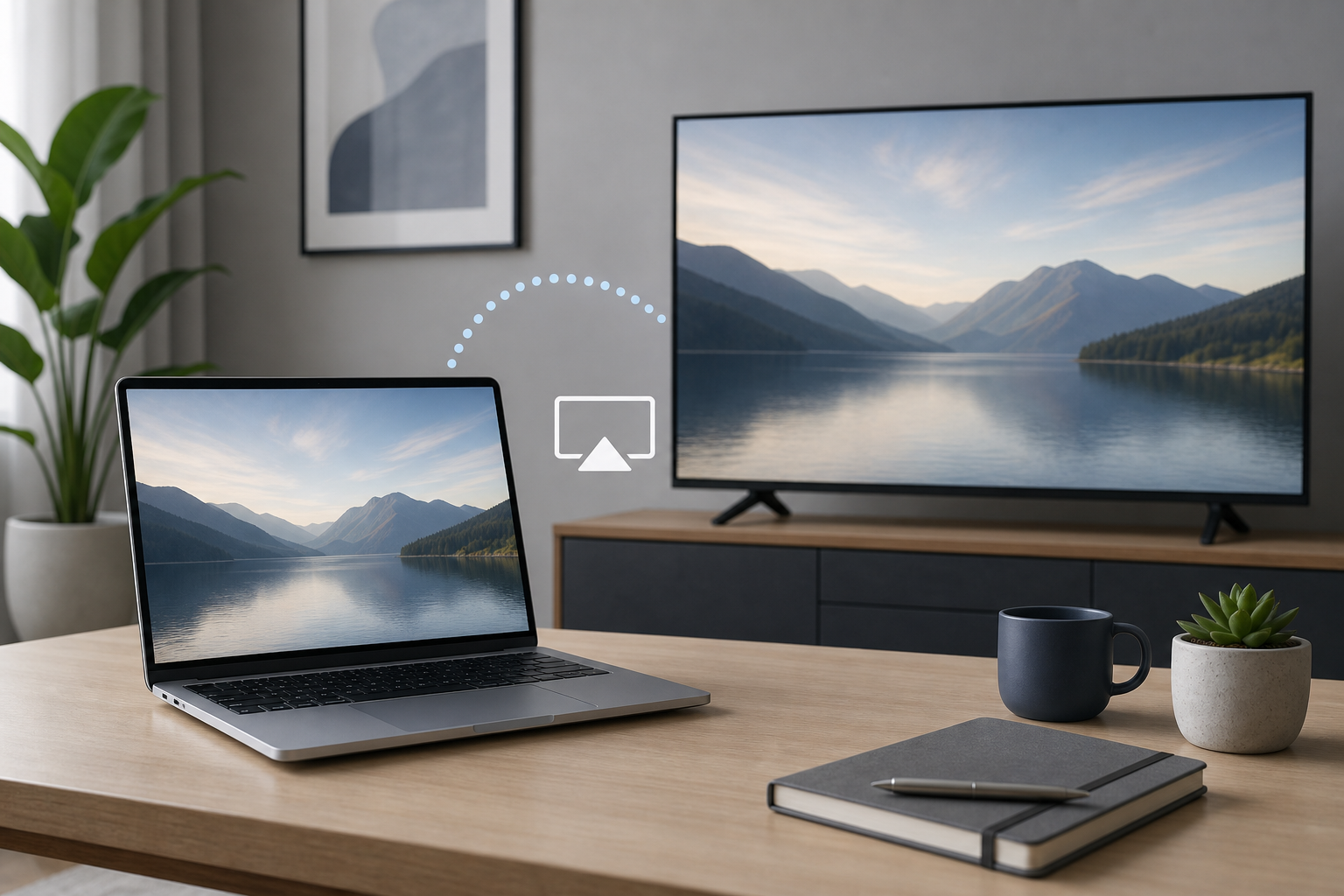
AirPlay lets you wirelessly send your MacBook’s screen, video, photos, presentations, and audio to a compatible TV. You can mirror the MacBook display so the TV shows the same content, or use the TV as a separate display to extend your desktop.
To connect, make sure your MacBook and compatible TV or Apple TV are on the same Wi-Fi network. Then open Control Center in the menu bar, select Screen Mirroring, and choose the TV. To extend the desktop, open System Settings > Displays, select the TV, and change its display mode from mirroring to an extended display.
Quick Answer
- Connect your MacBook and TV to the same Wi-Fi network.
- Turn on the TV and select the appropriate input.
- On your MacBook, click Control Center in the menu bar.
- Select Screen Mirroring.
- Choose your TV or Apple TV.
- Enter the AirPlay code shown on the TV, if requested.
- For an extended desktop, open System Settings > Displays, select the TV, and choose the option to use it as an extended display rather than mirroring the built-in screen.
AirPlay works best for presentations, web browsing, photos, and other general tasks. Wireless screen mirroring may introduce enough delay that it is not ideal for fast-paced games or precise video editing.
What You Need Before Using AirPlay
AirPlay requires a MacBook and a receiving device that supports AirPlay. The receiving device may be an AirPlay-compatible smart TV or an Apple TV connected to the television.
Before connecting, check the following:
- Your MacBook is connected to Wi-Fi.
- The TV or Apple TV is connected to the same Wi-Fi network.
- The TV is turned on and ready to receive a connection.
- Both devices have current software and firmware available for them.
- The TV’s AirPlay feature is enabled, if its settings include a separate AirPlay option.
- You know the TV’s AirPlay passcode or can see the television screen in case a code appears.
A wired network connection can still work for the TV or Apple TV, provided the MacBook and receiving device are connected to the same local network. Guest networks, hotel networks, VPNs, and some business networks may prevent devices from discovering one another.
How to Mirror a MacBook to a TV
Mirroring duplicates your MacBook’s screen on the television. Anything visible on the MacBook display also appears on the TV.
Start screen mirroring from Control Center
- Turn on the TV and open the input or source used by the Apple TV or built-in AirPlay feature.
- On your MacBook, click Control Center in the menu bar.
- Click Screen Mirroring.
- Select the name of your TV or Apple TV.
- If a four-digit AirPlay code appears on the TV, enter it on your MacBook.
- Wait a few seconds for the connection to start.
The MacBook display should now appear on the TV. Depending on the television, there may be a short delay between an action on the MacBook and the result on the TV.
Stop mirroring
When you are finished:
- Click Control Center in the menu bar.
- Click Screen Mirroring.
- Click the connected TV or Apple TV to disconnect it.
Disconnecting AirPlay does not close your applications or delete anything. However, if you are presenting or playing media, the content may stop on the television when the connection ends.
How to Extend a MacBook Desktop to a TV
An extended desktop gives you additional workspace instead of showing the same image on both screens. You can move a window from the MacBook display to the TV, or keep one application on each screen.
Set the TV as an extended display
- Connect the MacBook to the TV using Control Center > Screen Mirroring.
- Open the Apple menu and choose System Settings.
- Click Displays in the sidebar.
- Select the TV from the display list.
- Open the display arrangement or usage options.
- Choose the setting that extends your desktop instead of mirroring the built-in display.
The exact choices can vary depending on the MacBook, TV, and version of macOS. Look for an option indicating that the TV is being used as an extended display or additional workspace.
You can then drag windows between the MacBook screen and the TV. In System Settings > Displays, you can also arrange the screens so their on-screen positions match their physical positions. For example, if the TV is to the left of the MacBook, place its display representation on the left.
Move an app to the TV
After the desktop is extended:
- Move the pointer to the edge of the MacBook screen.
- Drag a window past that edge toward the TV.
- Release the window when it appears on the television.
- To bring it back, drag it across the same boundary.
If the pointer does not move in the expected direction, return to System Settings > Displays and adjust the display arrangement.
How to Switch Between Mirroring and an Extended Desktop
You can change the display mode without disconnecting AirPlay.
- Open System Settings.
- Select Displays.
- Click the TV.
- Use the display configuration options to choose either:
– Mirror the built-in display, or
– Extend the desktop.
Mirroring is useful when everyone needs to see the same content. Extending is better when you want private control on the MacBook while showing a document, browser window, or presentation on the TV.
If you are sharing sensitive information, inspect the TV screen before opening private messages, passwords, or unrelated windows. With mirroring enabled, everything on the MacBook display is visible on the television.
How to Send Only Video or Audio with AirPlay
You do not always need to mirror the entire MacBook screen. Many media apps and websites provide their own AirPlay control.
Send video from an app
- Open the video in a compatible app or website.
- Look for the AirPlay button, which usually resembles a rectangle with a triangle.
- Click the button.
- Select the TV or Apple TV.
- If prompted, enter the code shown on the TV.
When available, app-based AirPlay can send only the video to the TV while leaving the MacBook free for other work. The available controls depend on the app, website, video format, and receiving device.
Send MacBook audio to the TV
To route sound to the TV:
- Click Control Center in the menu bar.
- Click Sound.
- Select the TV or Apple TV as the output device.
You can also open System Settings > Sound and choose the TV under the output options.
Audio may be slightly delayed when sent wirelessly. If the sound does not match the video, disconnect and reconnect AirPlay, then check whether the app offers its own audio or playback settings.
How to Change Resolution and Screen Arrangement
AirPlay normally chooses a compatible resolution automatically, but the result may look too large, too small, or poorly fitted to the TV.
To adjust the display:
- Open the Apple menu and choose System Settings.
- Click Displays.
- Select the TV.
- Choose a different resolution or scaling option.
- Check the picture on the TV and select the setting that makes text and windows comfortable to read.
For more detailed guidance, see how to change display resolution and scaling on a Mac.
If the TV cuts off the edges of the MacBook desktop, look for a picture-size, screen-fit, or overscan option in the TV’s settings. The name varies by manufacturer. Avoid changing several picture settings at once; adjust one option, then check the result.
AirPlay Limitations to Know
AirPlay is convenient, but it is not identical to using a cable.
- Wireless video can have noticeable latency.
- Image quality can change when Wi-Fi is congested.
- Protected video may show a blank screen or refuse to play.
- Some apps limit wireless playback.
- A TV may support AirPlay but not support every Mac display feature.
- The TV may disconnect when it goes to sleep or changes input.
- The MacBook’s display can remain active even when the TV is showing content.
- AirPlay does not necessarily provide the same performance as a direct HDMI or USB-C display connection.
For fast games, detailed creative work, or situations where timing matters, a compatible cable and adapter may provide a more consistent connection.
Troubleshooting AirPlay Problems
The TV does not appear in Screen Mirroring
Confirm that both devices are on the same Wi-Fi network. Disconnect the MacBook from a VPN temporarily if one is active, and check whether the TV is connected to a guest network.
Then try these steps:
- Confirm that AirPlay is enabled on the TV.
- Restart the TV or Apple TV.
- Restart the MacBook.
- Turn Wi-Fi off and back on from Control Center.
- Move the MacBook closer to the Wi-Fi router if the signal is weak.
- Check for software updates on the MacBook and TV.
If the TV still does not appear, the television may not support AirPlay receiving, or network settings may be blocking device discovery.
AirPlay connects but keeps disconnecting
Unstable Wi-Fi is a common cause. Reduce network activity temporarily by pausing large downloads, cloud synchronization, or other high-bandwidth streaming.
Also check whether the MacBook or TV is entering sleep mode. If the problem affects a physical display connection rather than AirPlay, see how to fix an external display that keeps flickering on a Mac.
The picture is delayed or stutters
AirPlay sends video over the network, so congestion can affect responsiveness. Try the following:
- Stop other high-bandwidth activity on the network.
- Move the MacBook closer to the router.
- Restart the router, MacBook, and TV.
- Lower video quality in the app, if that option is available.
- Use a wired display connection for games or other timing-sensitive work.
A small delay is normal for some wireless uses. It does not necessarily indicate a fault.
The TV shows a black screen
Check whether the app or video uses copy protection that prevents AirPlay playback. Try mirroring the MacBook desktop with a simple webpage or Finder window. If ordinary content appears but one video does not, the restriction may be specific to that content or app.
Also verify that the TV is on the correct input and that the AirPlay connection is still active.
The picture does not fit the TV
Open System Settings > Displays, select the TV, and adjust resolution or scaling. Then inspect the TV’s picture-size settings for an overscan or screen-fit option.
There is no sound from the TV
Open Control Center > Sound and select the TV or Apple TV. If it is already selected, disconnect and reconnect AirPlay. Check the TV’s volume and mute settings as well as the MacBook app’s volume.
The AirPlay code does not work
Wait for a new code by disconnecting and reconnecting. Enter the code exactly as shown, without spaces. If the TV has an AirPlay security setting, review whether it requires a code for every connection or only the first connection.
Frequently Asked Questions
Can every MacBook AirPlay to a TV?
A MacBook needs a compatible macOS version and AirPlay support, and the receiving TV or Apple TV must support AirPlay reception. If the TV does not appear in Screen Mirroring, check both devices’ compatibility and network connection.
Can I use AirPlay without Wi-Fi?
AirPlay normally uses a local Wi-Fi network. Some Apple devices support direct connections in certain circumstances, but availability depends on the MacBook, receiving device, and network configuration. For the most reliable setup, connect both devices to the same Wi-Fi network.
Can I use the TV as a second monitor?
Yes, when the connected TV supports extended desktop use. Open System Settings > Displays, select the TV, and choose the option to extend the MacBook desktop rather than mirror it.
Can I close the MacBook lid while using AirPlay?
Closing the lid may put the MacBook to sleep and interrupt the wireless display. If you need to use the MacBook with its lid closed, connect power and use an external keyboard or mouse. See how to use a MacBook with the lid closed for the setup details.
Does AirPlay stream sound as well as video?
Yes. Screen mirroring can include MacBook audio, and you can select the TV as the sound output from Control Center > Sound. App-specific AirPlay may offer separate video and audio controls.
Final Thoughts
AirPlay provides a simple way to mirror a MacBook on a TV or use the television as an additional wireless display. Use mirroring when everyone needs to see the same screen, and use an extended desktop when you want separate content on each display. If the connection is unreliable or delay matters, a wired display connection may be a better choice.