How to Fix a Mac Battery That Drains Quickly

Illustration for How to Fix a Mac Battery That Drains Quickly
A Mac battery that drains quickly is usually caused by a demanding app, high screen brightness, poor wireless conditions, outdated software, or an aging battery. Start by checking battery usage in System Settings, then reduce unnecessary power use, update macOS and apps, and check the battery’s health. If the battery drains rapidly while the Mac … Read more


How to Fix a Mac Trackpad That Is Not Clicking

Illustration for How to Fix a Mac Trackpad That Is Not Clicking

A Mac trackpad that does not click may be affected by a disabled setting, low battery, debris, an unresponsive app, or a hardware problem. Start by checking System Settings, reconnecting or charging the trackpad, and restarting the Mac. If the pointer still moves but pressing the trackpad does nothing, use keyboard shortcuts or an external … Read more

How to Fix Safari When Web Pages Won’t Load on a Mac

Illustration for How to Fix Safari When Web Pages Won’t Load on a Mac

Safari usually fails to load web pages because of a network problem, a temporary browser error, outdated software, corrupted website data, or an extension that interferes with browsing. Start by testing another website and another app that uses the internet. Then restart Safari and your Mac, check your connection, install available updates, and clear Safari’s … Read more

How to Check MacBook Battery Health and Cycle Count

Illustration for How to Check MacBook Battery Health and Cycle Count

You can check your MacBook’s battery health and cycle count from System Settings or System Information. For a quick overview, open System Settings > Battery and review Battery Health. To see the exact cycle count, hold the Option key, click the Apple menu, choose System Information, and select Power in the sidebar. These details help … Read more

💻 [Instructions] What to do if your MacBook is flooded?

The most annoying and common problem with Apple products is moisture getting into the device. No one is immune from this, and it is very important to know what to do in such situations. If liquid gets on your MacBook, repairs, unfortunately, cannot be avoided.
The first step is to disconnect your MacBook from power and disconnect all devices. After which, it is advisable to immediately turn the open device over with the keyboard facing down to avoid liquid getting on the motherboard or screen.

Read more

🔥 [Instructions] Replacing battery MacBook Air and Pro (A1708 and A2179)

For every person who uses Apple technology, and in particular a MacBook, it is very important that the device works properly and the battery life does not interfere with everyday activities. Apple assures that the MacBook battery is designed for 1000 full recharge cycles. Subsequently, it provides up to 80% of the original capacity. When we notice that the battery life has decreased significantly, we often do not pay attention and increasingly leave it on charge. But not everyone knows that long-term use of a MacBook with a faulty or damaged battery can negatively affect the operation of your device and lead to fraught consequences. A worn out or faulty battery can swell and damage the keyboard or touchpad on your device. Based on this, it is important to understand that it is not worth bringing the MacBook battery life to the last stage. In order to find out the number of recharge cycles on your device, you just need to go to the power properties of your MacBook.

Read more

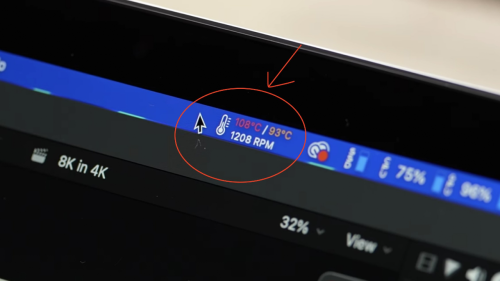
👉 Why does the MacBook overheat?

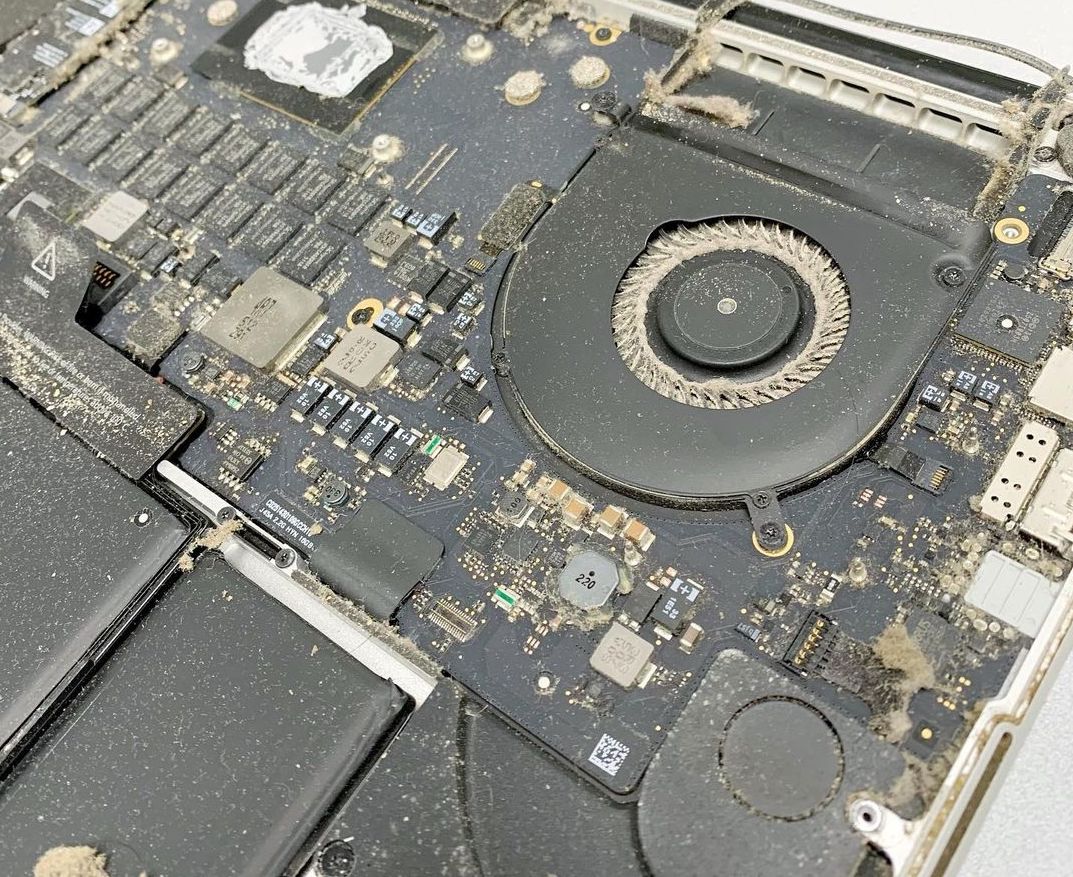
Any computer has the property of heating up. This is quite a normal phenomenon, as long as the temperature is within acceptable limits. First of all, MacBooks are prone to overheating, for the most part, due to the dense and compact arrangement of elements inside. It is necessary to remember that it is impossible not … Read more