
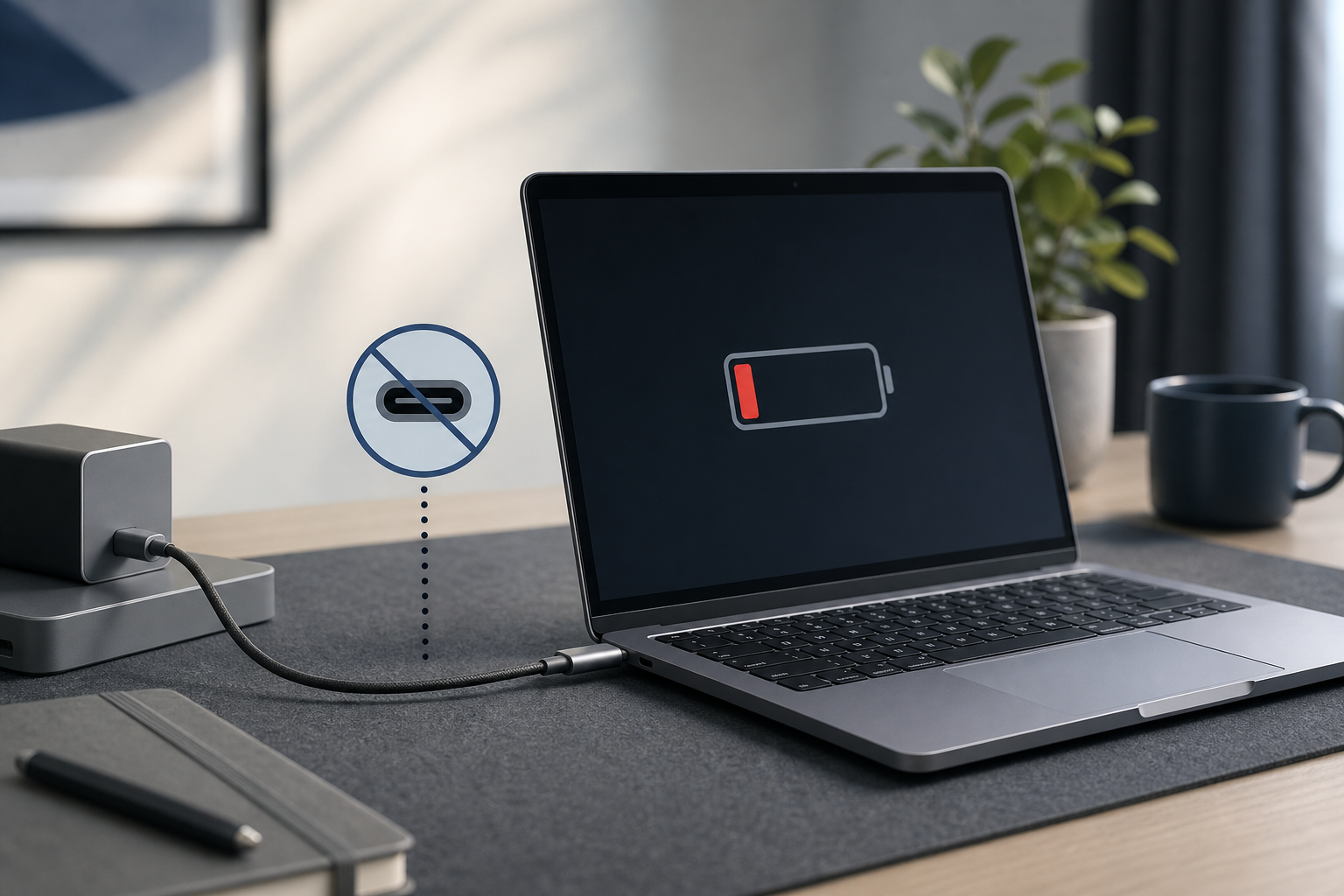
If your MacBook is not charging over USB-C, start by checking the charger’s wattage, trying another USB-C cable, and testing a different power outlet. Then inspect the MacBook’s USB-C ports, restart the Mac, and check whether macOS reports a battery or power-source problem.
The issue is often caused by a damaged cable, an underpowered adapter, debris in the port, a faulty outlet, or a battery that needs service. Work through the steps below in order, beginning with the simplest checks.
Quick Answer
- Connect the charger directly to the MacBook and a known-working wall outlet.
- Confirm that the power adapter provides enough wattage for your MacBook.
- Test another USB-C cable that supports charging.
- Try every USB-C port on the MacBook.
- Restart the MacBook and check the battery status in the menu bar.
- Disconnect USB-C accessories and hubs.
- Check for visible port damage or debris without inserting metal objects.
- If the MacBook still will not charge, test with another compatible charger or arrange service.
1. Check the Charger’s Wattage
USB-C describes the connector and charging standard, not the amount of power a charger provides. A small phone charger may fit your MacBook but supply too little power to charge it, especially while the MacBook is running.
To check the adapter’s output:
- Disconnect the charger from the MacBook.
- Look for the wattage printed on the adapter.
- Compare it with the charger that came with your MacBook or a compatible replacement.
- If possible, test with an Apple power adapter or a reputable USB-C Power Delivery charger with equal or higher wattage.
A charger with insufficient wattage may cause the MacBook to show Not Charging, charge very slowly, or lose battery power while you use it. The wattage printed on the original adapter is a useful baseline.
You can also hold Option, choose Apple menu > System Information, select Power, and check AC Charger Information to see the wattage macOS reports for the connected power source.
Do not assume that every USB-C charger provides the same charging performance. For the best result, use a USB-C Power Delivery source that provides at least the wattage recommended for your MacBook.
2. Test the USB-C Cable
The cable is one of the most common failure points. Some USB-C cables are designed mainly for data or low-power devices and may not support the power level your MacBook needs.
Try these checks:
- Unplug the existing cable from both the MacBook and the power adapter.
- Inspect both USB-C connectors for bent contacts, cracks, discoloration, or looseness.
- Test a different USB-C charging cable.
- If the cable is reversible, turn the connector around and reconnect it.
- Avoid charging through a dock, monitor, hub, or adapter while testing.
Use a cable rated for USB-C charging and suitable for your MacBook’s power requirements. If another cable immediately works, replace the original cable.
Do not use a cable that becomes unusually hot, smells burnt, has exposed wiring, or shows signs of liquid damage.
3. Try a Different Power Outlet
A loose outlet, power strip, or tripped circuit can make a working charger appear faulty. Plug the adapter directly into another known-working wall outlet and test again without an extension cord or surge protector.
If the MacBook charges from the second outlet, stop using the original outlet or power accessory until it can be checked. Do not use an outlet or power strip that feels hot, buzzes, or shows scorch marks.
4. Try Every USB-C Port
Test the charger in each USB-C port on the MacBook. If one port works and another does not, inspect the affected port for debris, looseness, or visible damage and retest with a known-good cable.
Clean the Port Safely
Shut down the MacBook before inspecting the port. Keep liquids, pins, paper clips, and other metal tools away from the connector. Apple recommends making sure the USB-C ports are clean and, if necessary, using compressed air carefully to remove debris.
If one port still refuses to charge while another works reliably, the affected port should be inspected for hardware damage.
5. Check the Battery Status in macOS
The battery menu can show whether the MacBook recognizes the charger.
- Connect the charger directly to the MacBook.
- Select the Battery icon in the menu bar.
- Read the status shown for the power source and battery.
- Open System Settings, select Battery, and review the charging information.
Depending on the situation, macOS may indicate that the battery is charging, is not charging, is on hold, or is using a power source that cannot provide enough energy.
A MacBook can intentionally pause charging when Optimized Battery Charging or Charge Limit is active. The battery status menu may show Charging On Hold or Charged to [%] Limit. This does not necessarily indicate a fault.
If you want more battery information, including battery condition and cycle count, see how to check MacBook battery health and cycle count.
6. Disconnect Accessories and Charging Hubs
USB-C docks, monitors, external drives, and hubs can interfere with charging or divide available power among several devices.
- Save your work.
- Disconnect all USB-C accessories from the MacBook.
- Connect the charger directly to the MacBook.
- Check whether charging begins.
- Reconnect accessories one at a time.
If the MacBook charges directly but not through a dock or monitor, the accessory, its cable, or its power supply may be responsible. Check that the dock or monitor is designed to provide enough power for your MacBook.
Some displays provide power through USB-C, but their output may be lower than the MacBook requires. A display can therefore keep the MacBook running without actually increasing the battery level.
7. Restart the MacBook
A temporary software or power-management problem can affect charging status. Save your work, choose Apple menu > Restart, then reconnect the charger directly after the Mac starts.
If the MacBook is frozen and cannot restart normally, a forced shutdown is a last resort because unsaved work can be lost.
8. Let an Overheated MacBook Cool Down
High temperatures can temporarily affect charging. If the MacBook or power adapter feels unusually hot, disconnect unnecessary accessories, place the Mac on a hard, well-ventilated surface, and let it cool before testing again.
Do not continue using equipment that produces smoke, a burning odor, sparks from somewhere other than the plug blades, or excessive heat. Disconnect power if it is safe to do so and arrange service.
9. Test With a Known-Working Charger
Test with a known-working USB-C Power Delivery adapter and charging cable that are appropriate for your MacBook, connected directly to a wall outlet.
- Another charger works: The original adapter or cable is likely the problem.
- Another cable works: Replace the original cable.
- No compatible charger works: The USB-C port, battery, charging circuitry, or software needs further diagnosis.
- It charges only while shut down: The current adapter may be underpowered, or the Mac may be using more power than it receives.
Avoid repeated testing with damaged or questionable charging accessories.
10. Check for Battery Service Warnings
Open System Settings, select Battery, and look for a battery condition or service message. A battery that has degraded significantly may not hold a charge normally, even when the MacBook recognizes the USB-C charger.
Other signs of a battery-related problem include:
- The MacBook shuts down soon after being disconnected.
- The battery percentage remains unchanged for a long time.
- The battery level drops while connected to a low-power charger.
- The MacBook charges intermittently.
- The computer reports a service warning.
Battery replacement involves opening the MacBook and should generally be handled by Apple, an authorized service provider, or a qualified repair technician. Do not puncture, bend, crush, or remove a built-in battery. Damaged lithium-ion batteries can create a fire and injury hazard.
For older MacBook Air and MacBook Pro models, review this MacBook battery replacement guide before considering repair.
11. Install Available macOS Updates
Apple may include power-management or hardware-compatibility fixes in macOS updates. If the MacBook has enough battery power and can remain on reliable external power, open System Settings > General > Software Update and install available updates.
Do not begin a system update when the battery is nearly empty and the Mac cannot stay connected to a reliable charger.
Troubleshooting Common USB-C Charging Problems
The MacBook says “Not Charging”
Check the adapter wattage, cable, outlet, and connected accessories. If Charging On Hold or Charged to [%] Limit appears, macOS may be intentionally managing the battery rather than reporting a charging failure.
The battery percentage drops while plugged in
The MacBook may be using more power than the adapter supplies, especially during demanding work or with external displays. Test with a compatible adapter that provides at least the recommended wattage.
The MacBook charges only at certain angles
Stop using the connection that way. A loose or angle-sensitive connection can indicate a worn cable, debris, or port damage. Test another cable and have the port inspected if the problem continues.
The MacBook charges through one port but not another
Retest with a known-good cable and inspect the affected port. If the behavior is consistent, use the working port temporarily and arrange service for the other one.
The MacBook will not turn on or charge at all
Connect a known-working charger directly to a wall outlet and leave it connected for several minutes. If multiple compatible chargers produce no charging indication or startup response, professional diagnosis is appropriate.
When to Contact Apple or a Repair Provider
Stop troubleshooting and seek service if:
- The USB-C port is visibly damaged.
- The MacBook or charger smells burnt or becomes dangerously hot.
- The battery is swollen or the case is separating.
- The MacBook has been exposed to liquid.
- Charging works only when the cable is moved.
- No compatible charger works after the basic tests.
- The MacBook repeatedly shuts down while connected to power.
Back up important files before service if the MacBook still starts. If the battery is swollen, avoid pressing on the case or attempting to back up the MacBook while it is hot or unstable.
Frequently Asked Questions
Can any USB-C charger charge a MacBook?
A USB-C power adapter or display that supports USB Power Delivery can charge a compatible MacBook, but a lower-wattage source may charge slowly or unreliably. For the best charging experience, use at least the wattage recommended for your Mac model.
Can a USB-C cable stop charging but still transfer data?
Yes. USB-C cables differ in charging capability, and a damaged cable may still work for some data tasks. Test with another cable that supports the power your MacBook requires.
Why does my MacBook say it is plugged in but not charging?
The adapter may be underpowered, or macOS may be pausing charging because of battery-management features. Cable, port, adapter, and battery problems can also cause this status.
Is it safe to charge a MacBook through a monitor?
Yes, if the display supports USB-C Power Delivery and provides suitable power. If the battery keeps dropping, connect a compatible power adapter directly to the MacBook.
Should I reset the SMC to fix USB-C charging?
On Apple silicon Macs, start with a normal restart or shutdown. On Intel-based Macs, Apple still recommends an SMC reset for some charging problems after basic power and cable checks.
Can a dirty USB-C port prevent charging?
Yes. Debris can prevent proper contact. Power off the MacBook before inspection, keep liquids and metal tools away from the port, and clean it carefully without forcing debris deeper inside.
Final Thoughts
When a MacBook is not charging over USB-C, first isolate the power source, adapter, cable, and port. Use a charger with adequate wattage, test a different cable and outlet, connect directly to the MacBook, and check the battery status in macOS. If the MacBook still will not charge with known-working equipment—or if you notice heat, physical damage, liquid exposure, or a swollen battery—stop using it and arrange professional service.