

How to Partition an External Drive on a Mac

Illustration for How to Partition an External Drive on a Mac

To partition an external drive on a Mac, use Disk Utility. Select the physical drive in the sidebar, choose Partition, select GUID Partition Map if you are erasing the drive, and create one or more partitions with the file systems you need. Important: Partitioning can erase data, especially when you change the drive’s partition scheme … Read more

How to Format an External Drive on a Mac

Illustration for How to Format an External Drive on a Mac

To format an external drive on a Mac, open Disk Utility, select the correct physical drive, click Erase, choose a format and partition scheme, and confirm. Formatting erases everything on the selected drive, so copy any files you want to keep before continuing. For most uses, choose: APFS for a drive used primarily with modern … Read more

How to Fix an External Display Not Detected by Mac

If your Mac is not detecting a monitor, check the connection first, then use System Settings to look for the display manually. Confirm that the cable, adapter, dock, and monitor input are correct. If the screen still does not appear, disconnect accessories, restart the Mac, adjust display settings, and test in Safe Mode. Quick Answer … Read more

How to Run Apple Diagnostics on a Mac

Illustration for How to Run Apple Diagnostics on a Mac

Apple Diagnostics checks your Mac’s internal hardware for possible problems with components such as memory, the logic board, battery, and wireless hardware. It can help you determine whether a startup problem is likely caused by hardware rather than software. Quick Answer To run Apple Diagnostics: Shut down your Mac and disconnect all external devices except … Read more

💻 [Instructions] What to do if your MacBook is flooded?

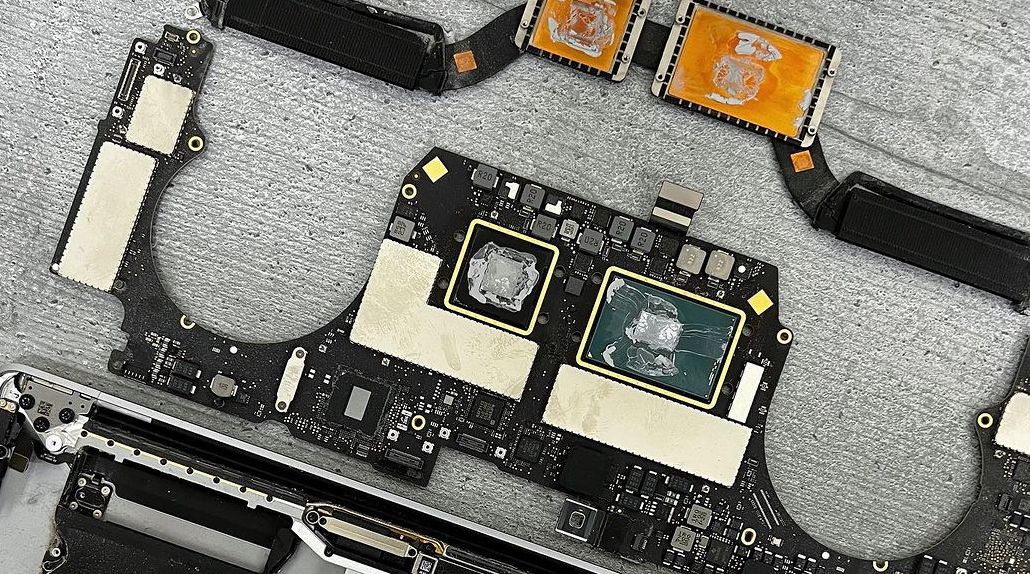
The most annoying and common problem with Apple products is moisture getting into the device. No one is immune from this, and it is very important to know what to do in such situations. If liquid gets on your MacBook, repairs, unfortunately, cannot be avoided.
The first step is to disconnect your MacBook from power and disconnect all devices. After which, it is advisable to immediately turn the open device over with the keyboard facing down to avoid liquid getting on the motherboard or screen.
Read more

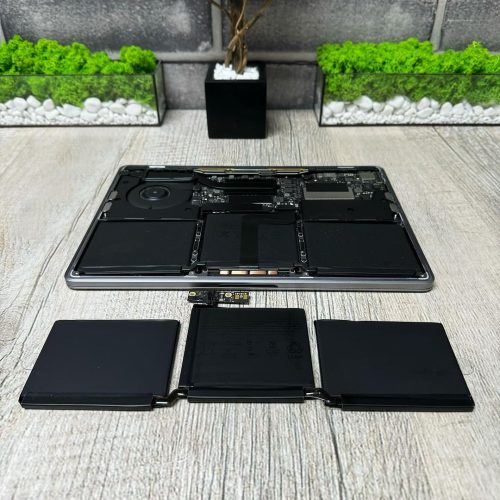
🔥 [Instructions] Replacing battery MacBook Air and Pro (A1708 and A2179)

For every person who uses Apple technology, and in particular a MacBook, it is very important that the device works properly and the battery life does not interfere with everyday activities. Apple assures that the MacBook battery is designed for 1000 full recharge cycles. Subsequently, it provides up to 80% of the original capacity. When we notice that the battery life has decreased significantly, we often do not pay attention and increasingly leave it on charge. But not everyone knows that long-term use of a MacBook with a faulty or damaged battery can negatively affect the operation of your device and lead to fraught consequences. A worn out or faulty battery can swell and damage the keyboard or touchpad on your device. Based on this, it is important to understand that it is not worth bringing the MacBook battery life to the last stage. In order to find out the number of recharge cycles on your device, you just need to go to the power properties of your MacBook.

Read more